What is Amazon S3?
Amazon Simple Storage Service (Amazon S3) is a cloud object storage service provided by Amazon Web Services (AWS). It allows organizations to securely store and manage files, documents, images, PDFs, and other data at virtually any scale.
By connecting Amazon S3 to Kiwiform, you can automatically send uploaded files and submission data directly to your own S3 bucket whenever a form is submitted. This eliminates the need for manual downloads, file transfers, or additional storage tools.
For teams already using AWS, this provides a simple way to keep form-generated content inside existing cloud infrastructure and storage workflows.

Why Use Amazon S3 with Kiwiform?
Many forms collect more than just responses. Applications, registrations, onboarding forms, intake forms, request forms, and document collection workflows often include uploaded files that need to be stored and managed properly.
Connecting Amazon S3 helps automate this process by storing submission files directly in your AWS environment.
Common benefits include:
Automatically store uploaded files
Centralize form data within AWS
Reduce manual file downloads
Organize files inside existing storage structures
Support document-heavy workflows
Simplify file management at scale
Maintain control over file storage locations
Connect form submissions with AWS-based processes
This is especially useful for teams managing high submission volumes or workflows that rely on document collection.
How Kiwiform and Amazon S3 Work Together
Once connected, Kiwiform automatically sends files and submission data to your configured Amazon S3 bucket whenever a form is submitted.
A typical workflow looks like this:
A respondent submits a form.
Uploaded files are received by Kiwiform.
Submission data is processed.
Files and selected form data are sent to Amazon S3.
Content is stored in your configured bucket structure.
This allows teams to manage form-generated files using the same AWS storage processes they already use for other business data.
How to Connect Amazon S3 to Kiwiform
Connecting Amazon S3 takes only a few minutes.
Step 1: Open Integrations
Inside Kiwiform:
Open your form
Navigate to Integrations
Locate Amazon S3
Click Connect
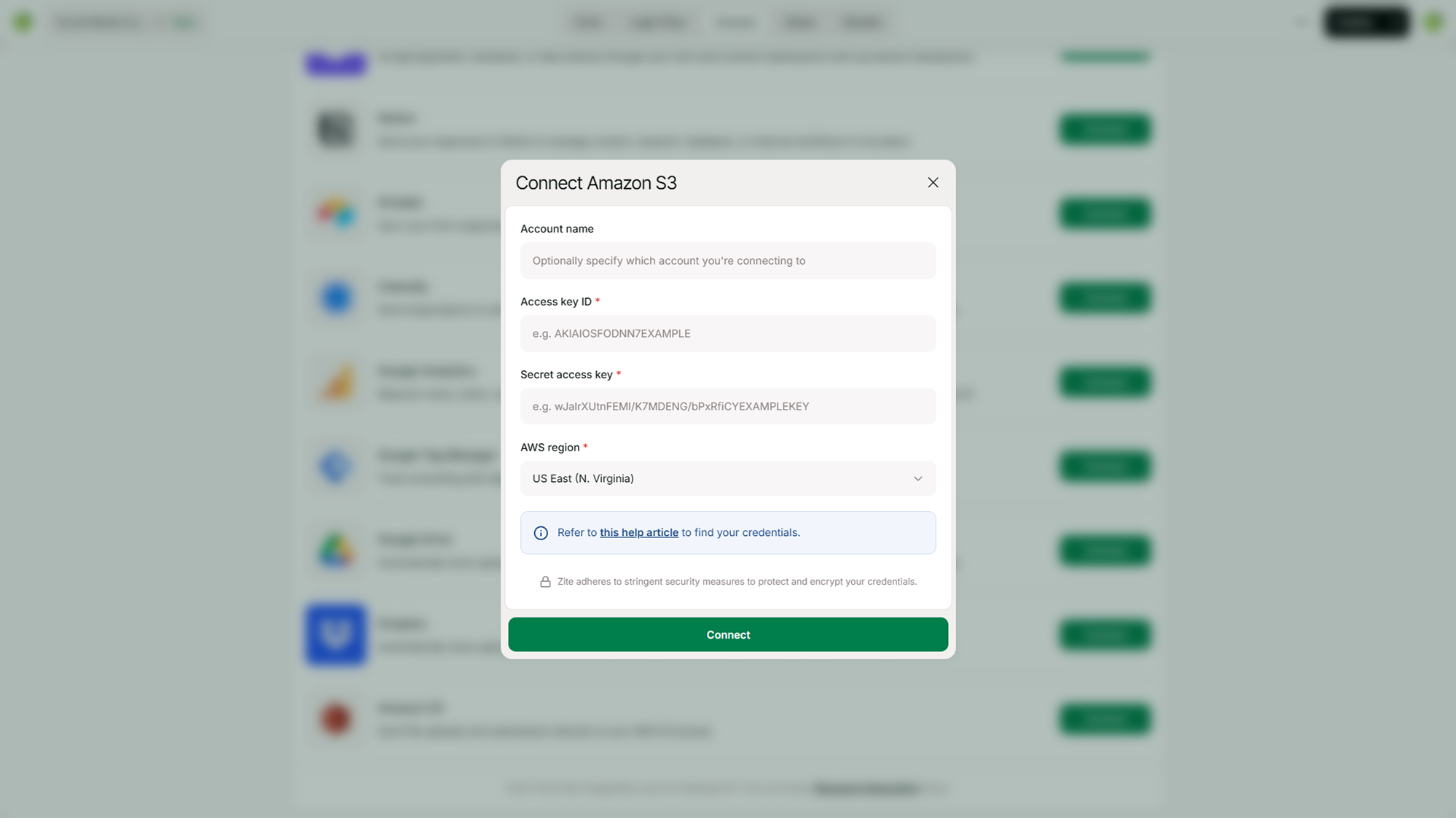
Step 2: Configure Your AWS Credentials
To connect Amazon S3, you'll need information from your AWS account.
Typical setup includes:
Access Key ID
Secret Access Key
AWS Region
Bucket Name
Enter the required information and verify the connection.
Once validated, Kiwiform can begin storing files directly inside your selected bucket.
Step 3: Select Your Storage Destination
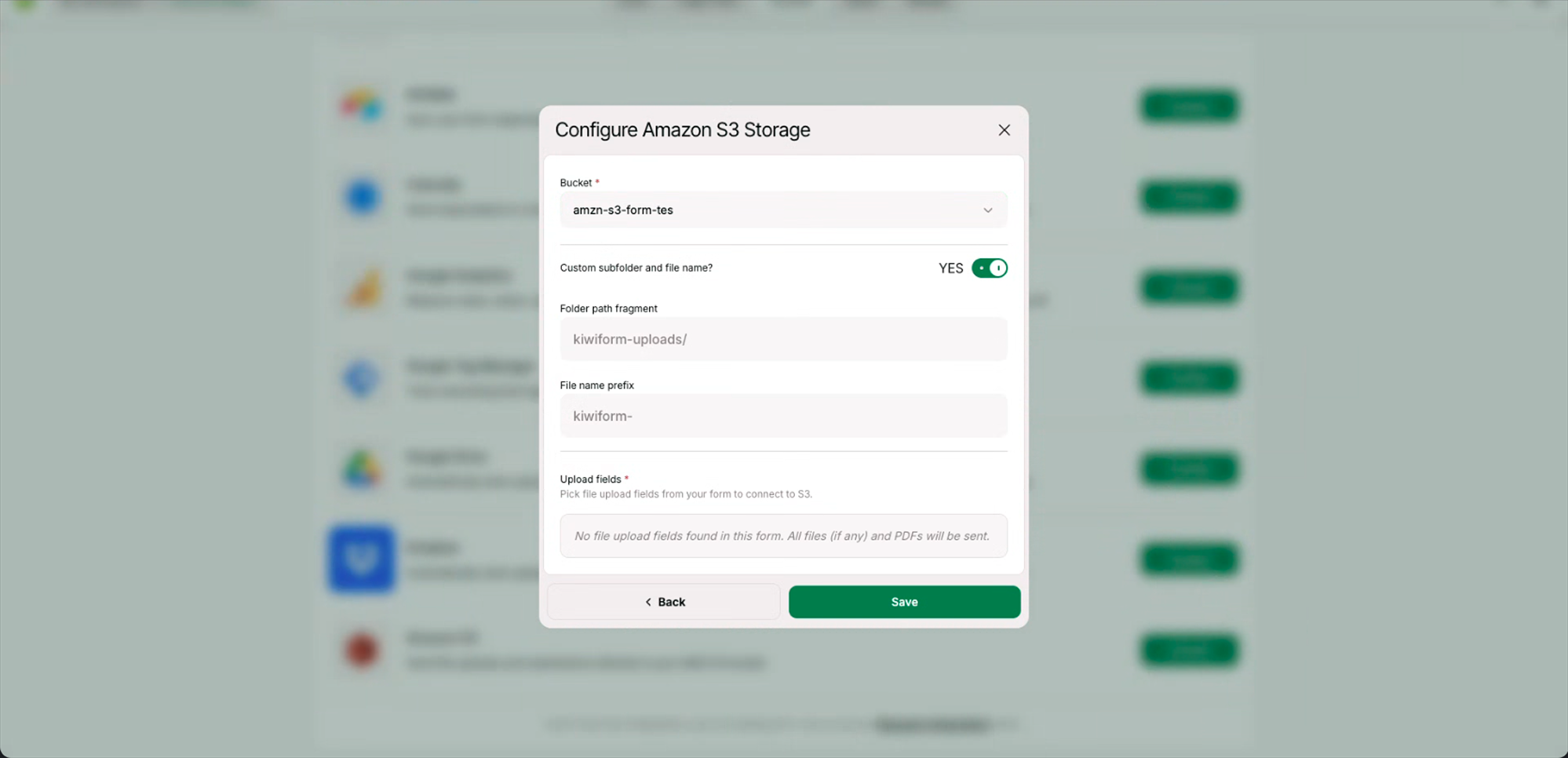
Choose the bucket where files should be stored.
Depending on your workflow, you may also configure how files are organized within your bucket structure.
Examples:
Separate folders by form
Organize by submission date
Store files inside predefined project folders
Route uploads to dedicated storage locations
Step 4: Save and Test
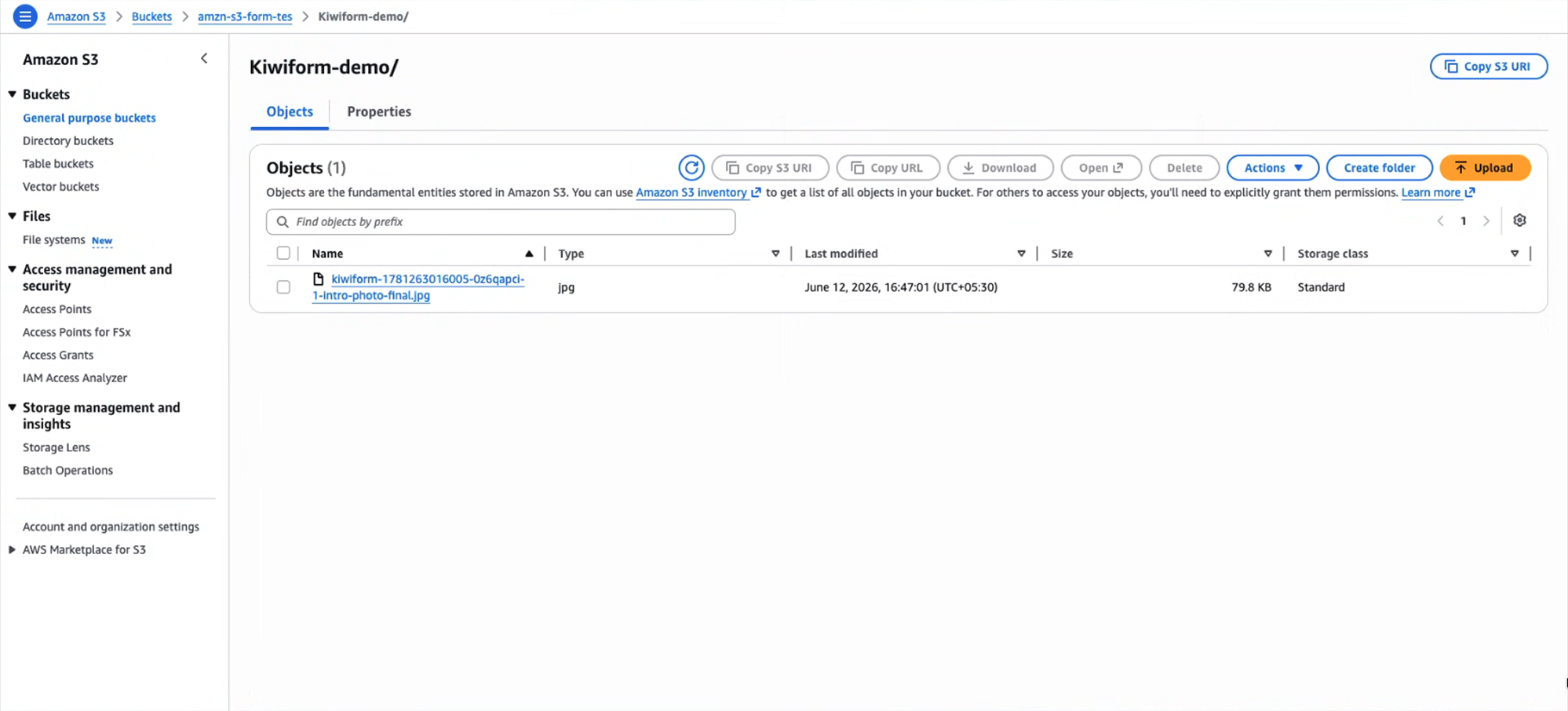
Submit a test response containing file uploads.
Verify that:
Files appear in Amazon S3
Folder structure is correct
Uploads are accessible
Naming conventions meet your requirements
Once verified, your storage workflow is ready to use.
What Gets Stored in Amazon S3?
Depending on your configuration, Kiwiform can store:
Uploaded documents
PDFs
Images
Attachments
Supporting files
Generated submission assets
Selected submission data
This allows teams to maintain a centralized repository for content collected through forms.
Popular Use Cases
Job Applications
Customer Onboarding
Document Collection
Internal Requests
Registration Workflows
Managing Your Amazon S3 Connection
You can manage your integration settings at any time.
Available actions include:
Update AWS credentials
Change storage buckets
Modify folder organization
Reconnect AWS accounts
Test storage configuration
Review upload activity
This allows teams to adapt storage workflows as requirements change.
Best Practices
To keep storage organized and easy to manage:
Use clear file naming conventions
Organize uploads into dedicated folders
Separate files by workflow when possible
Regularly review bucket permissions
Test uploads before deploying forms
Monitor storage usage inside AWS
Keep access credentials secure
Following these practices helps maintain a reliable file storage workflow.
Summary
Amazon S3 integration allows Kiwiform to automatically store uploaded files and submission data directly inside your AWS storage environment. By connecting Amazon S3, teams can simplify file collection workflows, reduce manual handling, and keep submission content organized within their existing infrastructure.