What is Trello Integration?
Trello is a visual project management and collaboration tool that helps teams organize work using boards, lists, and cards. Many teams use Trello to manage projects, track tasks, coordinate requests, and monitor workflow progress.
By connecting Trello with Kiwiform, you can automatically create Trello cards whenever someone submits a form. Instead of manually reviewing responses and creating tasks, form submissions can be routed directly into the boards and workflows your team already uses.
This helps ensure important submissions become actionable work items immediately.

Why Use Trello with Kiwiform?
Forms often collect information that requires follow-up, review, or action. Whether you're collecting customer requests, project submissions, internal tasks, applications, or feedback, someone usually needs to manage the next step.
Connecting Trello with Kiwiform helps automate this process by converting form submissions into organized cards that your team can track and manage.
Common benefits include:
Automatically create Trello cards
Reduce manual task creation
Organize submissions visually
Improve team collaboration
Track requests through workflows
Assign tasks faster
Manage project intake processes
Keep operational workflows organized
By connecting forms directly to Trello, teams can move from collecting information to taking action more efficiently.
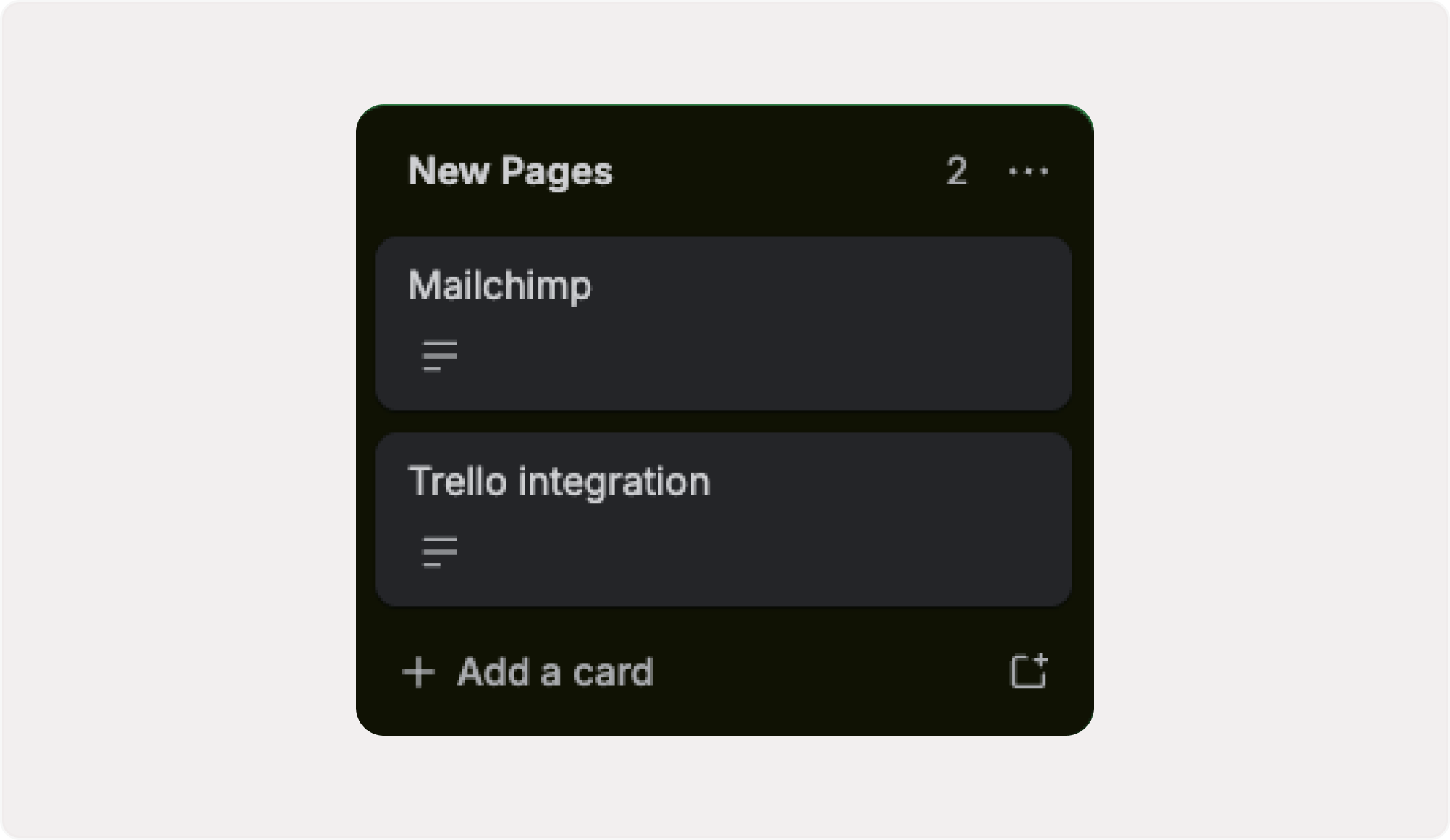
How Kiwiform and Trello Work Together
Once connected, Kiwiform can automatically create a Trello card whenever a form is submitted.
A typical workflow looks like this:
A respondent submits a form.
Kiwiform processes the submission.
Selected response data is mapped to Trello.
A new card is created in the chosen board and list.
Your team can review, assign, and manage the task.
This allows teams to automate intake workflows while keeping projects organized.
How to Connect Trello to Kiwiform
Connecting Trello only takes a few minutes.
Step 1: Open Integrations
Inside Kiwiform:
Open your form
Navigate to Integrations
Select Trello
Click Connect
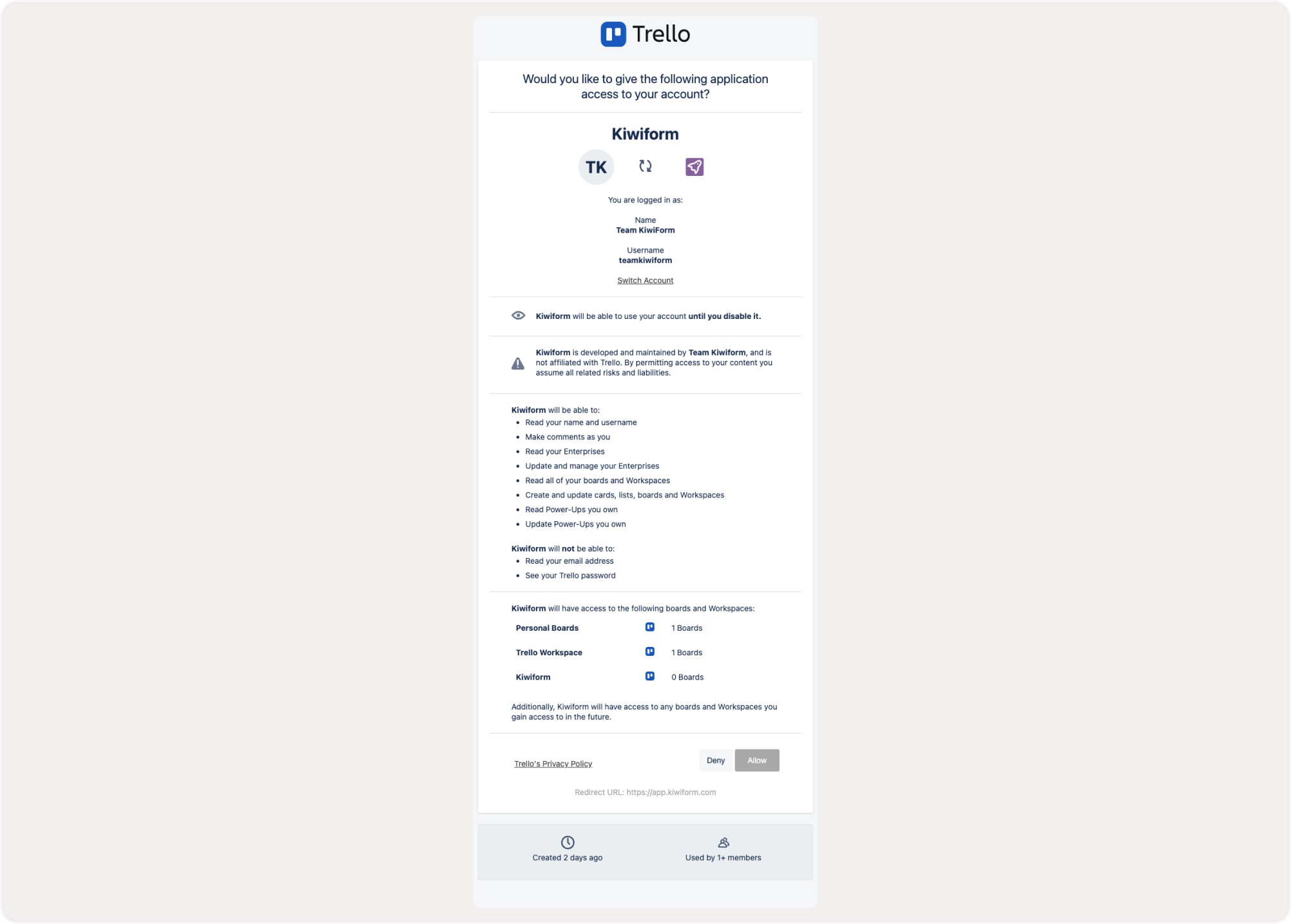
Step 2: Authorize Your Trello Account
Sign in to Trello and authorize Kiwiform to access your workspace.
After authorization:
Select the appropriate workspace
Choose the board you want to use
Confirm required permissions
Once connected, Kiwiform can create cards inside your selected Trello board.
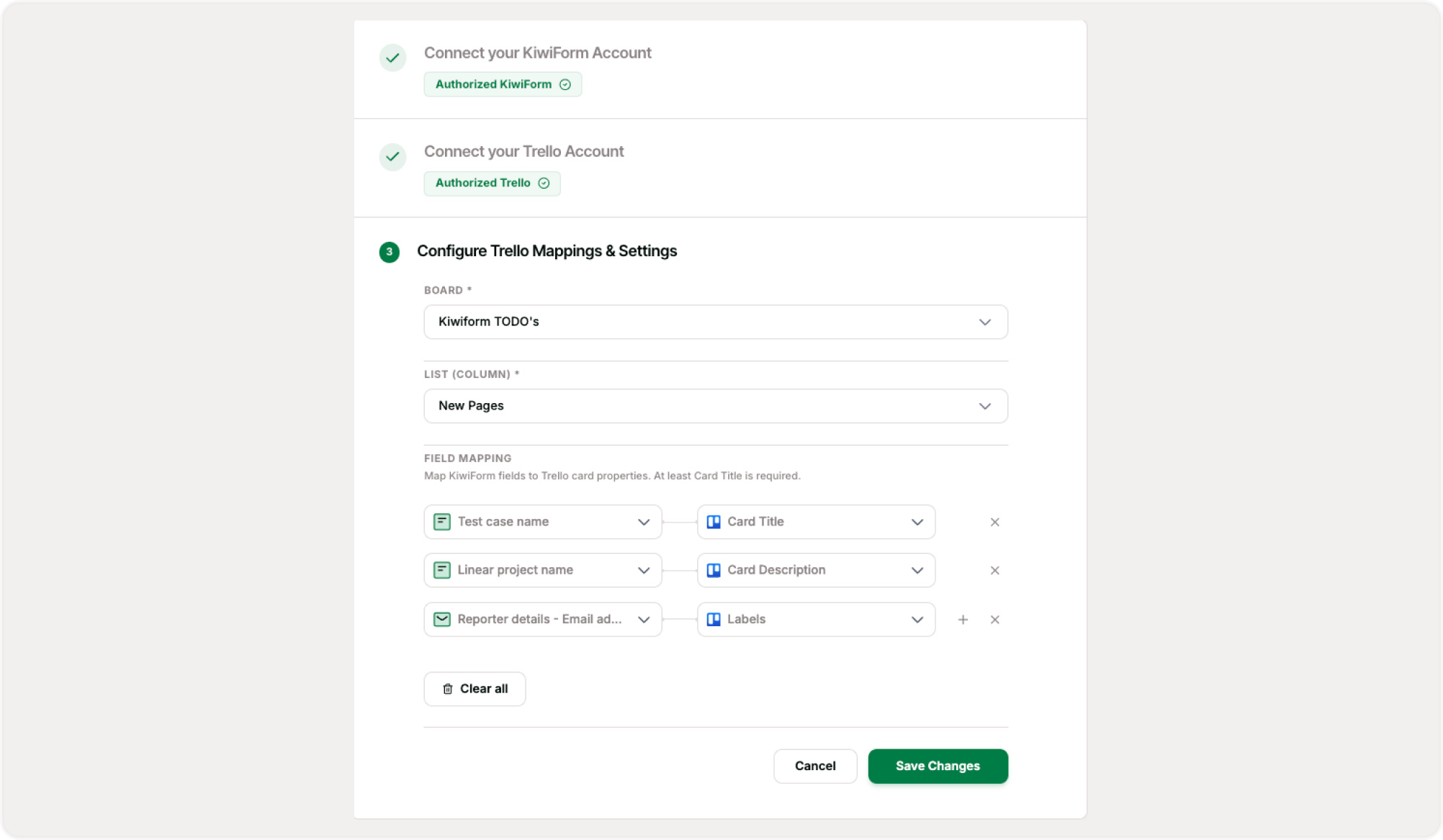
Step 3: Choose a Board and List
Select where new cards should be created.
Examples include:
New Requests
Incoming Leads
Project Intake
Support Requests
Applications
Customer Feedback
You can choose the board and list that best fits your workflow.
Step 4: Map Form Fields
Configure how submission data should appear inside Trello cards.
Common mappings include:
Card title
Card description
Contact information
Request details
Priority information
Custom form responses
This helps ensure cards contain the information your team needs to take action.
Step 5: Test Your Integration
Submit a test response and verify that:
A Trello card is created
Data appears correctly
The correct board and list are used
Team workflows operate as expected
Once verified, your integration is ready to use.
What Information Can Be Sent to Trello?
Depending on your form configuration, Trello cards can include:
Contact information
Request details
Customer feedback
Project requirements
Application information
Support requests
Internal task details
Custom form responses
Popular Use Cases:
Project Intake Forms
Support Requests
Customer Feedback
Internal Requests
Lead Management
Application Workflows
This allows teams to capture important context directly inside their workflow management system.
Best Practices
To create effective Trello workflows:
Use dedicated boards for different workflows
Create clear card naming conventions
Map important form fields into card descriptions
Use labels for categorization
Organize cards into workflow stages
Assign team members where appropriate
Test automations before publishing forms
These practices help teams stay organized and maintain visibility across projects.
Managing Your Trello Connection
You can update your Trello integration settings at any time.
Available actions include:
Reconnect your Trello account
Change boards and lists
Update field mappings
Modify card settings
Test card creation
Review integration activity
This gives teams flexibility as workflows evolve.
Summary
Trello integration helps teams automatically convert form submissions into organized Trello cards. By connecting Kiwiform with Trello, you can automate project intake, support requests, feedback collection, internal workflows, and task management while reducing manual work.
Whether you're managing projects, customer requests, applications, or operational processes, Trello helps turn form responses into actionable work that your team can track and manage efficiently.