Connect Your HubSpot Account with Kiwiform
HubSpot helps businesses manage contacts, leads, deals, and customer relationships from a single CRM. By connecting HubSpot with Kiwiform, you can automatically send form submissions into HubSpot without exporting data or manually creating records.
Whether you're collecting leads, booking consultations, qualifying prospects, running applications, or gathering customer information, the HubSpot integration ensures that every submission is sent directly to your CRM and mapped to the right properties.
This allows sales, marketing, and customer success teams to work with up-to-date information while reducing manual data entry and administrative work.
What You Can Do with the HubSpot Integration
Once connected, Kiwiform can automatically sync form responses with HubSpot and help you maintain clean, organized CRM records.
You can:
Create new HubSpot contacts from form submissions
Update existing contacts automatically
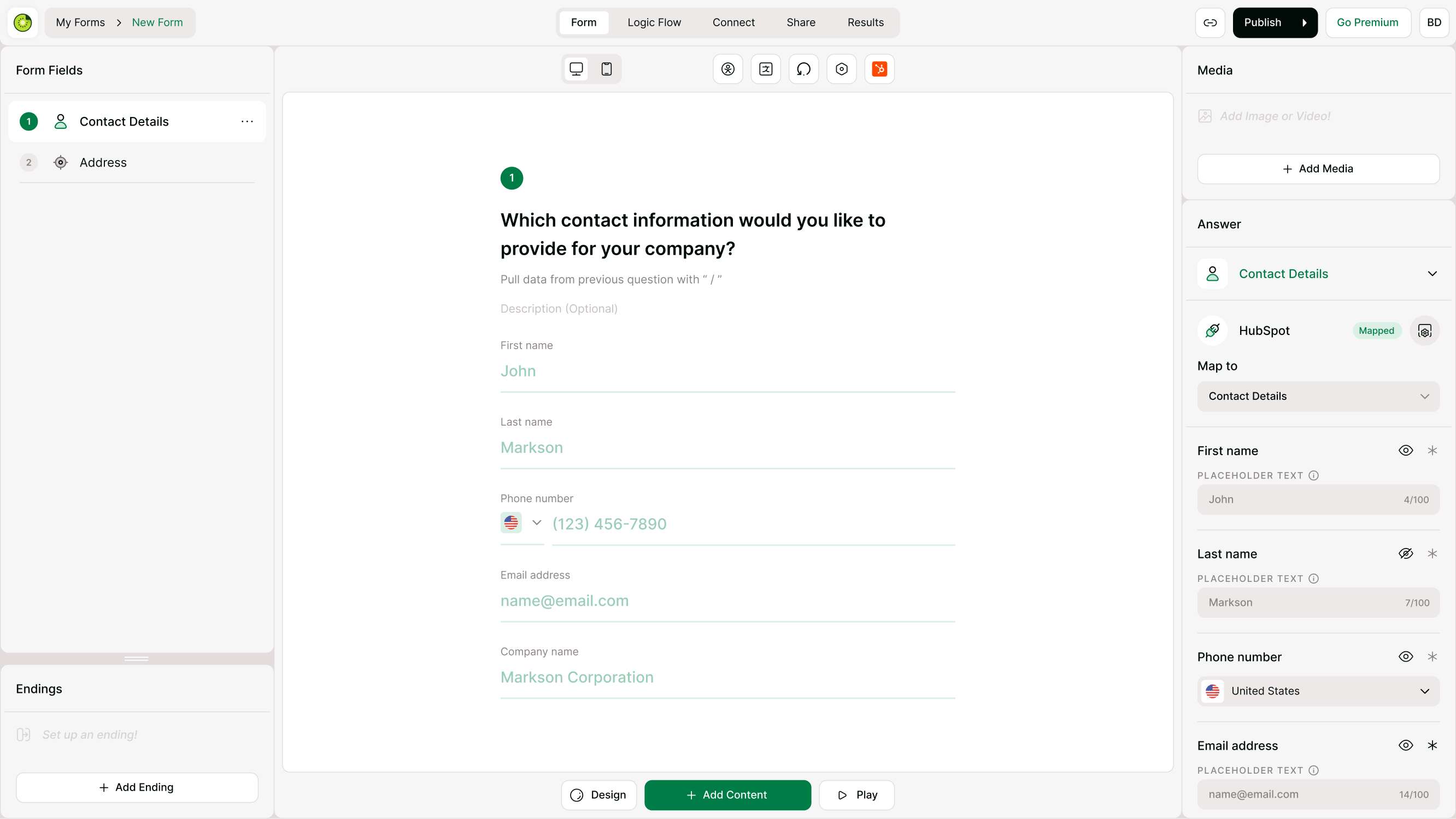
Map Kiwiform fields to HubSpot properties
Send submission data to company records
Create and update HubSpot deals
Assign deals to pipelines and stages
Match existing records using selected properties
Track lead qualification data from forms
Capture and organize CRM-ready information directly from respondents
This flexibility makes HubSpot suitable for lead generation forms, contact forms, qualification forms, applications, onboarding workflows, and sales funnels.
Before You Connect HubSpot
Before setting up the integration, make sure:
You have access to a HubSpot account
Your HubSpot account is active and authorized
Your form contains the information you want to sync
An email field is included if you want HubSpot to create contact records
You know which HubSpot properties should receive your form data
For most lead generation workflows, including an email field is recommended because it helps HubSpot identify and manage contacts more effectively.
Connect Your HubSpot Account
To connect HubSpot:
Open your form in Kiwiform.
Go to Connect.
Select HubSpot from the integrations list.
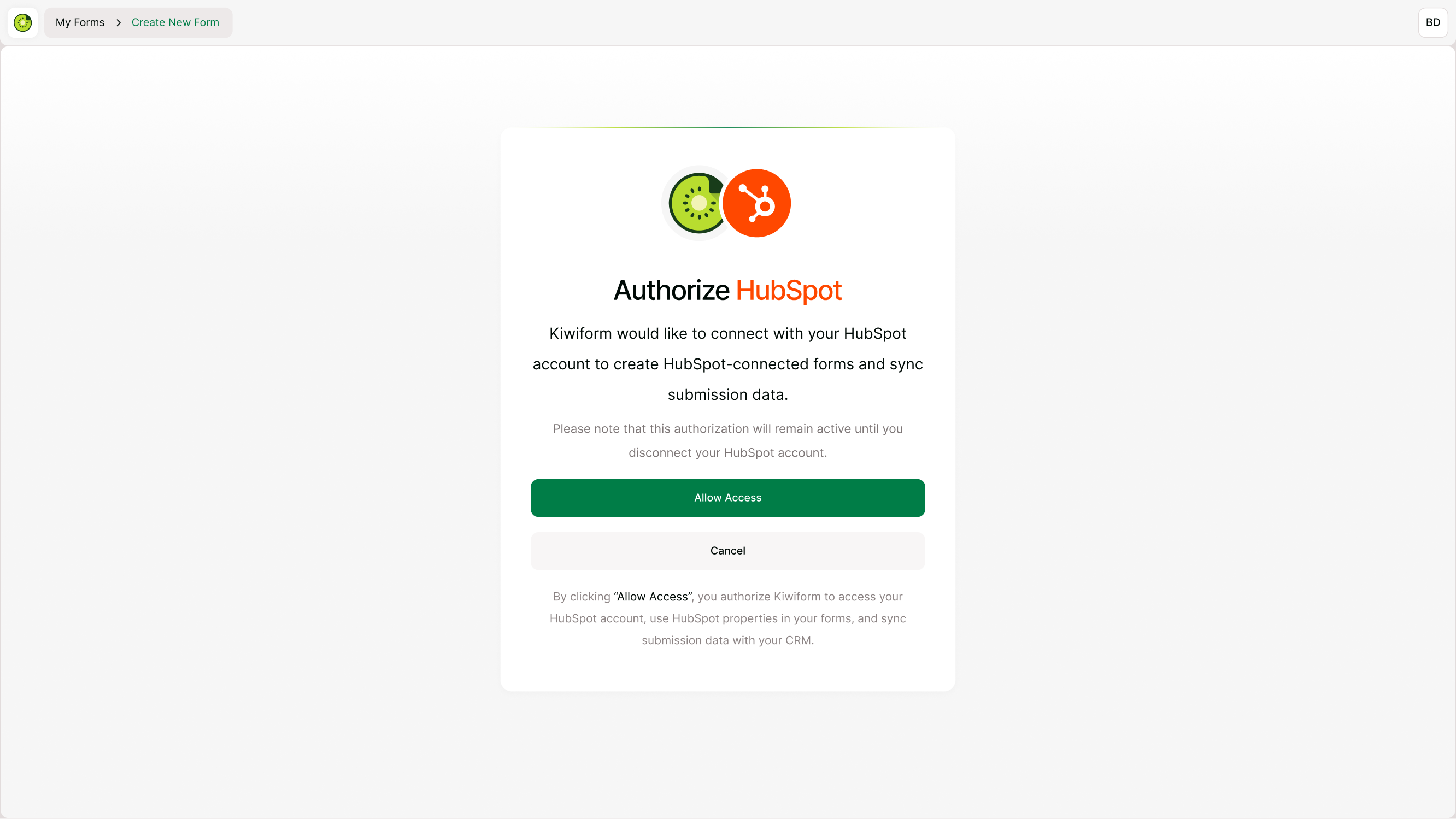
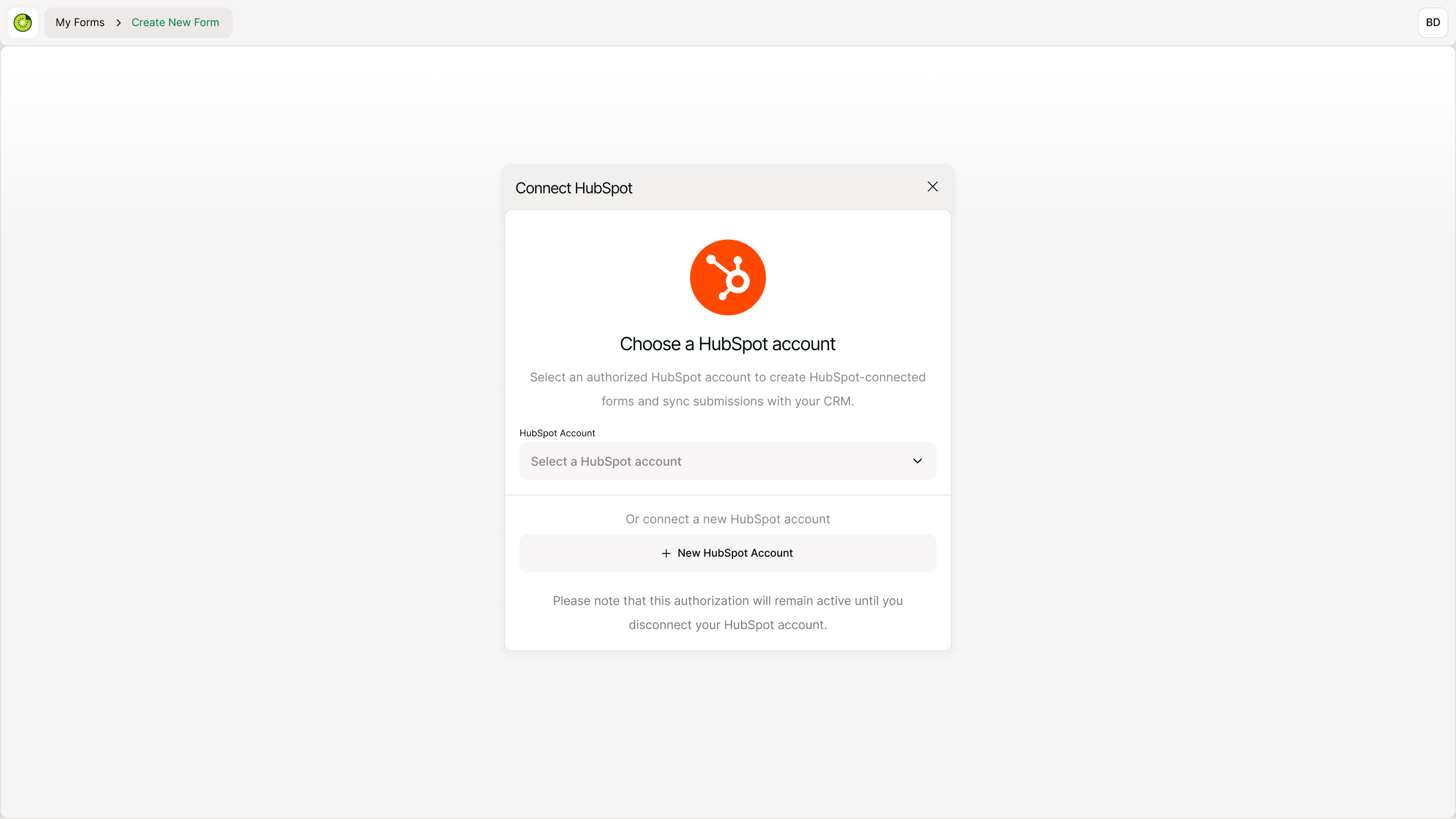
Click Connect HubSpot.
Choose an existing HubSpot account or connect a new account.
Authorize Kiwiform to access your HubSpot workspace.
Save your settings.
Once connected, your form is ready for property mapping and CRM synchronization.
Create HubSpot-Connected Forms
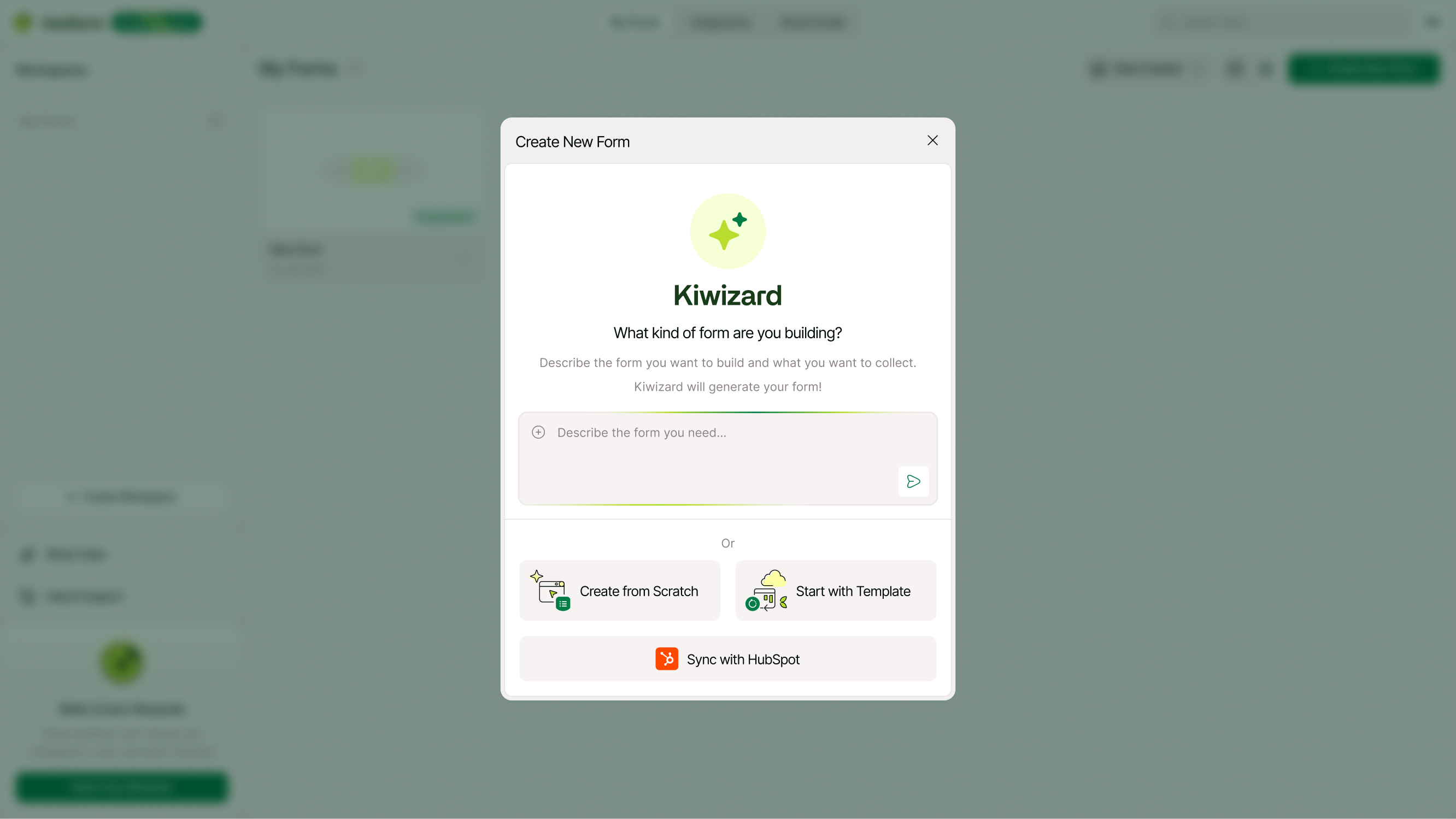
Kiwiform supports HubSpot-connected forms that can work directly with HubSpot properties.
When creating a form, you can choose Sync with HubSpot and build forms using fields that are designed to work with HubSpot contact and CRM properties.
This makes it easier to collect structured data that fits naturally into your CRM and reduces the need for manual mapping later.
Common examples include:
Contact information
Company details
Lead qualification data
Revenue information
Industry information
Job roles and departments
Location data
Custom CRM properties
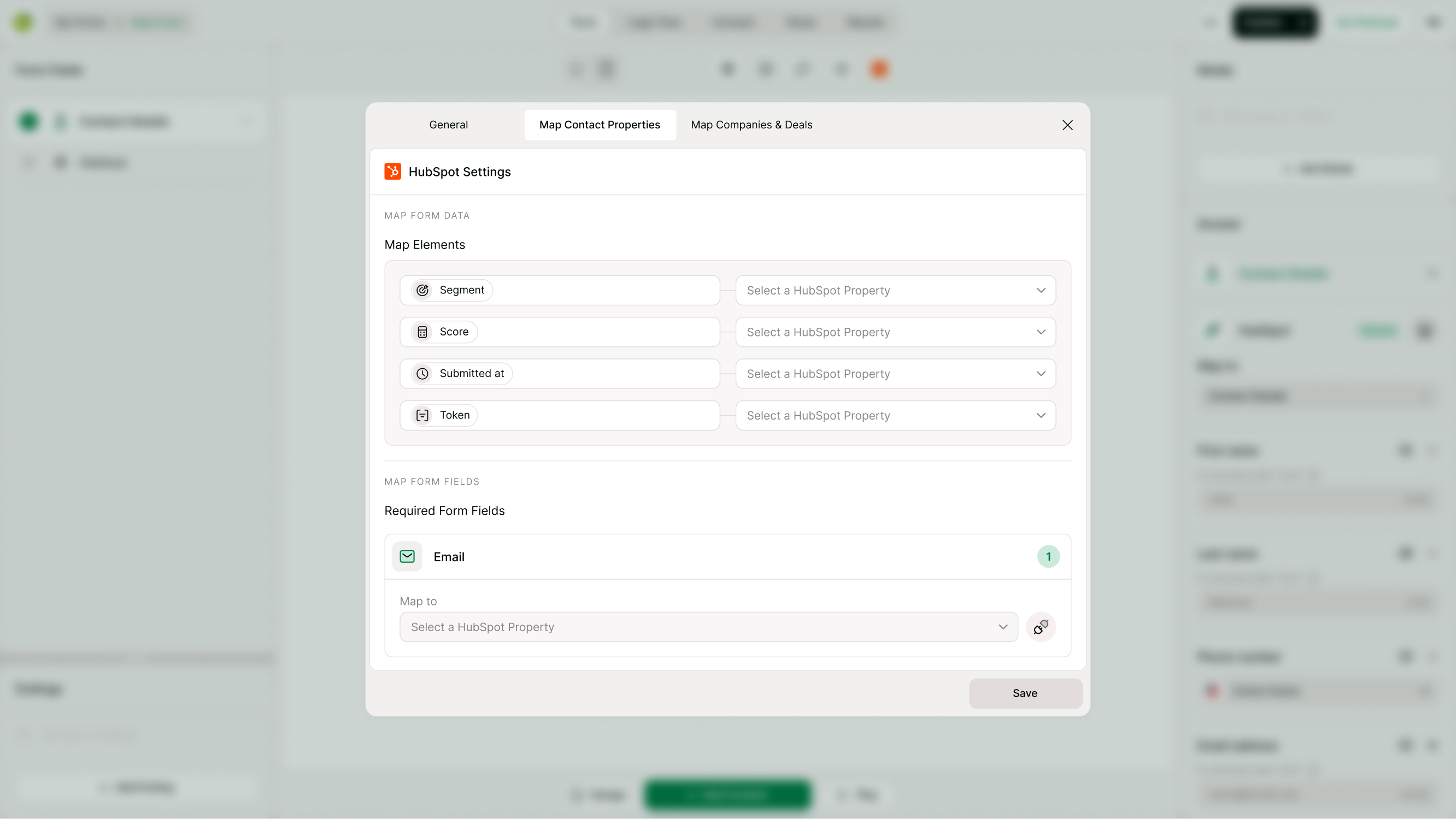
Map Contact Properties
Contact property mapping determines where form responses are stored inside HubSpot.
You can connect Kiwiform fields to HubSpot contact properties so every submission updates the correct CRM fields.
Examples include:
| Kiwiform Field | HubSpot Property |
|---|---|
| First Name | First Name |
| Last Name | Last Name |
| Email Address | |
| Company Name | Company Name |
| Phone Number | Phone Number |
| Industry | Industry |
| Job Title | Job Title |
This allows your CRM to stay organized and ensures your team always works with consistent data.
Map Choice-Based Answers
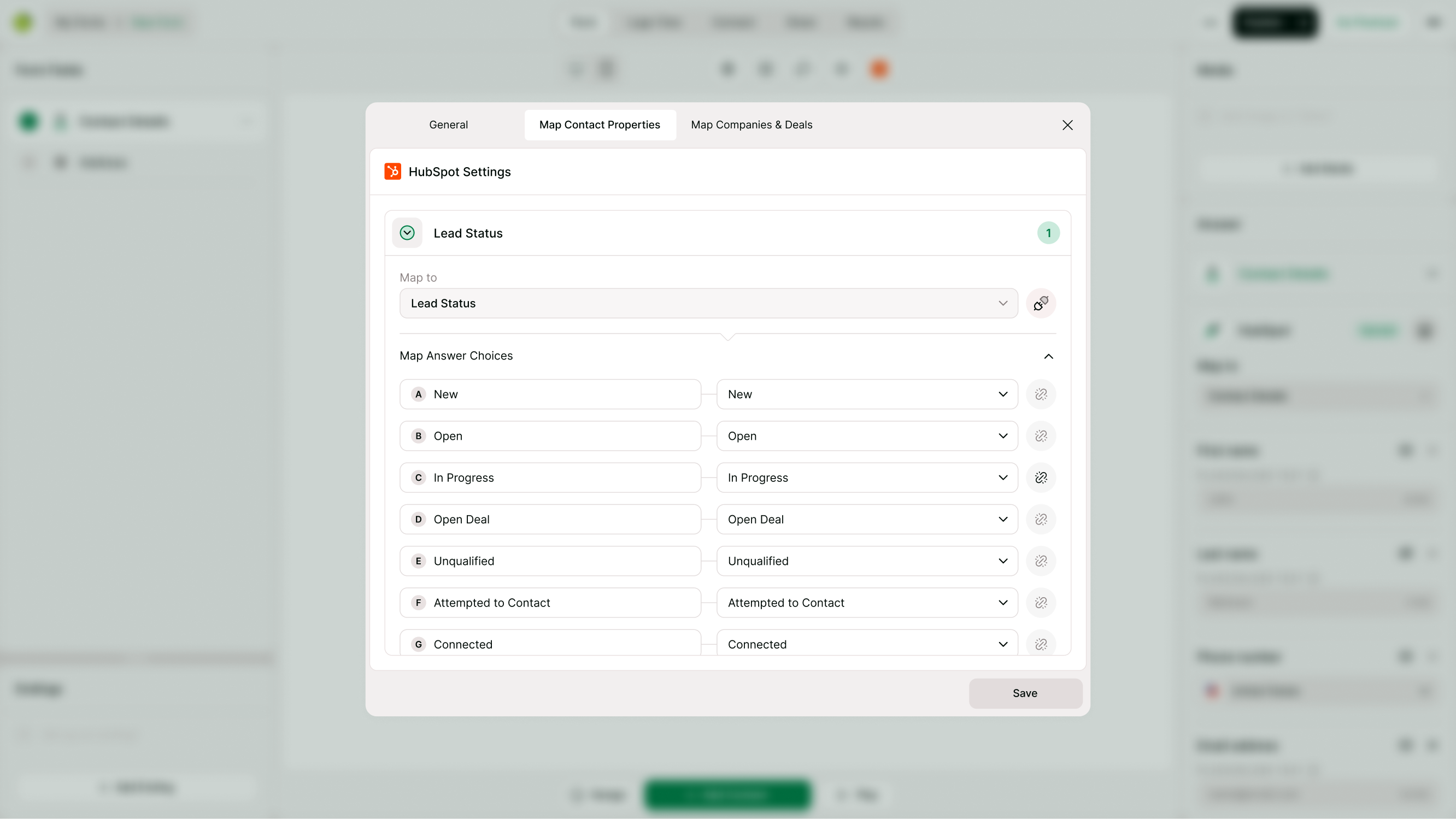
Many forms use dropdowns, multiple-choice questions, rating questions, or qualification questions.
With HubSpot mapping, you can connect answer choices from Kiwiform to specific HubSpot property values.
For example:
| Form Answer | HubSpot Value |
|---|---|
| New | New |
| Open | Open |
| Qualified | Qualified |
| Customer | Customer |
This helps standardize data and keeps CRM records consistent regardless of how respondents answer questions.
Create and Manage Companies
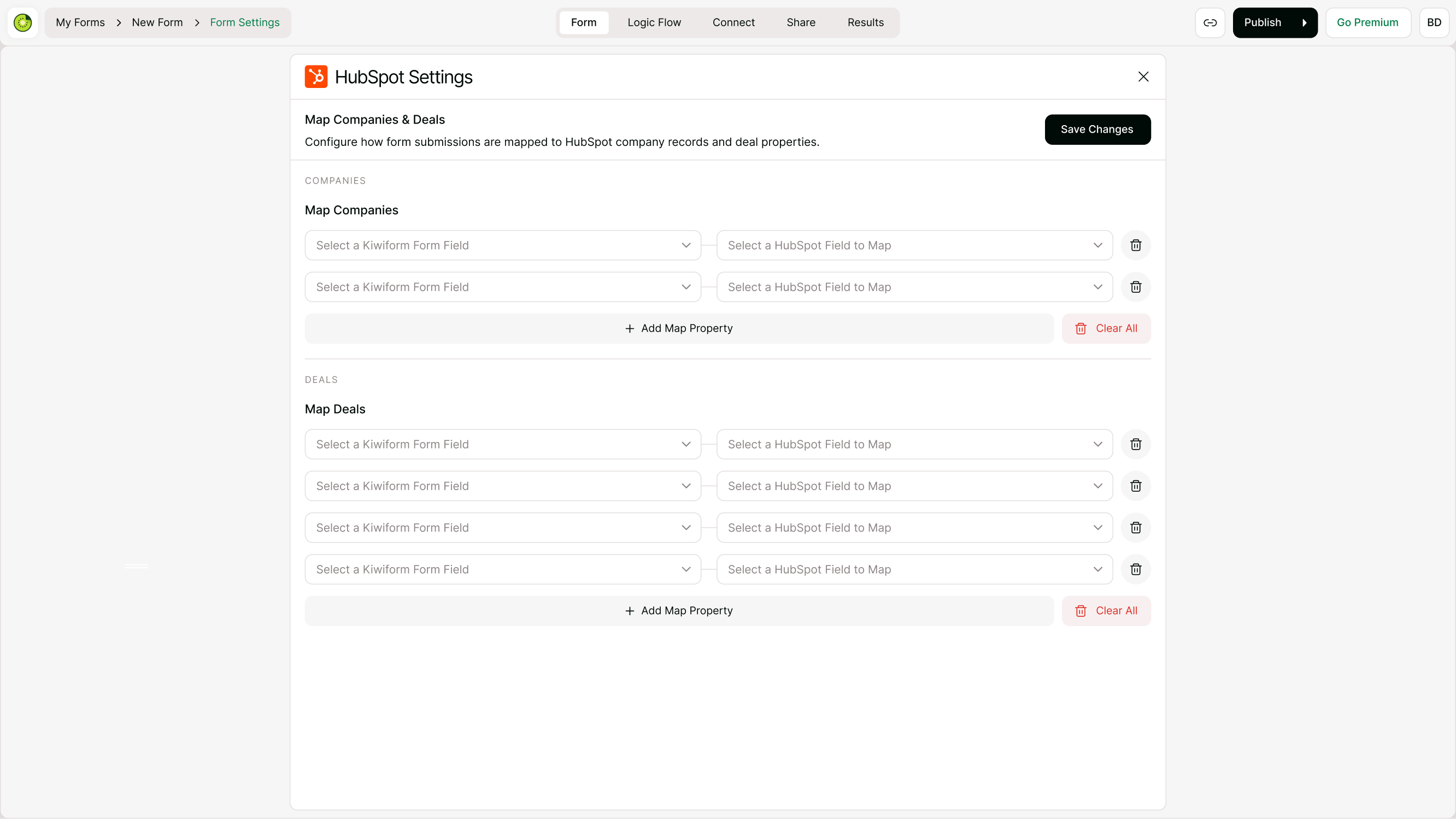
In addition to contacts, Kiwiform can send information to HubSpot company records.
You can map form fields to company properties such as:
Company Name
Industry
Website
Company Size
Annual Revenue
Number of Employees
Location Information
This is useful for B2B lead generation forms, partnership applications, sales qualification forms, and account-based marketing workflows.
Create and Manage Deals
Kiwiform can also create HubSpot deal records from form submissions.
This allows sales teams to automatically move qualified submissions into sales pipelines without manual CRM entry.
You can map deal-related information such as:
Deal Name
Revenue
Budget
Opportunity Type
Lead Source
Qualification Information
Custom Deal Properties
Every new submission can immediately become an actionable opportunity for your sales team.
Assign Deals to Pipelines and Stages
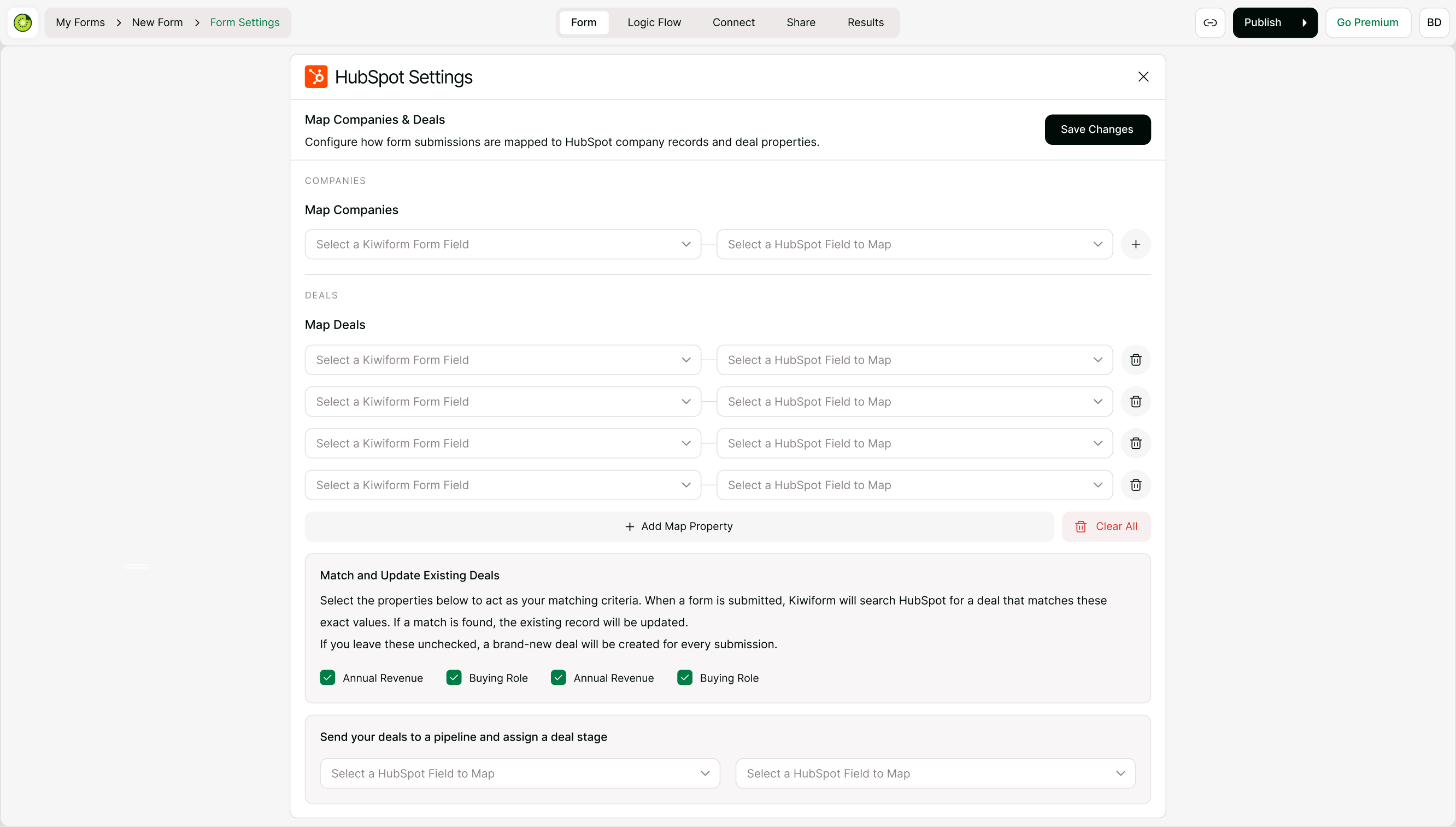
When creating deals, you can automatically send them into specific pipelines and stages.
Examples include:
New Lead
Discovery
Qualified Opportunity
Proposal Sent
Negotiation
Closed Won
Closed Lost
This ensures your sales workflow stays organized and every submission enters the correct process automatically.
Update Existing Contacts Automatically
Instead of creating duplicate records, Kiwiform can update existing HubSpot contacts when matching properties are found.
You can choose matching criteria based on selected HubSpot properties.
Common matching properties include:
Email Address
Company Name
Phone Number
Custom CRM Identifiers
When a matching record exists, HubSpot updates the existing contact instead of creating a new one.
This helps maintain a clean CRM and prevents duplicate records.
Match and Update Existing Deals
For deal management workflows, Kiwiform can search HubSpot for matching deals using selected properties.
If a matching deal is found, the existing record can be updated with new information from the submission.
This is especially useful for:
Customer onboarding forms
Sales progression updates
Partner applications
Account management workflows
Renewal requests
It ensures that ongoing conversations remain connected to existing opportunities.
Track Submission Source Information
You can also enable respondent source tracking to send attribution information into HubSpot.
When enabled, HubSpot can receive source and attribution data from your forms, helping teams understand where leads originate.
This can be useful for:
Marketing attribution
Campaign analysis
Lead source reporting
Conversion tracking
Funnel optimization
Understanding where leads come from helps improve acquisition strategies and marketing performance.
Common HubSpot Integration Use Cases
Lead Generation
Sales Qualification
Consultation Requests
Customer Onboarding
Partner Applications
Marketing Campaigns
Best Practices
To get the most from the HubSpot integration:
Always include an email field for contact-based workflows
Map fields carefully before publishing forms
Use standardized property values where possible
Enable contact matching to reduce duplicates
Organize deal stages before creating automation workflows
Test submissions before launching forms publicly
Review mappings when new HubSpot properties are added
Following these practices helps maintain accurate CRM data and smoother automation workflows.
Summary
The HubSpot integration allows Kiwiform to work directly with your CRM, helping you create contacts, update records, manage companies, create deals, assign pipeline stages, and keep customer information synchronized automatically.
By connecting HubSpot with Kiwiform, teams can reduce manual CRM work, improve lead management, and ensure every form submission becomes actionable data inside HubSpot.