What Is HubSpot Contact Sync?
HubSpot Contact Sync allows Kiwiform to create new contacts and update existing contact records whenever someone submits a form. Instead of manually exporting responses or copying data between systems, contact information can be sent directly into HubSpot and organized using your existing CRM properties.
This helps teams manage leads, customer inquiries, registrations, applications, and other contact-based workflows while ensuring information stays consistent between Kiwiform and HubSpot.

When Should You Use HubSpot Contact Sync?
HubSpot Contact Sync is useful whenever form submissions need to become CRM records automatically.
Common use cases include:
Lead generation forms
Contact us forms
Demo request forms
Consultation booking forms
Newsletter signup forms
Event registration forms
Customer onboarding forms
Partner and vendor applications
When a submission is received, Kiwiform can create a new HubSpot contact or update an existing one based on your synchronization settings.
Before You Begin
Before configuring contact synchronization, make sure:
Your HubSpot account is connected to Kiwiform.
You have created a HubSpot-connected form.
Your form contains an Email field.
The contact properties you want to use already exist in HubSpot.
The Email field is particularly important because it is commonly used to identify and match contacts during synchronization.
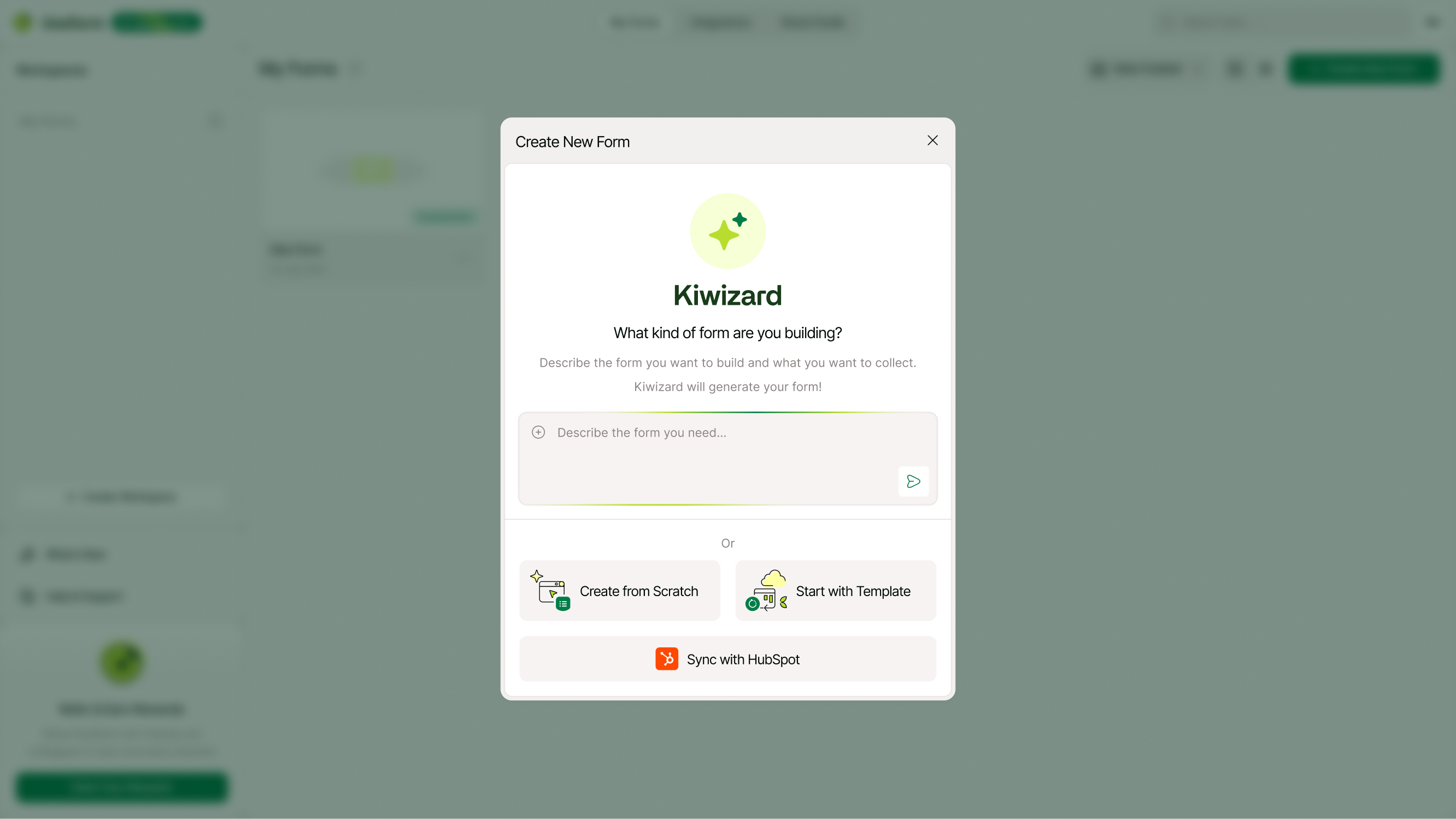
Create a HubSpot-Connected Form
To synchronize contacts, start by creating a HubSpot-connected form.
Create a new form in Kiwiform.
Select Sync with HubSpot during form creation.
Choose the HubSpot account you want to connect.
Add the fields you want respondents to complete.
Publish your form.
Once published, form submissions can be synchronized directly with HubSpot according to your contact settings.
Create New HubSpot Contacts
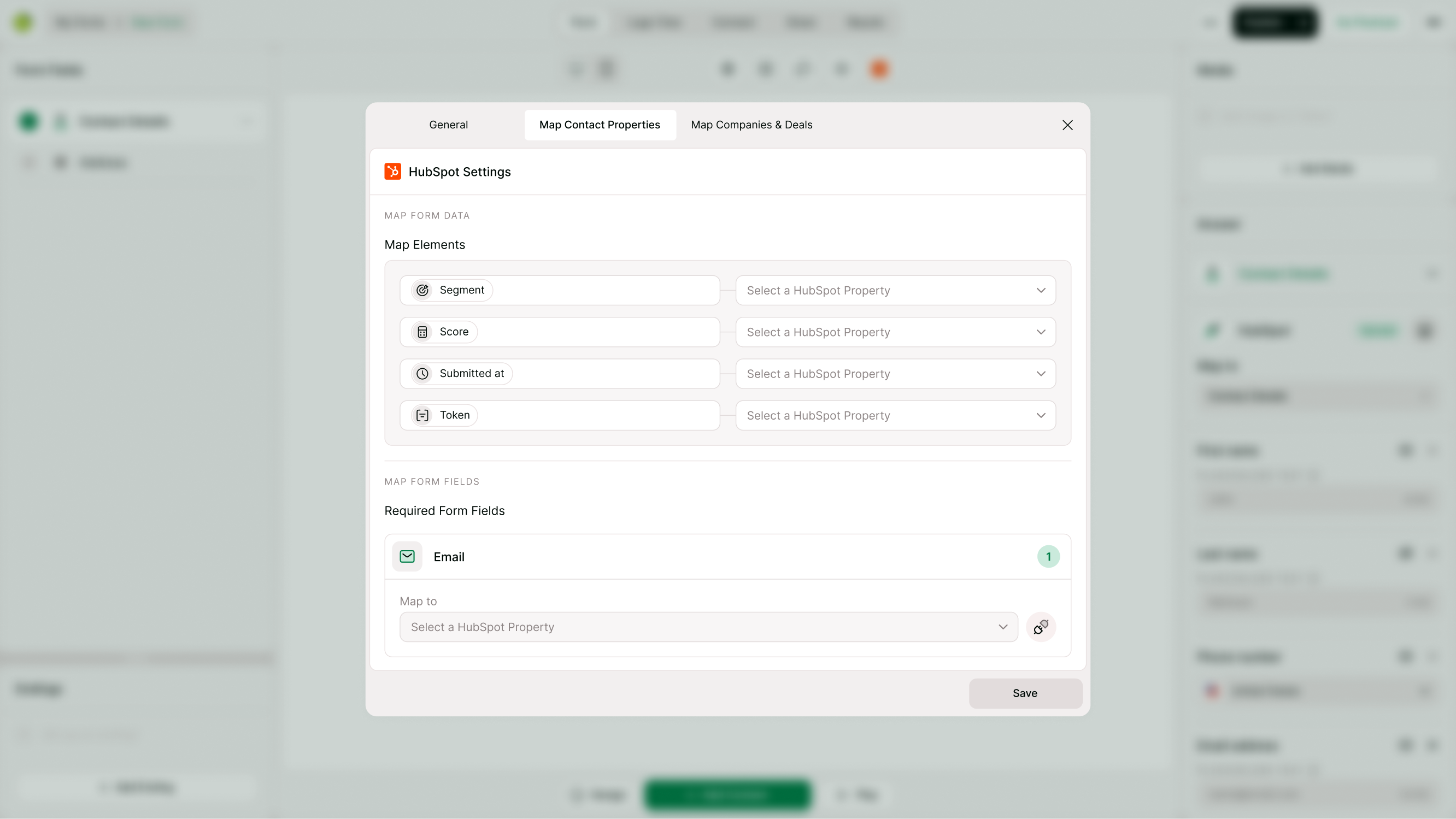
When a respondent submits a form, Kiwiform can automatically create a new contact record in HubSpot using the information collected in the form.
Each mapped field can be stored in the corresponding HubSpot contact property, helping your team capture lead and customer information without manual entry.
This is the most common setup for lead generation and contact collection workflows.
Update Existing HubSpot Contacts
In many cases, you may want to update an existing contact instead of creating a duplicate record.
Kiwiform can compare form submissions with existing HubSpot contacts and update matching records when a contact already exists. This helps keep contact information accurate while reducing duplicate entries in your CRM.
For example, a customer can submit a profile update form and have their existing HubSpot contact record updated automatically.

Match Existing Contacts
HubSpot Contact Sync supports contact matching to determine whether a submission should create a new contact or update an existing one.
Matching typically uses identifying information such as email addresses to find existing records before synchronization occurs.
Using contact matching helps maintain cleaner CRM data and ensures customer information remains consolidated within a single contact record.
Track Respondent Sources
You can also track where contacts originate by storing respondent source information in HubSpot.
This makes it easier to understand which forms, campaigns, landing pages, or traffic sources are generating leads and customer inquiries.
Source tracking can improve reporting, attribution, and lead management processes across marketing and sales teams.
Best Practices for Contact Synchronization
To improve contact quality and maintain accurate CRM records:
Always include an Email field in contact forms.
Map form fields to the correct HubSpot properties.
Review synchronization settings before publishing forms.
Test contact creation using sample submissions.
Use contact matching to reduce duplicate records.
Keep HubSpot properties organized and up to date.
Following these practices helps ensure reliable synchronization and cleaner customer data.
Common Contact Sync Workflows
Many teams use HubSpot Contact Sync for:
Lead Generation
Contact Requests
Newsletter Signups
Event Registrations
Customer Updates
Applications and Registrations
Troubleshooting Contact Sync Issues
If contacts are not syncing as expected:
Verify that HubSpot is connected.
Confirm the Email field is collecting valid values.
Check contact property mappings.
Review synchronization settings.
Submit a test response to verify contact creation.
Confirm that HubSpot permissions allow contact updates.
Most synchronization issues can be resolved by reviewing connection settings and property mappings.
Summary
HubSpot Contact Sync allows Kiwiform to automatically create and update HubSpot contacts whenever someone submits a form. By connecting form submissions directly to your CRM, you can streamline lead collection, maintain accurate contact records, reduce administrative work, and ensure customer information remains up to date across your sales and marketing workflows. Whether you're capturing new leads, managing subscribers, onboarding customers, or collecting registrations, HubSpot Contact Sync helps turn form responses into organized CRM records automatically.