What Are HubSpot-Powered Forms?
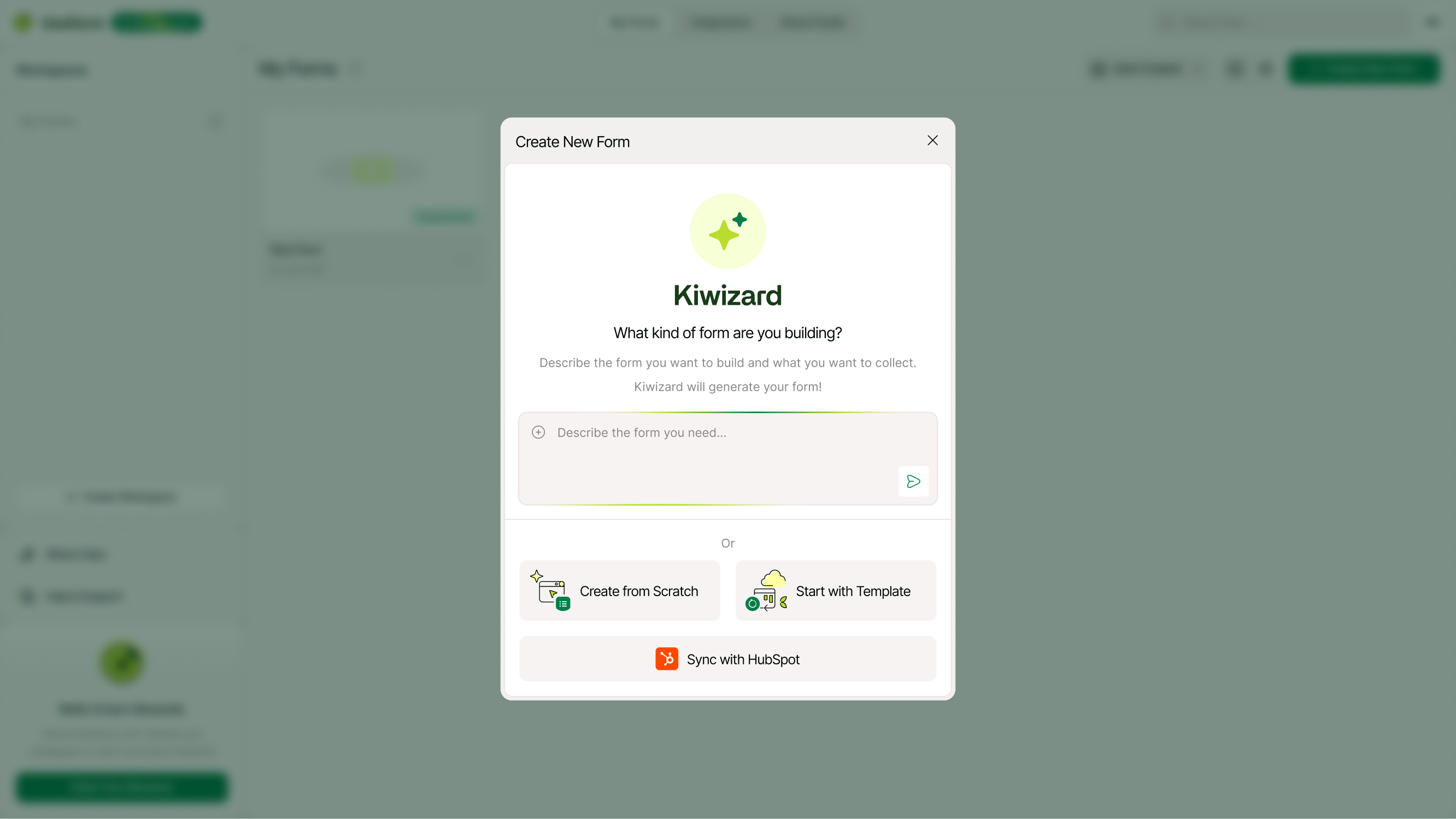
HubSpot-powered forms are forms created using Kiwiform's Sync with HubSpot workflow. Unlike standard forms, these forms are designed to send submission data directly to HubSpot, allowing you to create contacts, update existing records, manage companies, create deals, and support CRM-driven workflows automatically.
By connecting your forms to HubSpot from the start, you can reduce manual work, improve data accuracy, and ensure important customer information reaches the right CRM records as soon as a form is submitted.
Why Use HubSpot-Powered Forms?
Many organizations collect information through forms but then spend additional time manually entering data into their CRM.
HubSpot-powered forms eliminate this extra step by connecting form submissions directly to HubSpot. This helps teams respond faster to leads, maintain cleaner records, automate CRM updates, and improve visibility across sales, marketing, and customer success operations.
Whether you're collecting leads, managing registrations, qualifying prospects, or capturing business opportunities, HubSpot-powered forms help turn submissions into actionable CRM data automatically.
Before You Begin
Before creating a HubSpot-powered form, make sure:
Your HubSpot account is connected to Kiwiform.
You have permission to access and update HubSpot records.
Required HubSpot properties already exist.
Your CRM structure is configured correctly.
You know which synchronization workflow you want to use.
Planning your CRM structure before building forms can help create a smoother synchronization experience.
Create a HubSpot-Powered Form
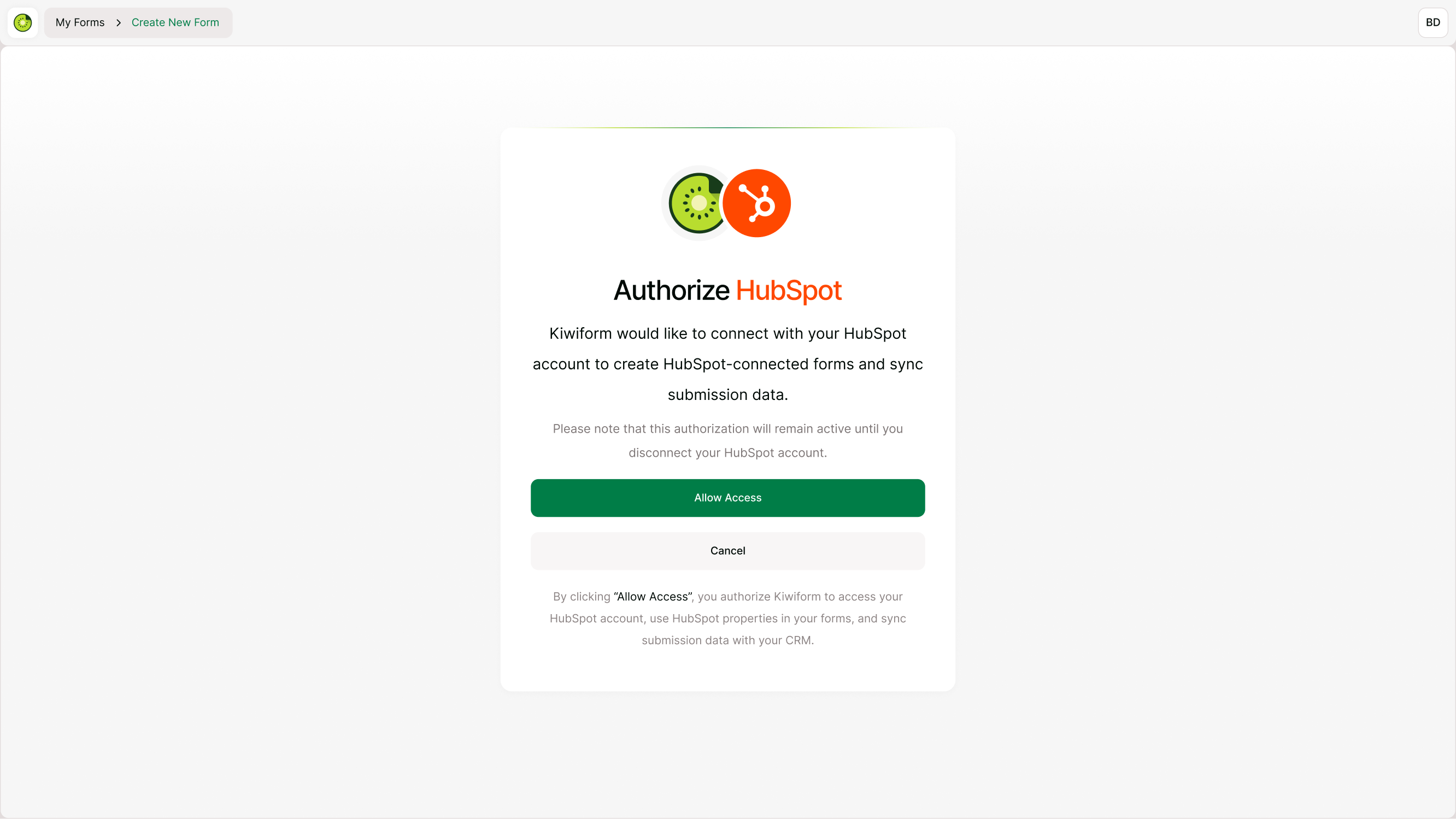
Creating a HubSpot-powered form starts when you create a new form in Kiwiform.
To get started:
Click Create Form.
Select Sync with HubSpot.
Choose the HubSpot account you want to connect.
Add your questions and fields.
Configure synchronization settings.
Publish your form.
Once published, submissions can automatically synchronize with HubSpot based on your selected configuration.
Choose the Right HubSpot Workflow
HubSpot-powered forms can support different CRM workflows depending on your goals.
You can use forms to:
Create and update contacts
Synchronize contact information
Map form data to HubSpot properties
Create companies
Create deals
Assign pipelines and stages
Support sales and marketing processes
Selecting the appropriate workflow before publishing helps ensure submission data is stored correctly and routed to the right CRM records.
Configure Contact Synchronization
Many HubSpot-powered forms focus on contact management.
You can configure forms to create new contacts, update existing records, match contacts using existing HubSpot data, and track respondent sources. This makes it easier to manage leads, subscribers, applicants, customers, and other contact-based workflows.
Configure Property Mapping
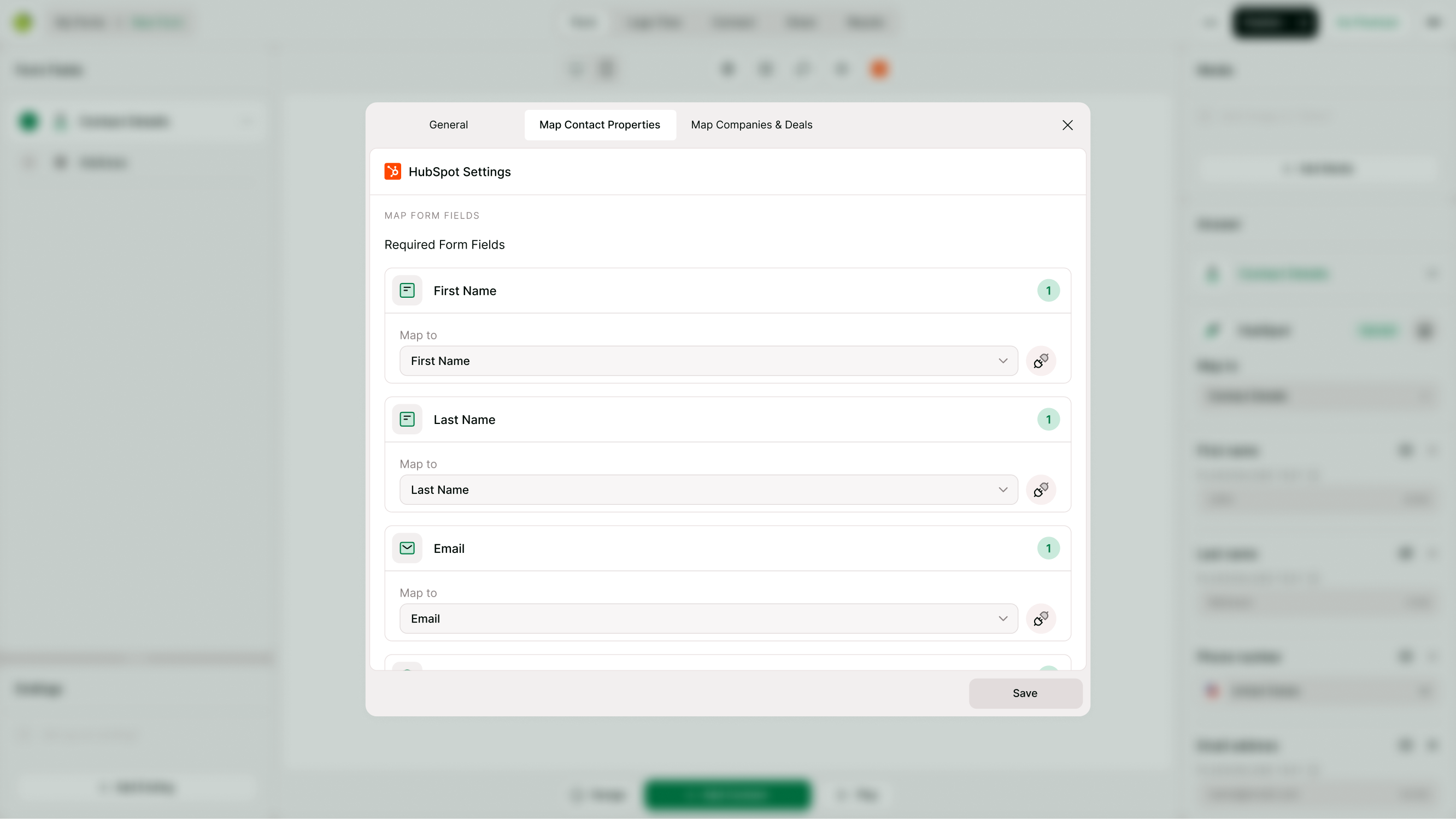
Property mapping determines where form answers are stored within HubSpot.
By mapping fields to HubSpot properties, you can ensure information is stored consistently and remains useful for reporting, automation, segmentation, and customer management workflows.
Property mapping also supports custom HubSpot properties and choice-based field mapping.
Configure Companies and Deals
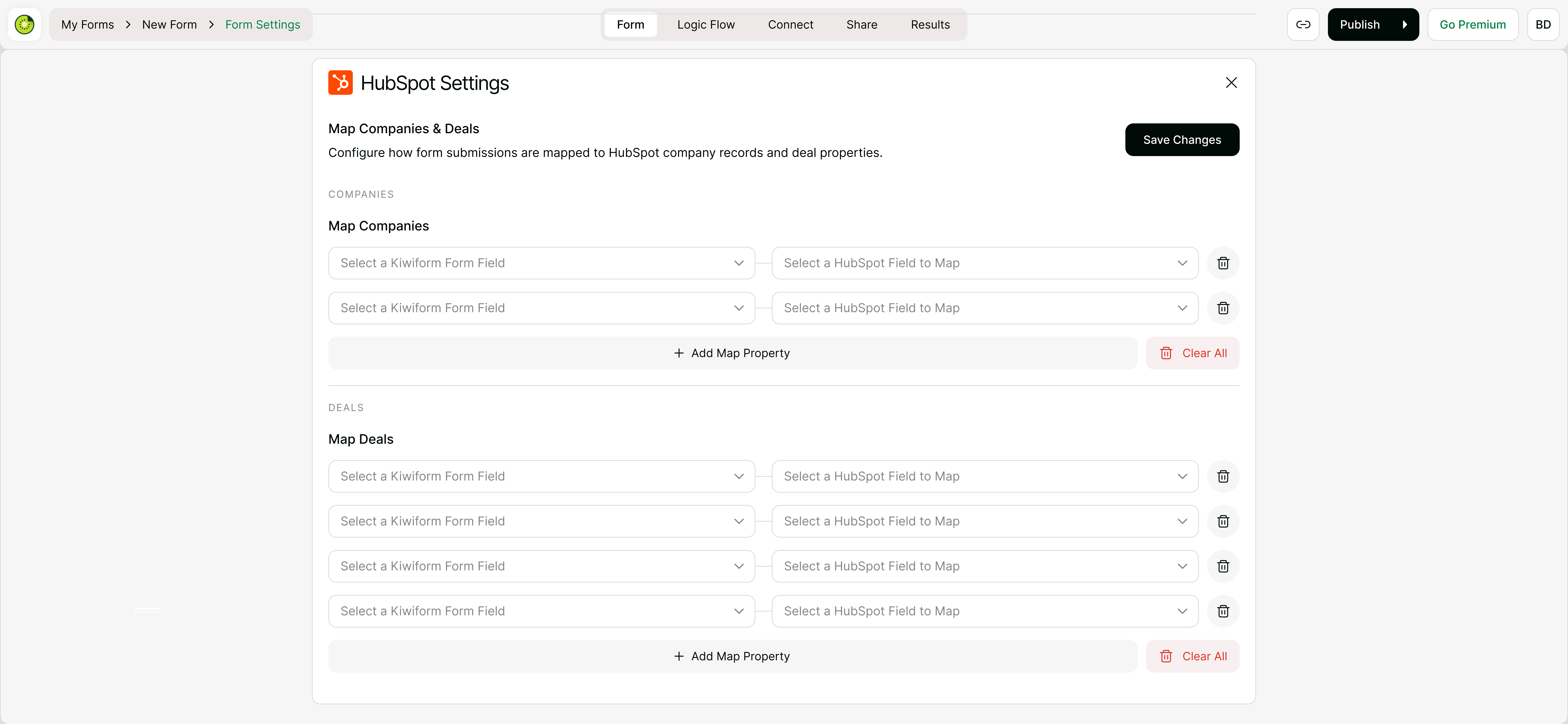
For sales-focused workflows, HubSpot-powered forms can create and manage company and deal records.
This is useful for sales inquiries, quote requests, enterprise lead forms, partnership applications, onboarding requests, and other business workflows where opportunities need to be tracked inside HubSpot.
You can also assign deals to pipelines and stages automatically based on your configuration.
Test Your Form Before Publishing
Before sharing your form publicly, it's recommended to test the synchronization workflow.
Submit sample responses and verify that:
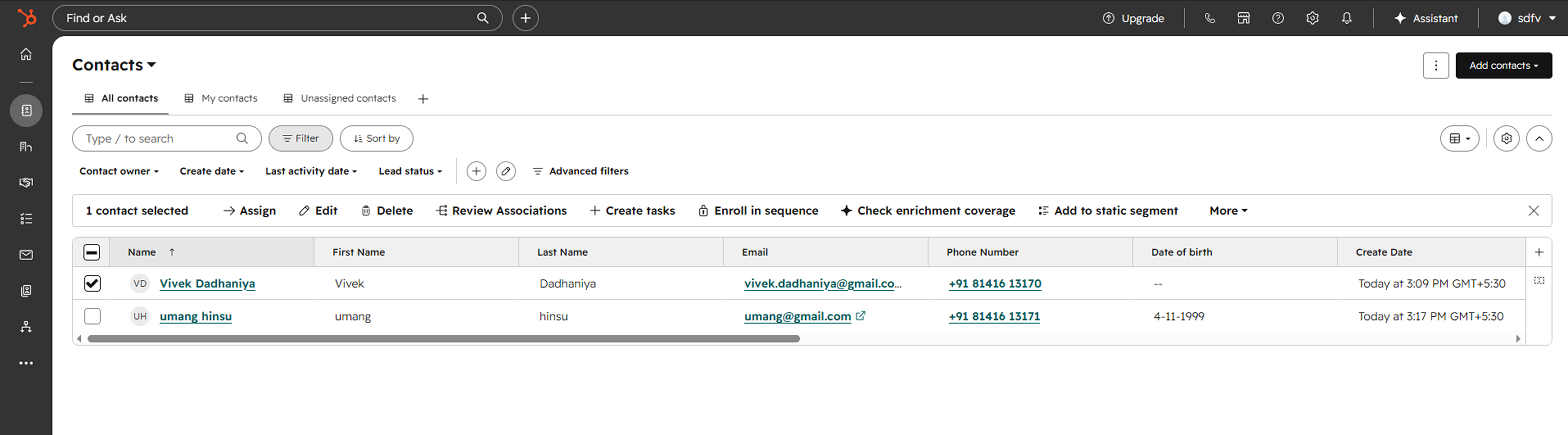
Contacts are created correctly.
Properties are mapped properly.
Companies and deals are generated as expected.
Pipelines and stages are assigned correctly.
Submission data appears in HubSpot.
Testing can help identify configuration issues before respondents begin using the form.
Best Practices for HubSpot-Powered Forms
To improve synchronization reliability and CRM data quality:
Include an Email field when collecting contact information.
Use clear and descriptive field labels.
Map all important fields before publishing.
Review HubSpot properties regularly.
Test forms whenever mappings are changed.
Keep workflows focused on a specific business objective.
Following these practices can help ensure forms remain reliable as your CRM grows.
Common HubSpot Form Workflows
HubSpot-powered forms can support a wide range of customer, marketing, and sales processes.
Lead Generation Forms
Contact Us Forms
Demo Request Forms
Consultation Request Forms
Newsletter Signup Forms
Event Registration Forms
Webinar Registration Forms
Customer Onboarding Forms
Product Waitlist Forms
Application Forms
Partner Registration Forms
Vendor Registration Forms
Quote Request Forms
Enterprise Lead Forms
Customer Feedback Forms
Troubleshooting HubSpot-Powered Forms
If submissions are not synchronizing correctly:
Verify that HubSpot is connected.
Confirm synchronization settings are configured.
Check property mappings.
Review contact matching rules.
Test form submissions.
Verify HubSpot permissions and access settings.
Most issues can be resolved by reviewing integration settings and testing the synchronization workflow.
Summary
HubSpot-powered forms allow you to connect Kiwiform directly with HubSpot and automatically synchronize form submissions with your CRM. By creating forms using the Sync with HubSpot workflow, you can streamline lead collection, manage customer information, automate CRM updates, and support contact, company, and deal workflows from a single form experience.