What Is HubSpot Property Mapping?
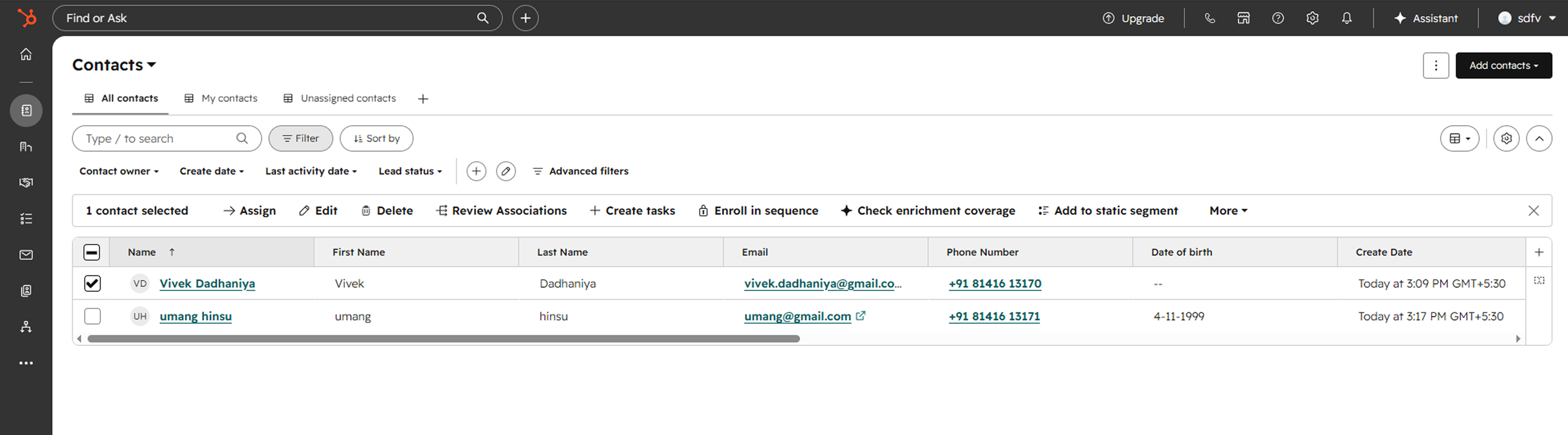
HubSpot Property Mapping allows you to control where form submission data is stored inside HubSpot. Instead of sending all responses to generic fields, you can connect individual Kiwiform questions to specific HubSpot properties, ensuring every response is stored in the correct place.
For example, a "Job Title" question can update a Job Title property, while a "Company Size" question can be mapped to a custom HubSpot property used for lead qualification. This gives teams greater control over how information is organized and used across sales, marketing, and customer success workflows.
Why Property Mapping Matters
Property mapping helps maintain clean, structured, and usable CRM data.
Without proper mapping, important information may be stored inconsistently or require manual updates after each submission. By mapping fields correctly, you can ensure data is immediately available for segmentation, reporting, automation, lead scoring, personalization, and other HubSpot workflows.
Whether you're collecting lead information, customer details, application data, or registration information, property mapping helps keep your CRM organized from the moment a form is submitted.
Before You Begin
Before configuring property mapping, make sure:
Your HubSpot account is connected to Kiwiform.
You have created a HubSpot-connected form.
The HubSpot properties you want to use already exist.
Your form fields are finalized before configuring mappings.
Having a clear data structure in HubSpot before creating mappings can help reduce future maintenance and ensure more reliable synchronization.
Access Property Mapping Settings
Property mapping is available within your HubSpot integration settings.
To configure mappings:
Open your HubSpot-connected form.
Navigate to the HubSpot integration settings.
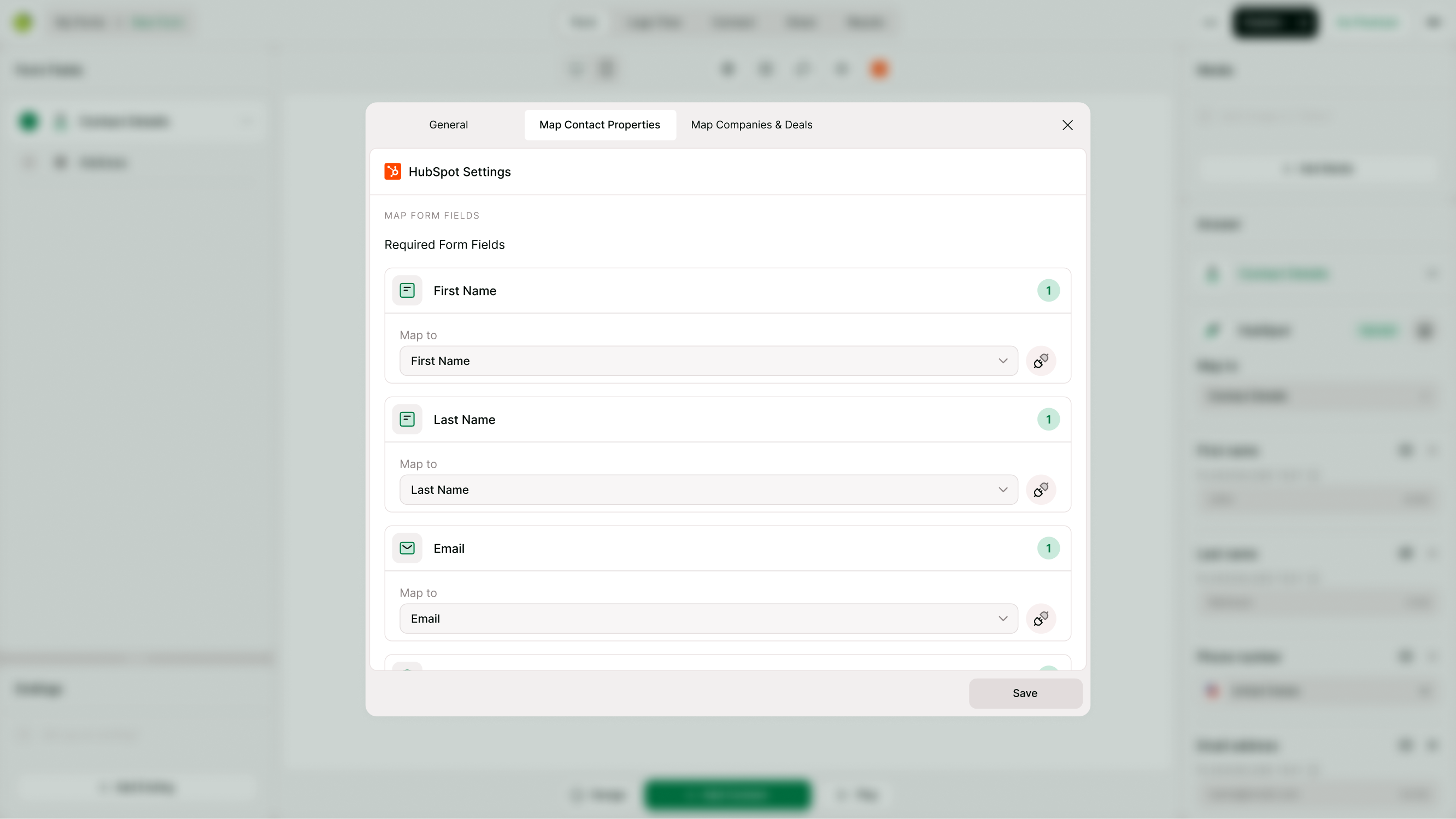
Open the Map Contact Properties section.
Select the Kiwiform field you want to connect.
Choose the corresponding HubSpot property.
Save your changes.
Once configured, future submissions can automatically populate the selected HubSpot properties.
Map Form Fields to HubSpot Properties
Each form field can be connected to an existing HubSpot property.
Common examples include:
| Form Field | HubSpot Property |
|---|---|
| First Name | First Name |
| Last Name | Last Name |
| Email Address | |
| Phone Number | Phone Number |
| Company Name | Company |
| Job Title | Job Title |
This allows contact records to be automatically enriched whenever a form is submitted.
Map Answer Choices to HubSpot Values
Choice-based questions often require additional mapping.
For example, a dropdown field containing:
Small Business
Mid-Market
Enterprise
may need to be matched to specific values already configured within HubSpot.
Property Mapping allows you to align form answer choices with HubSpot property values, ensuring data remains consistent across your CRM and reporting systems.
Use Custom HubSpot Properties
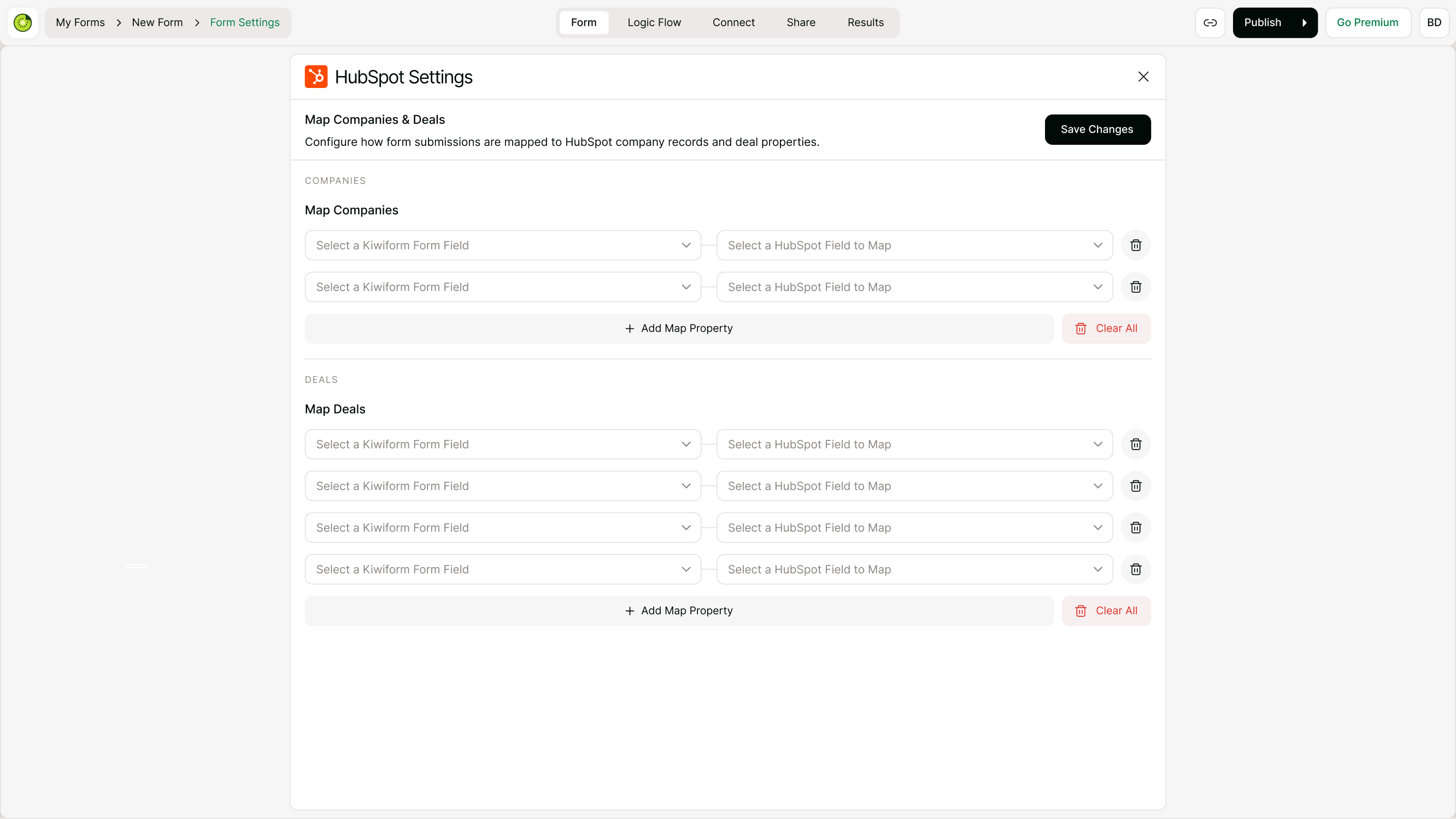
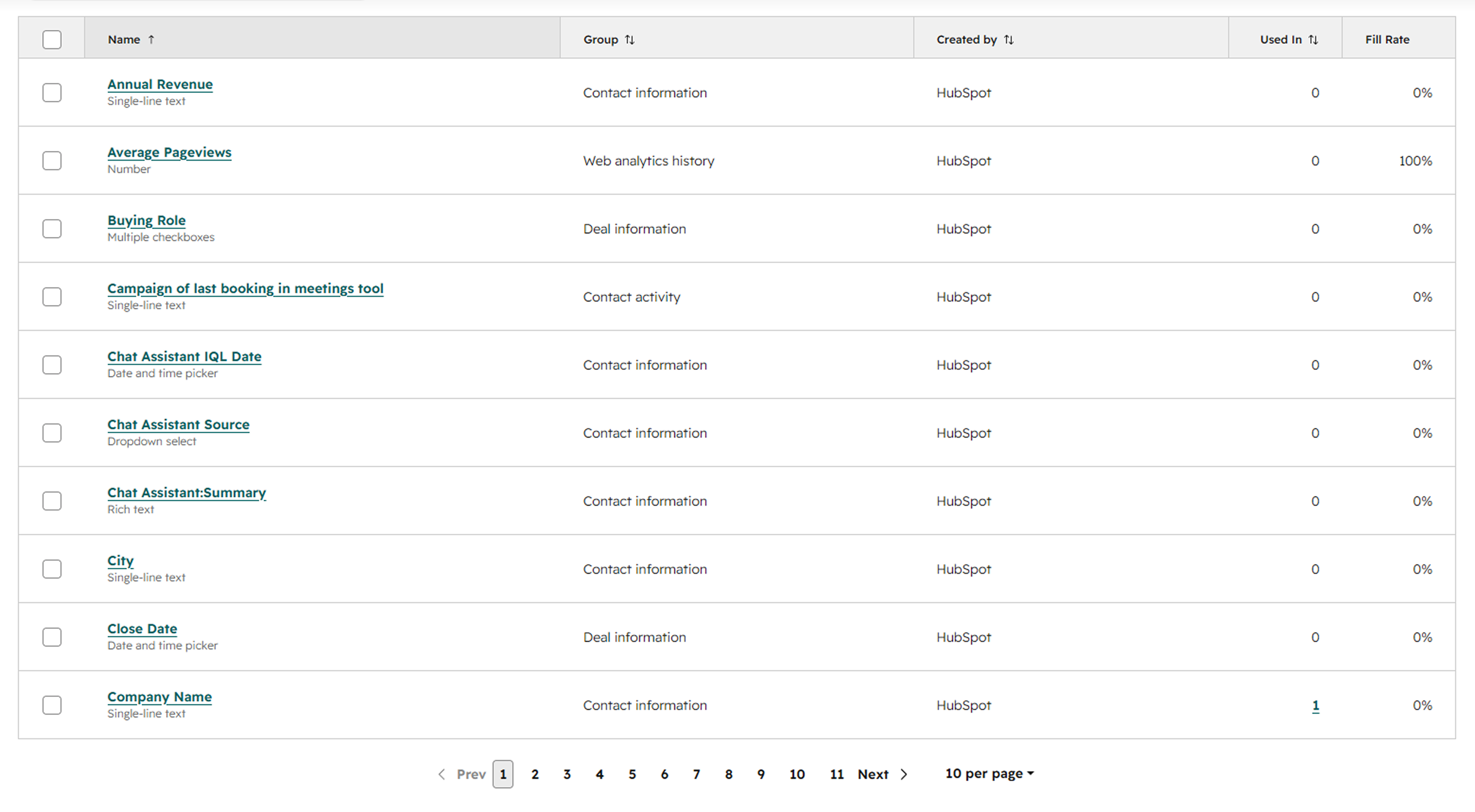
Many organizations use custom properties to capture information unique to their business.
Property Mapping supports both standard and custom HubSpot properties, allowing you to collect specialized information such as:
Industry
Product Interest
Customer Segment
Subscription Tier
Lead Qualification Score
Internal Classification Fields
This flexibility makes it easier to build forms that support specific business processes and CRM workflows.
Best Practices for Property Mapping
To improve data quality and maintain a well-organized CRM:
Use clear and descriptive property names.
Review mappings before publishing forms.
Keep form fields aligned with HubSpot properties.
Test mappings using sample submissions.
Avoid collecting duplicate information across multiple fields.
Regularly review custom properties and data structures.
Following these practices can help improve reporting accuracy and simplify CRM management.
Common Property Mapping Workflows
Property Mapping can be used across a variety of data collection and CRM workflows where form responses need to be stored in specific HubSpot properties and custom fields.
Lead Qualification Forms
Contact Information Forms
Demo Request Forms
Sales Inquiry Forms
Newsletter Signup Forms
Event Registration Forms
Customer Onboarding Forms
Application Forms
Partner Registration Forms
Product Interest Forms
Customer Feedback Forms
Account Update Forms
Survey Forms
Membership Registration Forms
Support Request Forms
Troubleshooting Property Mapping Issues
If form data is not appearing in the expected HubSpot property:
Verify the HubSpot property still exists.
Confirm the field is mapped correctly.
Review answer choice mappings.
Submit a test response.
Check for changes made to HubSpot properties after the mapping was created.
Confirm synchronization settings are enabled.
Most mapping issues can be resolved by reviewing property assignments and testing form submissions.
Summary
HubSpot Property Mapping helps ensure form responses are stored in the correct HubSpot properties and custom CRM fields. By mapping Kiwiform fields to HubSpot properties, you can improve data organization, support automation workflows, maintain cleaner records, and make customer information more useful across your sales, marketing, and customer success processes.