Where to find Access & Availability settings
To open Access & Availability settings:
Open your form in the builder.
Click the Settings icon in the top toolbar.
Select the Access & Availability tab.
You’ll see all controls related to form submission availability and scheduling.
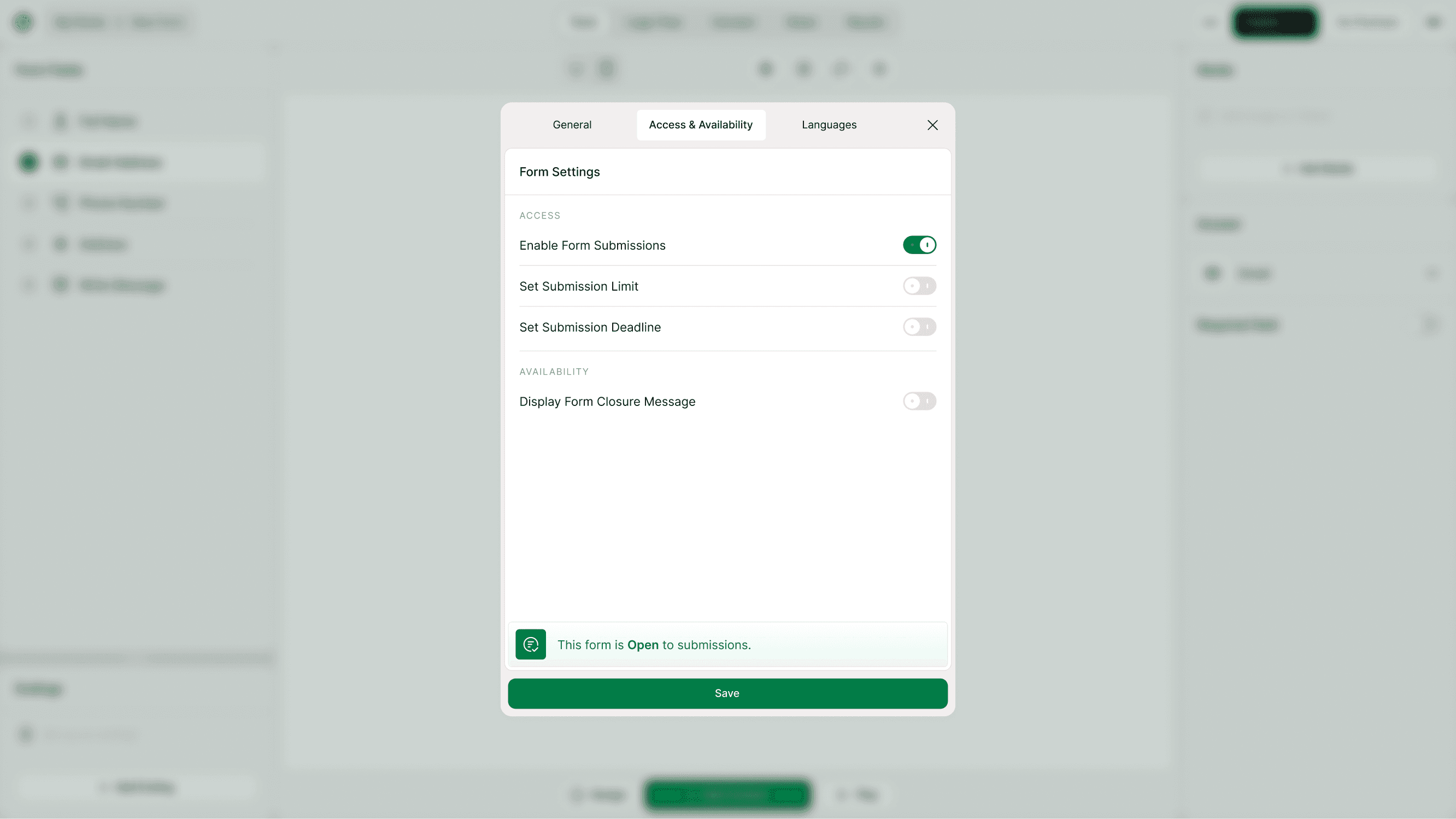
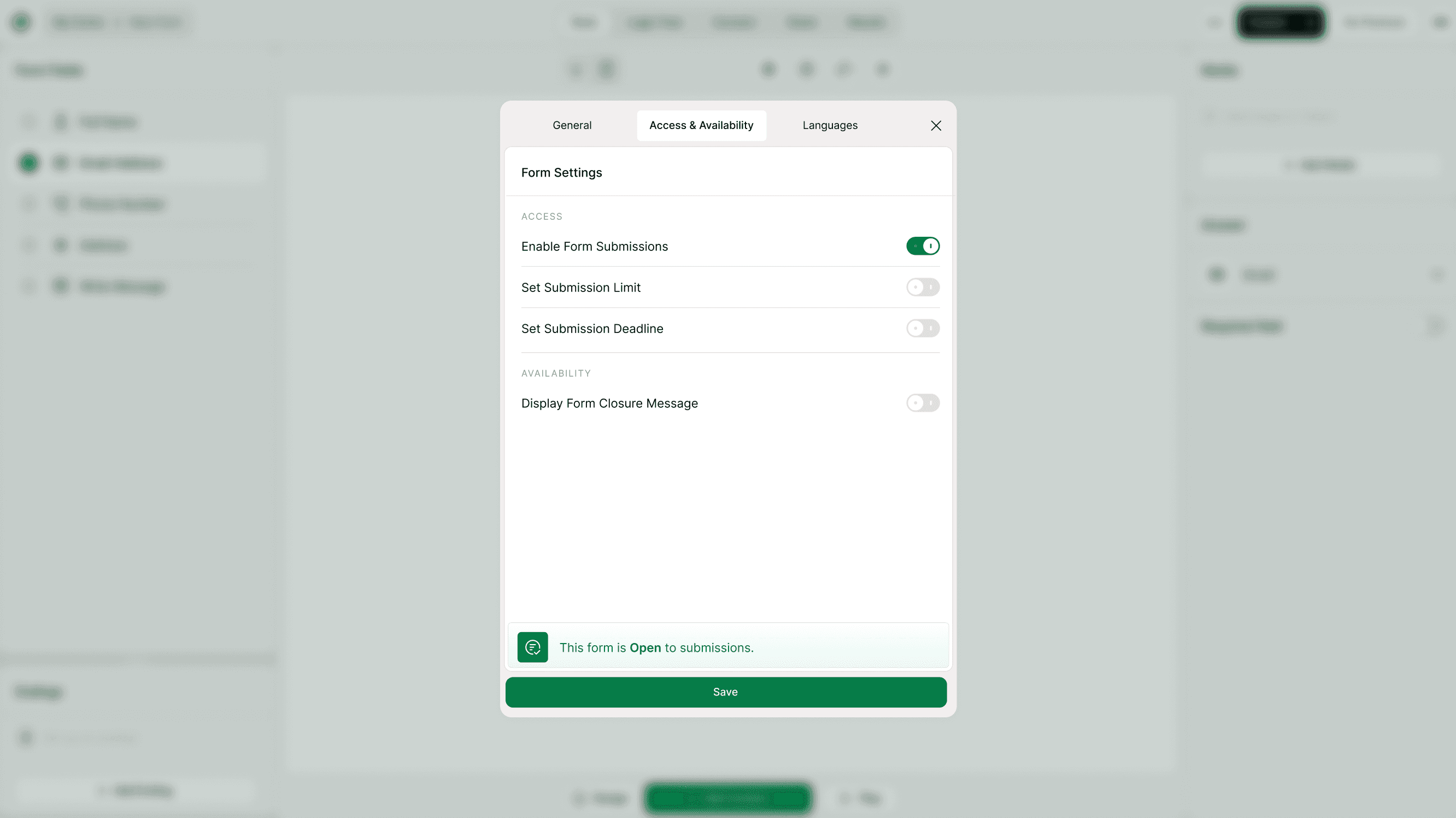
Enable or disable form submissions
This is the main control that determines whether your form can receive responses.
Toggle ON: The form is open and can accept responses.
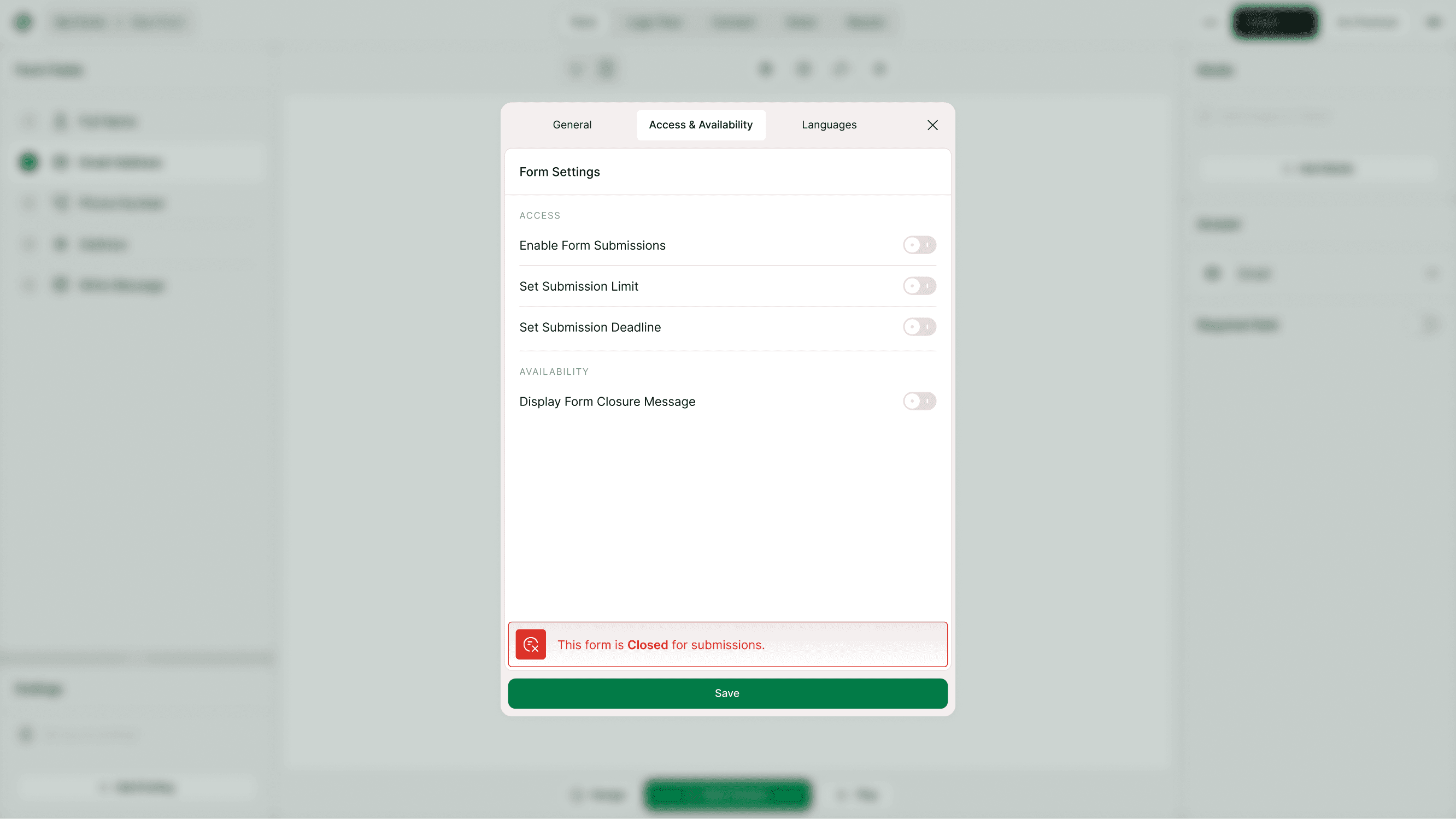
Toggle OFF: The form is closed and cannot receive new submissions.
When enabled or disabled, a status message appears at the bottom of the settings panel so you can quickly confirm whether the form is open or closed.
This is useful when:
You want to pause submissions temporarily
You’ve collected enough responses
The campaign or event has ended
Set a submission limit
You can control how many total responses your form accepts.
For example:
Stop after 100 sign-ups
Limit event registrations
Collect a fixed number of survey responses
Once the limit is reached, the form automatically stops accepting submissions.
This helps prevent over-registration and keeps your response collection controlled.
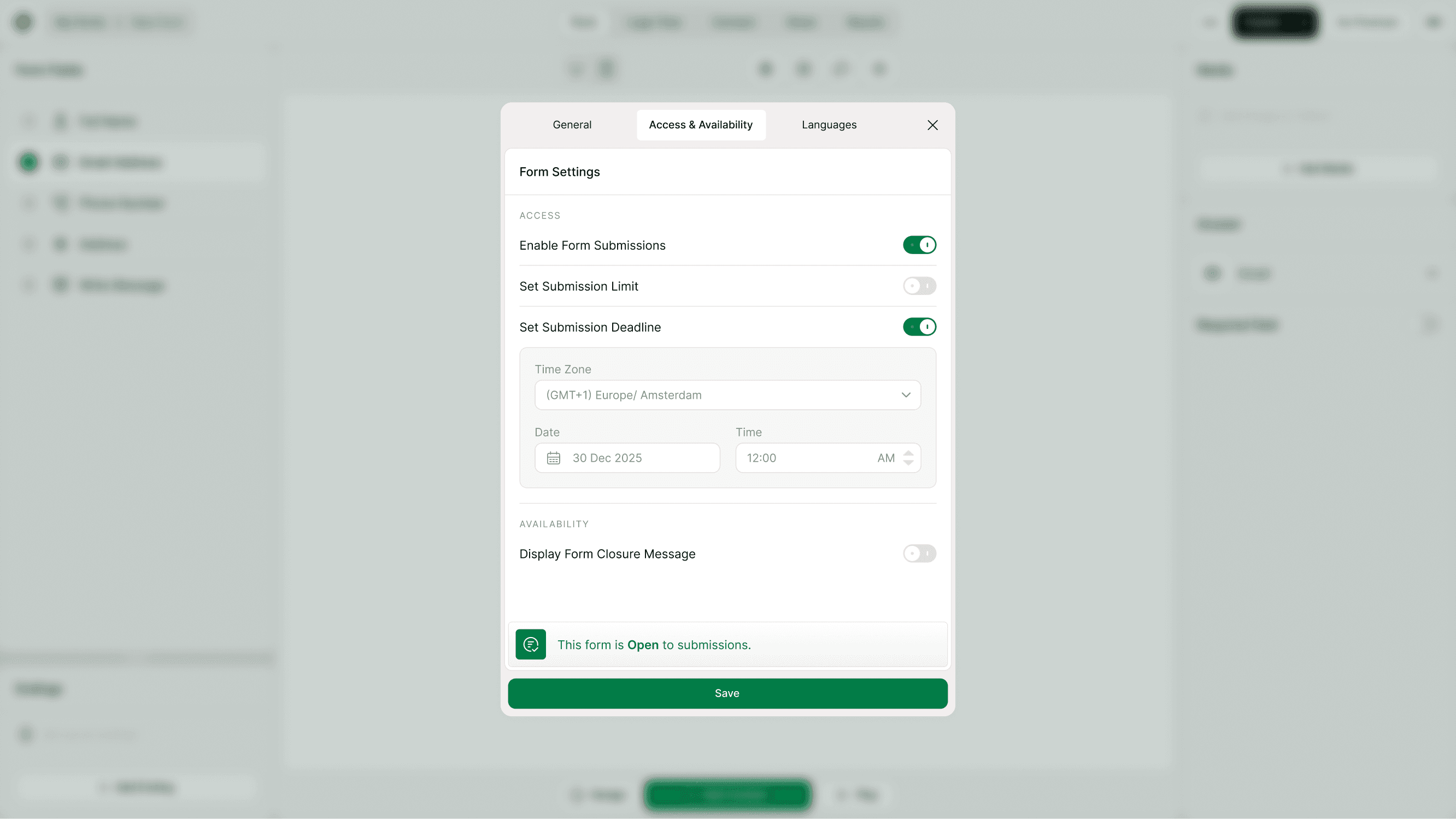
Schedule when the form opens and closes (Pro feature)
You can automatically control availability using dates.
Set submission start date
Choose when your form should start accepting responses.
Before this date, respondents won’t be able to submit the form.
Set submission deadline
Choose when submissions should stop.
After this date, the form will automatically close.
This is helpful for:
Event registrations
Limited-time campaigns
Application windows
Surveys with deadlines
You don’t need to manually open or close the form — it happens automatically.
Show opening or closing messages
Customize what respondents see when your form is not available.
Display form opening message
Show a message before the form opens.
Example: “Registrations open on Monday.”
Display form closure message
Show a message after the form closes.
Example: “This form is no longer accepting responses.”
These messages help communicate clearly with respondents and improve their experience.
Use cases
Access & Availability settings are especially useful when:
Running event registrations
Collecting limited applications
Launching a timed survey
Pausing submissions temporarily
Controlling response volume
Showing clear open/closed messages
They ensure your form stays organized and professional.
Tips for best results
Always double-check your submission status before sharing the form.
Use submission limits to prevent too many entries.
Set start and end dates for time-sensitive forms.
Add opening/closing messages for clarity.
Test your form after changing availability settings.
When should you adjust these settings?
Update Access & Availability settings when:
Launching a new campaign
Scheduling a form
Ending response collection
Limiting entries
Temporarily pausing submissions
These settings help you stay in control without needing to rebuild your form.
Summary
Access & Availability Settings allow you to control when your form is open, how many responses it can collect, and what respondents see if it’s unavailable. You can enable or disable submissions, set response limits, schedule start and end dates, and display custom opening or closing messages. These controls help you manage campaigns, registrations, and time-sensitive forms efficiently.