Adding Content
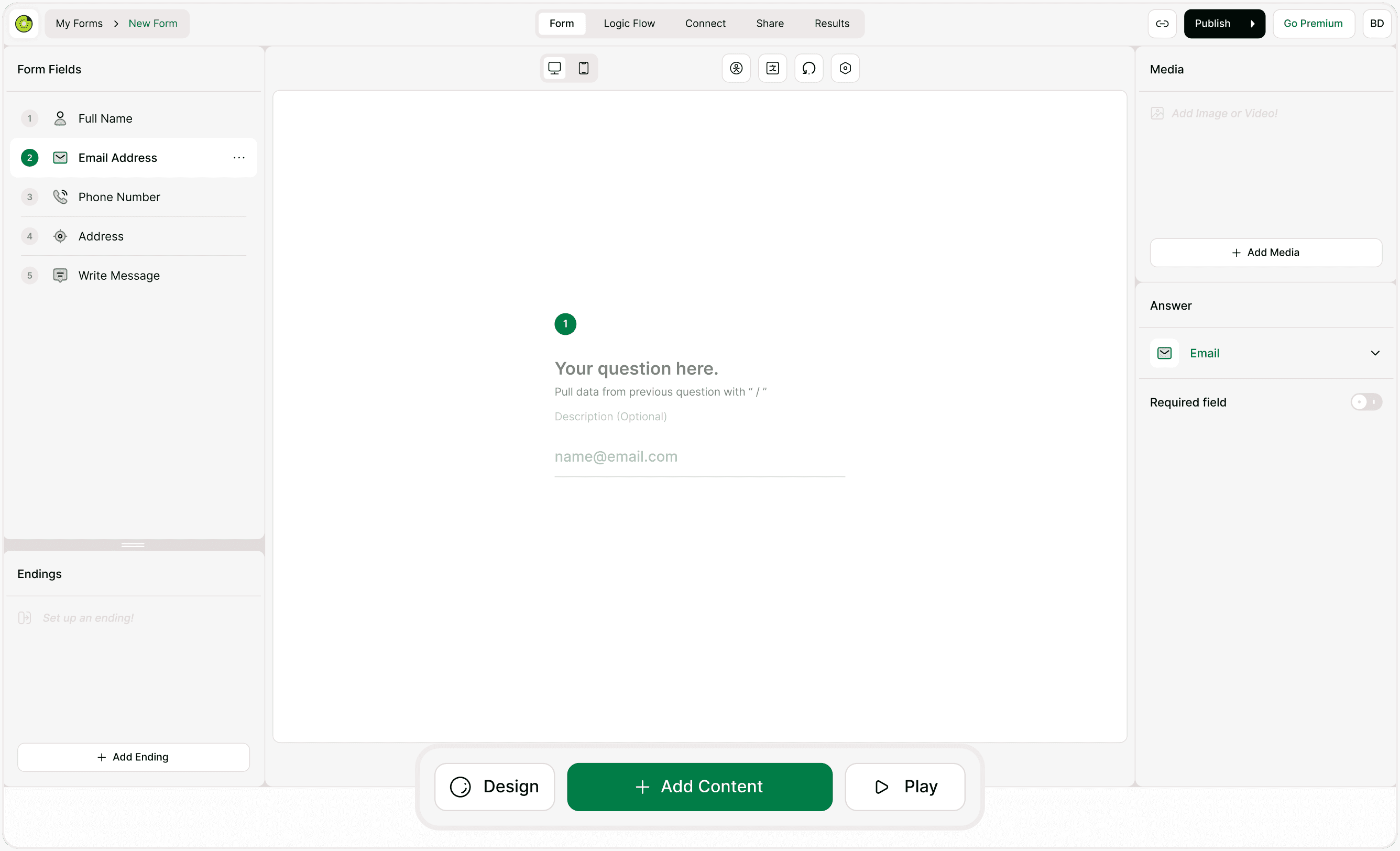
Adding content is the foundation of form building. In Kiwiform, everything starts from the Add Content button available at the bottom of the Form Builder. From simple text inputs to advanced logic-ready fields, this is where you shape how respondents interact with your form.
This guide explains how to add new fields, understand field categories, identify premium fields, and import existing questions.
How to Add Content to Your Form
To insert a new field:
Open your form in the Form Builder
Click the + Add Content button at the bottom
Choose a field from the modal pop-up
The selected field will be added to your form instantly
Understanding the Add Content Modal
When you click + Add Content, a modal appears with categorized field types. These categories help you quickly find the right type of input for your use case.
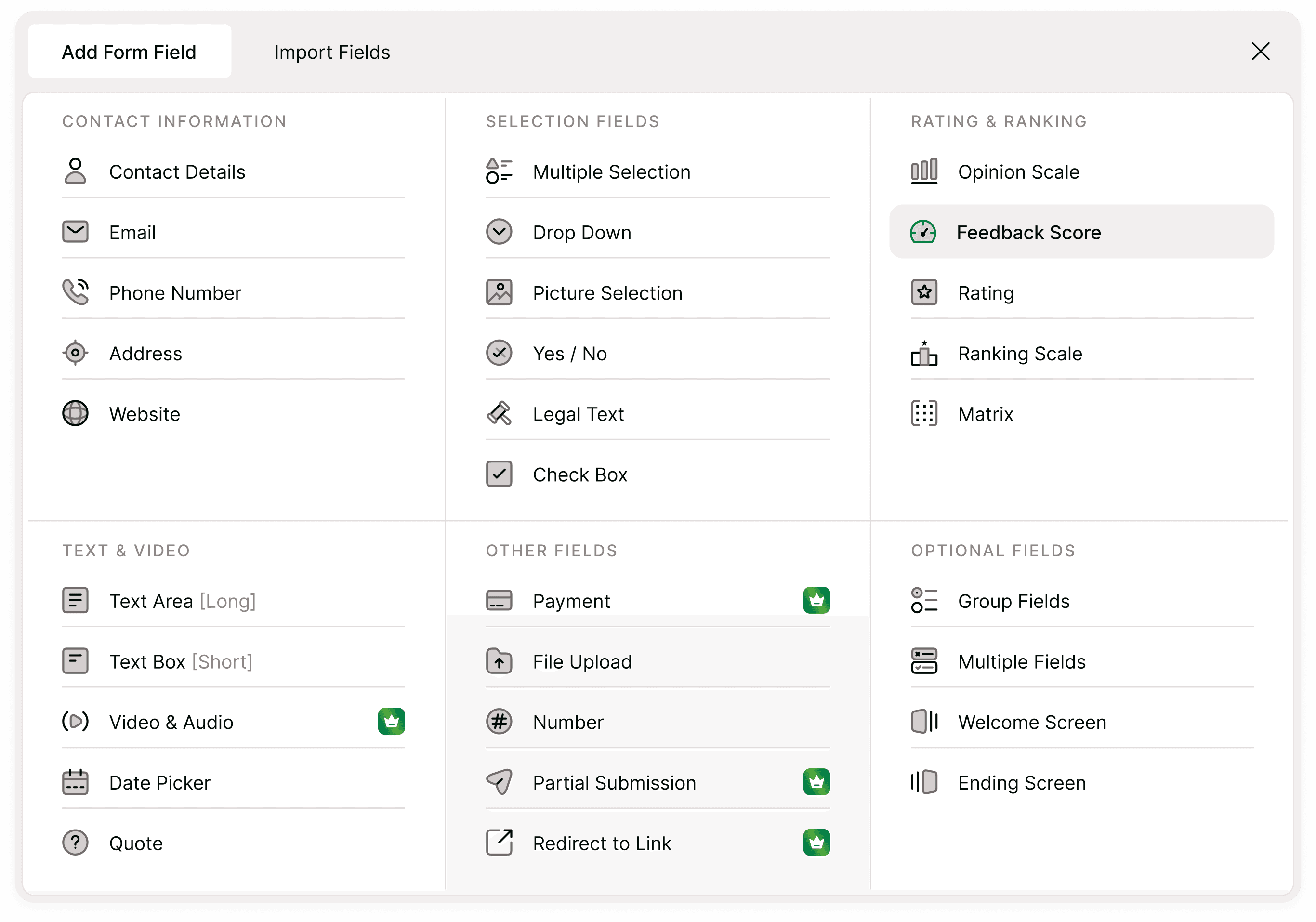
The modal includes:
Contact Information
Contact Details
Email
Phone Number
Address
Website
Use these when collecting structured personal or business details.
Selection Fields
Multiple Selection
Drop Down
Picture Selection
Yes / No
Legal Text
Check Box
These fields allow respondents to choose from predefined options.
Rating & Ranking
Opinion Scale
Feedback Score
Rating
Ranking Scale
Matrix
Best for surveys, feedback forms, product research, and evaluations.
Text & Video
Text Area (Long)
Text Box (Short)
Video & Audio (Pro) 👑
Date Picker
Quote
Use these for open-ended responses, media interactions, and scheduling.
Other Fields
Payment (Pro) 👑
File Upload
Number
Partial Submission (Pro) 👑
Redirect to Link (Pro) 👑
These fields extend functionality beyond standard forms, enabling monetization, uploads, and advanced flows.
Optional Fields
Group Fields
Multiple Fields
Welcome Screen
Ending Screen
These help structure your form into better experiences rather than just question lists.
Premium Fields (Pro Icon 👑)
Some fields display a Pro icon. These are premium features available to Pro plan users.
If you’re on the Free plan, you can still see these fields in the list, but they require upgrading to activate. This helps you understand what’s possible as your form needs grow.
Import Fields Option
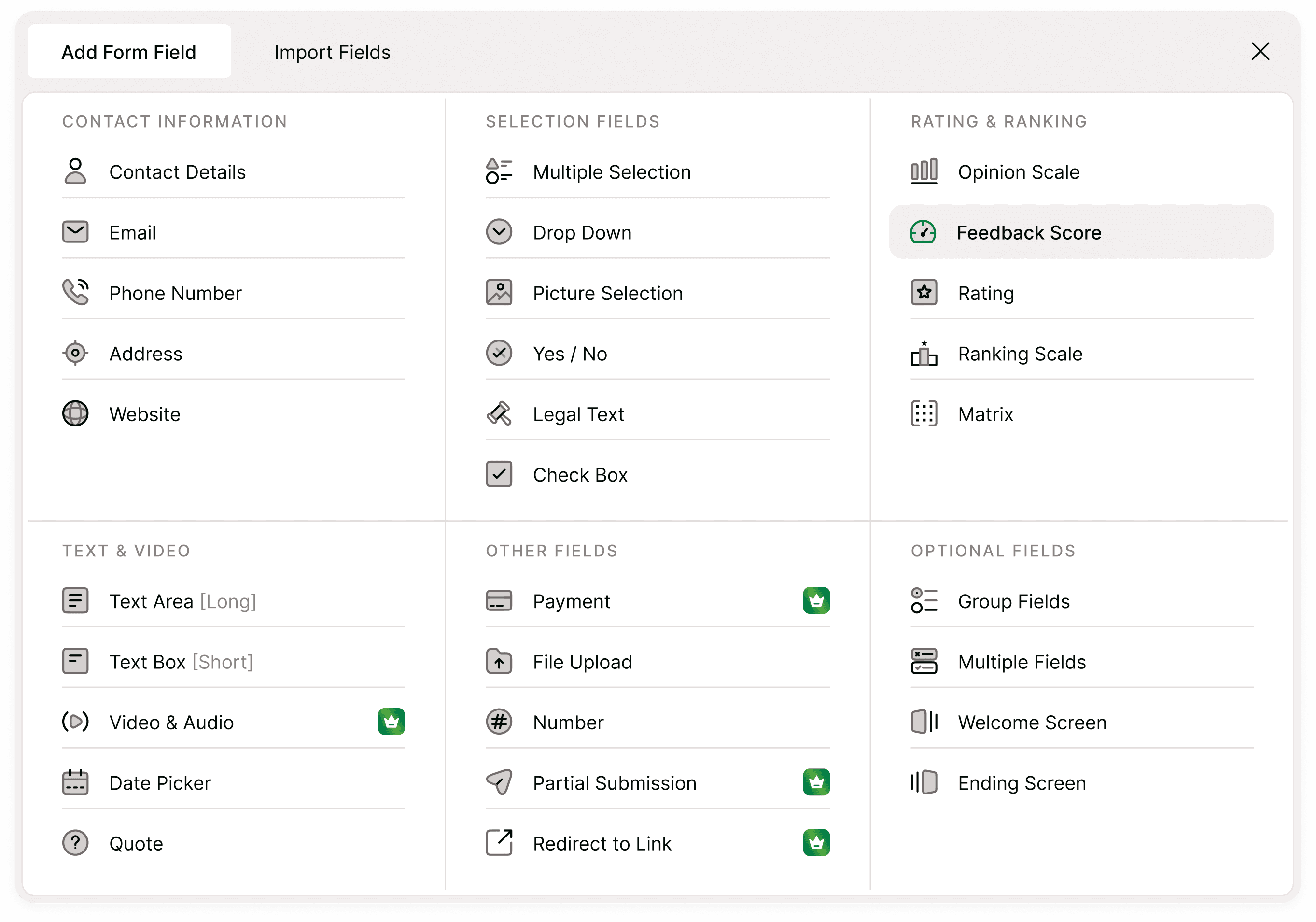
At the top of the modal, you’ll see:
Add Form Field
Import Fields
The Import Fields option allows you to bring questions from an existing form (such as Google Forms import). This is useful if you’re migrating or rebuilding a form without starting from scratch.
When Should You Add Different Field Types?
Lead generation forms: Use Contact fields + Required toggle
Surveys: Use Multiple Selection, Opinion Scale, Matrix
Feedback forms: Use Feedback Score + Text Area
Event forms: Use Date Picker + Contact Details
Order forms: Use Payment + Redirect
Application forms: Use File Upload + Long Text
Choosing the right field improves completion rates and response quality.
Best Practices When Adding Content
Start with essential fields first (name, email, core questions)
Keep the flow logical and conversational
Avoid adding too many fields on one screen
Use ratings and selections for faster responses
Add Welcome and Ending screens for better engagement
Use premium fields only when necessary to maintain simplicity
Remember : A good form is clear, structured, and easy to complete.
Summary
The Add Content button is your central control for building forms in Kiwiform. It lets you add contact inputs, selection fields, ratings, text responses, media elements, and advanced premium features. By organizing fields into categories and highlighting premium options clearly, Kiwiform makes form building intuitive and scalable. Start simple, structure your flow thoughtfully, and add advanced elements only when needed.