What the Address field does
The Address field lets you collect full address information in a single, organized block. Instead of asking for street, city, state, and zip code separately, you can group them together for a smoother experience and cleaner data.
This field is useful when you need accurate location details for shipping, registrations, service areas, or customer records. You can also choose which parts of the address to show or require, so the form stays simple and relevant.
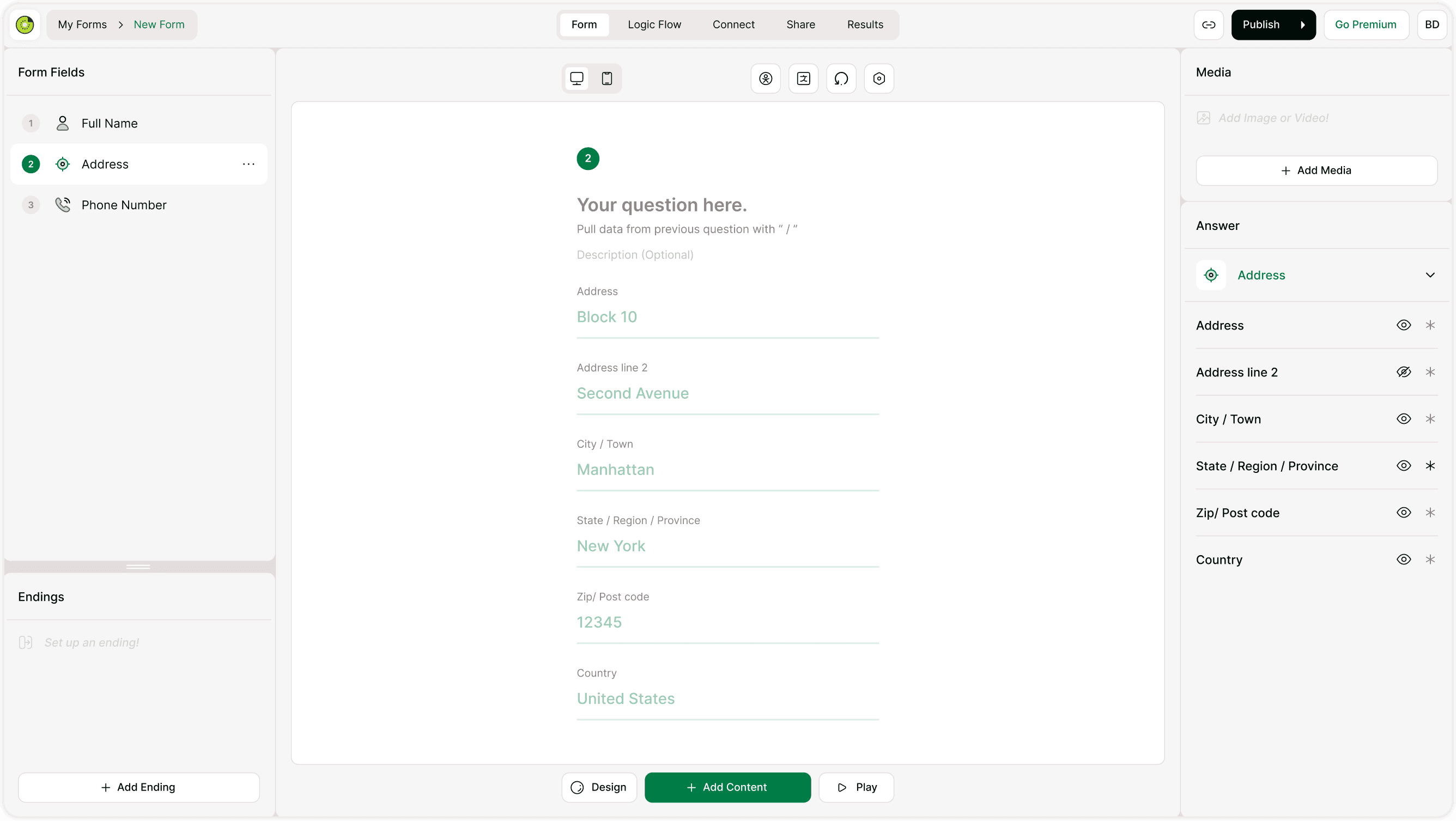
Where to find it
Open your form in the builder.
Click + Add Content.
Choose Address under Contact or Input fields.
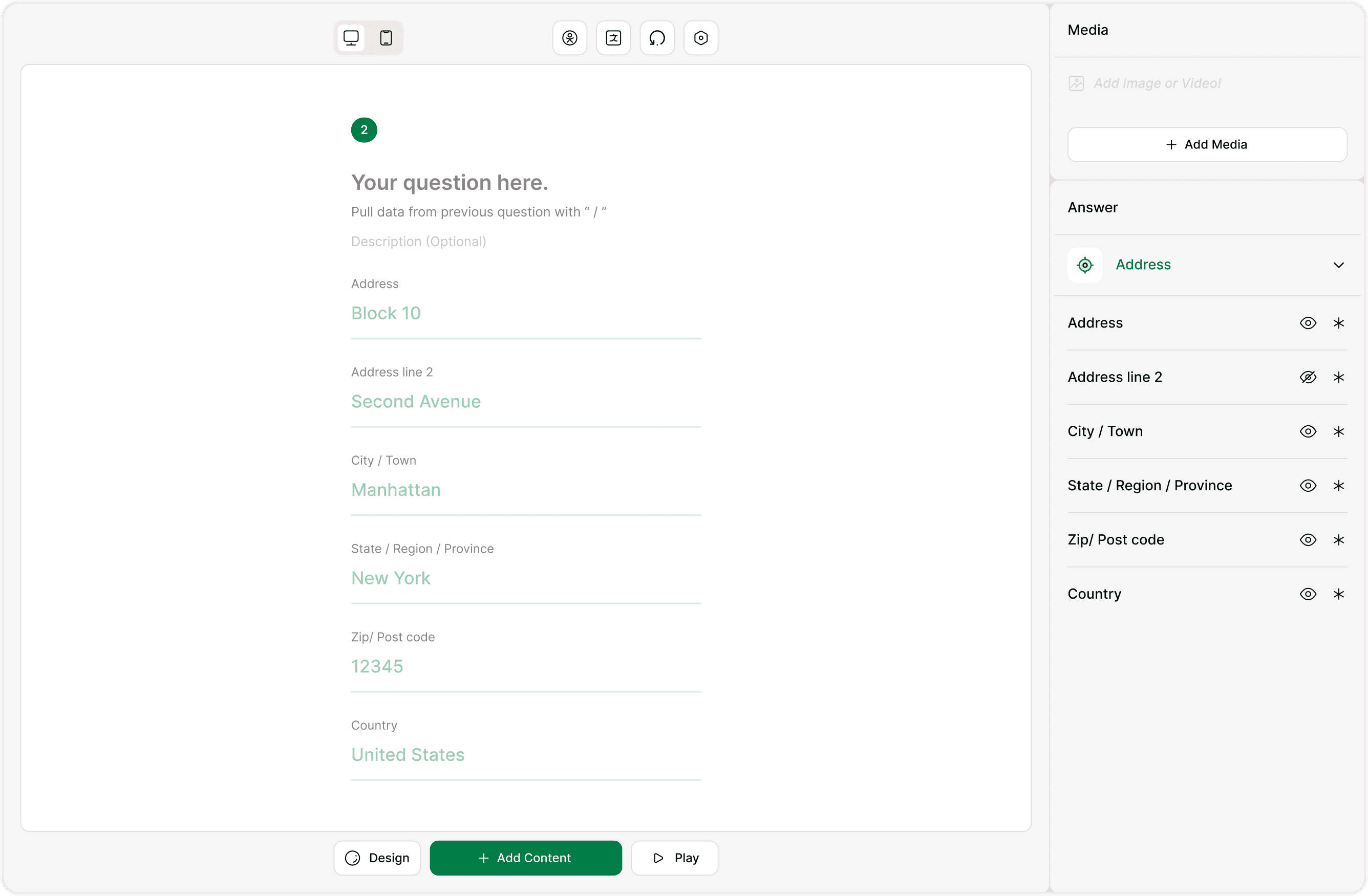
The Address field will appear in your form and can be configured from the Answer panel on the right.
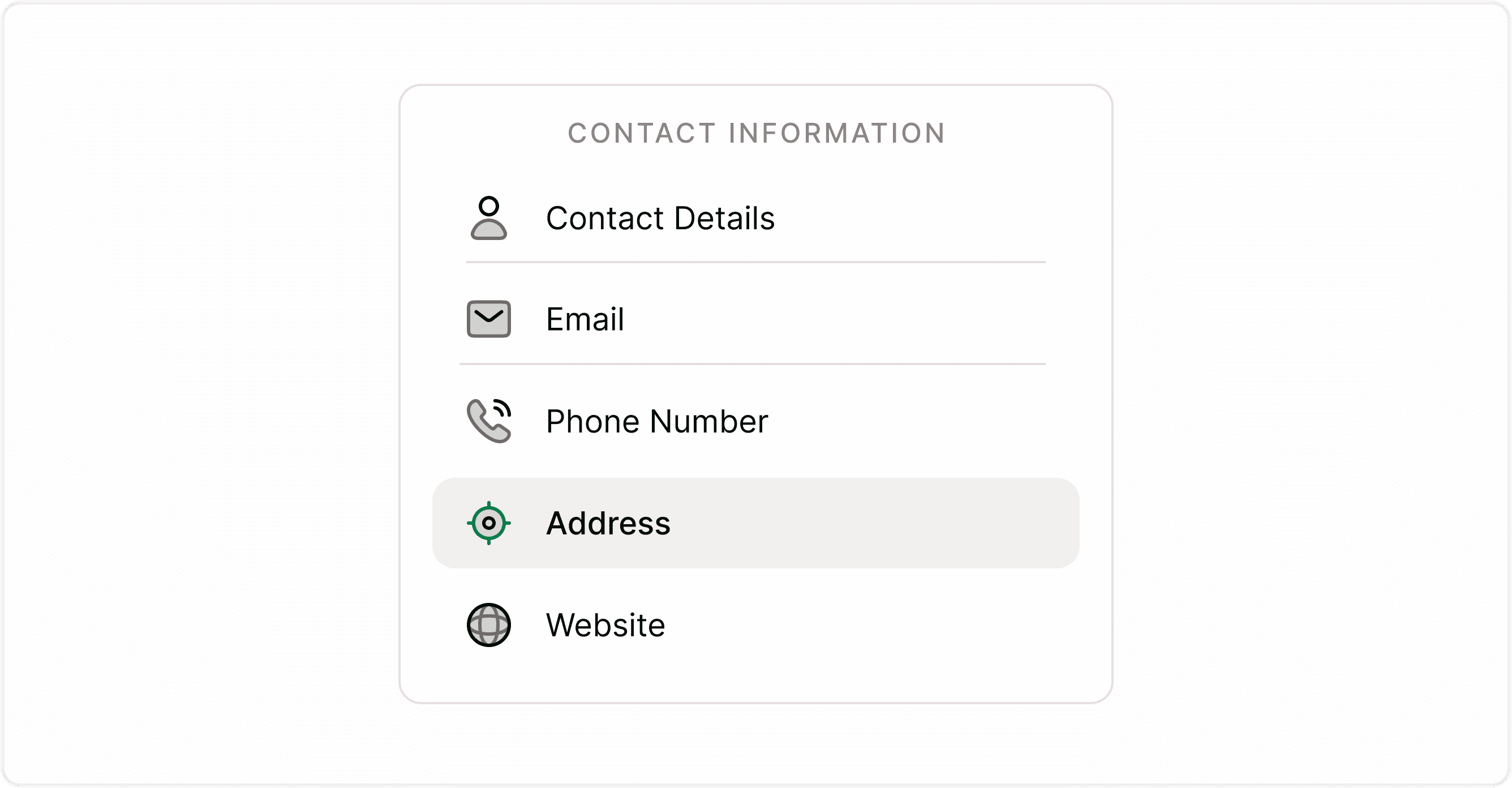
Understanding the Address field structure
The Address field is made up of multiple smaller inputs. You can show or hide each one depending on what you need to collect.
Common address inputs include:
Address (Street address)
Address line 2 (Apartment, suite, etc.)
City / Town
State / Region / Province
Zip / Post code
Country
You can keep all fields visible for full addresses or only enable the ones you need for your use case.
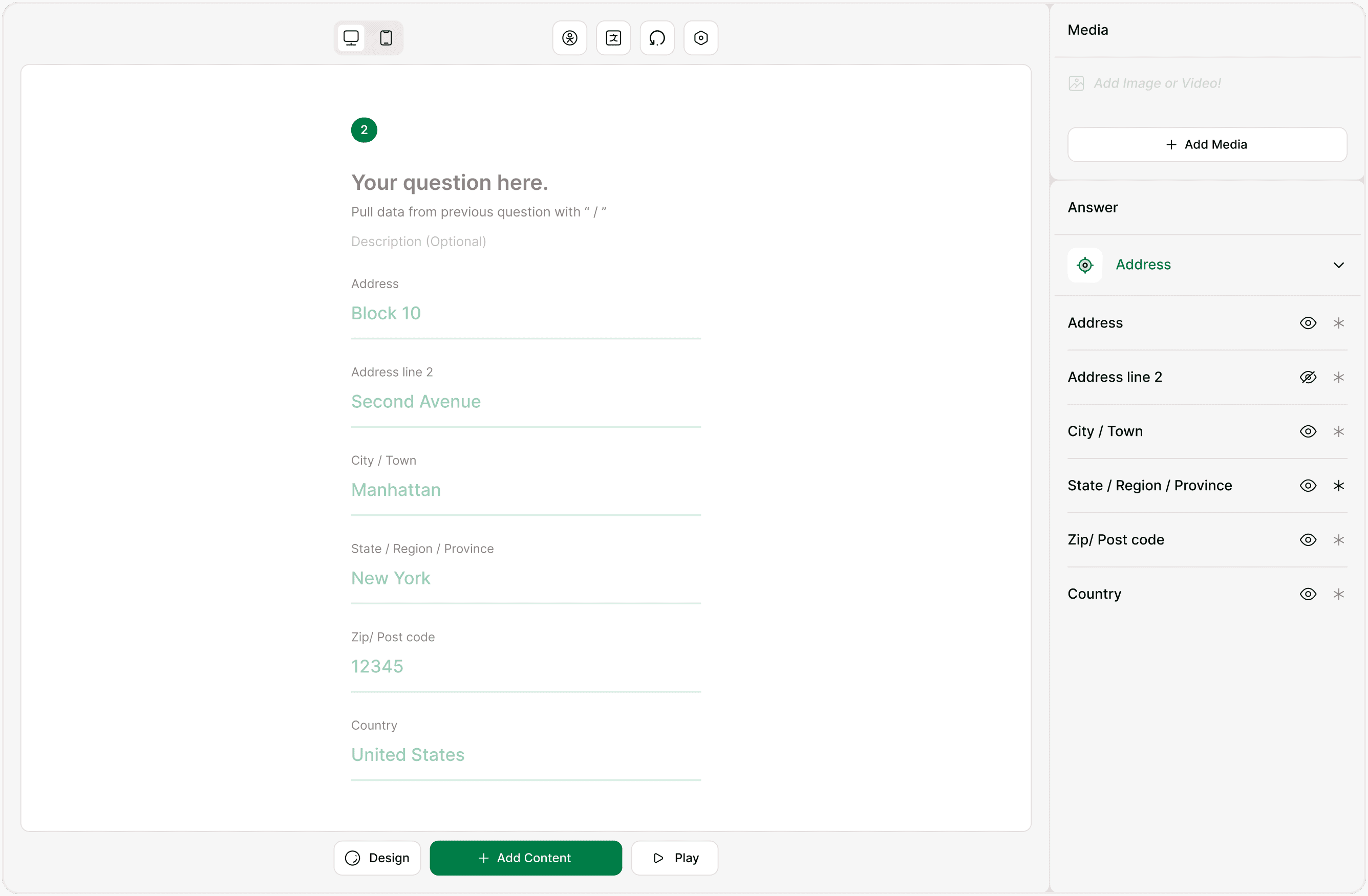
Configuring the Address field in the Answer panel
When the Address field is selected, the Answer panel shows all available address inputs.
Each row has two controls:
Eye icon: Show or hide that input from the form
Asterisk (*): Make that input required
This gives you full flexibility. For example:
Make City and Country required for location tracking
Hide Address line 2 if it isn’t needed
Require only Zip code for quick region filtering
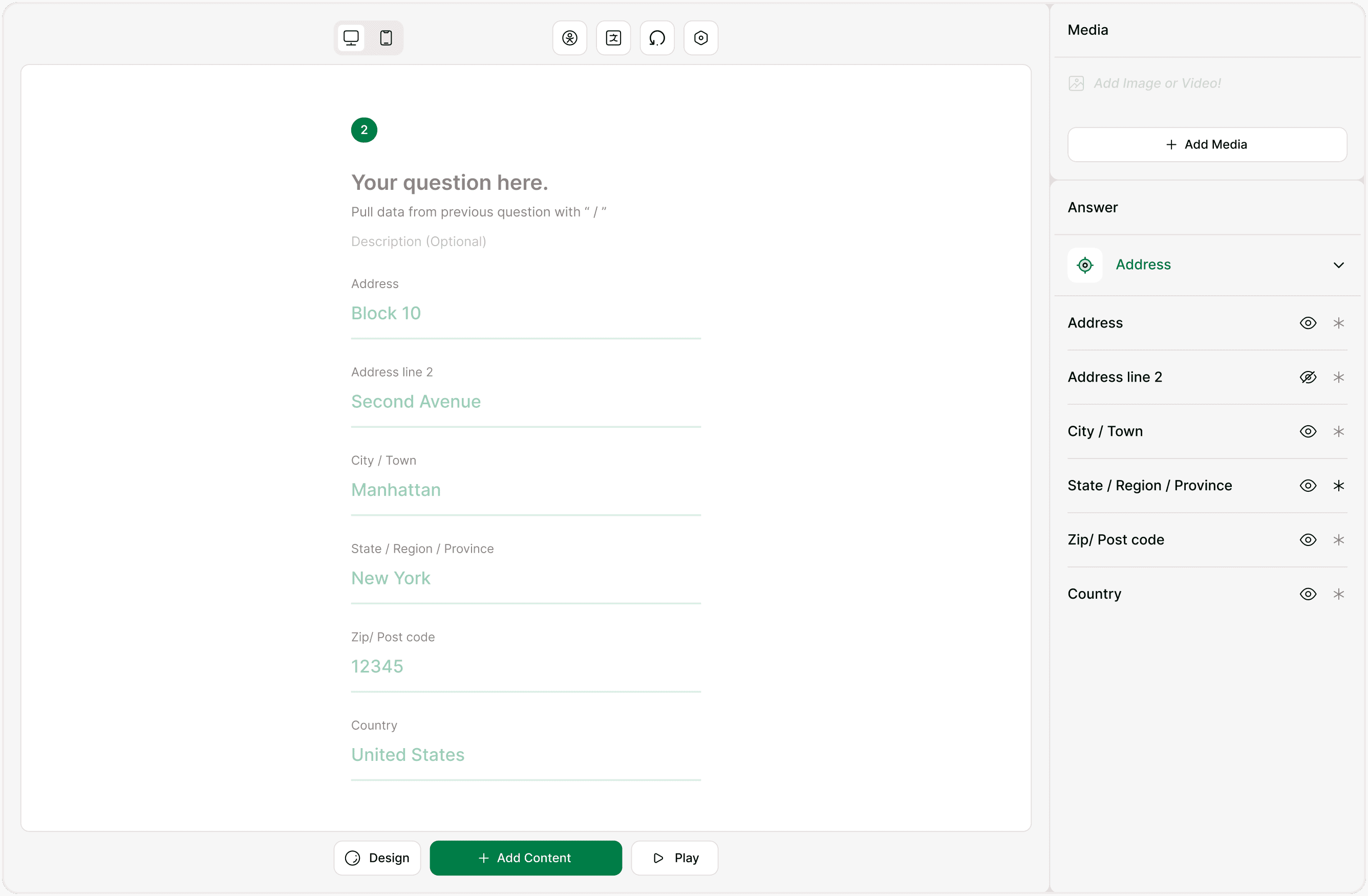
Marking address inputs as required
You can decide which parts of the address must be filled before submission.
Turning on the required (*) option ensures respondents can’t skip important fields.
Common setups:
Shipping forms: Require full address
Event signups: Require city and country only
Lead capture: Optional address, required zip
Keep required fields minimal to reduce drop-offs.
Respondent experience
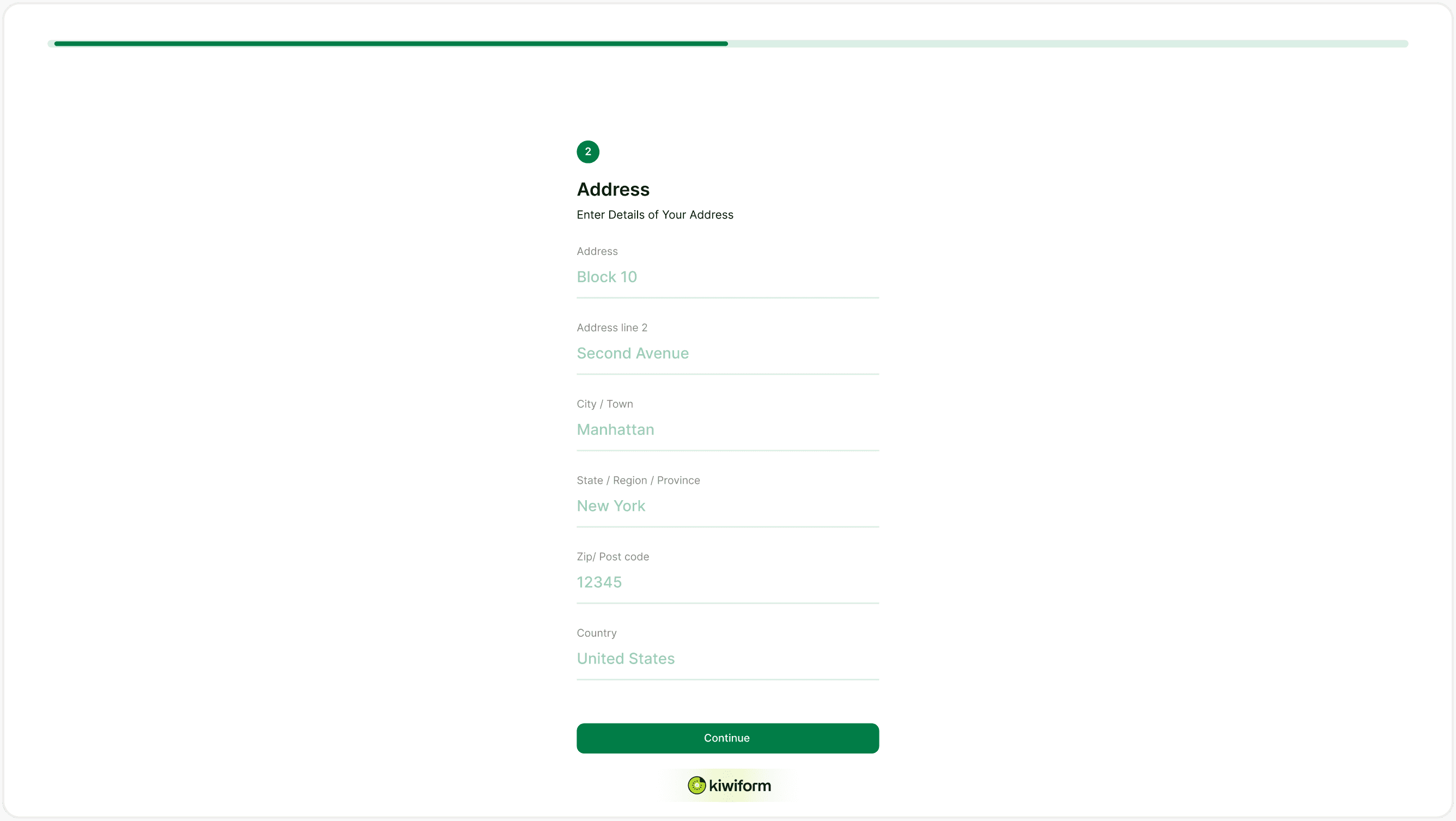
For respondents, the Address field appears as a clean, structured set of inputs.
They can move through each line naturally without confusion, and only the fields you’ve enabled will be shown.
This keeps the form easy to complete while ensuring you still get accurate location data.
Common use cases
Shipping and delivery forms
Service area or location checks
Event registrations
Customer onboarding
Local business inquiries
Best practices
Only show the address parts you actually need
Avoid making every field required unless necessary
Keep Address line 2 optional in most cases
Use country selection when responses may be global
Combine with logic if address is needed only for certain users
A shorter, focused address block improves completion rates and data quality.
Summary
The Address field in Kiwiform helps you collect structured location information without clutter. You can show or hide individual inputs, mark specific fields as required, and tailor the address format to your workflow. This keeps forms simple for respondents while ensuring you get accurate and usable data.