What is the AI Form Builder in Kiwiform?
Kiwizard – AI Form Builder is a built-in feature in Kiwiform that lets you create forms by simply describing what you want to build. Kiwizard helps you move faster from idea to working form while keeping full control in your hands. You can refine every detail, adjust fields, and shape your form exactly the way you need, making it easier to create forms that are clear, focused, and ready to collect meaningful responses.
Instead of starting from a blank canvas, you can enter a short prompt such as:
“Customer feedback form for a restaurant”
“Lead generation form for a SaaS product”
“Job application form with resume upload”
Kiwizard uses your input to generate a structured form draft, including:
A clear form title
Relevant form fields
Logical question flow
Helpful field descriptions
This draft gives you a strong starting point, helping you quickly move from idea to a usable form structure.
Kiwizard focuses on creating a clear and organized foundation for your form. The generated output is not final, it’s meant to be reviewed, refined, and customized based on your needs.
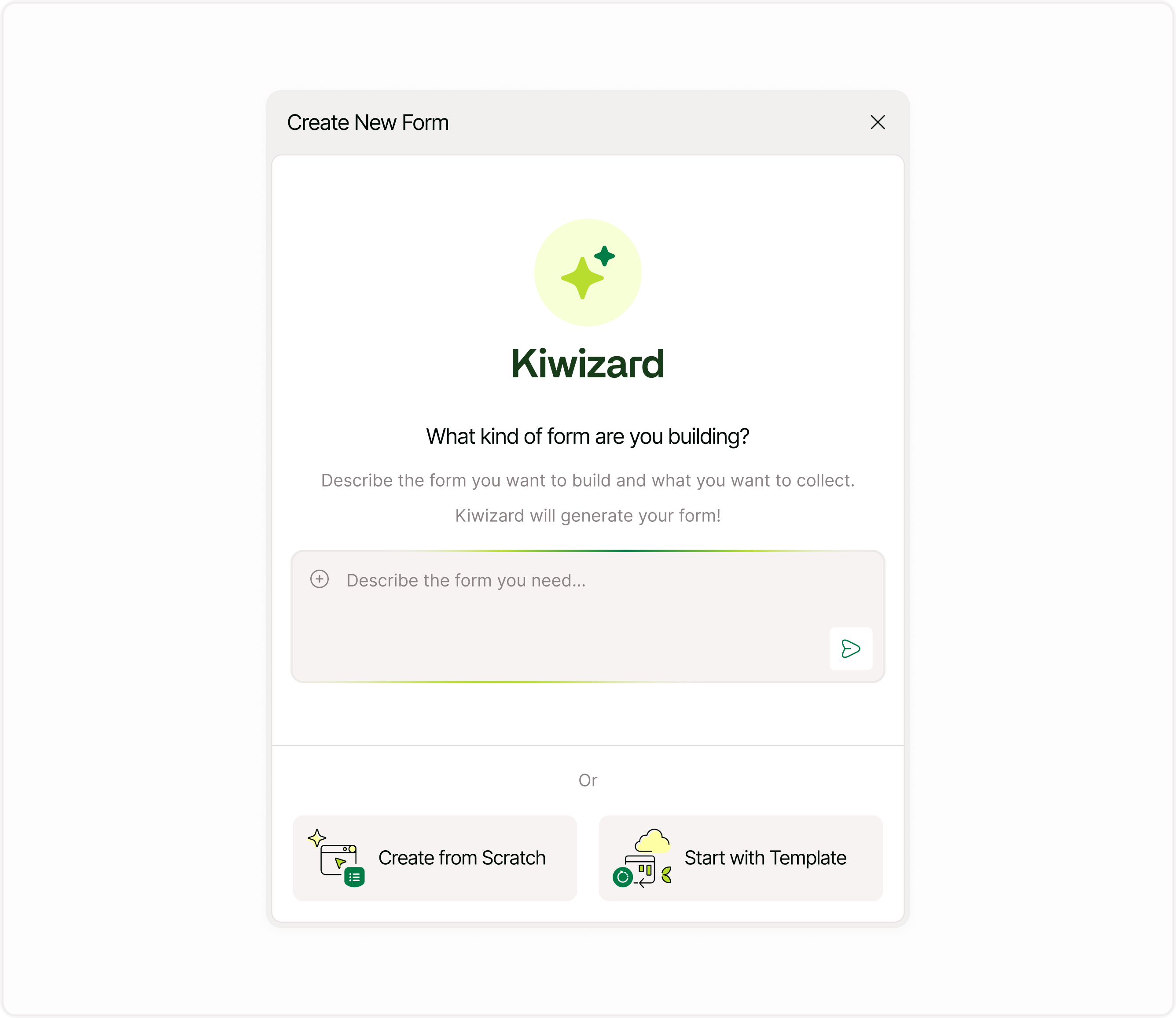
How to create a form using AI Form Builder
Step 1: Open AI Form Builder
Click Create New Form
Select Kiwizard (AI Form Builder)
You’ll see an input field where you can describe the form you want to create.
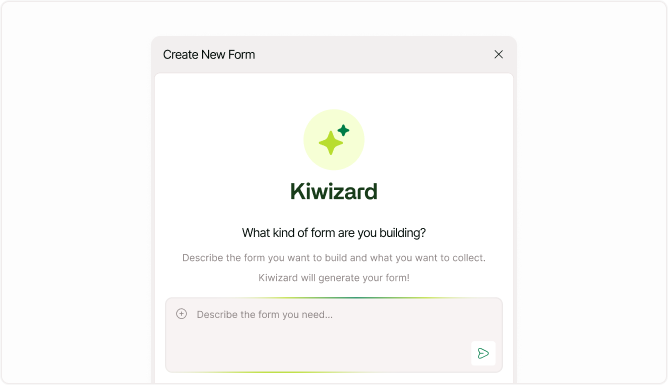
Step 2: Describe your form
Enter a clear description of your form.
Examples:
“Customer feedback form for a restaurant”
“Lead generation form for a marketing agency”
“Job application form with resume upload”
The more specific your description, the better the generated result.
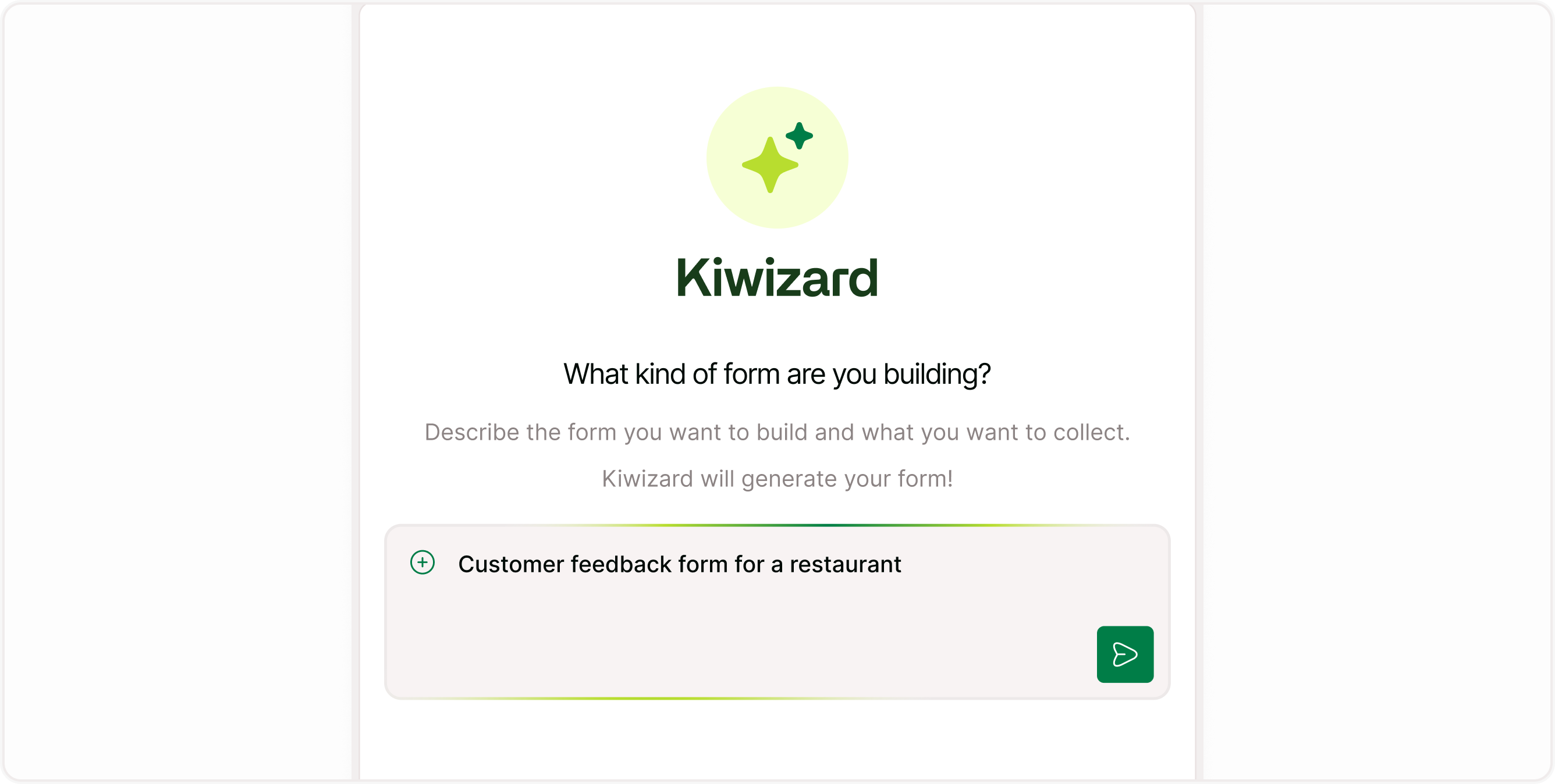
Step 3: Generate your form
After entering your description, Kiwizard will start creating your form.
You’ll see a processing state like:
“Creating your form…”
This usually takes a few seconds.
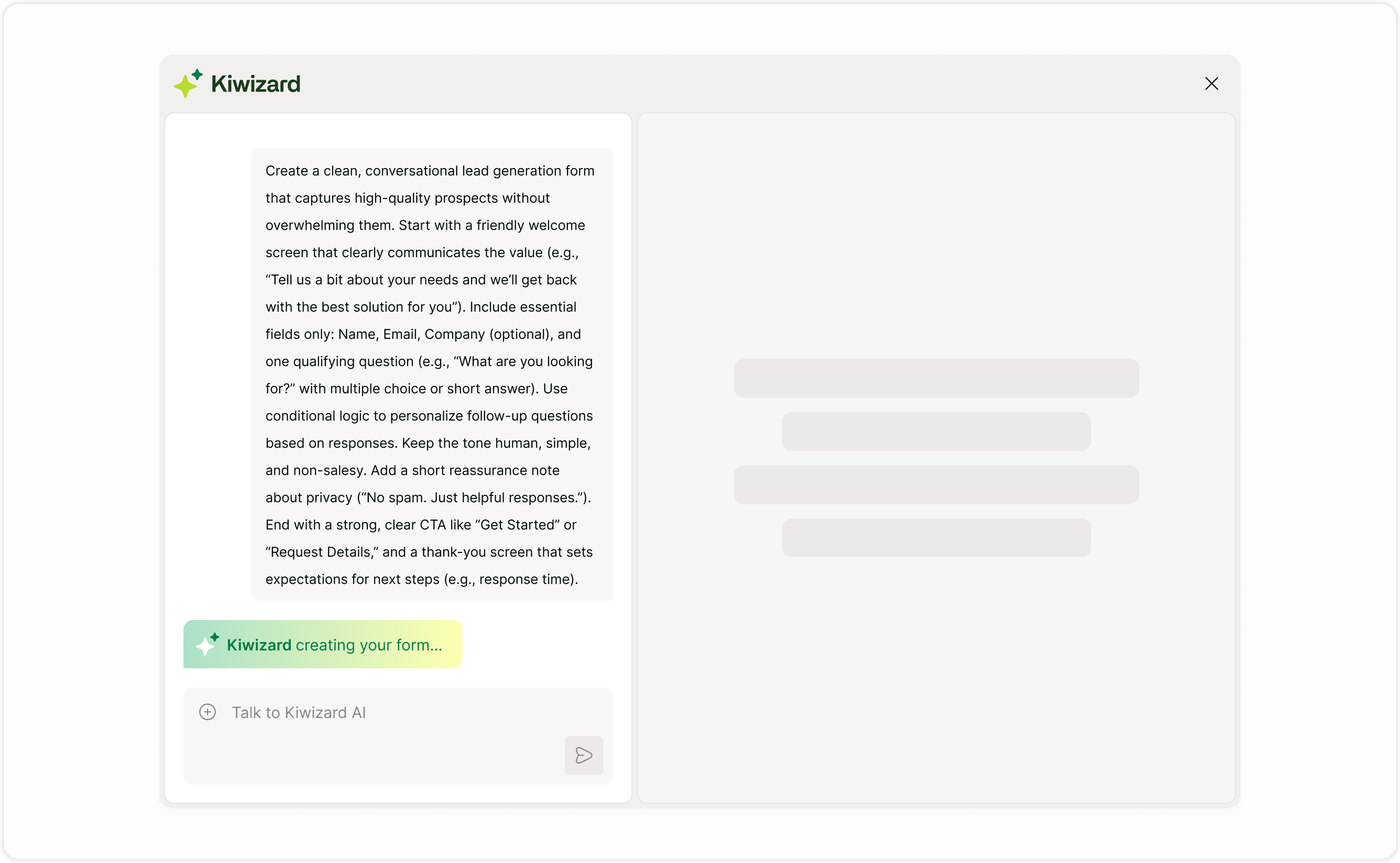
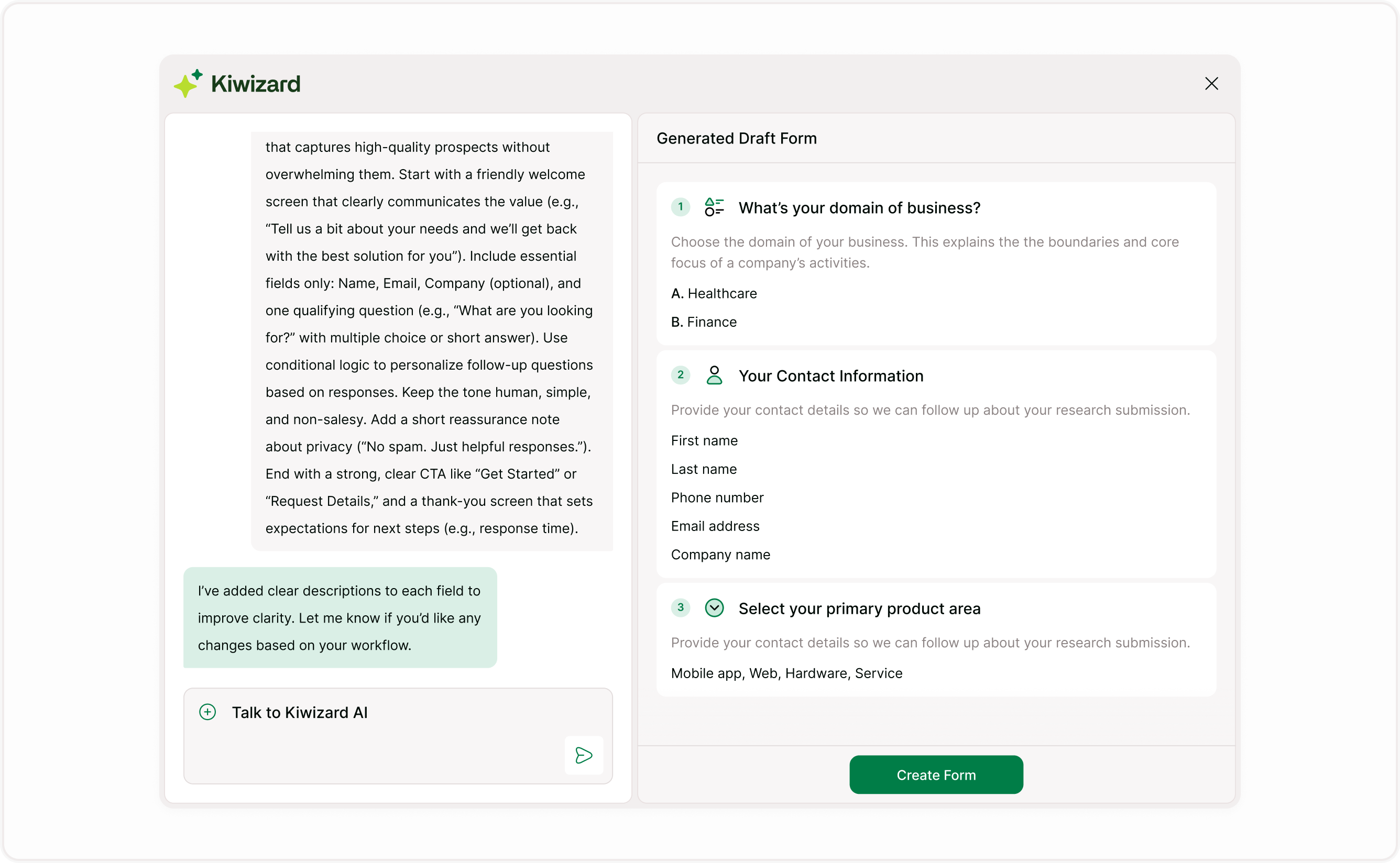
Step 4: Review the generated draft
Kiwizard will generate a draft form that includes:
Relevant fields
Predefined answer options for applicable form fields (such as Multiple Selection, Picture Selection, and Dropdown)
Logical structure
Basic descriptions
You can review the entire structure before proceeding.
Step 5: Edit and refine your form
Once the draft is generated, you can:
Edit questions and labels
Add or remove fields
Adjust field types
Customize layout and flow
Add logic and conditions
This step is important to ensure the form matches your exact needs.

Step 6: Continue building or publish
Once you’re satisfied with the generated draft, click Create Form in the Generated Draft Form panel.
This will open your generated form in the form builder, where you can continue working on it.
From there, you can:
Edit and refine questions
Add or remove fields
Customize layout and design
Set up logic and integrations
After making the necessary changes, you can proceed to publish your form.

How Kiwizard helps you build better forms
Kiwizard is designed to assist your form creation process without taking control away from you. It gives you a strong starting point while keeping every part of the form fully editable and flexible.
You can shape your form the way you need by:
Editing questions and labels
Rearranging fields and structure
Changing field types
Adding logic and conditions
Customizing layout and design
Kiwizard works through a simple, input-based approach where you guide the form creation by describing your needs. This makes it easier to create and refine forms without dealing with complex setups or unnecessary steps.
What this means for you
Start quickly without a blank canvas
Get a clear and structured form layout
Save time on manual setup
Keep full control over every detail
This approach helps you move faster from idea to a working form while ensuring your form stays clear, flexible, and aligned with your goals.
What does AI Form Builder generate?
The AI Form Builder creates a structured starting point that includes:
A clear form structure
Relevant form fields
Logical question flow
Helpful field descriptions
This helps reduce setup time and improves form clarity for respondents.
Tips for better results
To get better results from AI Form Builder:
Be specific
Include details about:
Purpose of the form
Type of audience
Data you want to collect
Keep it simple
Avoid overly complex instructions in the prompt.
Refine after generation
Always review and adjust the generated form before using it.
Important notes
AI Form Builder creates a draft, not a final form
You have full control over edits and changes
Results may vary based on your input
Always review fields and structure before publishing
Summary
The Kiwizard – AI Form Builder in Kiwiform helps you create forms faster by turning your ideas into structured drafts within seconds. It removes the friction of starting from scratch while giving you a clear, usable foundation to build on. Whether you're creating a simple feedback form or a detailed lead generation flow, Kiwizard helps you move quickly from idea to execution while ensuring your form remains clear, flexible, and fully customizable.