Why Connect Kiwiform to Airtable?
Connecting Airtable unlocks powerful data management capabilities for your forms. Every submission becomes a structured record in your database, allowing you to:
Automatically create new records from submissions
Centralize lead or customer data
Trigger Airtable automations and workflows
Filter, sort, and analyze responses
Collaborate with your team in real time
Eliminate manual data entry errors
This is especially useful for marketing teams, HR departments, agencies, startups, and creators managing high-volume form responses.
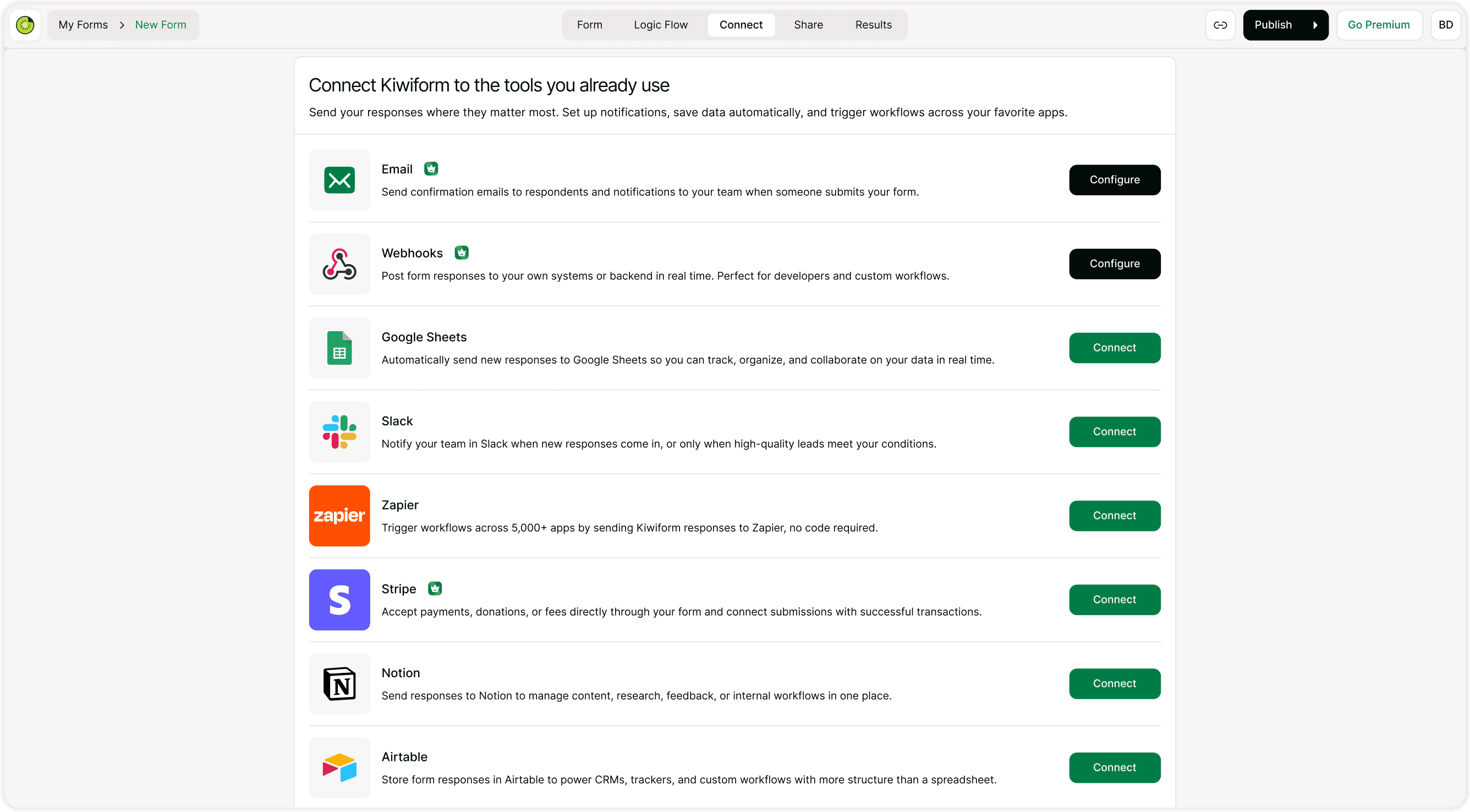
How to Connect Airtable to Kiwiform
Open Your Form
Go to your Kiwiform Dashboard
Select the form you want to connect
Click Integrations & Automations
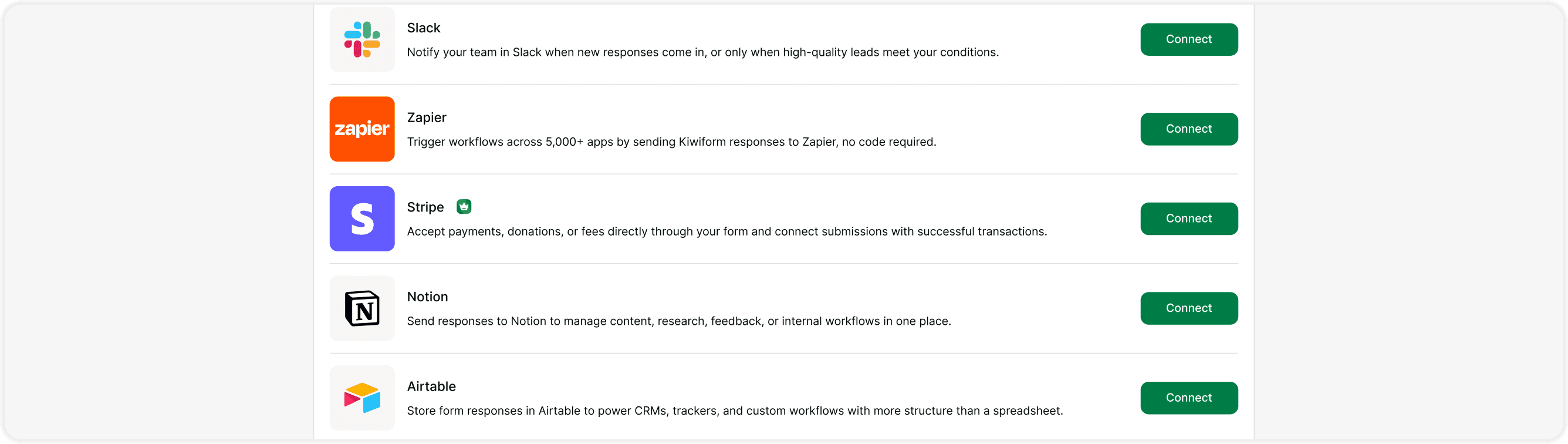
Select Airtable
Find Airtable in the integrations list
Click Connect
You’ll be redirected to securely authorize access.
Authorize Your Airtable Account
Log in to your Airtable account
Grant Kiwiform access to your bases
This secure authorization allows data to flow directly into your selected table.
Authorize Your Airtable Account
After connecting:
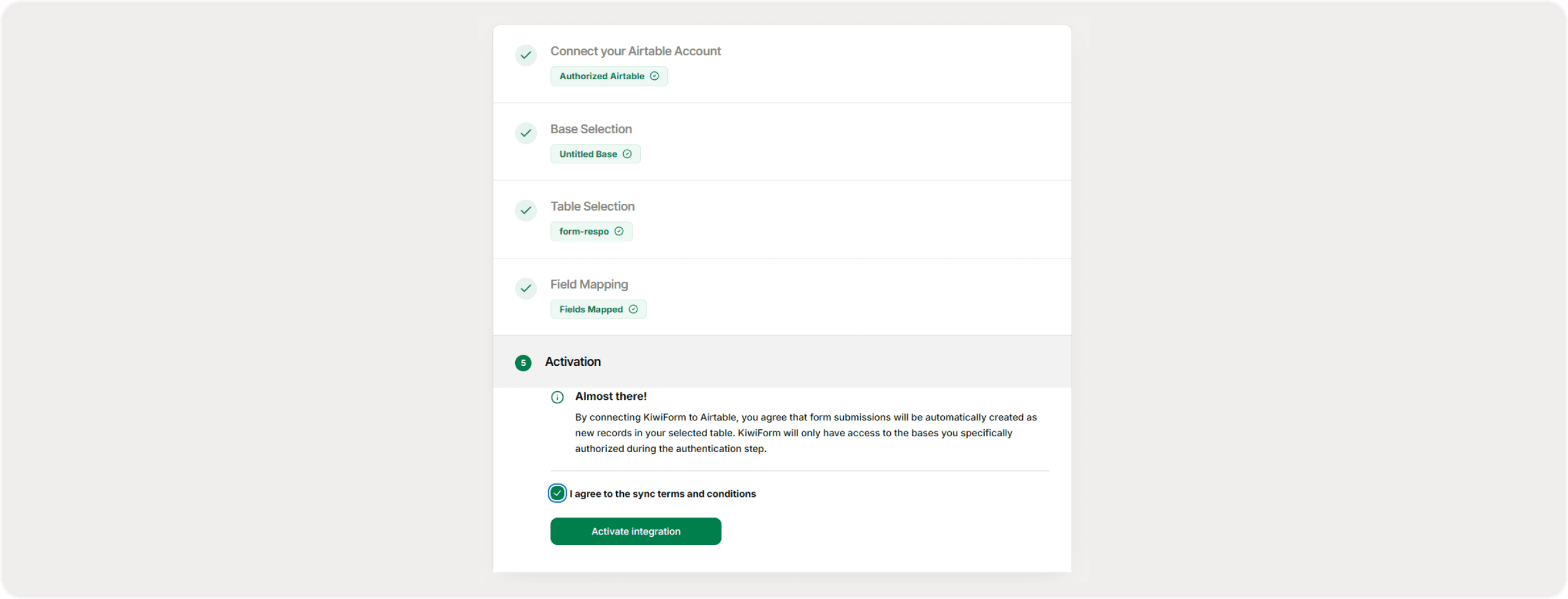
Select the Base
Select the Table where records should be added
Each new form submission will create a new row in this table.

Map Your Form Fields
Field mapping ensures the right answers go into the right columns.
Match each Kiwiform question to the corresponding Airtable field
Make sure field types are compatible (Email → Email, Number → Number, etc.)
Map required fields properly
Accurate mapping prevents formatting issues and incomplete records.
Send a Test Submission
Before going live:
Click Send Test Submission
Open Airtable
Confirm the new record appears correctly
If something looks incorrect, adjust mapping and test again.
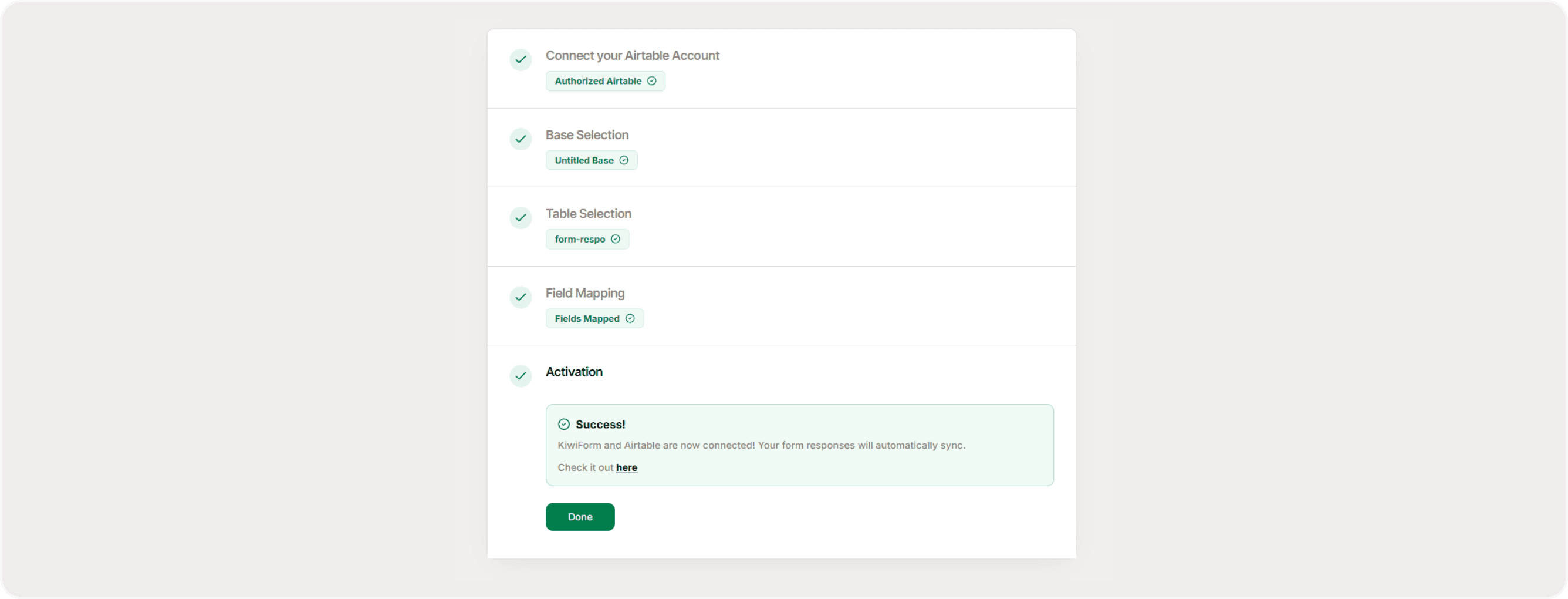
How the Integration Works
Once enabled:
Every new submission
Automatically creates a new record
Inside your selected Airtable table
The process is instant and automatic — no exports, no delays, no manual handling.
Popular Use Cases
Lead Management
Automatically send contact form responses to a CRM-style Airtable base.
Job Applications
Collect candidate details into structured hiring tables.
Event Registrations
Track attendee information, ticket types, and status.
Client Onboarding
Organize new client details and project requirements.
Order & Booking Tracking
Store customer details and purchase information for operations.
Best Practices for Clean Data
To maintain organized databases:
Keep Airtable field names consistent
Avoid renaming mapped fields
Use structured field types (Select, Date, Checkbox)
Regularly test after editing your forms
These practices help maintain reliable automation over time..
Summary
Kiwiform’s Airtable integration automatically sends each new form submission to your selected Airtable base and table as a structured record. It eliminates manual exports, keeps your data organized in real time, and helps you manage leads, applications, and workflows efficiently making it a powerful free Typeform alternative for automated data management.