What is the Answer Panel?
The Answer Panel is where you control how a question behaves and how responses are collected. Whenever you select a field in the builder, the Answer Panel appears on the right side with options specific to that field type.
Instead of editing structure or layout, this panel focuses on response logic and validation — ensuring the right data is collected in the right format.
Use the Answer Panel to:
Mark questions as required
Control number of selections
Add or manage answer choices
Enable special options like “Other”
Randomize answers
Adjust layout and interaction settings
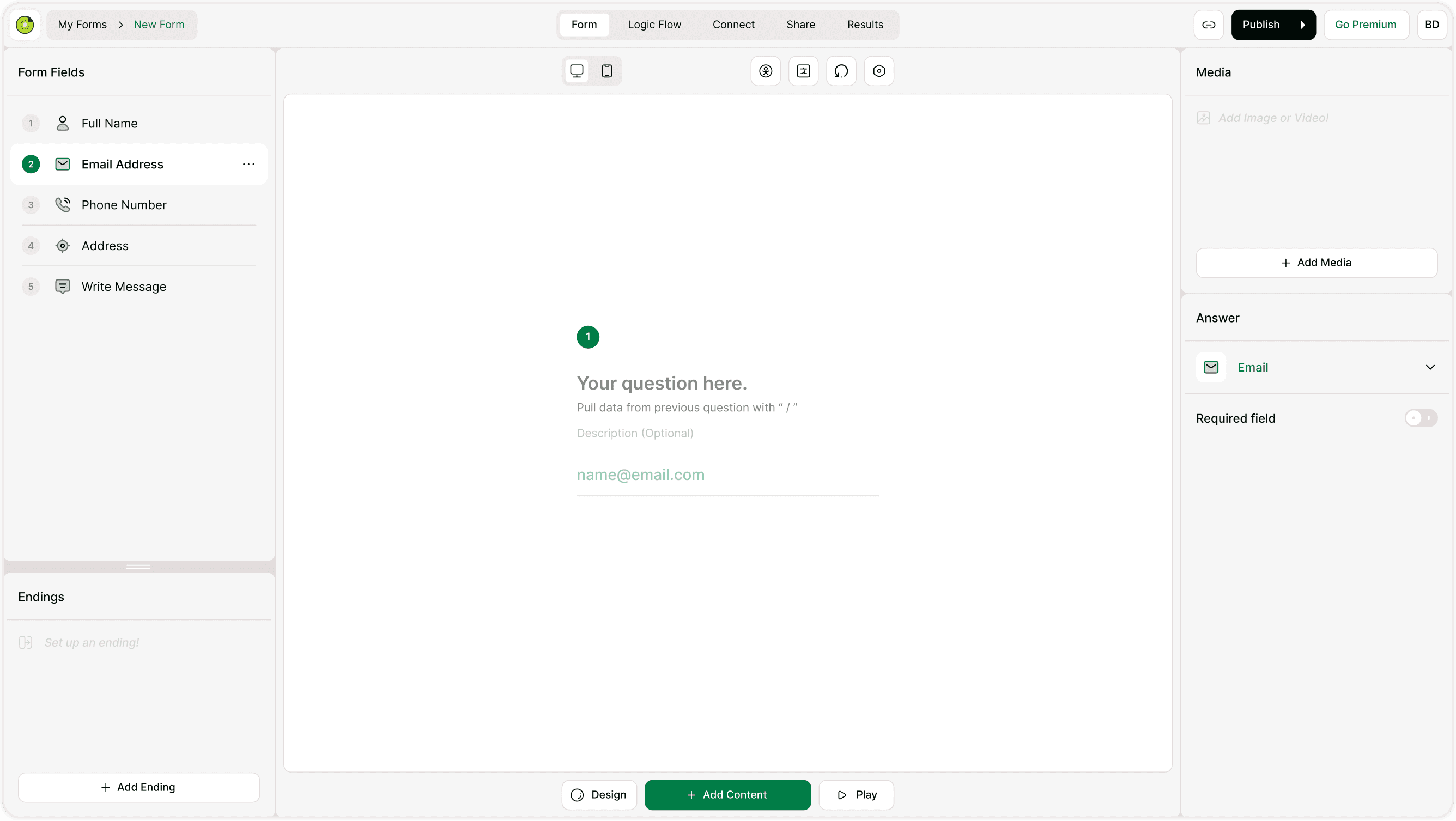
Where to find the Answer Panel
Open your form in the builder.
Click any question or field.
The right-side panel switches to Answer settings.
Each field type shows different options. For example:
Email field : validation and required toggle
Multiple choice : selection rules and layout
Contact fields : visibility and requirement controls
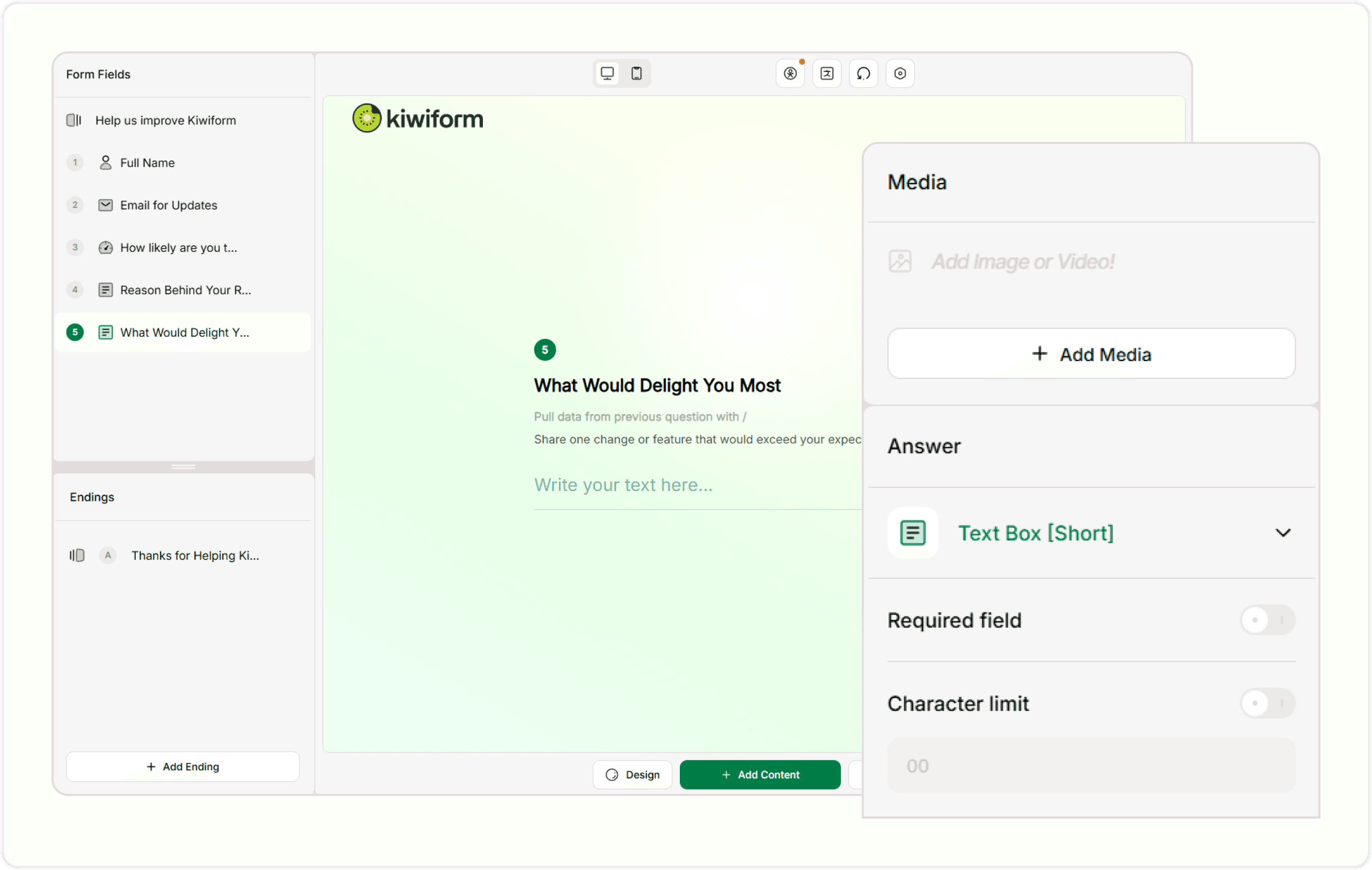
Required Field: Making a question mandatory
The Required field toggle ensures respondents must answer before continuing.
When enabled:
Users cannot skip the question
Navigation forward is blocked until an answer is provided
Helpful for essential data like email, name, or consent
When disabled:
Respondents can skip the question
Useful for optional feedback or extra details
When to use it:
Lead capture forms
Registrations
Payments
Surveys where specific data is essential
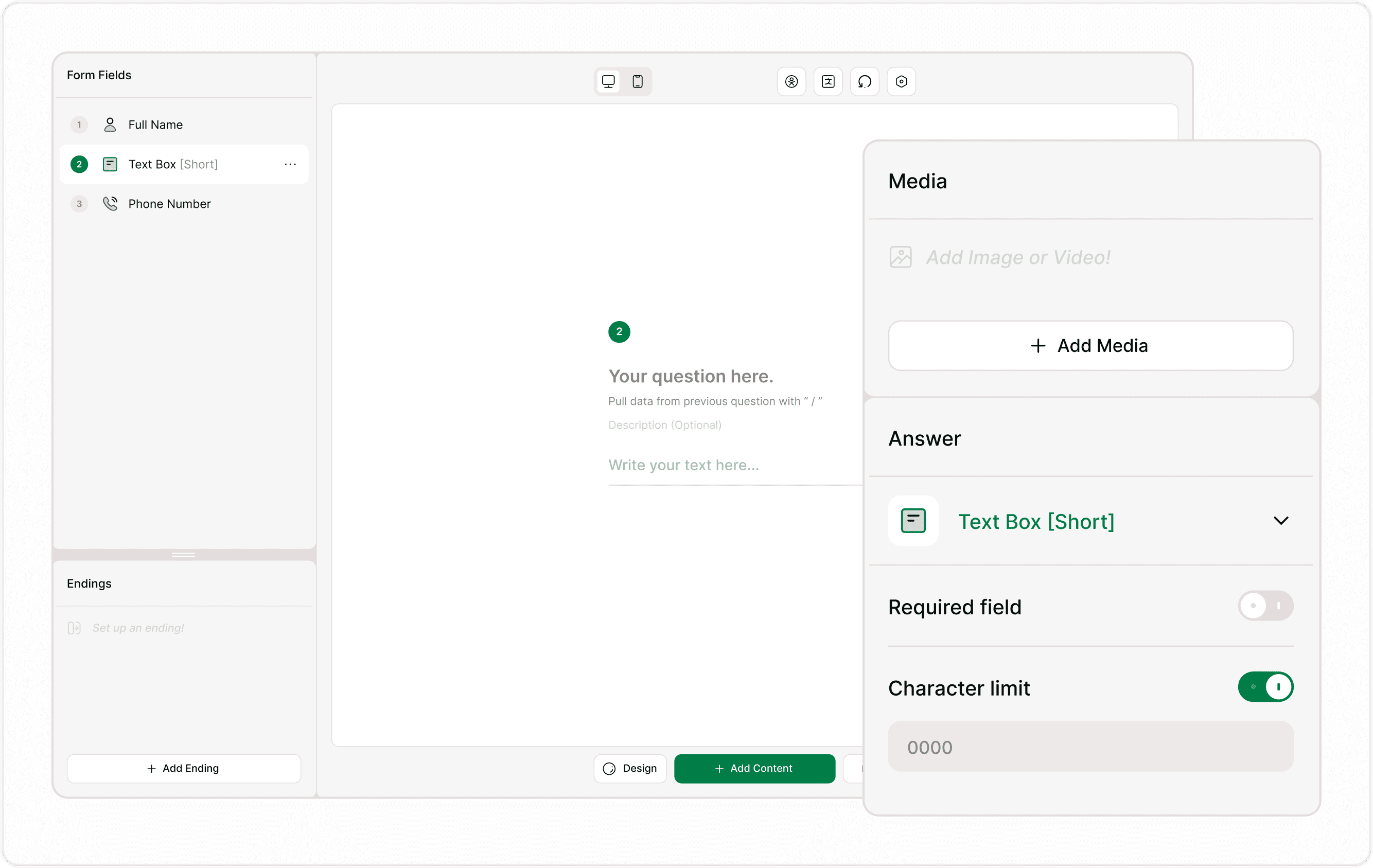
Selection Controls (for choice-based fields)
Number of selections:
For fields like Multiple Selection, you can limit how many options users can choose.
Examples:
Allow only one selection
Allow multiple selections
Set a maximum number
This helps maintain clean data and prevents invalid responses.
Option “Other”
Enable the “Other” option when you want respondents to enter a custom answer not listed in predefined choices.
When enabled:
An extra input field appears for users
Useful for open-ended responses within structured questions
Common use cases:
Feedback forms
Surveys
Event registrations
Randomize options
The Randomize setting shuffles answer choices for each respondent.
Why use it:
Reduces selection bias
Improves survey accuracy
Useful in research and feedback forms
When enabled:
Choice order changes automatically
All options remain available
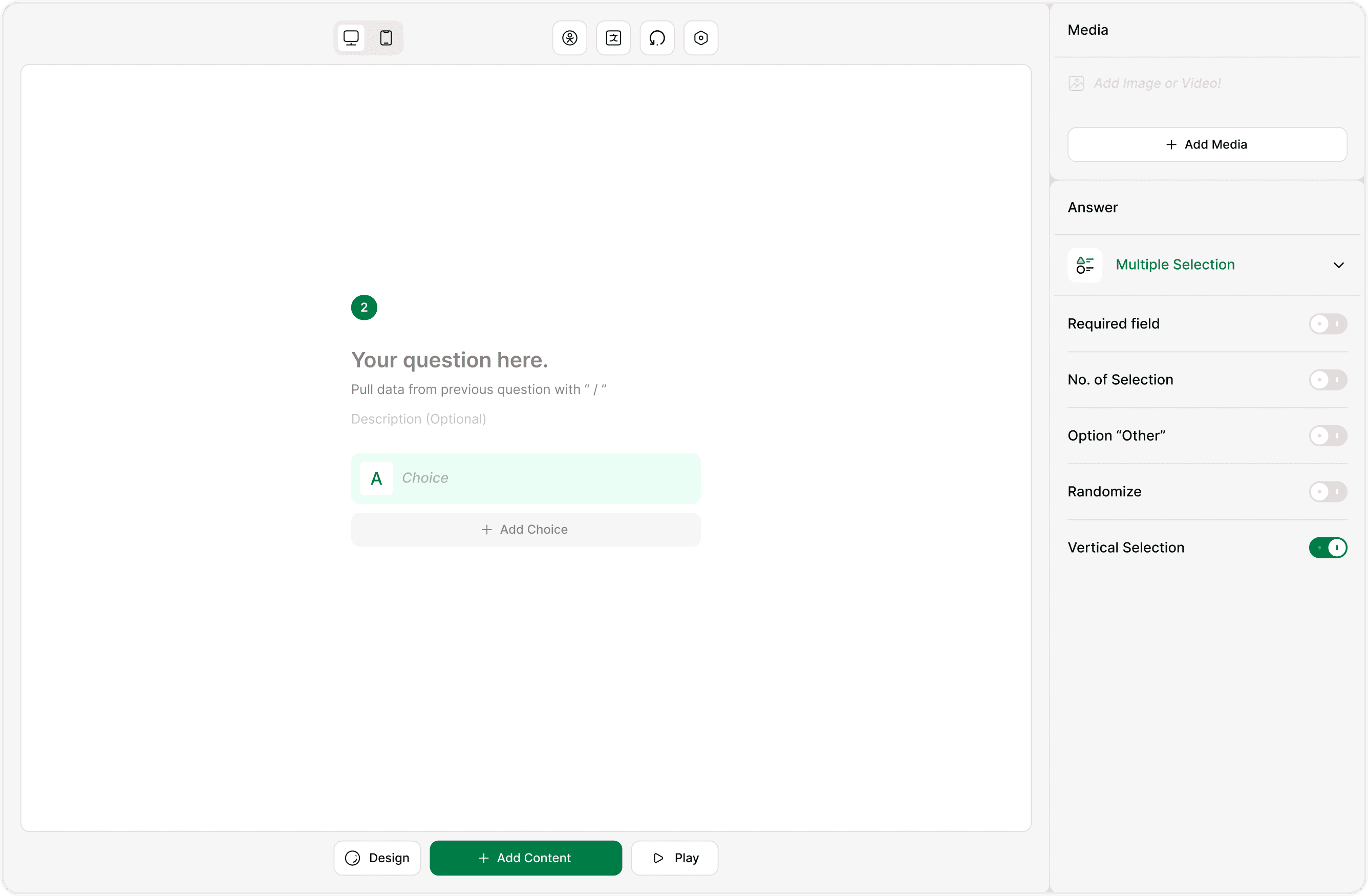
Vertical selection layout
For multiple choice or selection fields, you can switch to Vertical selection.
Use vertical layout when:
Options are longer
You want clearer readability
Mobile viewing needs improvement
Field-specific Answer Settings
Each field type has slightly different options. For example:
Email field:
Required toggle
Email validation
Multiple Selection:
Required toggle
Randomize
Other option
Selection limits
Contact Details:
Show/hide sub-fields
Mark individual inputs required
The Answer Panel always adapts to the selected field.
Best practices for using the Answer Panel
Mark only essential fields as required
Use randomization for unbiased surveys
Limit selections where necessary
Add “Other” only when meaningful
Keep answer choices clear and concise
Well-configured answer settings improve completion rates and data quality.
Summary
The Answer Panel lets you control how each form field collects responses. From required fields to selection rules and answer behavior, it ensures your form gathers accurate and structured data. Use it to refine how questions work and create smoother, more reliable form experiences in Kiwiform.