What is conditional logic?
Conditional logic allows your form to respond differently depending on how someone answers a question. Instead of showing every field to every respondent, you can create conditions that determine what appears next.
This helps you:
Ask only relevant questions
Personalize the experience
Shorten forms
Improve engagement
Collect cleaner data
Conditional logic is managed from the Logic Flow view using the visual logic board. From there, you can create rules that guide respondents through different paths based on answers.
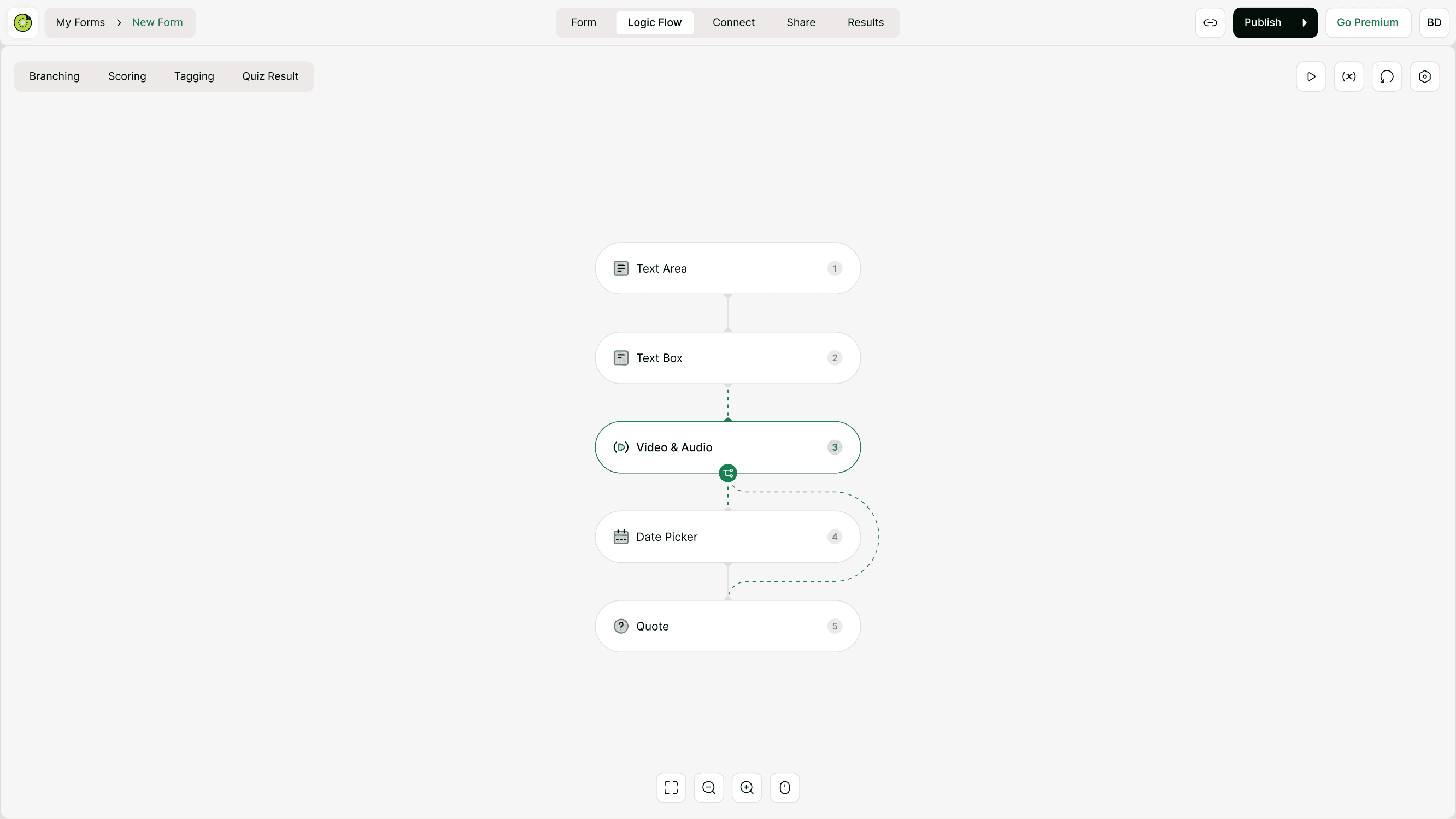
When to use conditional logic
Conditional logic is ideal when your form needs to adapt to different users or responses.
Common scenarios:
Show follow-up questions only if someone selects a specific option
Skip sections that don’t apply
Route leads to different paths
Personalize onboarding
Build quizzes or assessments
Create dynamic surveys
If your form needs to react to answers in real time, conditional logic is the foundation.
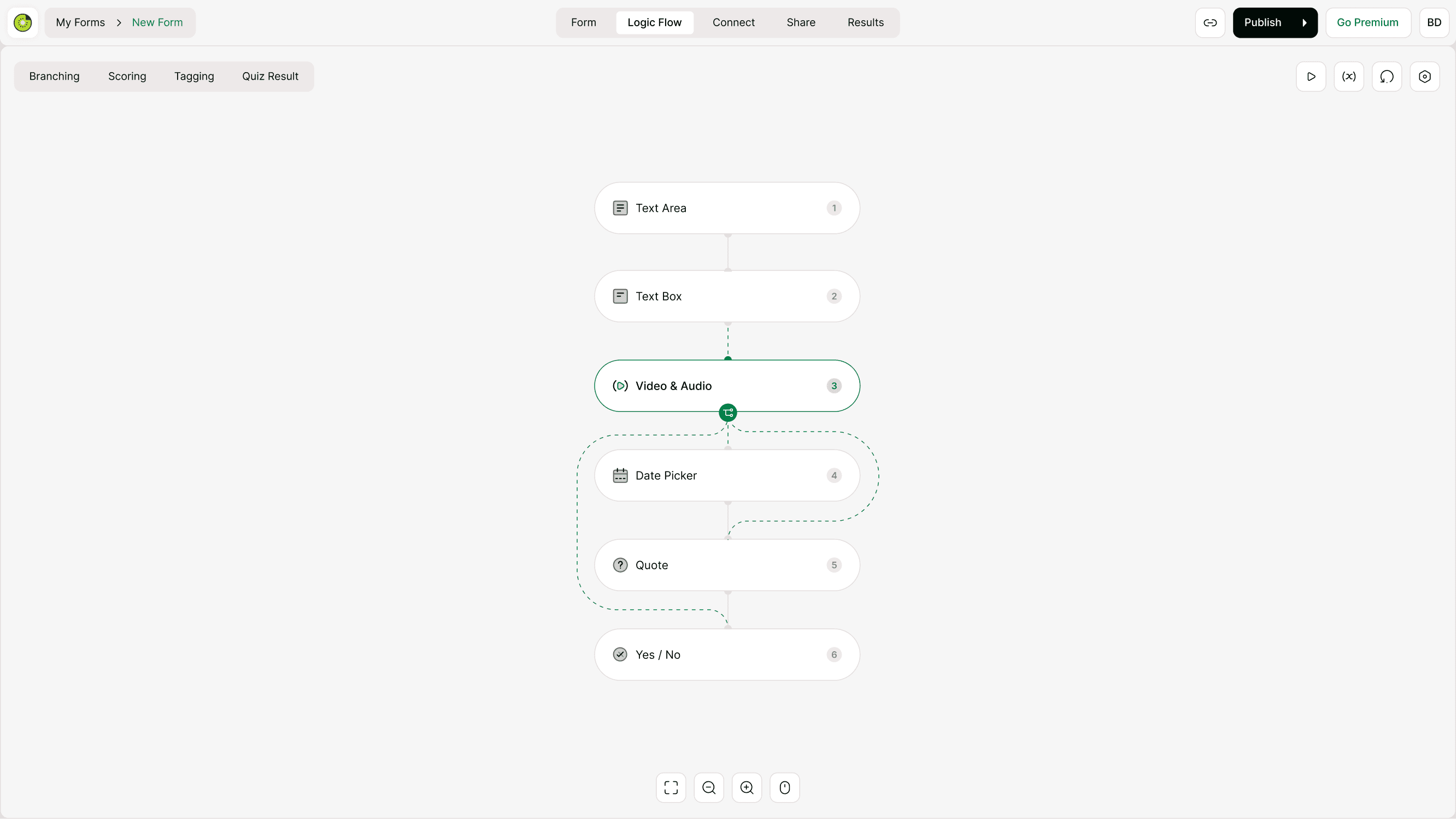
Where to find conditional logic
Open your form and click Logic Flow in the top navigation. This opens the visual logic board where all fields appear in sequence.
From here, you can:
Select a field
Create conditions
Connect to another field
Control what happens next
Conditional logic works together with branching and show/hide rules, but this page focuses specifically on the conditions that trigger those actions.
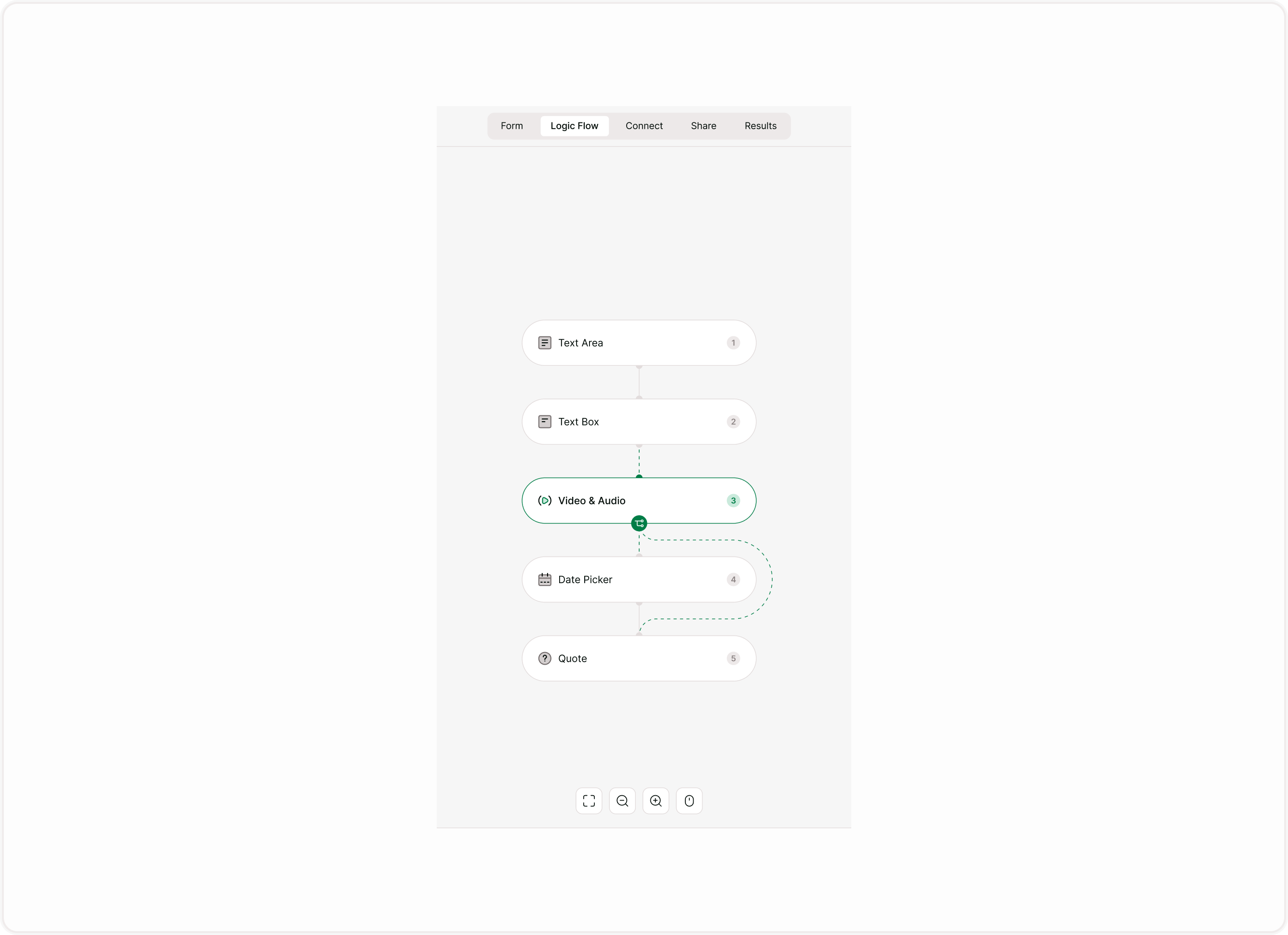
How conditional logic works
Conditional logic follows a simple pattern:
If a condition is met
Then perform an action
Example:
If answer = “Yes” → Show next question
If answer = “No” → Skip to ending
If rating ≥ 8 → Ask for testimonial
If country = USA → Show state field
Conditions are created using rules based on responses.
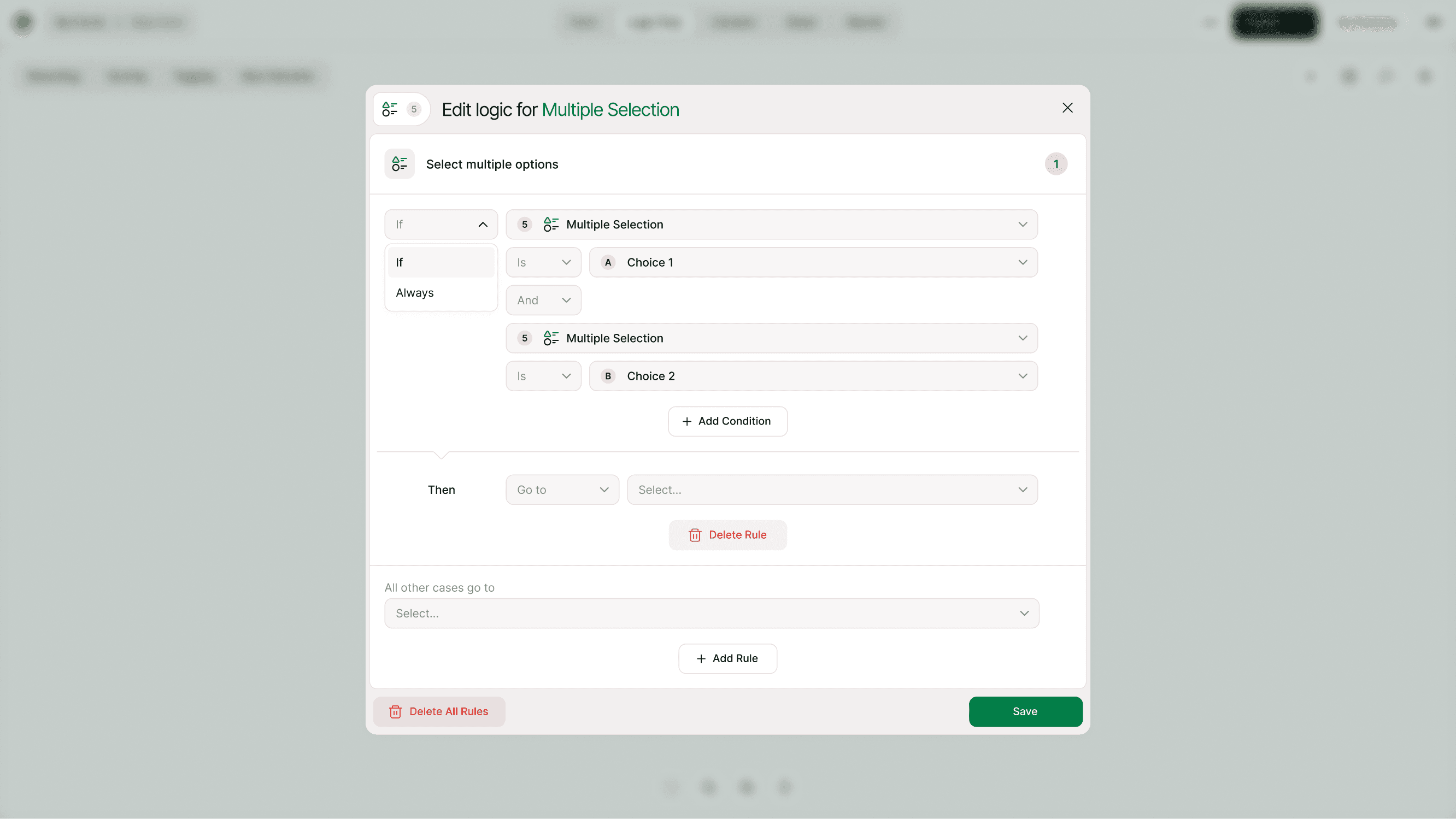
Types of conditions you can create
Conditional logic in Kiwiform supports different condition types depending on the field.
You can create conditions such as:
Equals
Does not equal
Contains
Greater than
Less than
Is answered
Is not answered
These conditions allow you to create simple or complex rules.
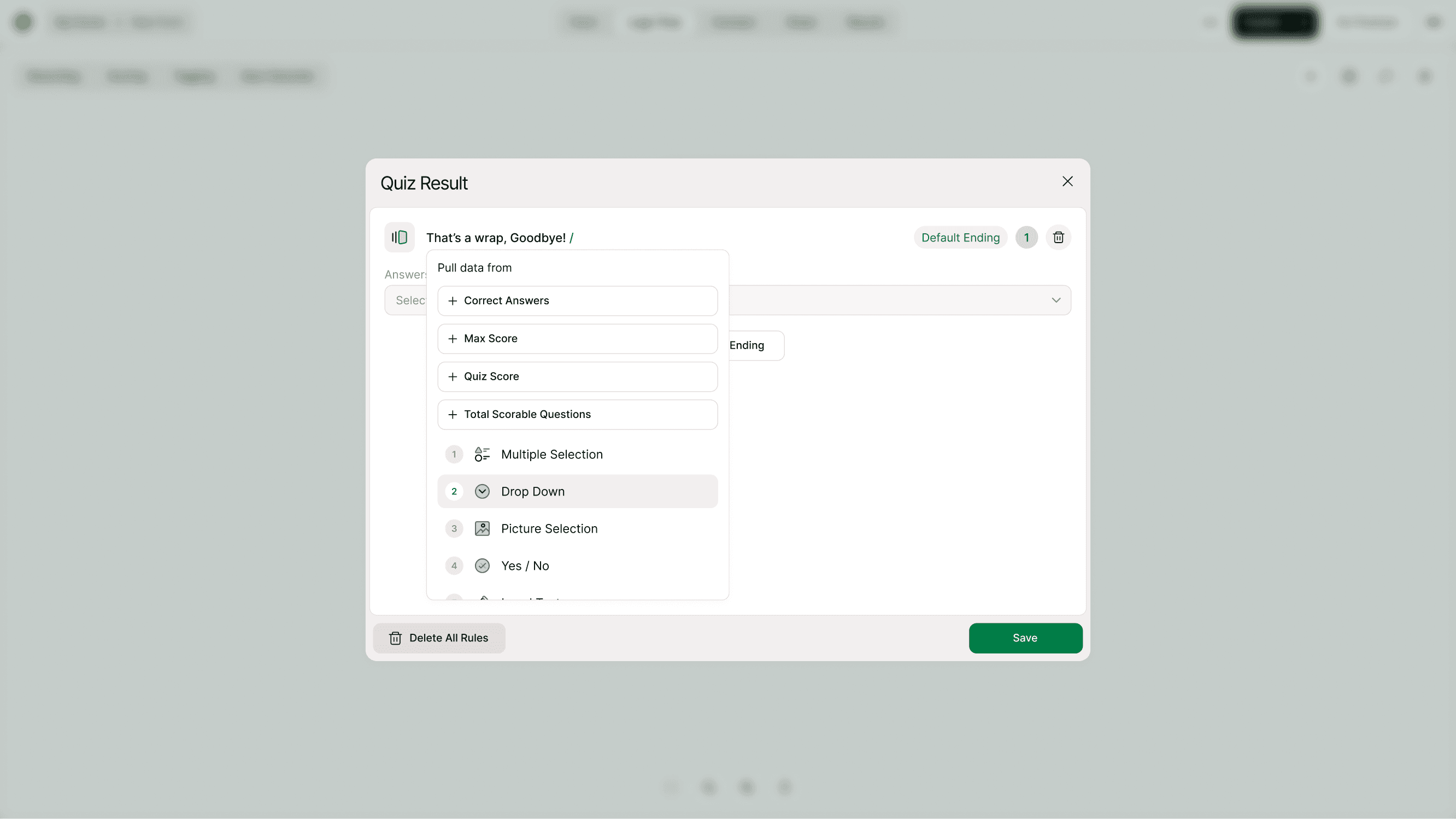
Using multiple conditions
You can combine conditions to create more advanced logic. This helps when you want multiple answers to determine what happens next.
Example:
If role = “Manager” AND team size > 5 → Show leadership questions
If interest = “Product A” OR “Product B” → Show product section
Use multiple conditions carefully to keep logic easy to understand and maintain.
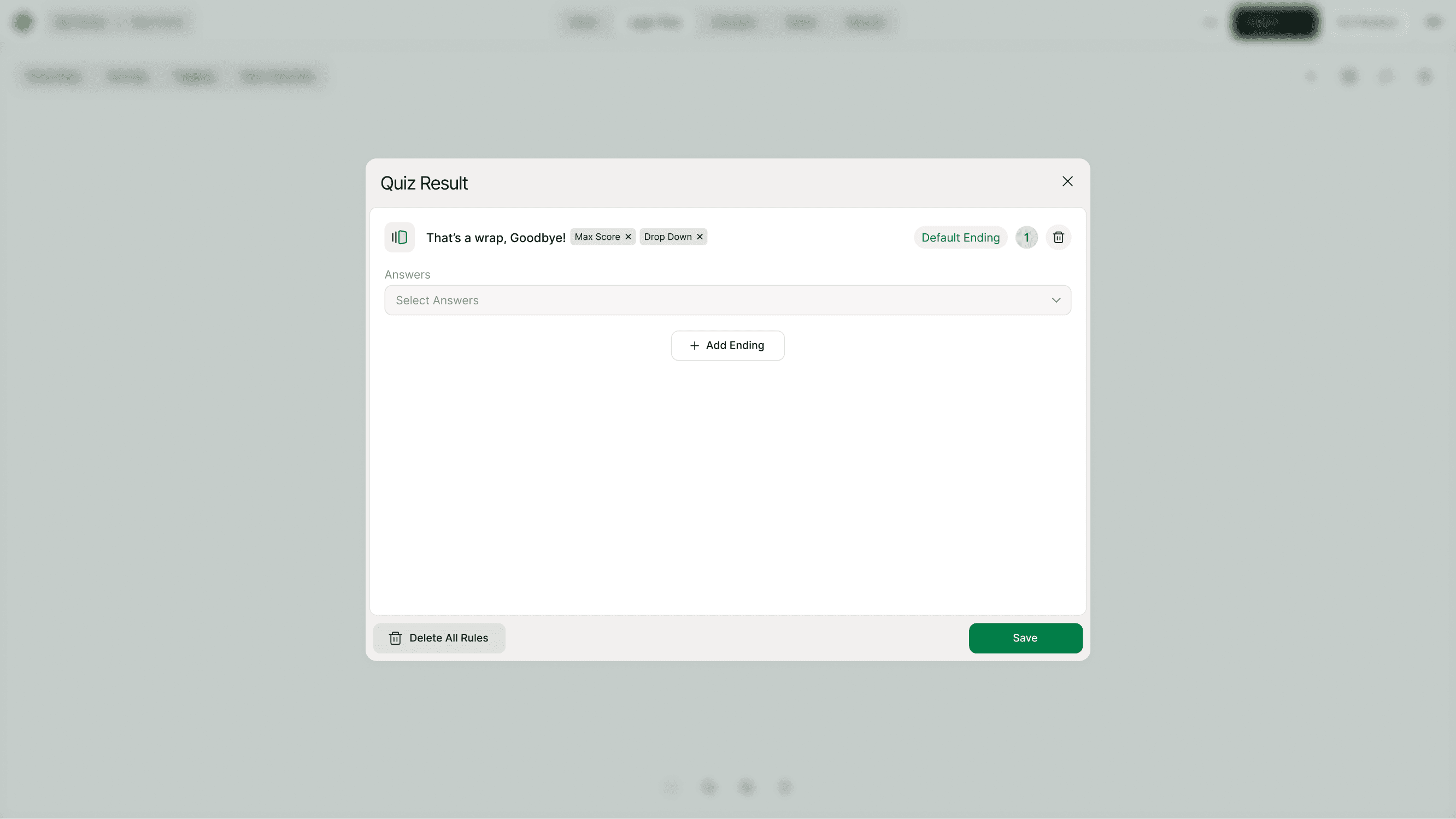
Creating conditional logic step by step
Open your form
Click Logic Flow
Select a question
Add a condition
Choose the rule (equals, contains, etc.)
Choose the destination field
Save and preview
Once saved, respondents will follow the path that matches their answers.
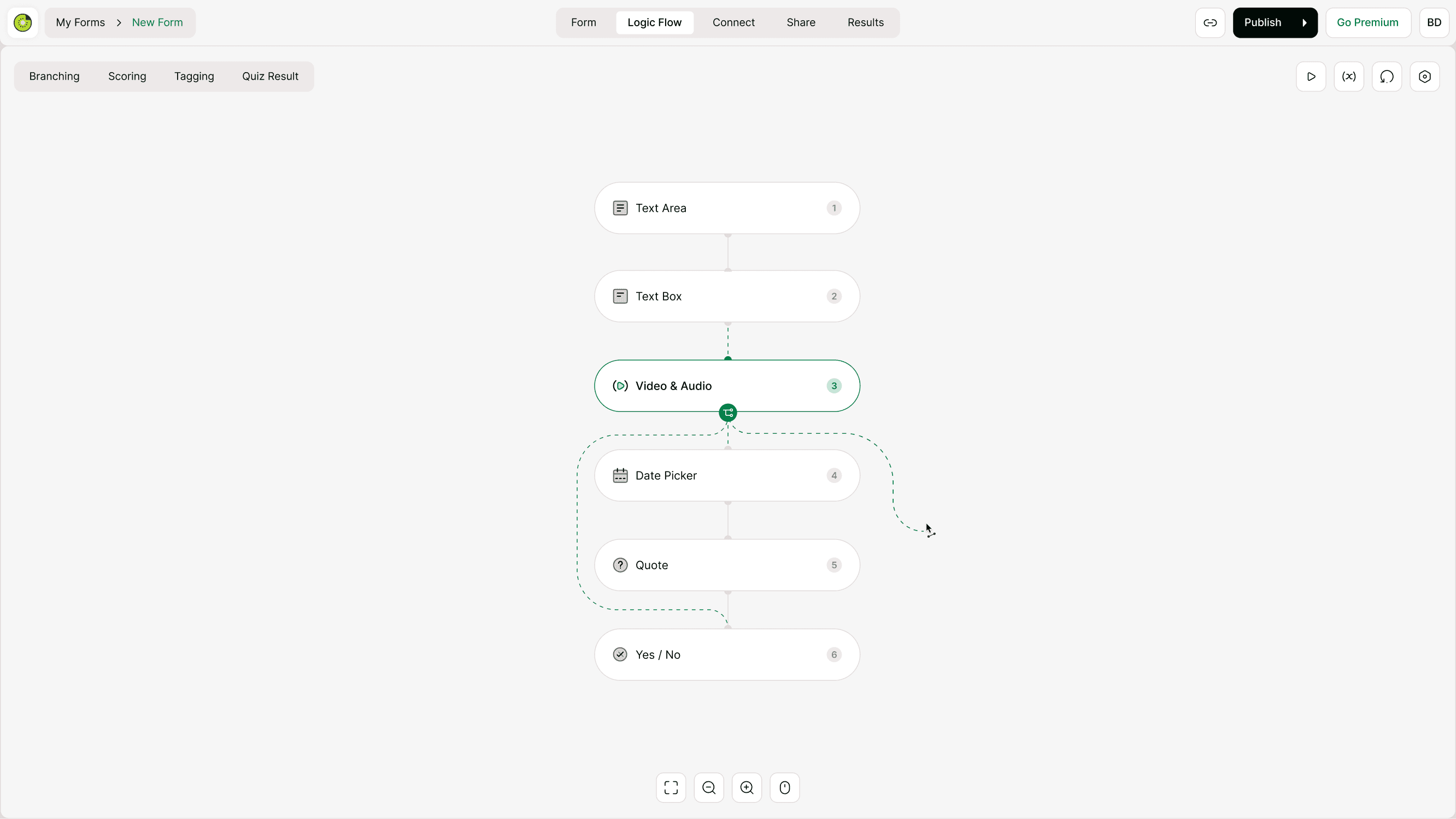
Testing conditional logic
Always preview your form after adding conditions. Testing ensures the logic behaves exactly as expected.
Test for:
Correct paths
Skipped questions
Dead ends
Incorrect conditions
Loop errors
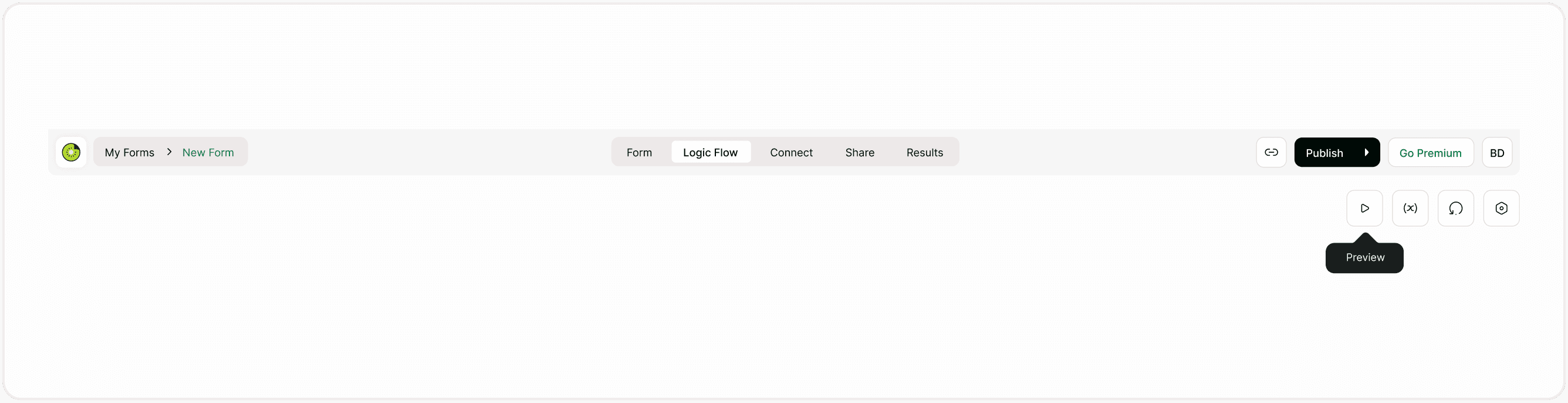
Use the Preview button in Logic Flow to simulate different answers and confirm everything works.
Best practices
Keep your logic clear and intentional.
Tips:
Start with a simple structure
Map out logic before building
Avoid too many conditions in one step
Test every path
Use clear field naming
Review logic after reordering questions
Simple logic improves reliability and makes forms easier to maintain.
Conditional logic vs branching
Conditional logic defines the rule. Branching is the action that happens after the rule is met.
Example:
Conditional logic: If answer = “Yes”
Branching: Go to question 5
Both work together, but conditional logic is the decision-making layer.
Common use cases
Lead qualification
Show different questions based on budget, role, or interest.
Customer feedback
Ask follow-up questions only for low ratings.
Applications
Filter applicants based on eligibility.
Surveys
Skip irrelevant sections.
Quizzes
Show results based on score or answers.
Troubleshooting
If logic doesn’t work as expected:
Check conditions carefully
Confirm destination field exists
Ensure fields are connected
Test each path
Review order changes
Most issues come from incorrect rules or missing connections.
Summary
Understand how conditional logic lets you customize the form experience based on responses. Set rules that determine what happens when a respondent selects certain answers, helping you create dynamic, relevant, and personalized form journeys.