Where to Find Connected Accounts
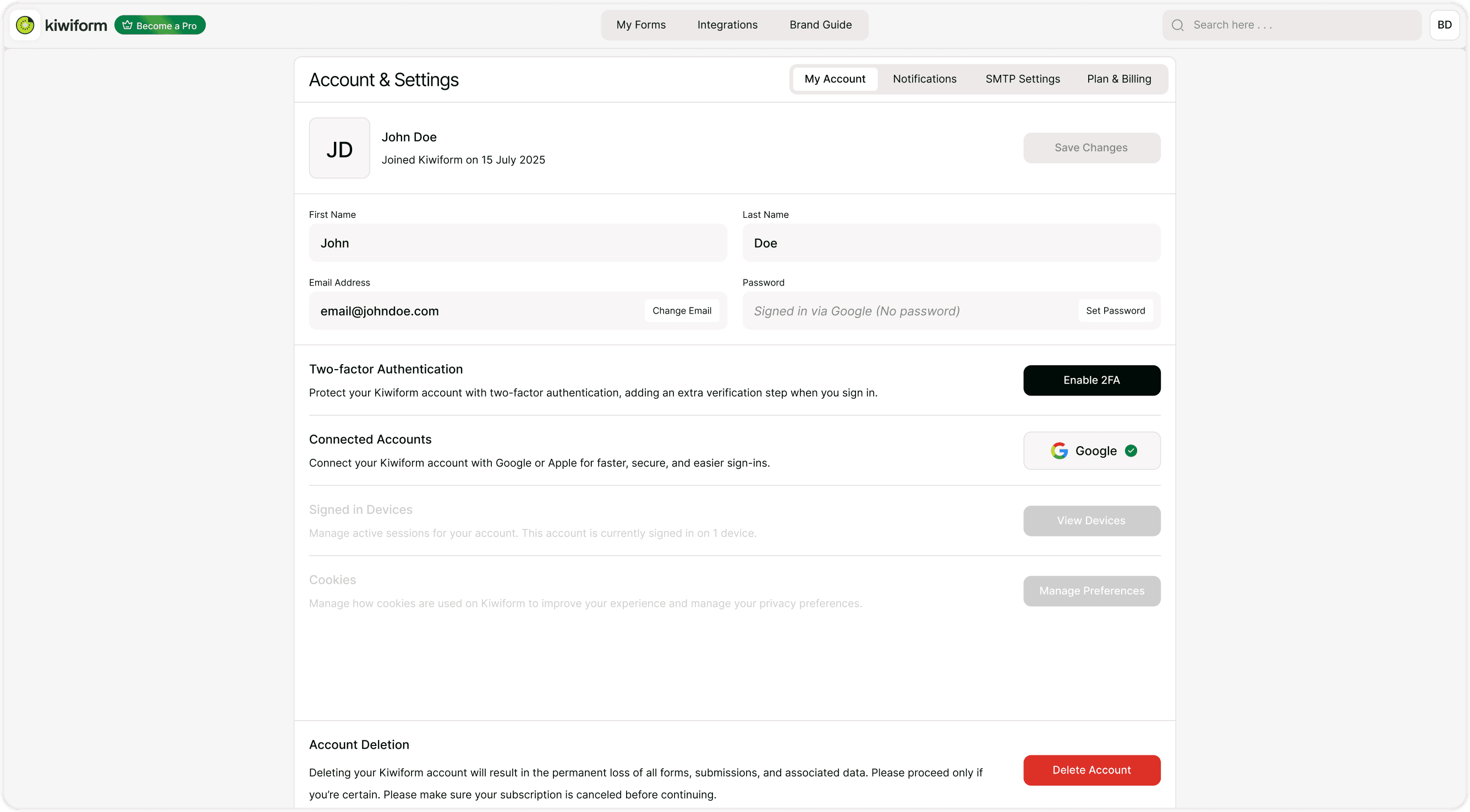
To manage your connected accounts:
Go to your profile avatar in the top-right corner.
Click Account & Settings.
Open the My Account tab.
Scroll to the Connected Accounts section.
Here, you will see all available and currently linked sign-in providers.
Why Connect Your Account?
Connecting your account provides several benefits:
Faster login with one click
No need to remember another password
Improved security with provider authentication
Easier access across devices
Secure authentication backed by Google
For teams and businesses, connected accounts also reduce login issues and password reset requests.
How to Connect Google to Your Kiwiform Account
If you signed up with email and password, you can connect Google later.
To connect Google:
Go to Account & Settings.
Scroll to Connected Accounts.
Click the Google button.
Authorize Kiwiform in the Google popup.
Confirm the connection.
Once connected, you’ll see a confirmation indicator (such as a checkmark) next to Google.
After connecting, you can log in using Google at any time.
If You Signed Up with Google
If you originally signed up using Google:
Your account is already connected.
You may not have a password set.
You can optionally set a password from the Password section in My Account.
This gives you flexibility to log in either via Google or email/password.
How to Disconnect a Connected Account
If you want to remove a linked account:
Go to Account & Settings.
Open the Connected Accounts section.
Click the connected provider.
Confirm disconnection.
Make sure you have another login method available (like a password) before disconnecting.
If Google is your only login method, set a password first to avoid losing access.
Security Considerations
Connected accounts are secured through the authentication system of the provider (e.g., Google). Kiwiform does not store your Google password.
For added protection, you can:
Enable Two-Factor Authentication (2FA) from the same Account & Settings page.
Set a strong password if using email login.
Regularly review your signed-in devices.
Best Practices
Connect Google for faster access across devices.
Set a backup password if using Google login.
Enable 2FA for maximum account protection.
Regularly review connected providers.
Using connected accounts helps streamline your experience while keeping your data secure in Kiwiform.
Summary
This guide explains how to connect and manage third-party sign-in providers like Google in Kiwiform for faster, secure login and better account protection.