Collect multiple contact inputs in one step
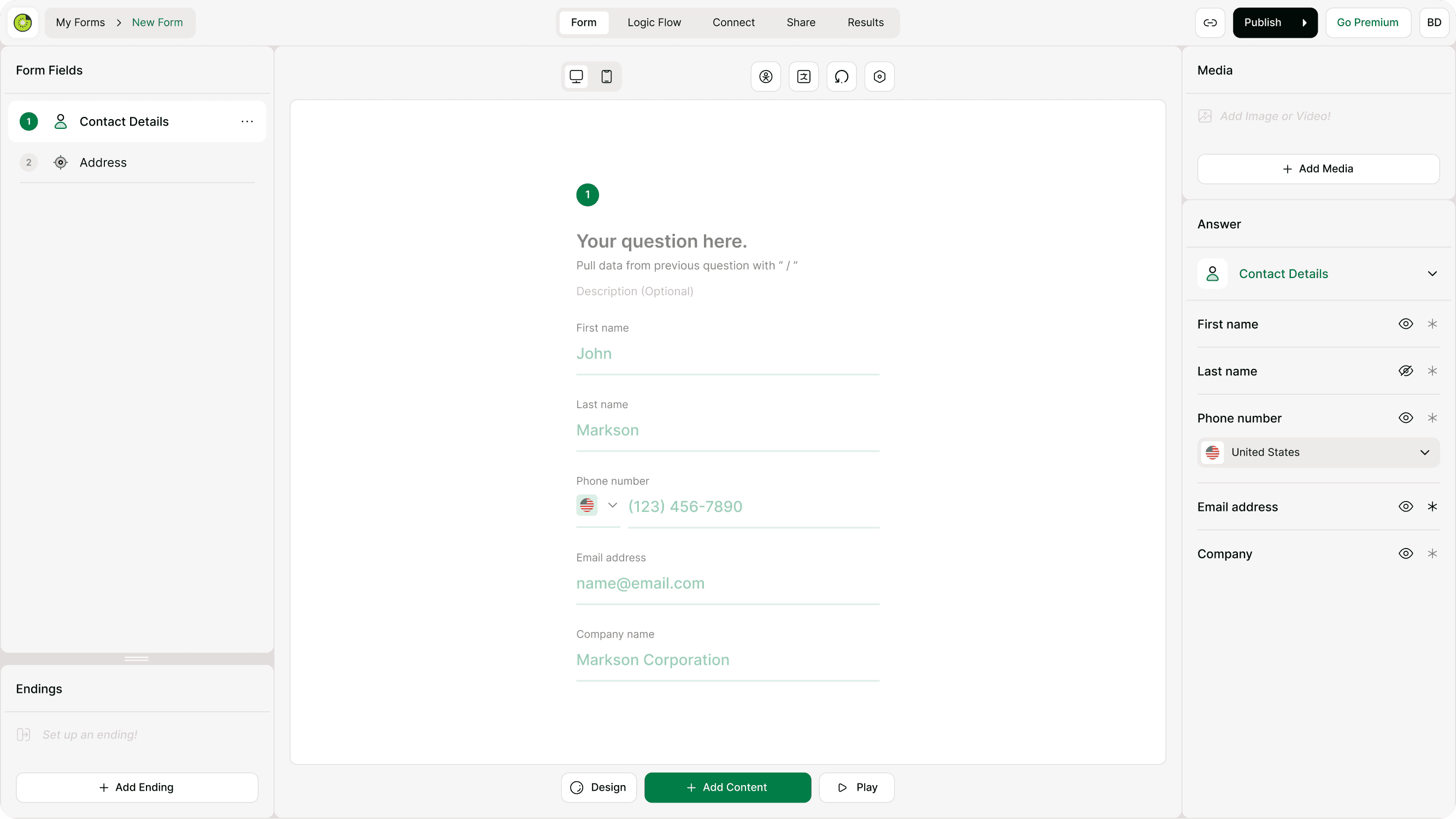
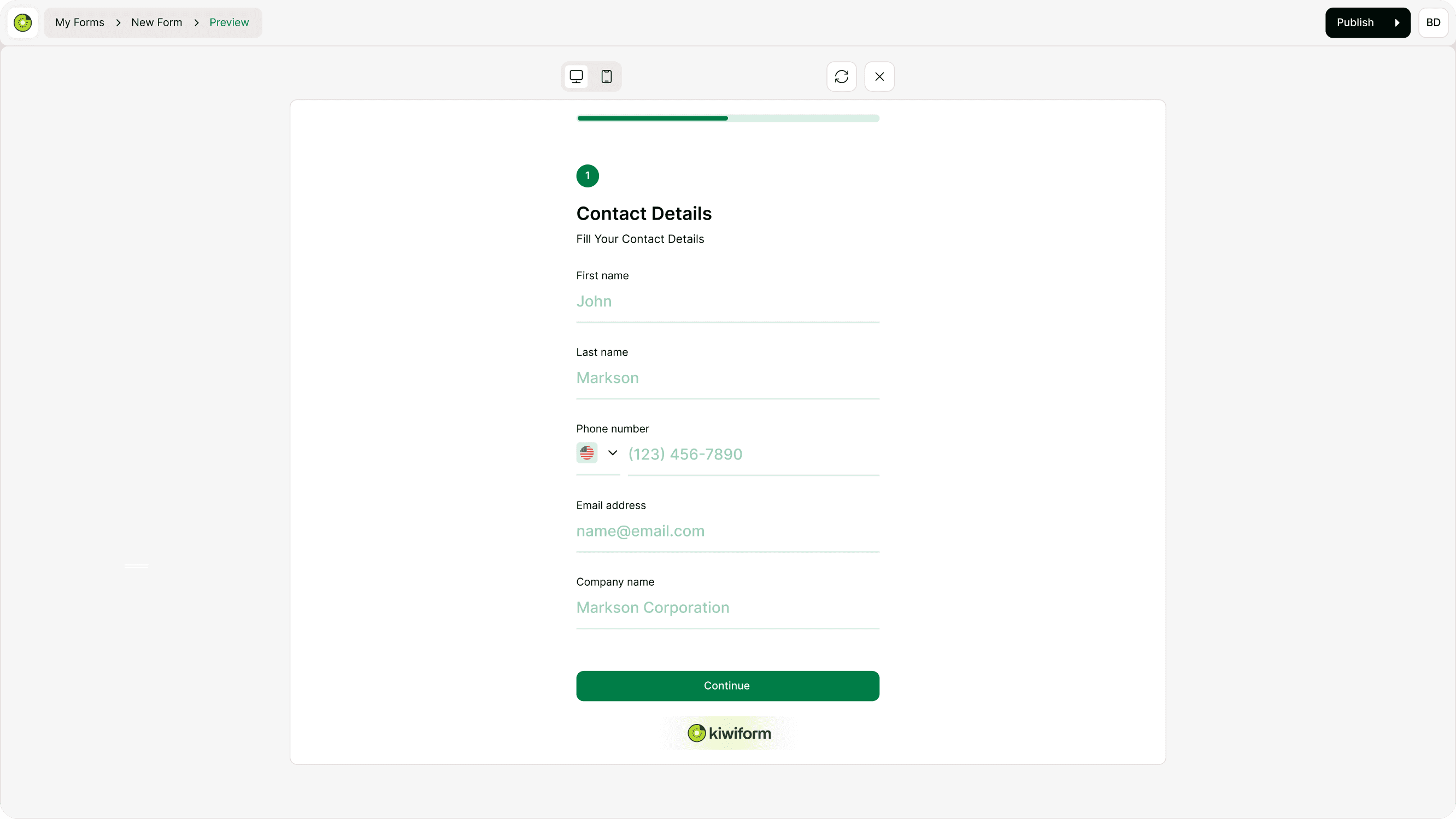
The Contact Details field lets you gather key respondent information in a single, well-structured form step. Instead of adding separate fields for name, email, and phone, this field groups them together for a cleaner flow and faster completion. It’s ideal for lead forms, registrations, inquiries, bookings, and any workflow where you need standard contact data.
You can decide exactly which inputs to show, which ones are optional, and which ones are required. This gives you control while keeping the experience simple for respondents.
What the Contact Details field can collect
By default, the Contact Details field can include multiple inputs such as:
First name
Last name
Phone number (with country selector)
Email address
Company name
You can show only what you need and hide anything that’s not relevant. This keeps the form short and focused.
Configuring the Contact Details field
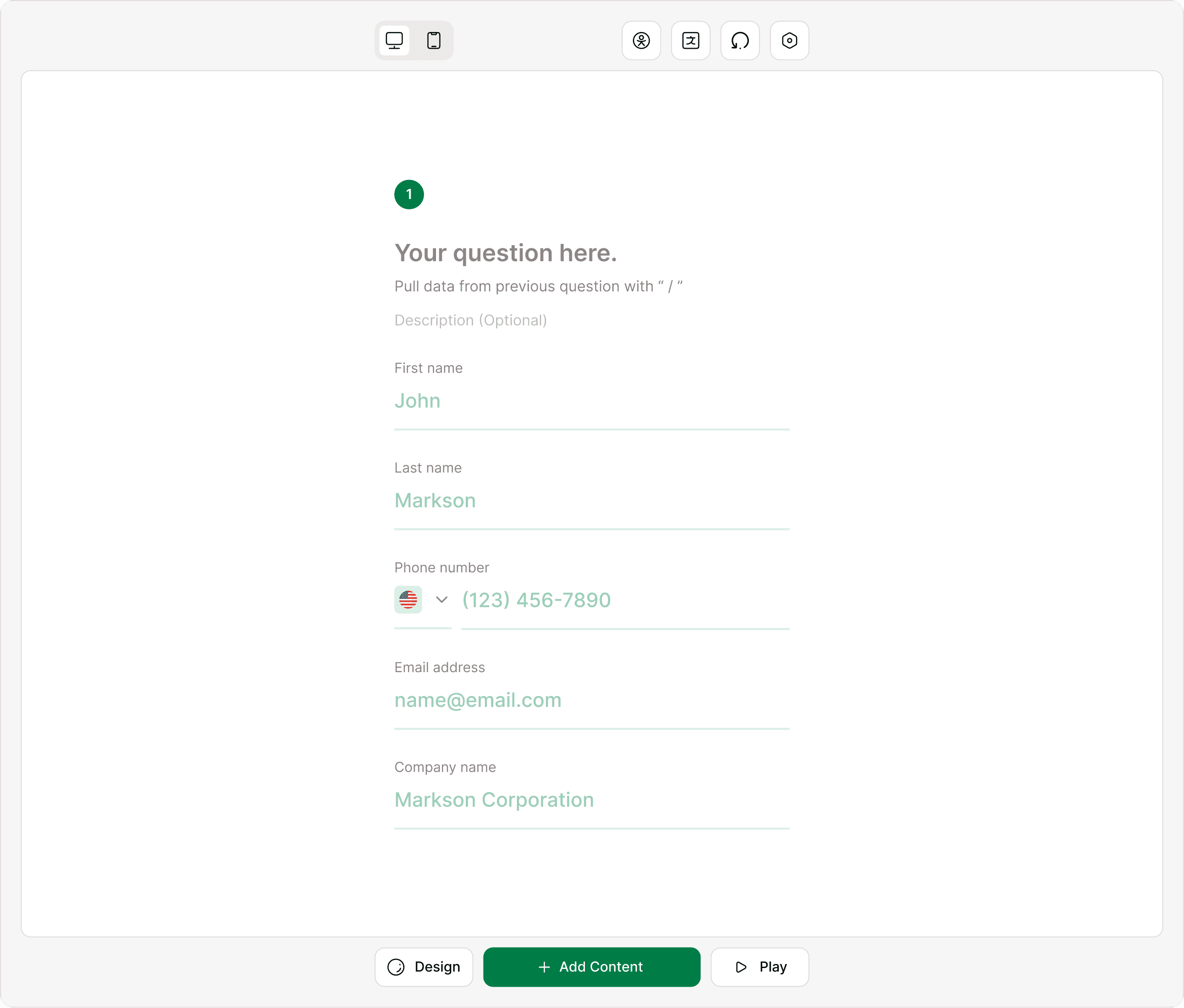
When you select the Contact Details field in the builder, its configuration appears in the Answer Panel on the right.
Show or hide inputs
Each input has an eye icon.
Turn it on to show that input in the form
Turn it off to hide it
This helps you tailor the field for different use cases. For example, a newsletter signup may only need name and email, while a demo request may need phone and company too.
Make inputs required
Each input also has a required (*) toggle.
Enable it to make that specific input mandatory before respondents can continue.
You can mix required and optional inputs within the same Contact Details field.
Phone number country selector
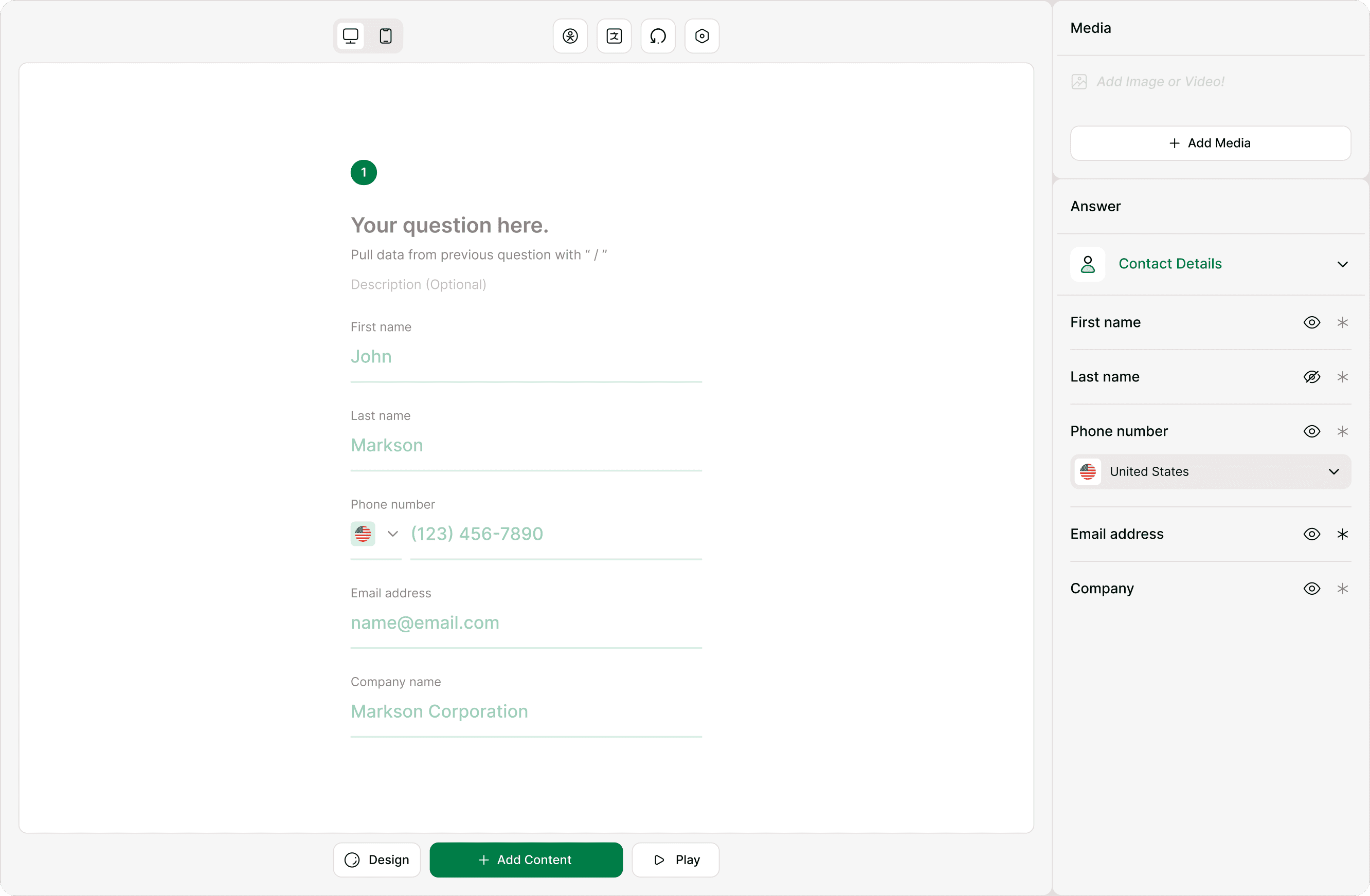
If the phone number input is enabled, respondents can choose their country code from a searchable dropdown. This ensures numbers are captured in the correct format for global forms.
You can keep this input optional or required depending on your workflow.
How it appears to respondents
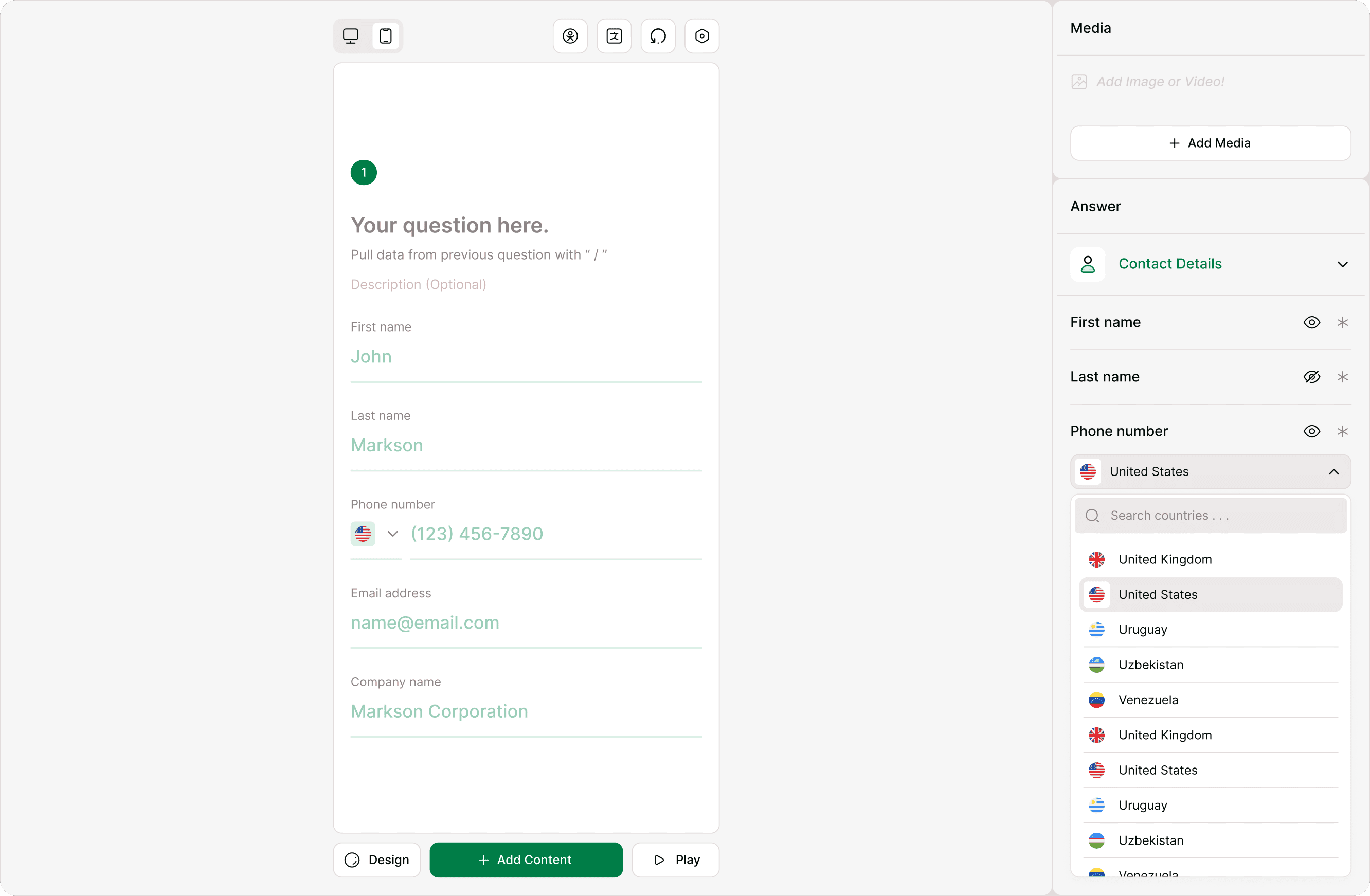
In the live form, the Contact Details field appears as a grouped set of inputs within a single step. This keeps the experience smooth and conversational rather than fragmented across multiple pages.
It works well for:
Lead capture forms
Contact or inquiry forms
Event registrations
Waitlists
Support requests
Grouping contact inputs reduces friction and improves completion rates.
Best practices
Only show inputs you actually need
Make email required for follow-ups
Keep phone optional unless necessary
Use company field for B2B forms
Combine with logic or integrations for automation
A shorter, focused contact step leads to better conversions.
Summary
The Contact Details field lets you collect multiple pieces of contact information within a single form step. You can choose which fields to display, hide optional ones, and mark required inputs directly from the Answer panel. This helps you keep forms short while still capturing the details you need for follow-ups, lead generation, support requests, or onboarding workflows. Proper configuration ensures better completion rates and cleaner data across your forms.