Start a new form
Creating a form in Kiwiform begins in your workspace. From the dashboard, select the option to create a new form. You can start with a blank form if you want full control or choose a template to move faster with a ready-made structure.
Once you start a form, you’ll enter the form builder. This is where you add fields, adjust layout, and prepare the form for sharing. Every change is saved automatically, so you can build at your own pace without worrying about losing progress.
Kiwiform is designed so you don’t need to plan everything upfront. You can start simple, test your form, and refine it over time.
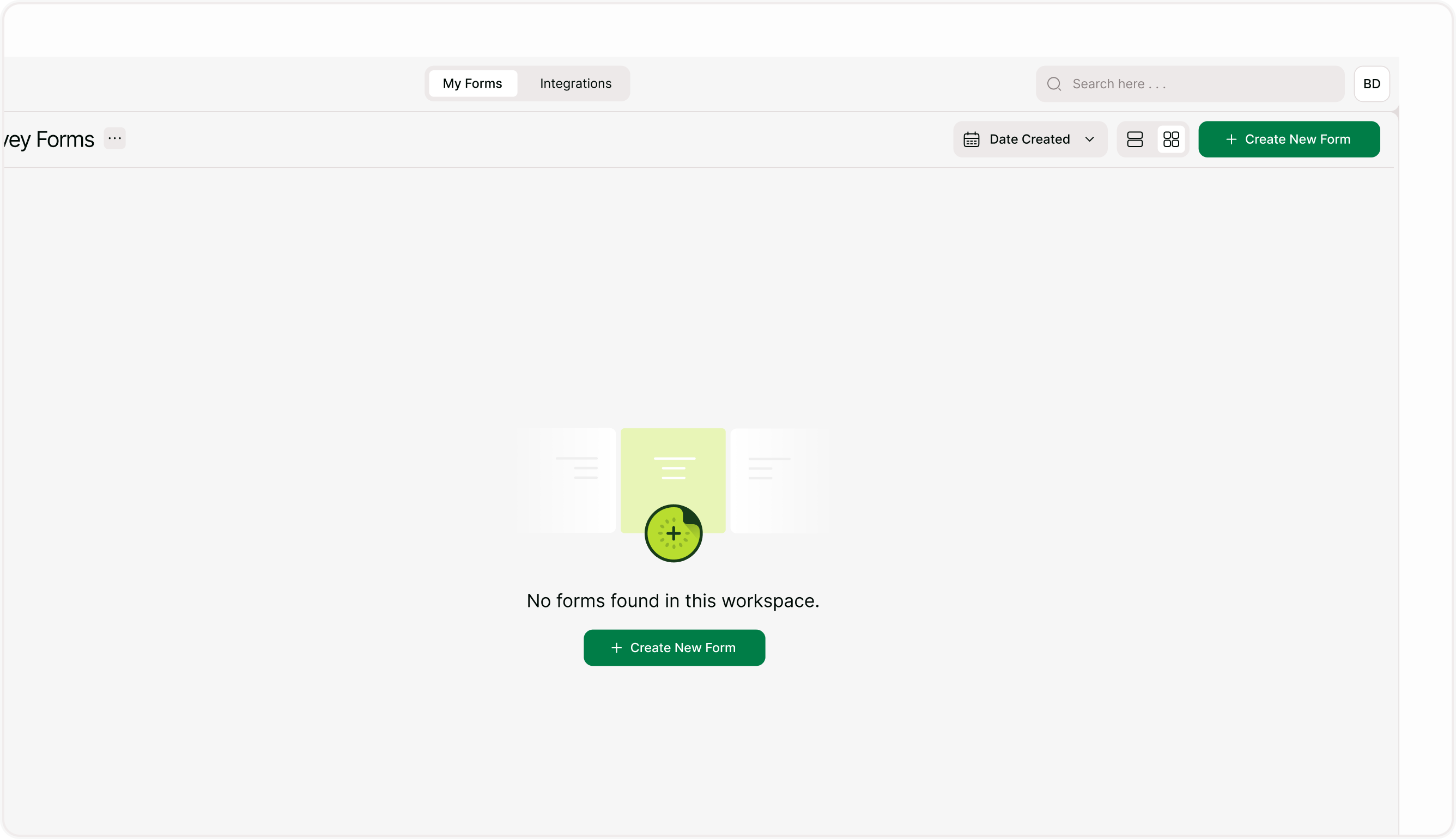
Choose how you want to start
When creating a new form, you can begin in the way that fits your workflow best. Kiwiform offers flexible starting points so you can build quickly whether you’re creating something new or bringing an existing form into the platform.
Kiwiform gives you flexible ways to build forms based on how you prefer to work, whether you want full control, a ready-made starting point, or a faster AI-powered approach. As a free Typeform alternative, Kiwiform makes it easy to create forms that fit your exact needs without complexity.
There are three ways to create a form:
Create from Scratch
Start with a blank form and use ready-to-use form elements in the drag-and-drop builder. This option is ideal when you want full control over structure, content, and flow from the beginning. You can add fields, arrange steps, and design the form exactly the way you need.Start with Template
Choose from ready-to-use templates designed for common use cases. Templates give you a structured starting point, helping you save time while still allowing full customization. You can edit fields, adjust flow, and tailor the form to fit your specific needs without starting from scratch.Generate Form Using Kiwizard AI (AI Form Builder)
Describe what you want to create, and Kiwizard AI will generate a structured form draft for you. It suggests relevant form fields, organizes the flow, and defines answer options based on your goals and target respondents. You can review, edit, and refine the form—making it the fastest way to go from idea to a well-structured, ready-to-use form.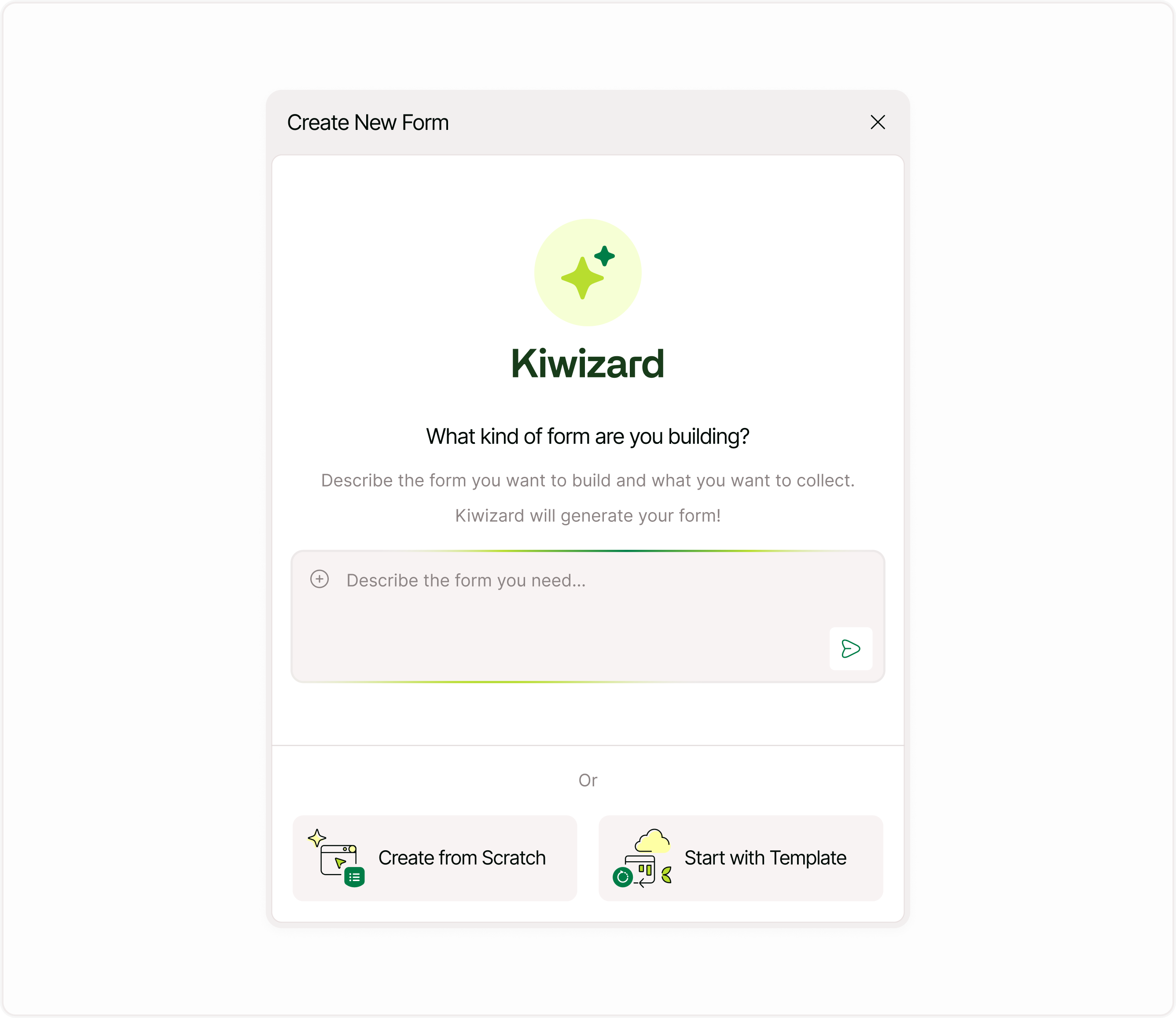
Add fields and content
Inside the builder, you can add form fields and content elements to shape your form. Choose from text inputs, dropdowns, multiple selections, ratings, file uploads, payments, and more. You can also add content like text blocks, images, or videos to provide context for respondents.
Fields can be rearranged easily so the form flows in a clear and logical order. You can edit labels, add descriptions, and mark fields as required where needed. This helps ensure you collect the right information while keeping the form easy to complete.
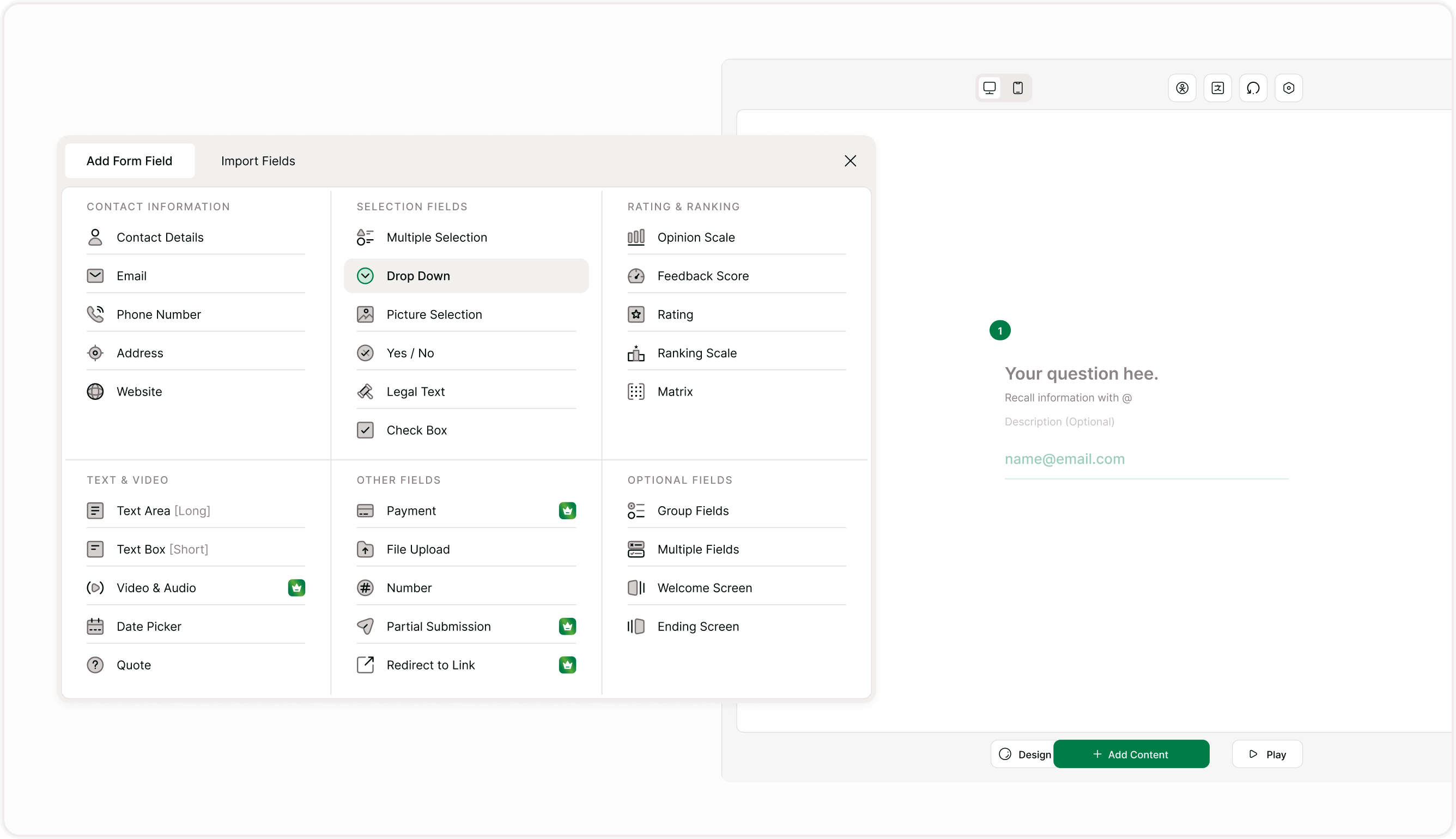
As your form grows, you can keep adjusting it without affecting previously saved work.
Structure your form
A well-structured form helps respondents move through it smoothly. You can break forms into steps, add a welcome screen, and include an ending screen that confirms submission or guides respondents to the next step.
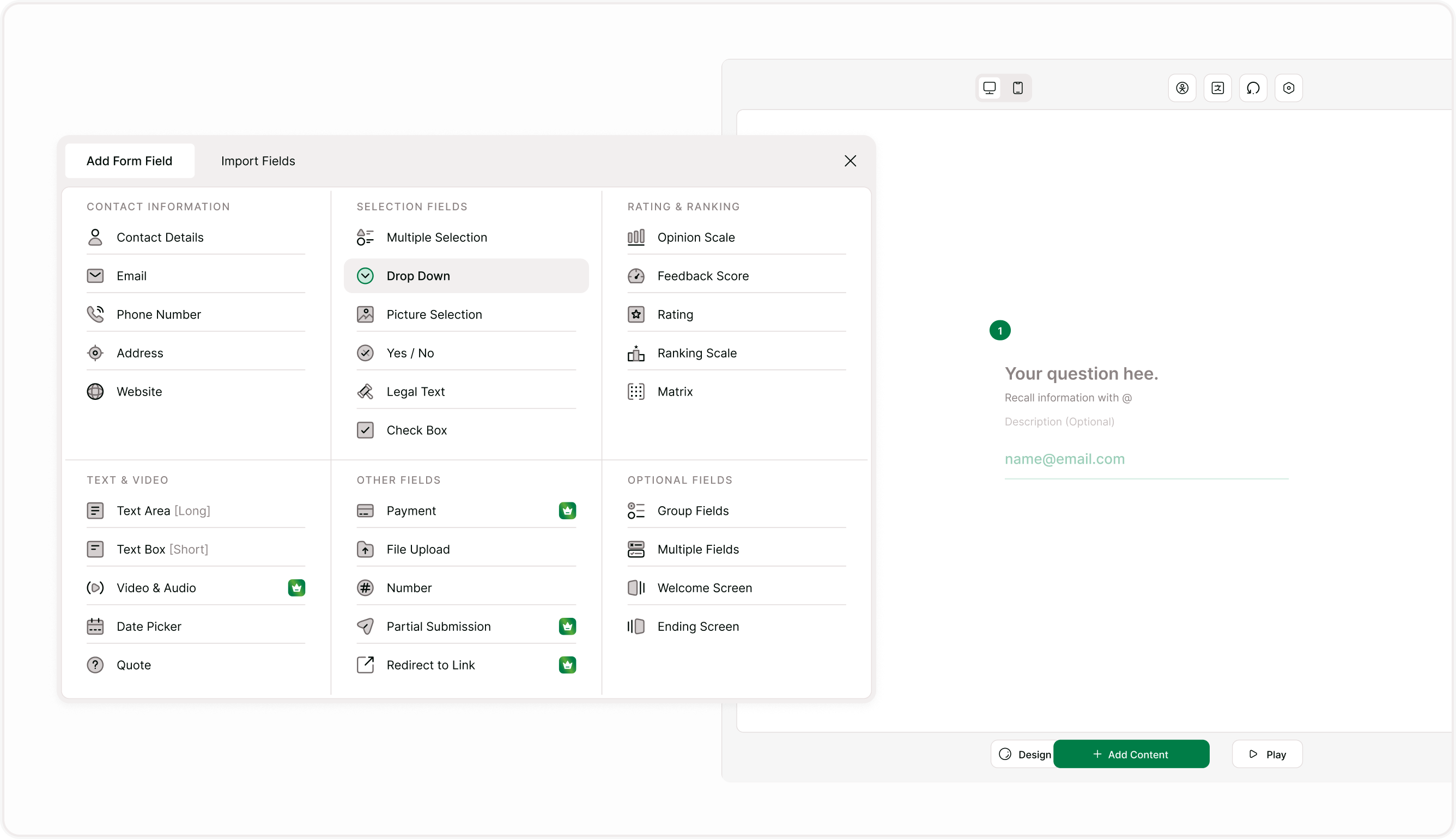
You can keep the form short and direct or expand it into a multi-step experience depending on what you need to collect. If your form requires more advanced behavior later, you can add logic and customization after the basic structure is ready.
Preview and test
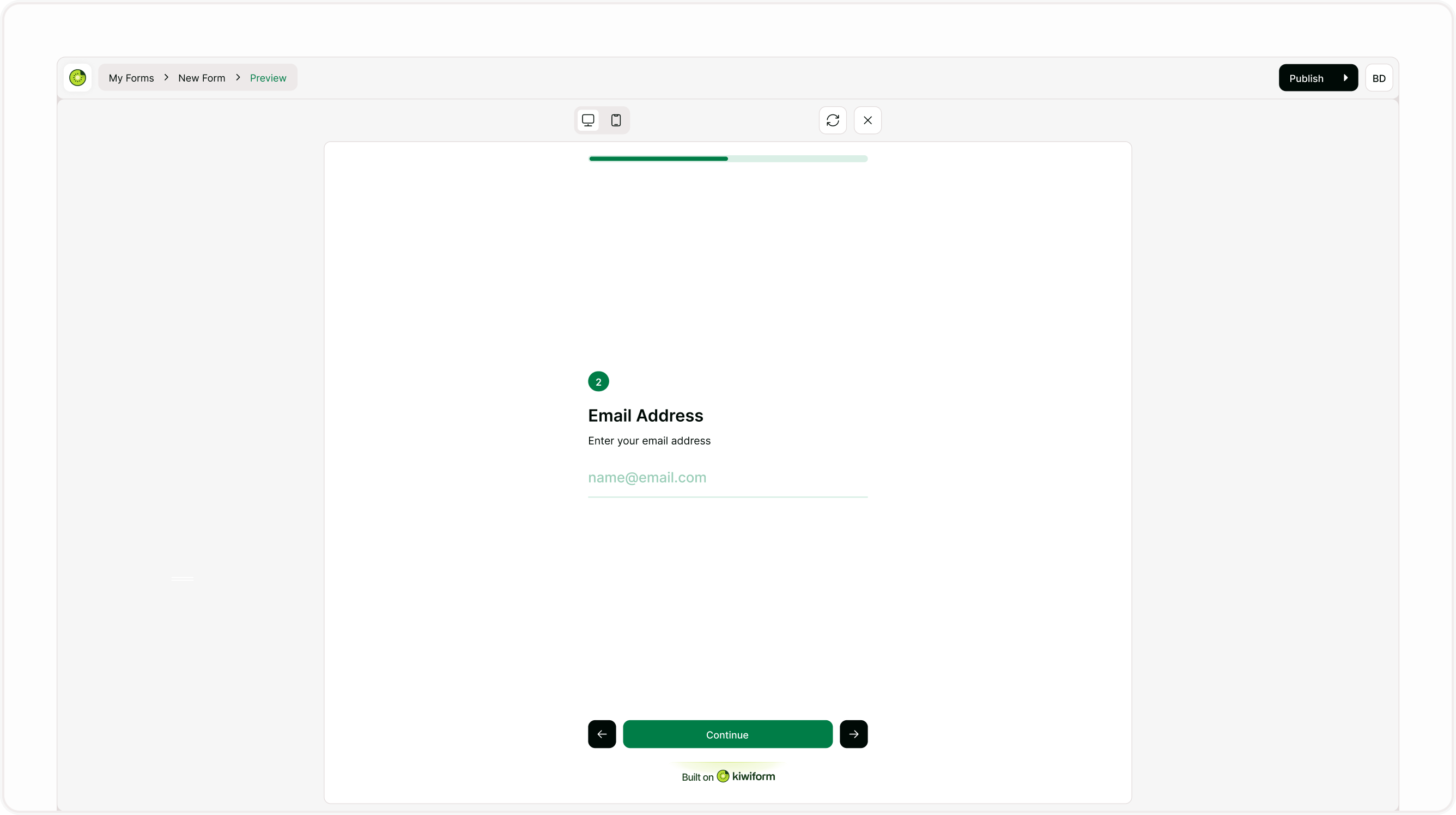
Before sharing your form, use preview mode to see how it appears to respondents. This helps you check wording, field order, and overall flow. Testing ensures everything feels clear and works as expected. If something doesn’t look right, you can return to the builder and make changes instantly. Testing early helps prevent confusion and improves completion rates once the form is live.
Use cases for creating forms
You can create forms for many different needs, including:
Contact and inquiry forms
Lead collection
Feedback and surveys
Event registrations
Applications
Internal requests
The same creation process works for all of them.
Start a form, add fields, preview it, and share when ready.
Share your form
When your form is ready, you can share it using a link or embed it into a website. Once shared, responses will begin appearing in your results area. You can return to the form anytime to edit fields, update content, or adjust settings.
Because Kiwiform is built as a free Typeform alternative focused on usability, creating and sharing forms stays simple even as your forms become more detailed.
Summary
Creating a form in Kiwiform is a straightforward process that starts in your workspace and continues in the builder. You can begin with a blank form or template, add and arrange fields, preview the experience, and share it when ready. This flexible approach helps you create forms that fit your workflow and adapt as your needs grow.