What Is a Theme in Kiwiform?
A theme is a reusable design preset that controls how your form looks. Instead of styling every form separately, you can create a theme once and apply it across different forms.
A theme includes:
Font selection
Font size
Form Field colors
Background color
Button styling
Corner radius settings
Alignment settings
Logo and background image
Using themes helps maintain visual consistency across campaigns, departments, and projects. It also reduces repetitive design work.
How to Create a New Theme
Open the design panel of your form:
Open your form in the builder.
Click Design.
Select Create New Theme.
This opens the theme customization panel.
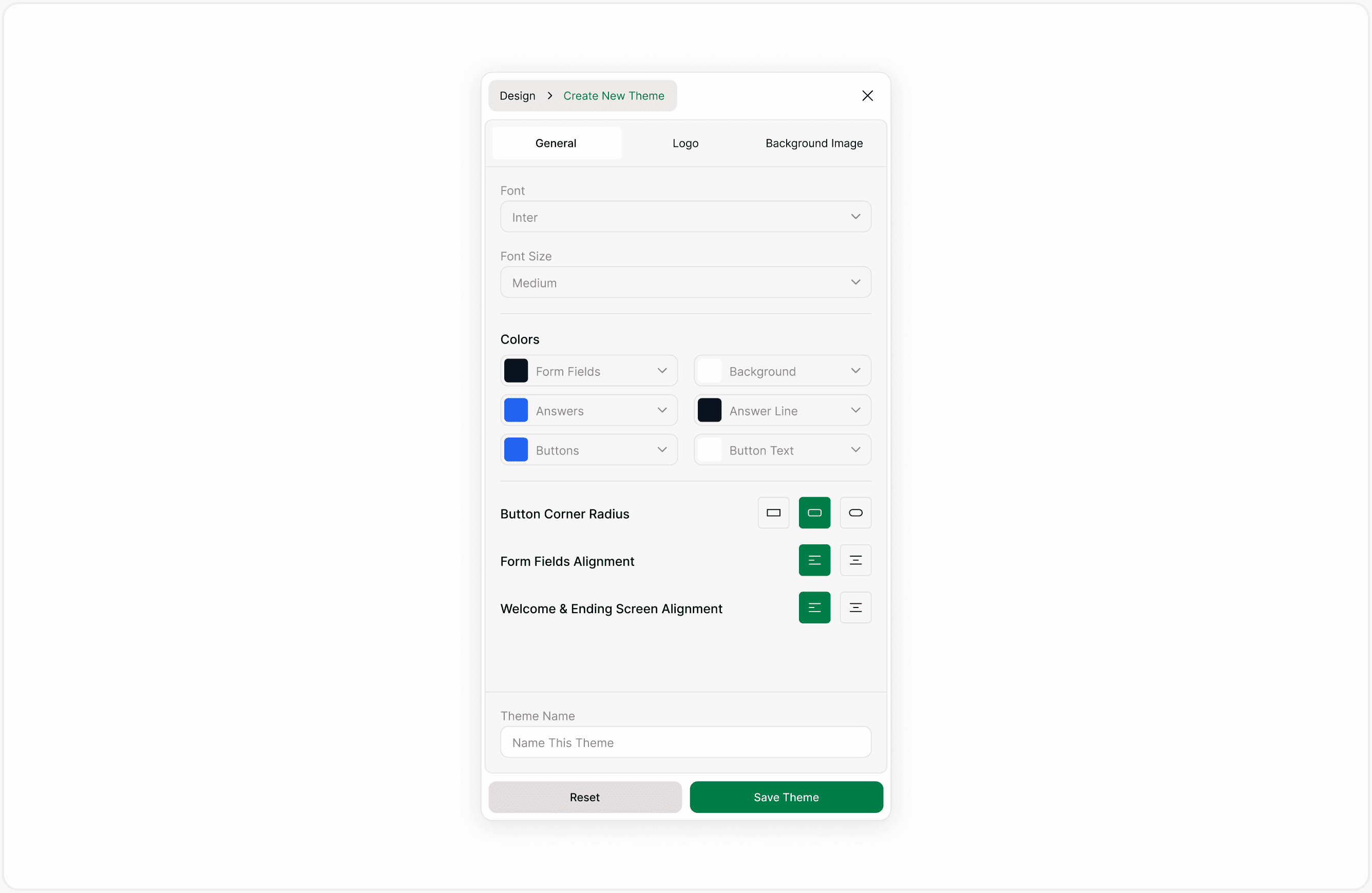
Configure General Settings
Under the General tab, you can define typography, colors, and layout options.
Font
Choose a font from the dropdown list. The selected font applies to:
Form titles
Form Fields
Buttons
Informational text
Select a font that aligns with your brand and remains readable on different screen sizes.
Font Size
Choose the preferred font size. Smaller sizes allow compact layouts, while larger sizes improve readability and accessibility.
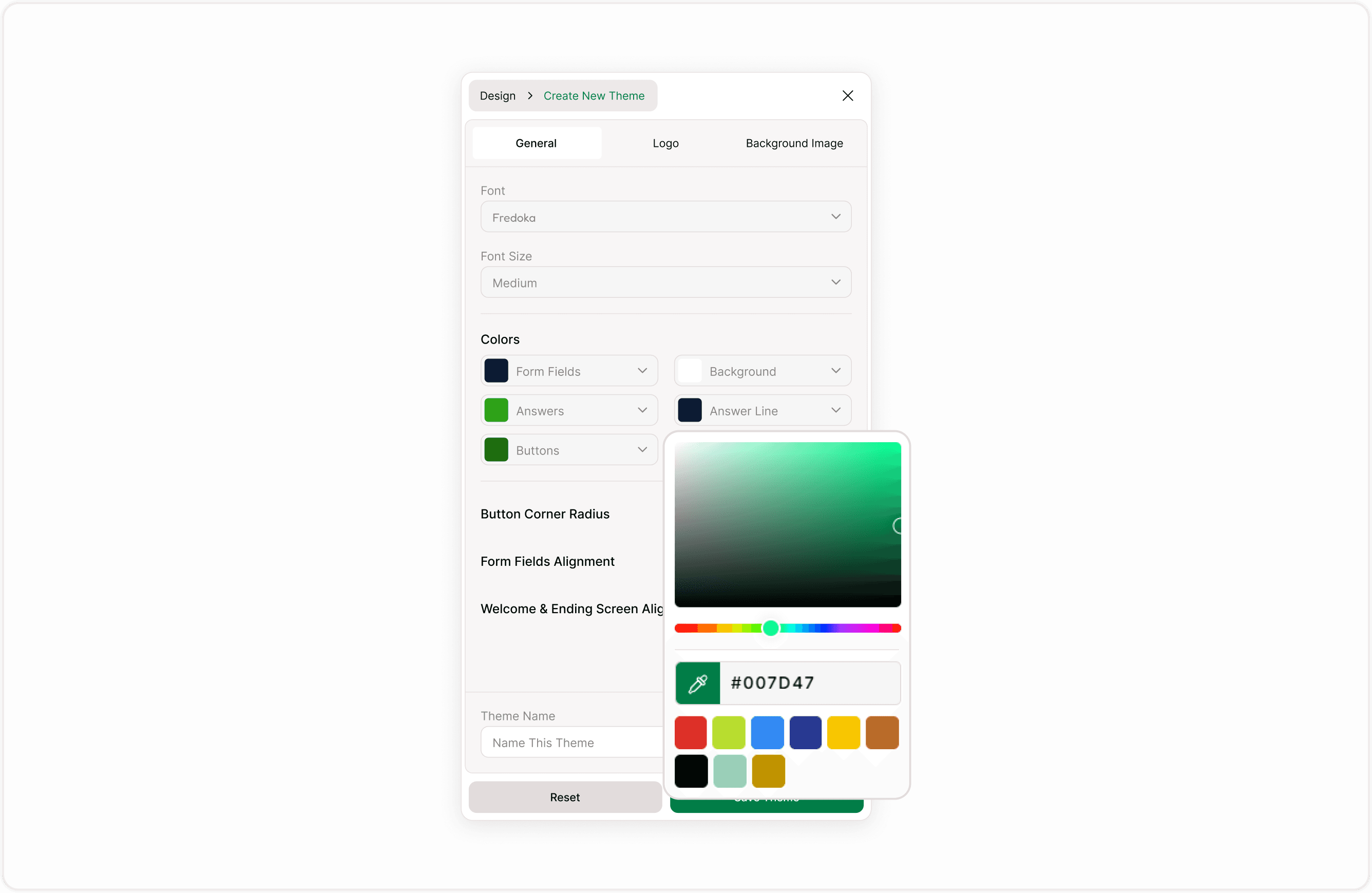
Customize Colors
In the Colors section, you can adjust visual elements of your form.
You can configure
Form Fields : Text color used inside form fields
Background : Form background color
Answers : Color used for selected answers
Answers Line : Border or separator styling
Buttons : Button background color
Buttons Text : Text color inside buttons
Choose combinations with sufficient contrast to ensure accessibility and clarity.
Adjust Layout and Styling
Button Corner Radius
Select the preferred corner style for buttons:
Sharp corners
Slightly rounded
Fully rounded
This allows you to match your visual identity or design system.
Form Fields Alignment
Set how Form Fields are aligned within the layout. Consistent alignment improves readability and visual balance.
Welcome & Ending Screen Alignment
Control alignment specifically for Welcome and Ending Screens. This ensures consistency across different stages of the form.
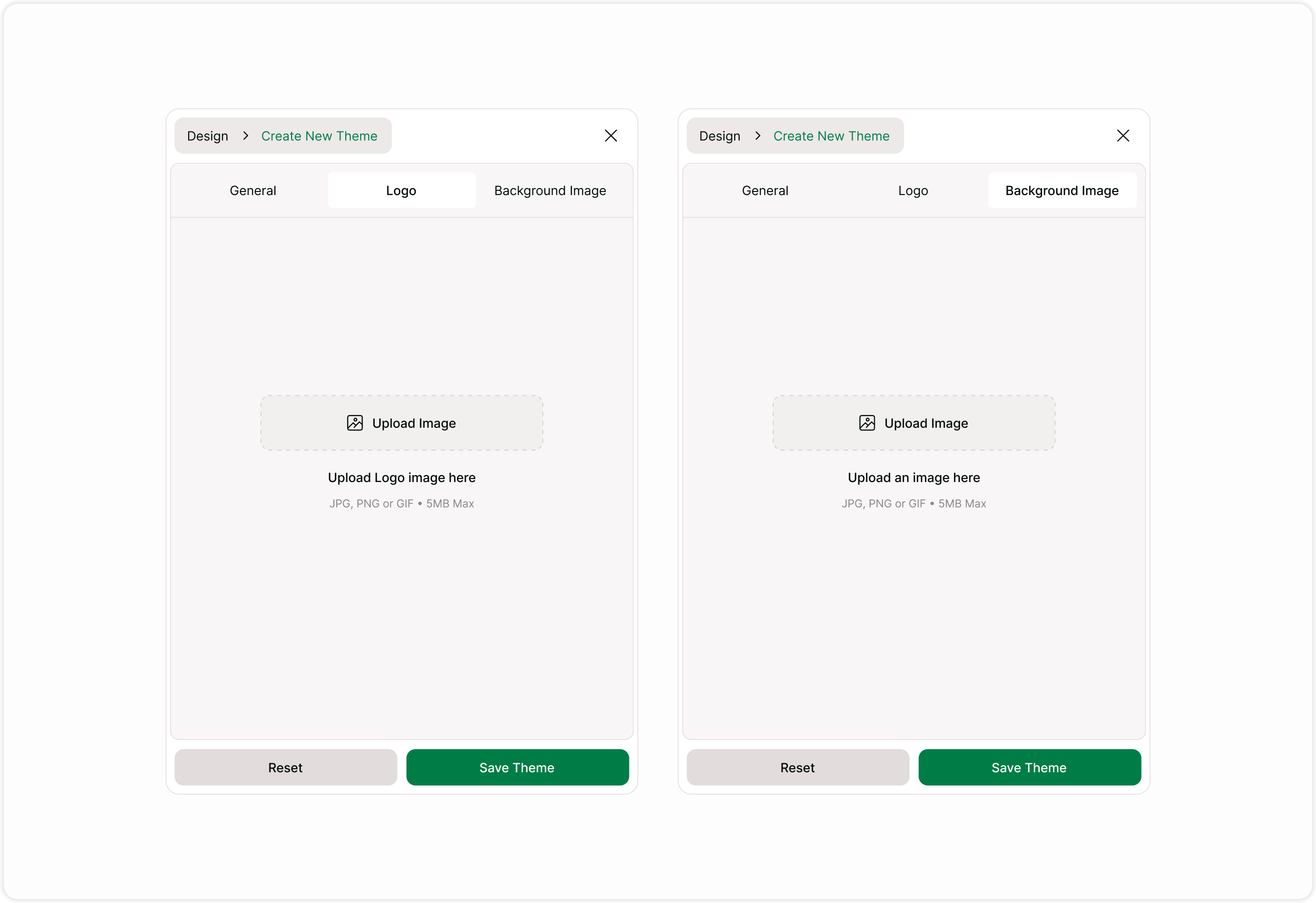
Add Logo and Background
Switch to the Logo tab to upload your brand logo. The logo will appear on forms using this theme.
Switch to the Background tab to:
Add a background image
Adjust presentation settings
Background customization is useful for event registrations, promotional campaigns, internal forms, or branded surveys.
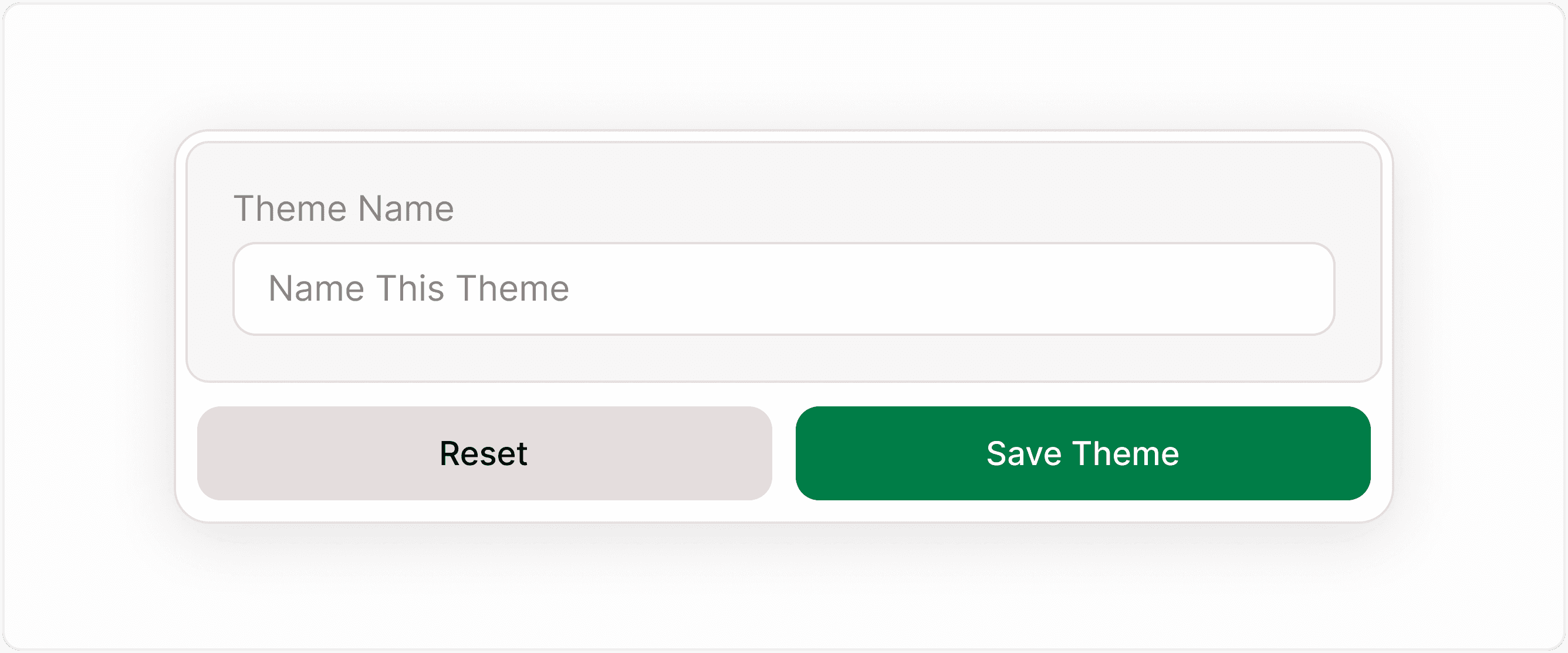
Add a Theme Name and Save
Scroll to the bottom of the panel and enter a name in the Theme Name field. This field is required.
Use a clear and descriptive name so you can easily identify the theme later. This is especially useful if you manage multiple themes.
Examples:
Corporate Brand Theme
Event Campaign Style
Minimal Survey Layout
Product Launch Theme
Open the design panel of your form:
Review all settings.
Click Save Theme.
The theme will be added to your Theme Library.
If you want to discard changes before saving, click Reset.
When to Create a Custom Theme
Creating a theme is helpful when:
You manage multiple forms under one brand
You need consistent styling across departments
You run recurring campaigns
You want to maintain accessibility standards
You want faster design setup for new forms
Themes help standardize presentation and reduce manual styling work.
Best Practices
Use high-contrast colors for readability.
Choose fonts that are easy to read on mobile devices.
Keep background images subtle to avoid distraction.
Preview your form before publishing.
Maintain consistent alignment across screens.
Summary
This guide explains how to create a new theme in Kiwiform, configure typography and color settings, adjust layout options, and save your theme for reuse. By the end of this tutorial, you will understand how to design a theme that aligns with your branding and improves form readability and presentation.