What Are Custom Variables?
Custom variables are dynamic values that you create yourself to store numbers or text inside your form.
Unlike default variables (such as @score or @price), custom variables are fully configurable. You decide:
The variable name
The type (Number or Text)
The starting value
They update automatically as respondents move through your form, allowing you to build smarter logic, calculations, and personalized experiences.
Custom variables are especially useful when your form requires calculations, segmentation, or multi-step logic that depends on stored values.
Where to Find Custom Variables
Custom variables are configured inside the Logic Flow section.
Open your form
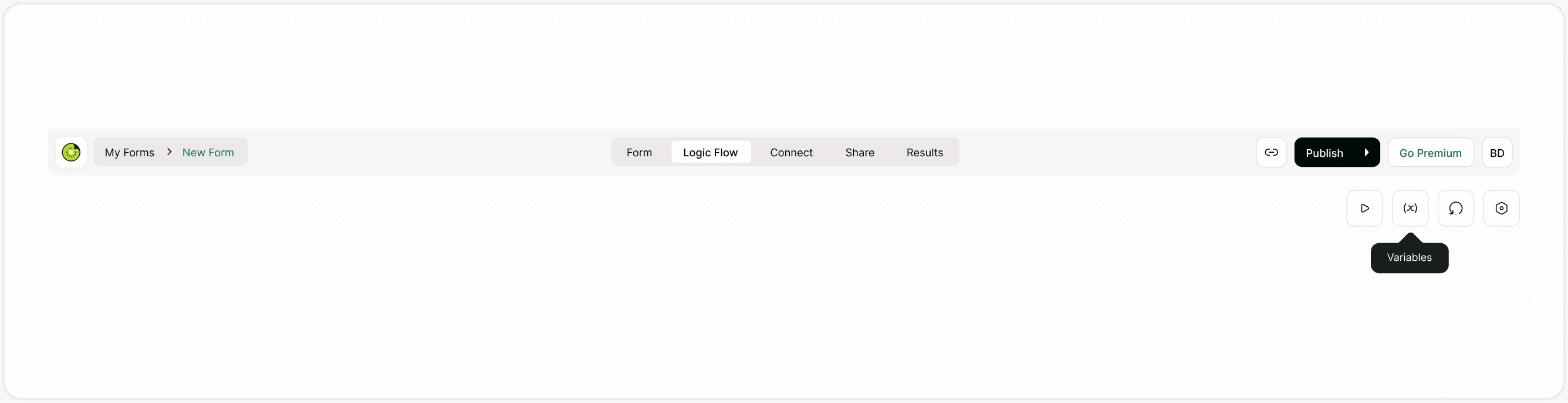
Click Logic Flow from the center header navigation
Click the Variables icon in the top-right logic tools
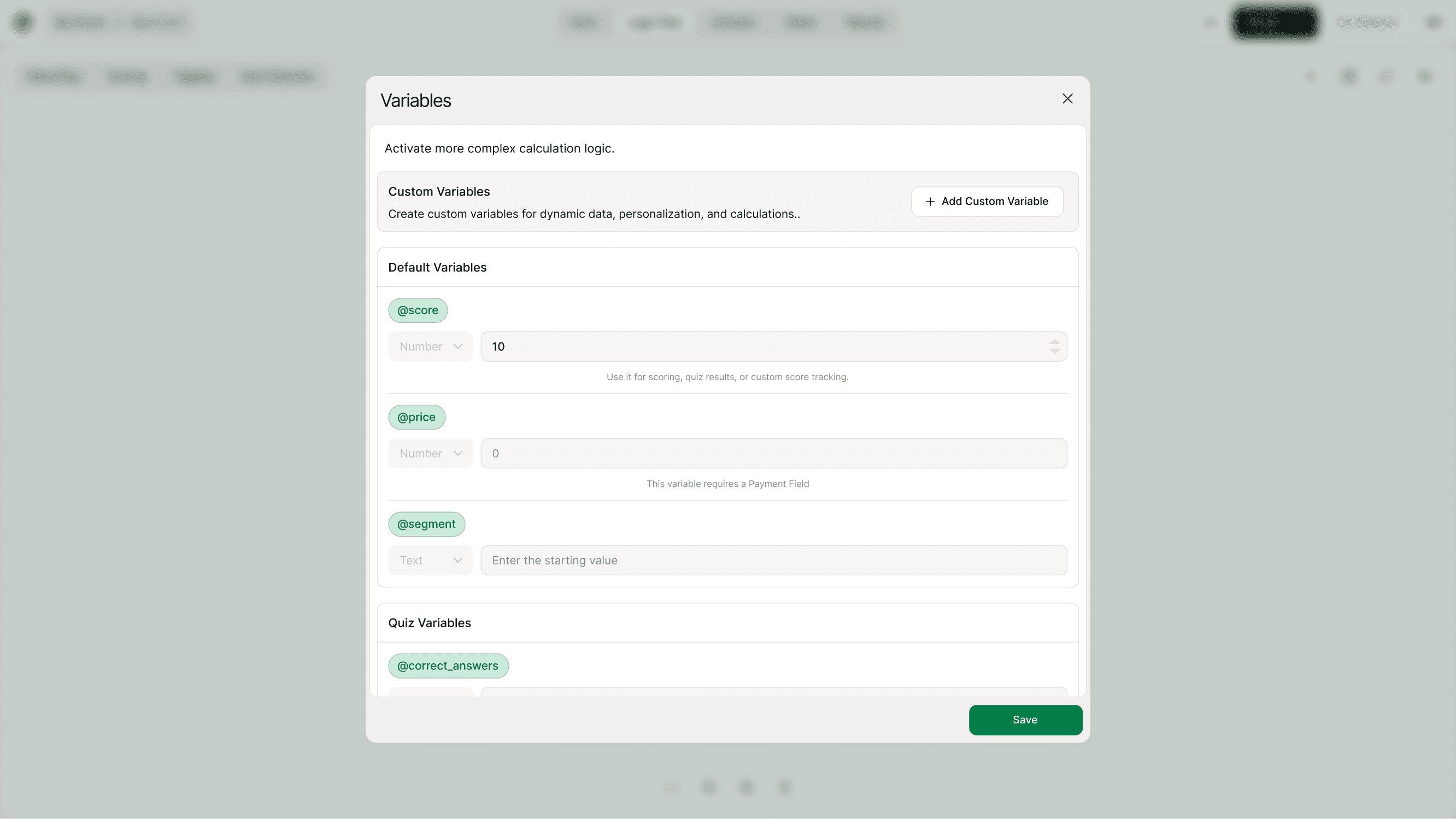
Open the Variables panel
Use the “Add Custom Variable” button
This opens the Custom Variables section where you can create and manage your variables.
How to Create a Custom Variable
Creating a custom variable is simple:
Open Logic Flow
Click Variables
Click Add Custom Variable
Enter a variable name (for example: @discount, @level, @total_points)
Choose the type:
Number (for calculations)
Text (for segmentation or personalization)
Set a starting value
Click Save
Your custom variable is now available inside your logic rules.
Keep variable names short, clear, and meaningful.
Variable Types Explained
Number Variables
Use Number variables when you need:
Calculations
Score accumulation
Counting selections
Adding or subtracting values
Dynamic pricing adjustments
Number variables update automatically when connected to scoring or calculation logic.
Example:
@discount starts at 0
If user selects premium → Add 10
If user selects student → Subtract 5
Text Variables
Use Text variables when you need:
Segmentation
Personalization
Conditional content
Group tagging
Example:
@segment = “Enterprise”
@membership = “Gold”
Text variables can trigger conditional logic or personalize endings.
How Custom Variables Work with Logic
Custom variables can be used inside:
Conditional Logic
Branching
Show/Hide rules
Quiz Results
Ending Screens
Redirect links
For example:
If @total_points is greater than 50 → Show advanced result
If @segment equals “Premium” → Redirect to premium onboarding page
Custom variables allow your form to adapt dynamically based on stored values.
Using Custom Variables for Personalization
You can use custom variables to personalize:
Thank-you screens
Results messages
Conditional endings
Follow-up flows
For example:
“Thanks! Based on your answers, you’re a {{@segment}} user.”
This makes your form feel intelligent and tailored.
Using Custom Variables for Calculations
Custom variables are powerful for:
Multi-step scoring systems
Weighted answers
Dynamic price adjustments
Points-based assessments
Qualification scoring
Example workflow:
User selects options
Points are added to @qualification_score
If score exceeds threshold → Show qualified ending
This allows you to build advanced logic inside a free Typeform alternative without technical complexity.
Editing or Deleting Custom Variables
Inside the Variables panel, you can:
Update starting values
Change variable names
Delete unused variables
If you delete a variable that is used in logic, review your rules to avoid broken flows.
Always test your form after editing variables.
Common Use Cases
Custom variables are commonly used for:
Lead qualification scoring
Dynamic discount calculation
Multi-step pricing forms
Customer segmentation
Personalized onboarding flows
Application scoring systems
Product recommendation quizzes
They help transform static forms into intelligent workflows.
Best Practices
To use custom variables effectively:
Use clear naming (avoid vague names like @var1)
Keep logic structured and simple
Use Number type only for calculations
Use Text type for grouping and segmentation
Avoid creating unnecessary variables
Always test before publishing
Clean variable structure keeps your logic predictable and scalable.
Summary
Custom variables in Kiwiform allow you to create your own dynamic data fields that power calculations, personalization, segmentation, and advanced logic.
By combining custom variables with Conditional Logic, Branching, and Scoring, you can build intelligent form experiences that adapt in real time.
Whether you're building quizzes, lead qualification systems, or pricing flows, custom variables give you full control over how your form behaves.