How to Add a Date Picker Field
Add Date Picker Field
Click Add Content in the Form Builder
Select Date Picker
Enter your question and optional description
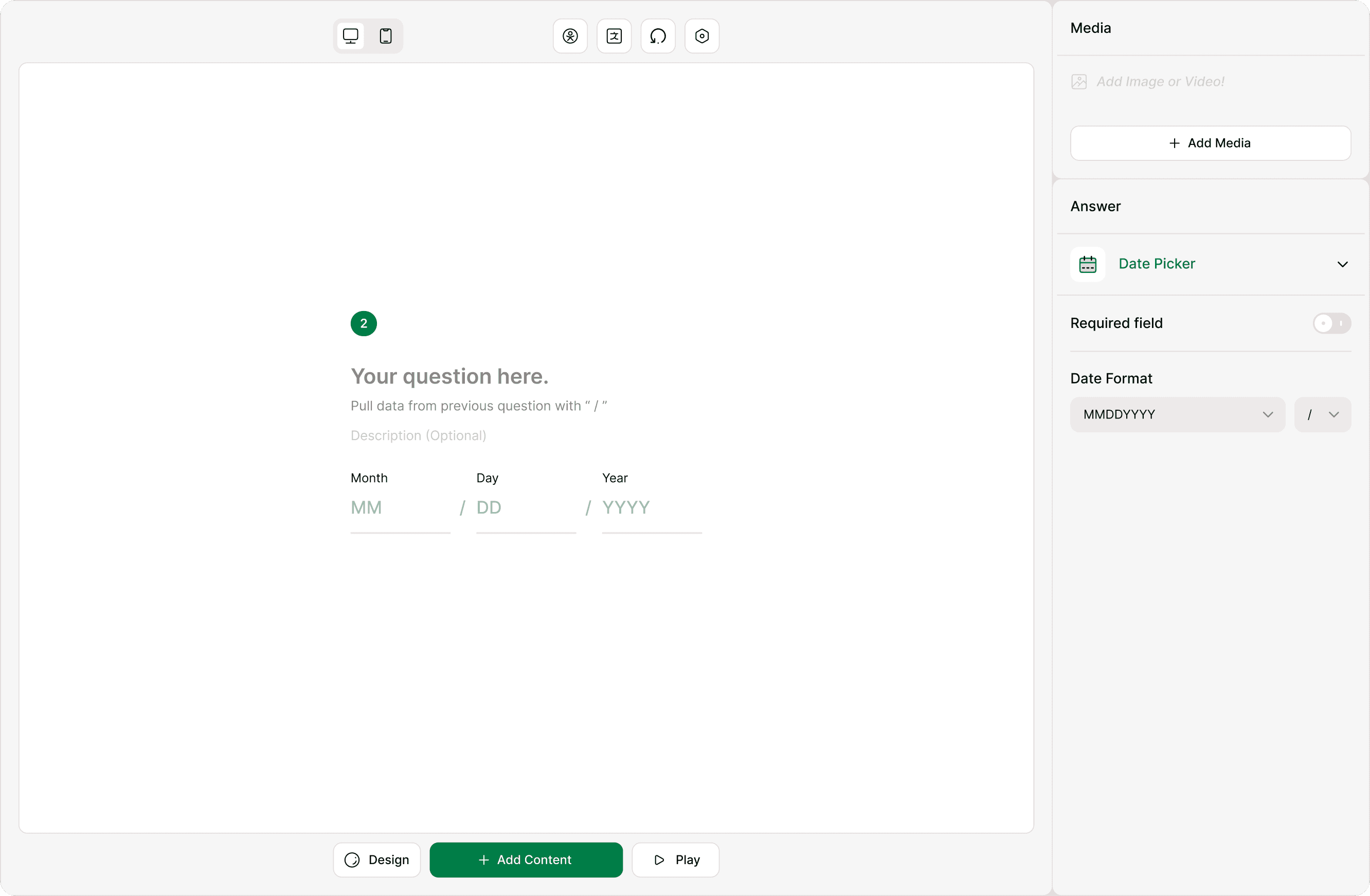
Configure settings in the Answer panel
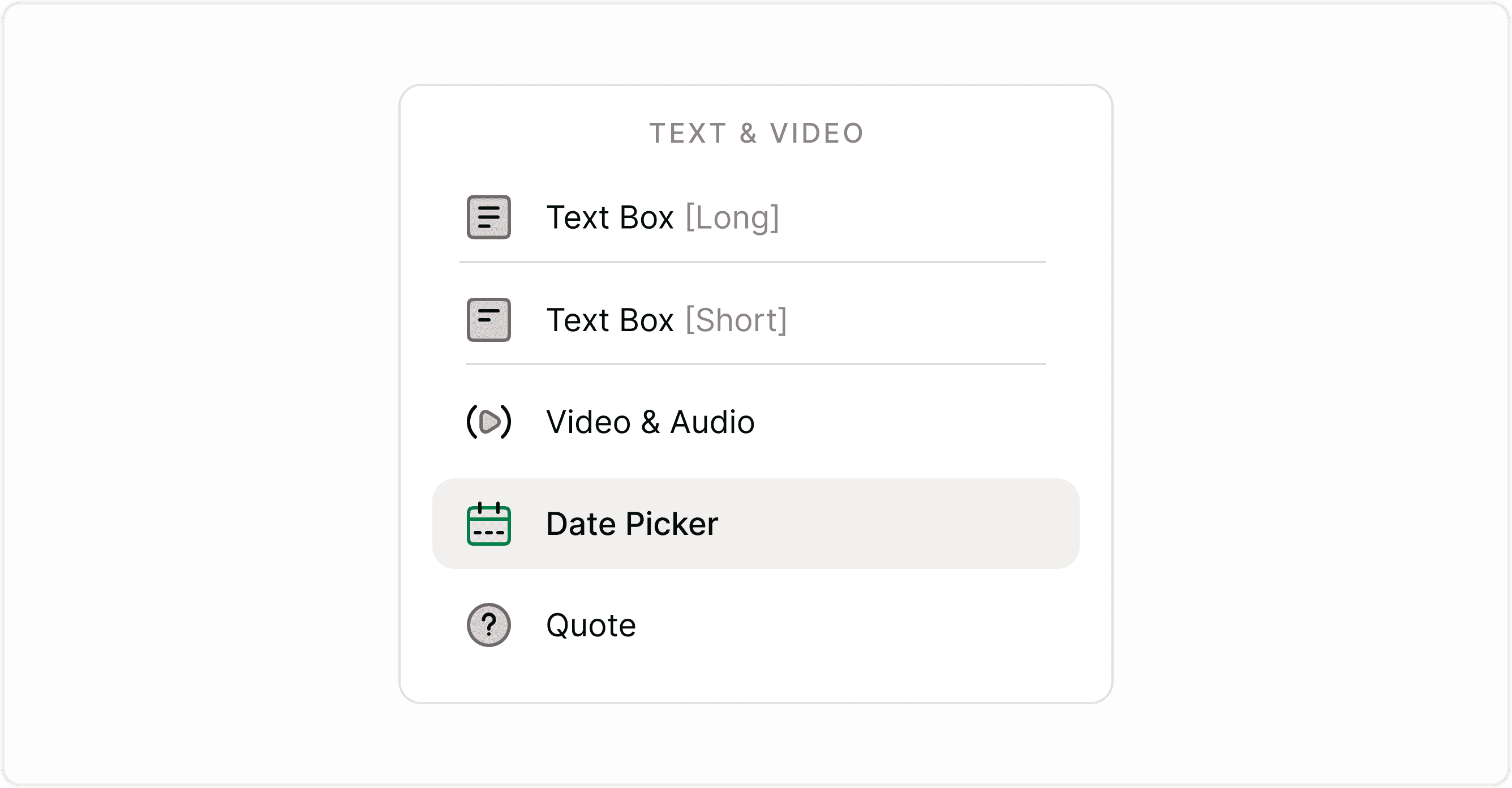
Configuring the Date Picker
The Date Picker field includes essential configuration options to help you standardize date input.
Required Field
Enable Required field if respondents must enter a date before continuing.
This is useful for:
Event registrations
Booking forms
Applications
Time-sensitive submissions
If turned off, respondents can skip the date question.
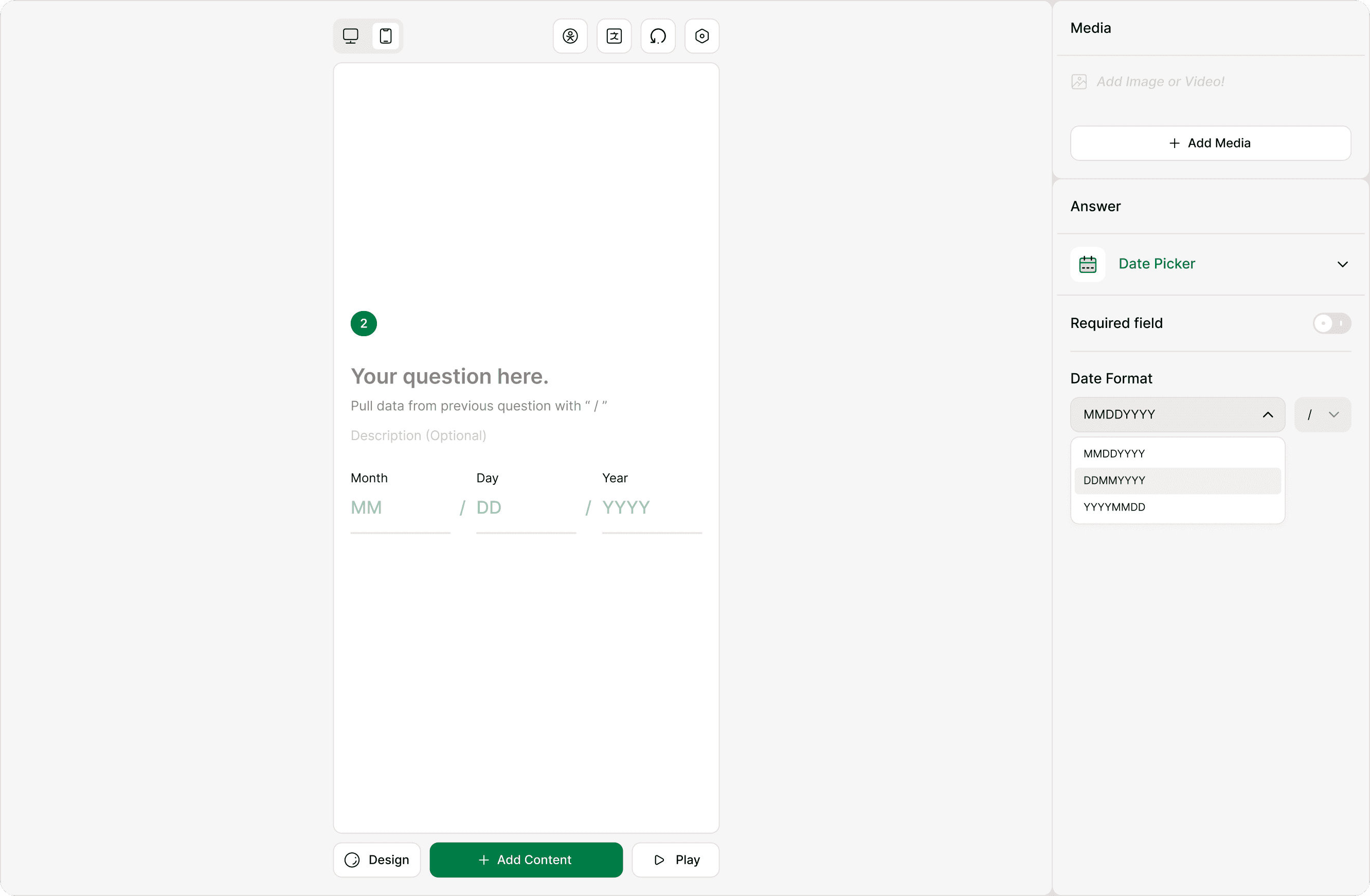
Date Format
You can choose how the date is structured:
MMDDYYYY (Month–Day–Year)
DDMMYYYY (Day–Month–Year)
YYYYMMDD (Year–Month–Day)
This helps you align with:
Regional preferences
Internal systems
CRM integrations
Database formatting
Selecting the correct format ensures consistency in reporting and exports.
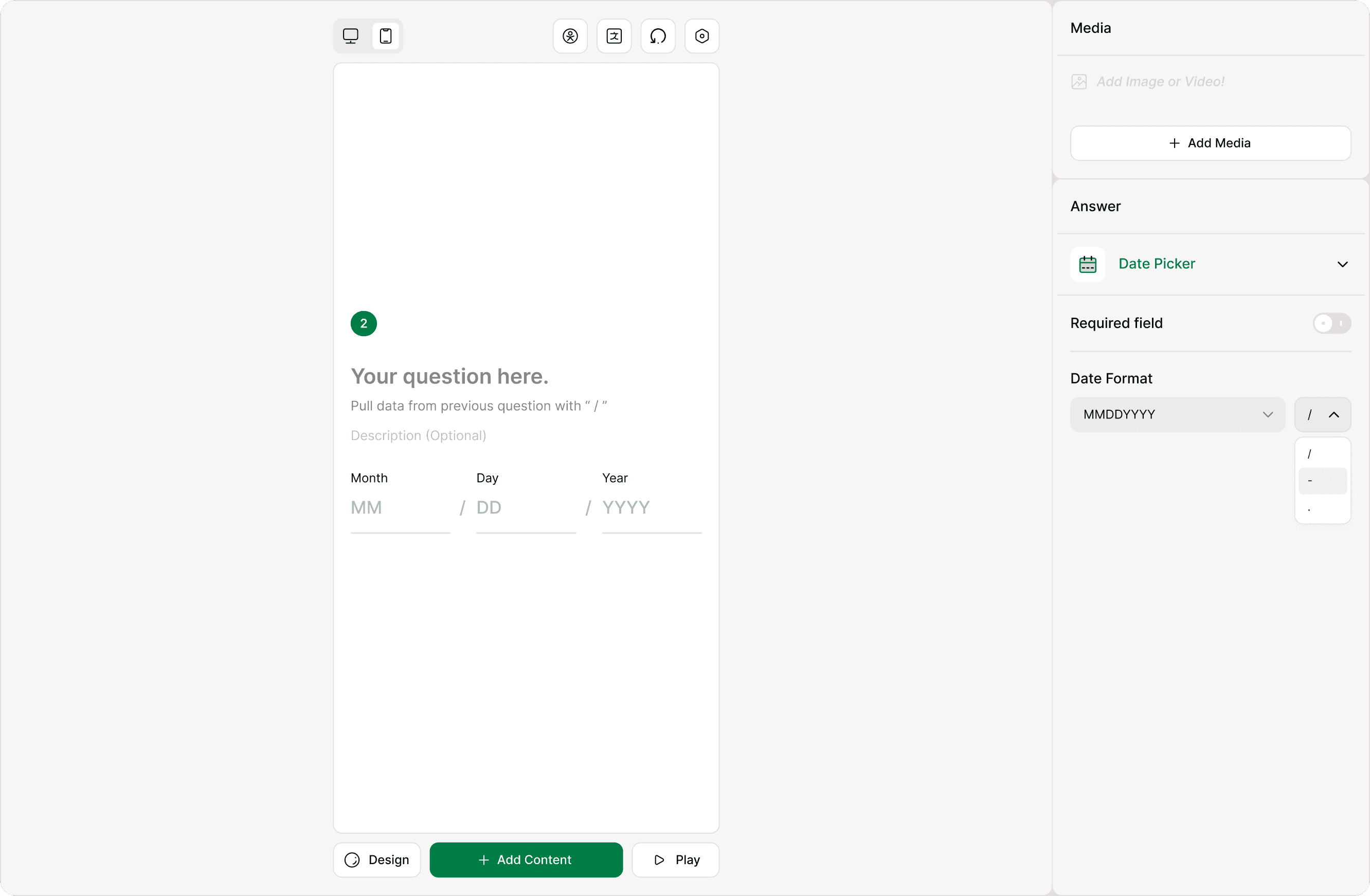
Date Separator
You can also choose the separator between date values:
/
-
.
For example:
12/25/2026
25-12-2026
2026.12.25
This gives you flexibility depending on branding, system requirements, or regional standards.
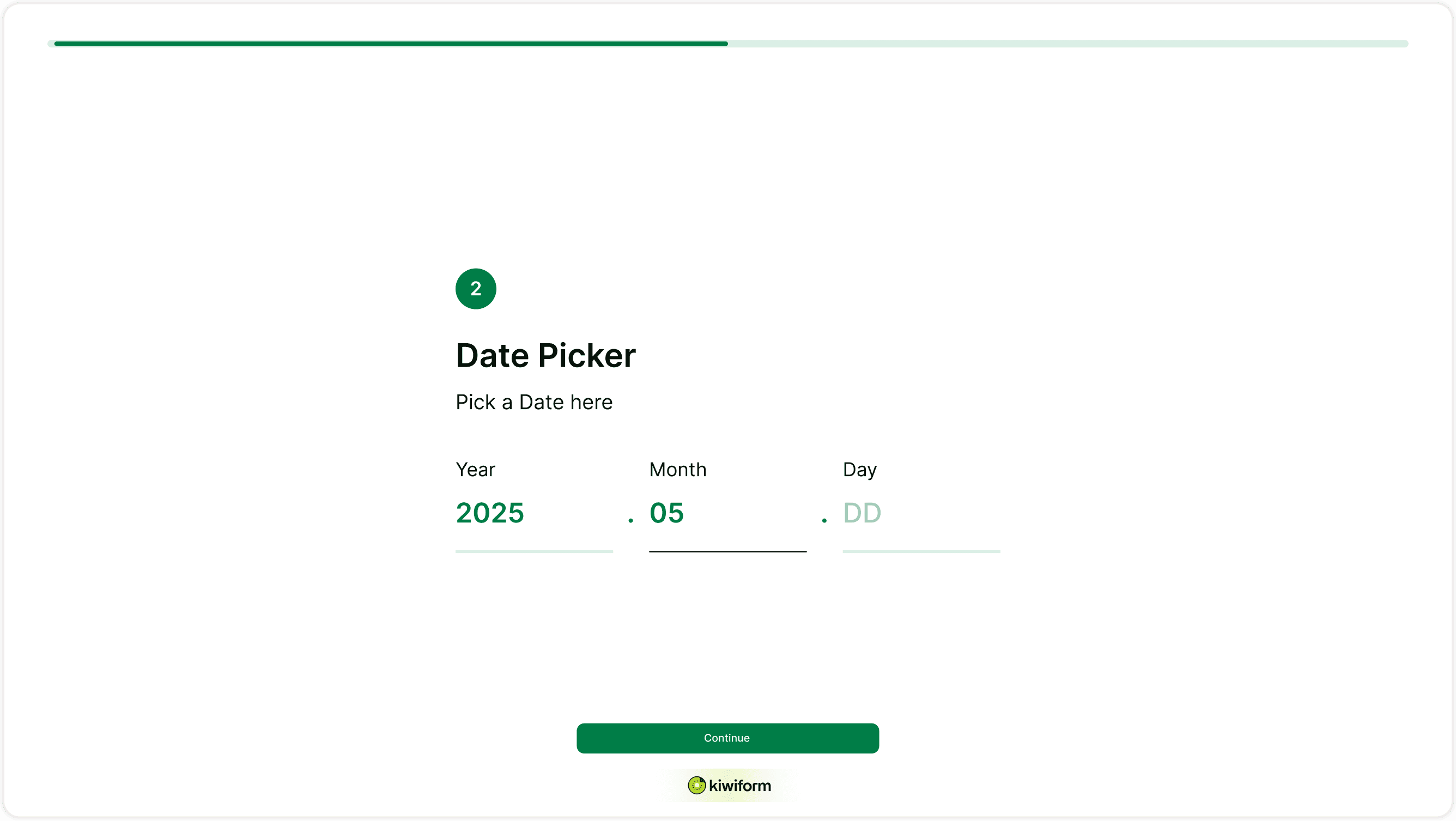
How It Appears to Respondents
Respondents see clearly labeled fields for:
Month
Day
Year
The structure automatically follows the format you selected. This reduces input errors and ensures respondents understand exactly what to enter.
Because the format is predefined, it improves completion speed and reduces ambiguity compared to open text date inputs.
Common use cases
Use the Date Picker field when you need:
Birth dates
Appointment scheduling
Event dates
Delivery dates
Reservation details
Deadlines
Subscription start dates
It is ideal whenever accuracy and standardized formatting are important.
Best practices
Always select the format that matches your audience’s regional expectations.
Use Required mode for booking or compliance-related forms.
Keep the question clear (e.g., “Select your preferred appointment date”).
Avoid using Text Box for dates, Date Picker ensures structured and consistent data
Summary
The Date Picker field helps you collect structured, accurate date information in your forms. With customizable formats and separators, it ensures consistency across responses and integrations. Whether you’re collecting event registrations, appointments, or personal details, the Date Picker keeps your data clean and easy to manage inside Kiwiform.