How to Access Download Options
To download responses:
Open your form.
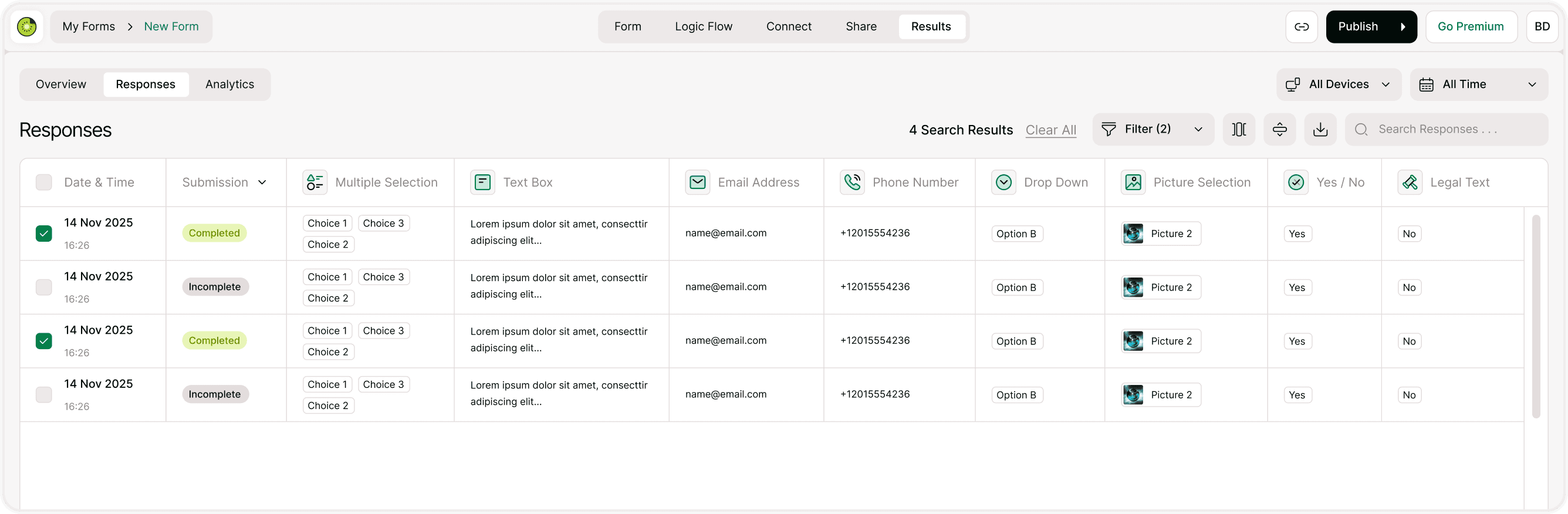
Click Results.
Go to the Responses tab.
Click the Download icon.
Select your preferred file format and response type.
A download panel will open with export options.
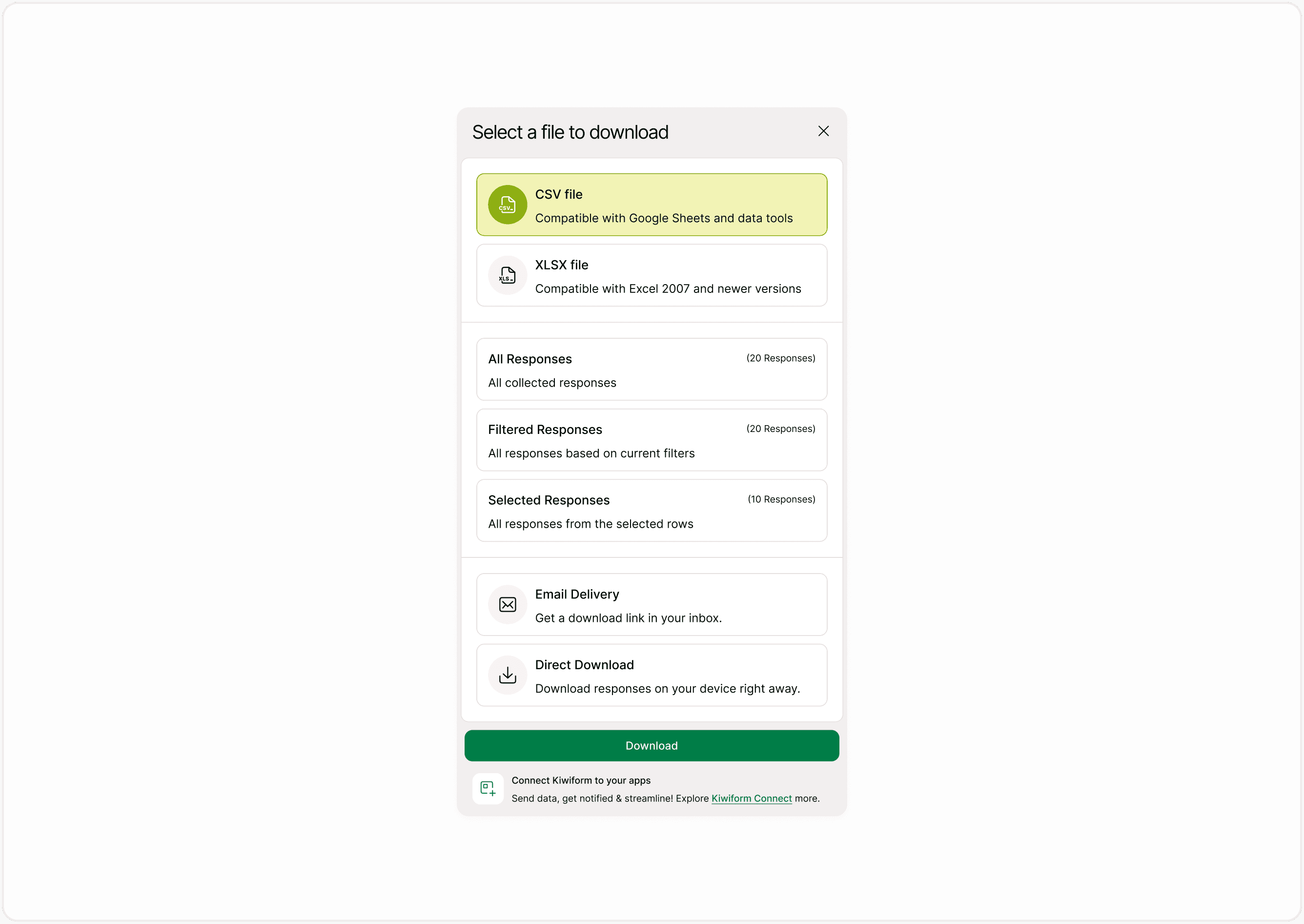
Available File Formats
Kiwiform supports two main export formats:
CSV File
Compatible with Google Sheets
Works with data tools and CRM systems
Lightweight and widely supported
XLSX File
Compatible with Excel (2007 and newer)
Preserves spreadsheet formatting
Ideal for detailed reports
Choose CSV if you plan to integrate with other tools. Choose XLSX if you prefer working in Excel.
Choose What to Download
You can download:
All Responses
Exports every collected submission from the form.
Best for:
Full reporting
Backup purposes
Complete data analysis
Filtered Responses
Exports only responses that match your applied filters.
Best for:
Segment analysis
Specific campaign review
Targeted reporting
Note: Apply filters first to enable this option.
Selected Responses
Exports only manually selected rows from the table.
Best for:
Individual case review
Specific lead export
Sharing selected submissions
Delivery Options
You can choose how to receive your file:
Direct Download
The file downloads immediately to your device.
Best for quick exports.
Email Delivery
A download link is sent to your inbox.
Best for:
Large datasets
Secure file handling
Accessing data later
Step-by-Step Example
Example: Download filtered completed submissions
Apply a filter (e.g., Completed submissions).
Click the Download icon.
Choose CSV or XLSX.
Select Filtered Responses.
Choose Direct Download or Email Delivery.
Click Download.
Your file will be generated and delivered instantly or via email.
When Should You Download Data?
Downloading responses is helpful when:
Sharing results with stakeholders
Creating monthly reports
Importing leads into CRM
Performing advanced spreadsheet analysis
Keeping secure backups
Exporting ensures your data remains accessible beyond the platform.
Data Structure in Exported Files
Your downloaded file includes:
Date & time of submission
Submission status
All form questions
All user responses
Contact details (if collected)
Each submission appears as one row, with each question as a column.
This structured format makes analysis easy.
Why Downloading Data Matters
Having full control over your response data is essential. Downloading allows you to:
Maintain ownership of collected information
Analyze data outside the platform
Integrate with external systems
Keep compliance and reporting records
Kiwiform combines easy data collection with flexible exporting, making it a reliable free Typeform alternative for businesses and creators.
Best Practices for Data Management
Export data regularly for backup.
Use filters before exporting for cleaner reports.
Store exported files securely.
Avoid sharing raw data without reviewing sensitive fields.
Maintain organized naming for exported files.
Responsible data handling improves workflow and security.
Summary
The Download Data feature lets you export all, filtered, or selected responses in CSV or XLSX format. With direct download or email delivery options, you can securely access and analyze your form data anytime.