Automatically Store Form Data in Dropbox
Dropbox integration in Kiwiform helps you automate how your form data is stored and managed. Instead of manually downloading submissions, uploaded files, or PDFs, Kiwiform can automatically send everything directly to your Dropbox account in real time.
This integration is ideal for teams and businesses that collect documents, applications, onboarding forms, surveys, or any workflow involving file uploads and structured record keeping.
Whether you're handling a few submissions or thousands, Dropbox integration keeps your data centralized, organized, and easy to access.

Why Connect Dropbox to Kiwiform
Managing form submissions manually can quickly become time-consuming, especially when forms include uploaded files or high submission volumes.
By connecting Dropbox to Kiwiform, you can:
Automatically store form submissions
Save uploaded files instantly
Generate submission PDFs automatically
Keep responses organized in folders and subfolders
Reduce manual work and repetitive downloads
Centralize data for team collaboration
This creates a smoother workflow from data collection to storage.
How Dropbox Integration Works
The integration flow in Kiwiform is designed to be simple and flexible while giving you full control over how your data is stored.
The experience follows four main steps:
Connect your Dropbox account
Configure storage settings
Automatically send submissions and files
Manage and monitor the integration anytime
Connect Your Dropbox Account
To get started:
Open your form in Kiwiform
Go to the Connect tab
Find Dropbox in the integrations list
Click Connect
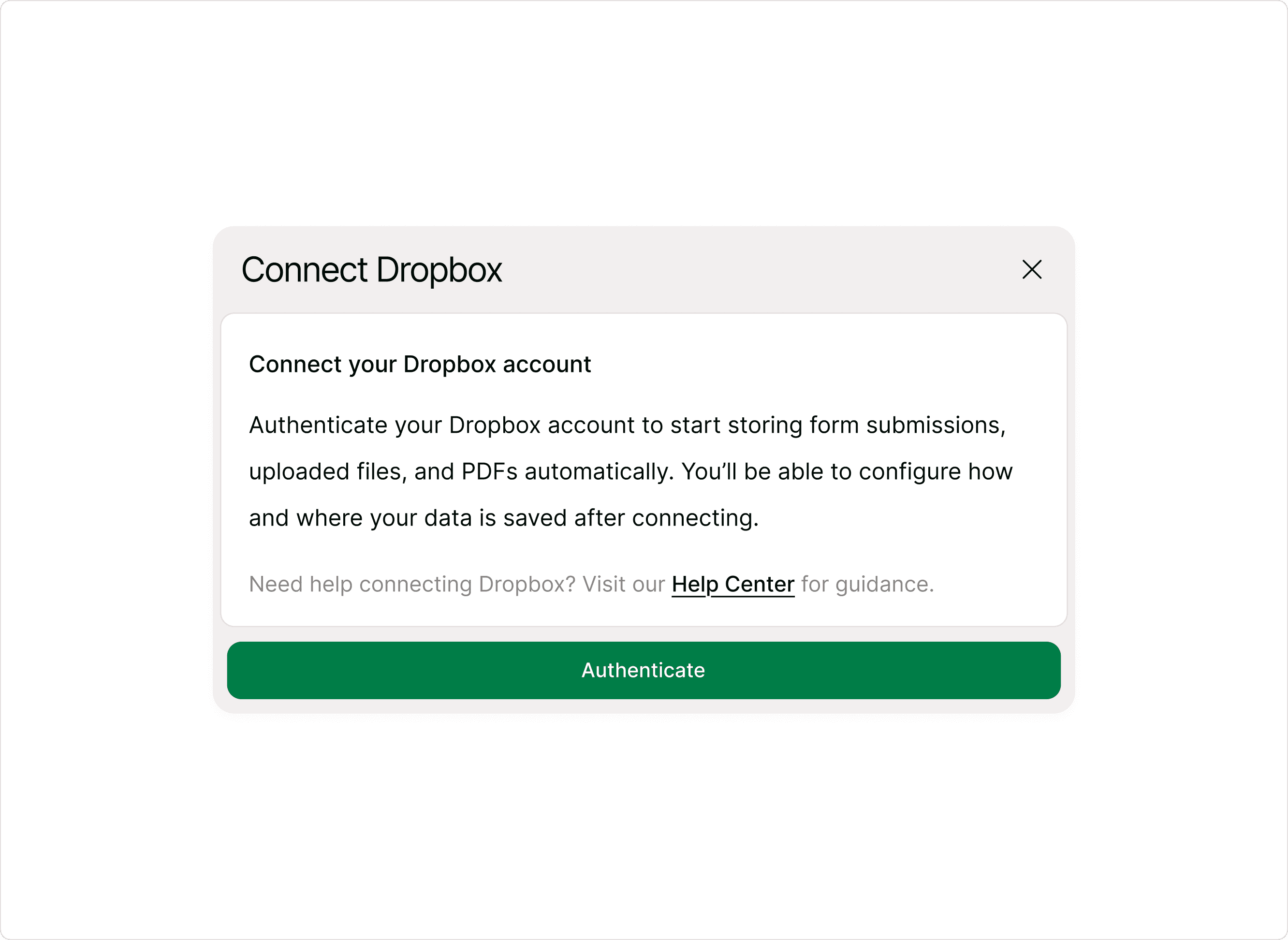
Kiwiform will open the Dropbox authentication flow where you can securely authorize access to your Dropbox account.
If you're already logged into Dropbox, the process continues immediately. Otherwise, Dropbox will ask you to sign in before approving access.
Once authenticated, your account is connected and ready to use.
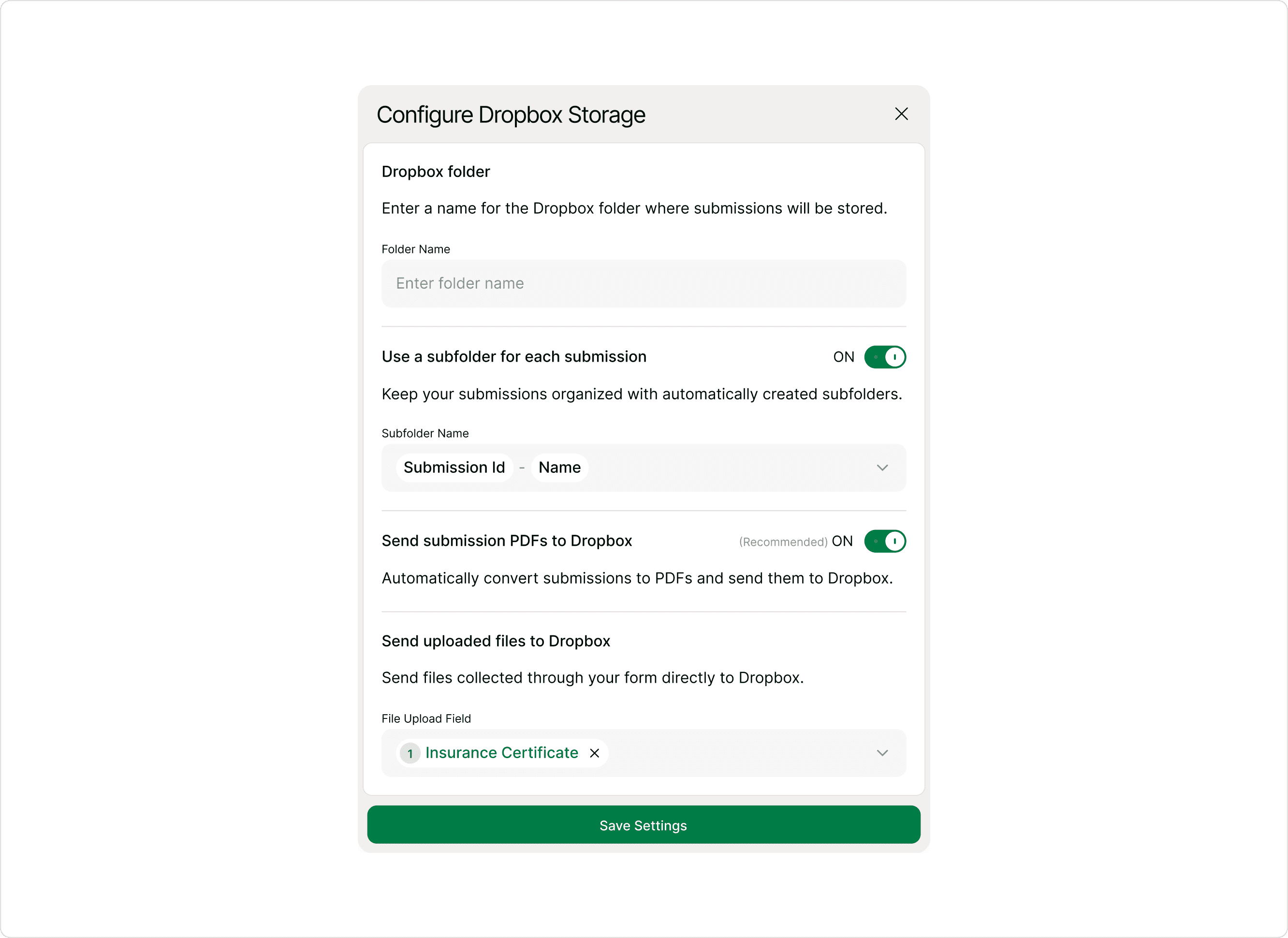
Configure Dropbox Storage
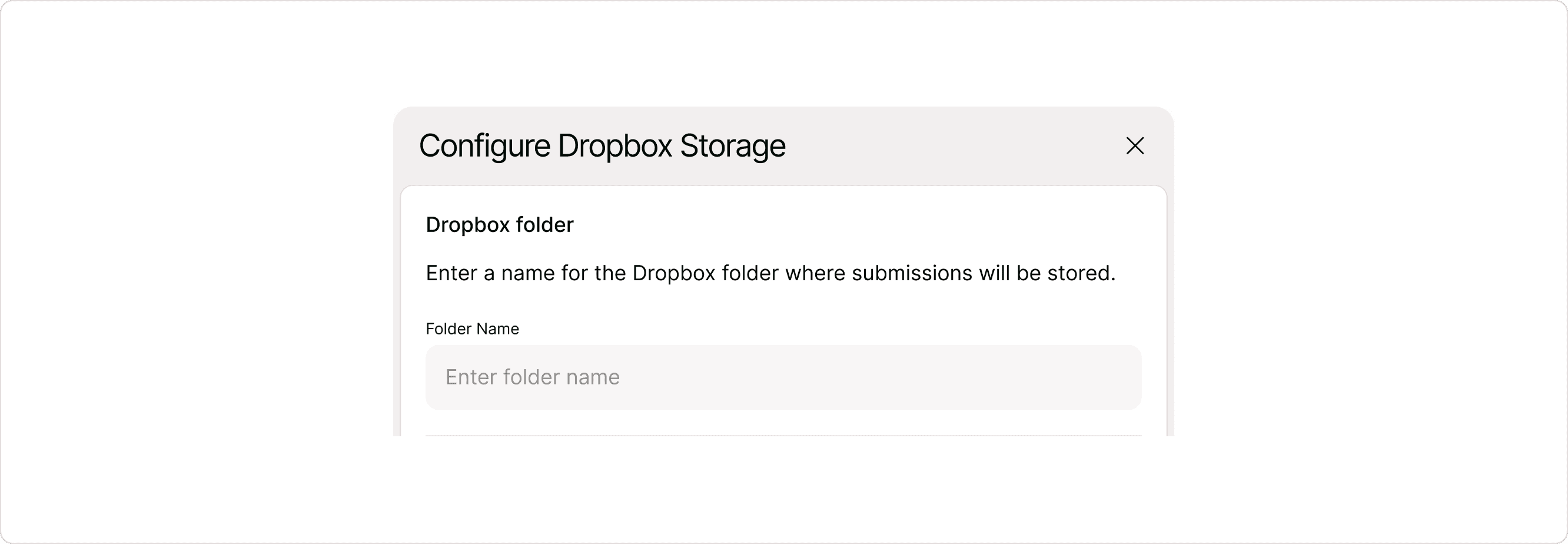
After connecting your account, Kiwiform lets you decide how submissions and files should be stored inside Dropbox.
This setup helps you create a clean and scalable storage structure based on your workflow.
Choose a Dropbox Folder
First, select or define the main Dropbox folder where submissions should be stored.
This folder acts as the primary location for all form-related data.
For example:
Client Applications
Survey Responses
Employee Documents
Lead Forms
Using dedicated folders makes future organization and retrieval much easier.
Create Subfolders for Each Submission
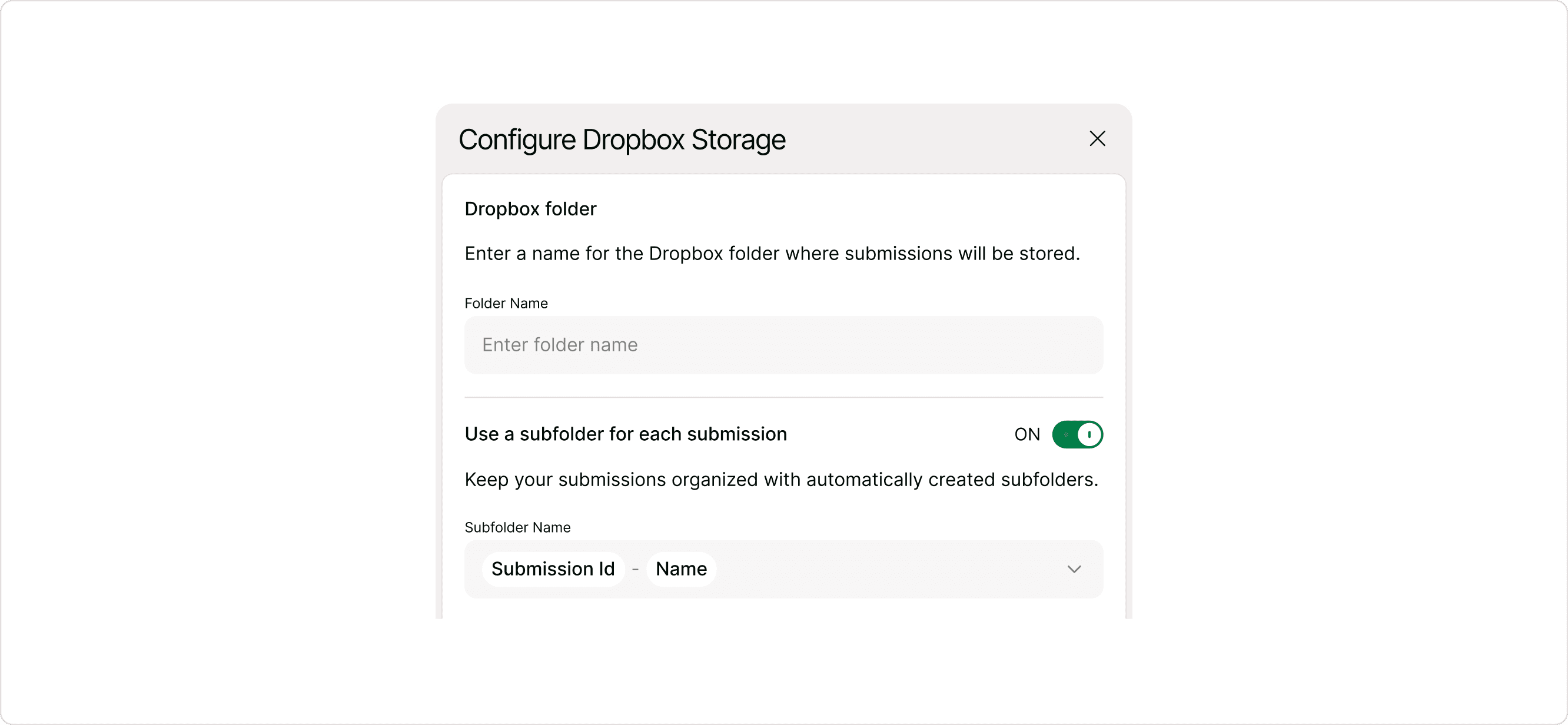
You can enable the option to automatically create a separate subfolder for every submission.
This is especially useful when:
Collecting multiple uploaded files
Managing onboarding workflows
Organizing applications or documents
Handling large volumes of responses
Kiwiform can dynamically generate subfolder names using submission information such as:
Submission ID
Respondent name
This keeps every response cleanly separated and easier to navigate.
Automatically Generate Submission PDFs
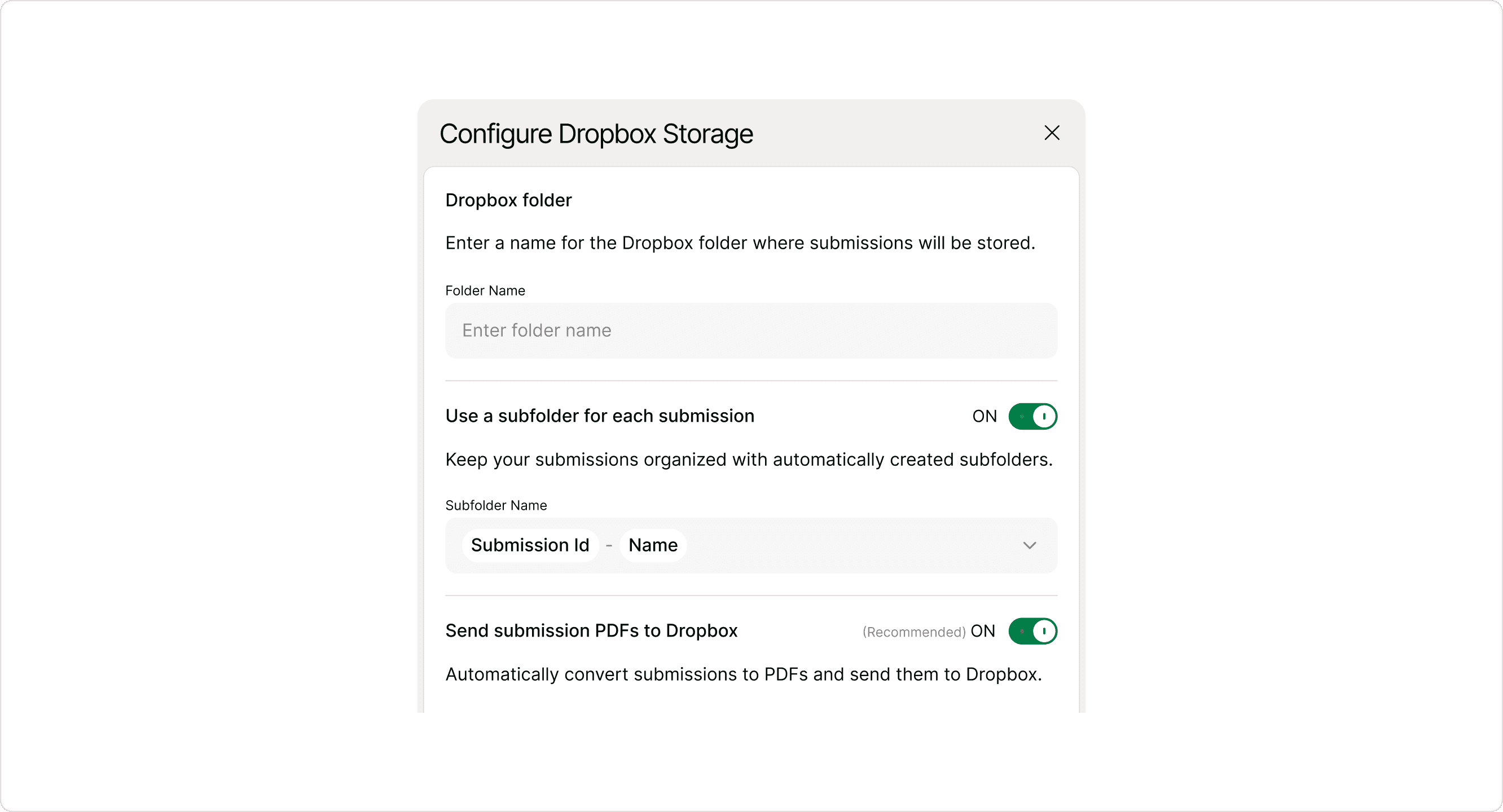
Kiwiform can automatically convert each form submission into a PDF and send it directly to Dropbox.
This feature is recommended because it creates a structured, shareable version of every response.
Submission PDFs are useful for:
Internal documentation
Client records
Team reviews
Archiving submissions
Approval workflows
Once enabled, PDFs are generated automatically after every successful submission.
Send Uploaded Files to Dropbox
If your form includes file upload fields, Kiwiform can automatically transfer those uploaded files directly to Dropbox.
You can:
Select individual file upload fields
Send multiple upload fields
Keep uploaded files attached to their related submission structure
This is particularly useful for:
Resume collection
Identity verification
Contracts and agreements
Medical or insurance forms
Project file submissions
Save and Activate the Integration
Once your configuration is complete, click Save Settings.
Your Dropbox integration is now:
Connected
Configured
Active
From this point forward, Kiwiform automatically sends new submissions and files to Dropbox based on your selected settings.
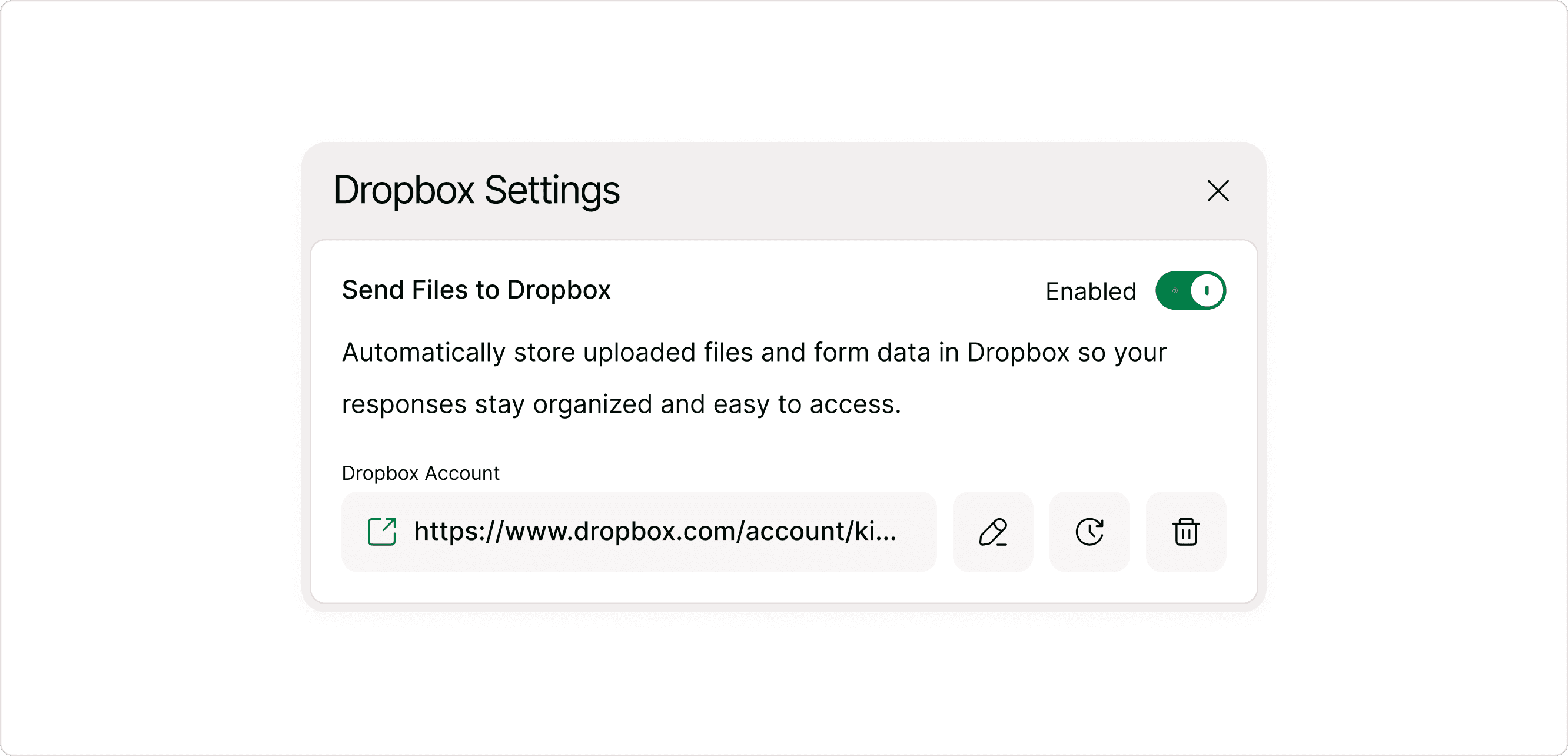
Manage Dropbox Settings
After setup, the Dropbox integration can be managed anytime through Dropbox Settings.
This gives you complete control over the integration without needing to reconnect your account each time.
You can:
Enable or disable the integration
Edit storage settings
Refresh or reconnect Dropbox
Remove the integration entirely
Monitor Dropbox Activity Logs
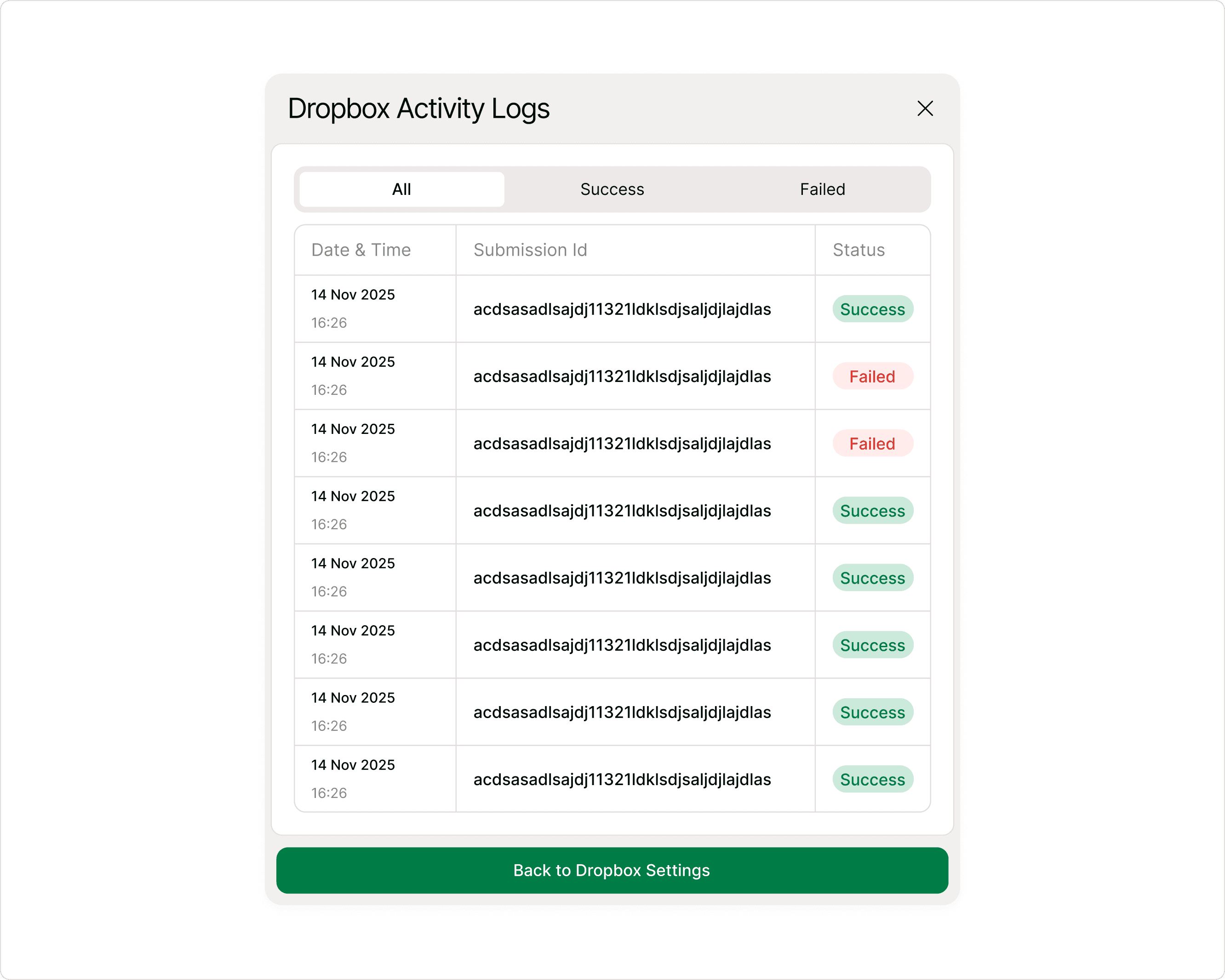
Kiwiform includes built-in Dropbox activity logs so you can monitor how submissions are being processed.
The activity logs help you:
Verify successful transfers
Detect failed submissions
Troubleshoot storage issues
Track submission activity in real time
Each log entry includes:
Date and time
Submission ID
Status (Success or Failed)
You can filter logs by:
All
Success
Failed
This makes it easier to quickly identify and resolve issues if something goes wrong.
Multi Account Dropbox Support
Kiwiform supports multiple Dropbox accounts for users managing different workflows or clients.
When connecting Dropbox, you can:
Select an existing connected account
Add a completely new Dropbox account
This flexibility is especially valuable for:
Agencies
Teams managing multiple brands
Consultants
Client-based workflows
Common Use Cases
Dropbox integration works well across many workflows and industries.
Lead Collection
Automatically store uploaded documents, files, and supporting materials from leads.
Client Onboarding
Keep onboarding forms, agreements, and uploaded files organized by client.
Job Applications
Collect resumes, portfolios, and candidate documents directly into Dropbox.
Surveys & Feedback
Generate PDFs for reporting, analysis, and team sharing.
Internal Operations
Centralize employee requests, approvals, and workflow documentation.
Best Practices for Organizing Dropbox Data
To keep your Dropbox workspace organized:
Use dedicated folders for each form
Enable subfolders when collecting uploaded files
Turn on submission PDFs for structured records
Review activity logs regularly
Use clear naming conventions for folders
These small setup decisions help create scalable workflows as your submission volume grows.
Summary
Dropbox integration in Kiwiform allows you to automatically store form submissions, uploaded files, and submission PDFs directly in your Dropbox account. After connecting and configuring your Dropbox storage settings, Kiwiform organizes your responses in real time using folders and optional subfolders for each submission.
You can manage the integration anytime, monitor activity logs for successful or failed transfers, and keep all your form data centralized and accessible. This makes Dropbox integration ideal for workflows involving file collection, onboarding, applications, surveys, and structured record keeping.