When to use a Dropdown field
Dropdown fields are ideal for structured data like locations, departments, categories, product types, or any scenario where you want a clean interface without overwhelming respondents. This guide explains how to add choices, edit them, organize the list, and configure dropdown settings so the field works exactly the way you need.
Use a dropdown when:
You have many options and want a compact layout
Only one option should be selected
You want to keep the form visually clean
Options may need reordering or updating later
You want alphabetical or randomized ordering
If you only have 2–4 options, a Multiple Selection field may feel faster. For longer lists, Dropdown keeps things tidy.
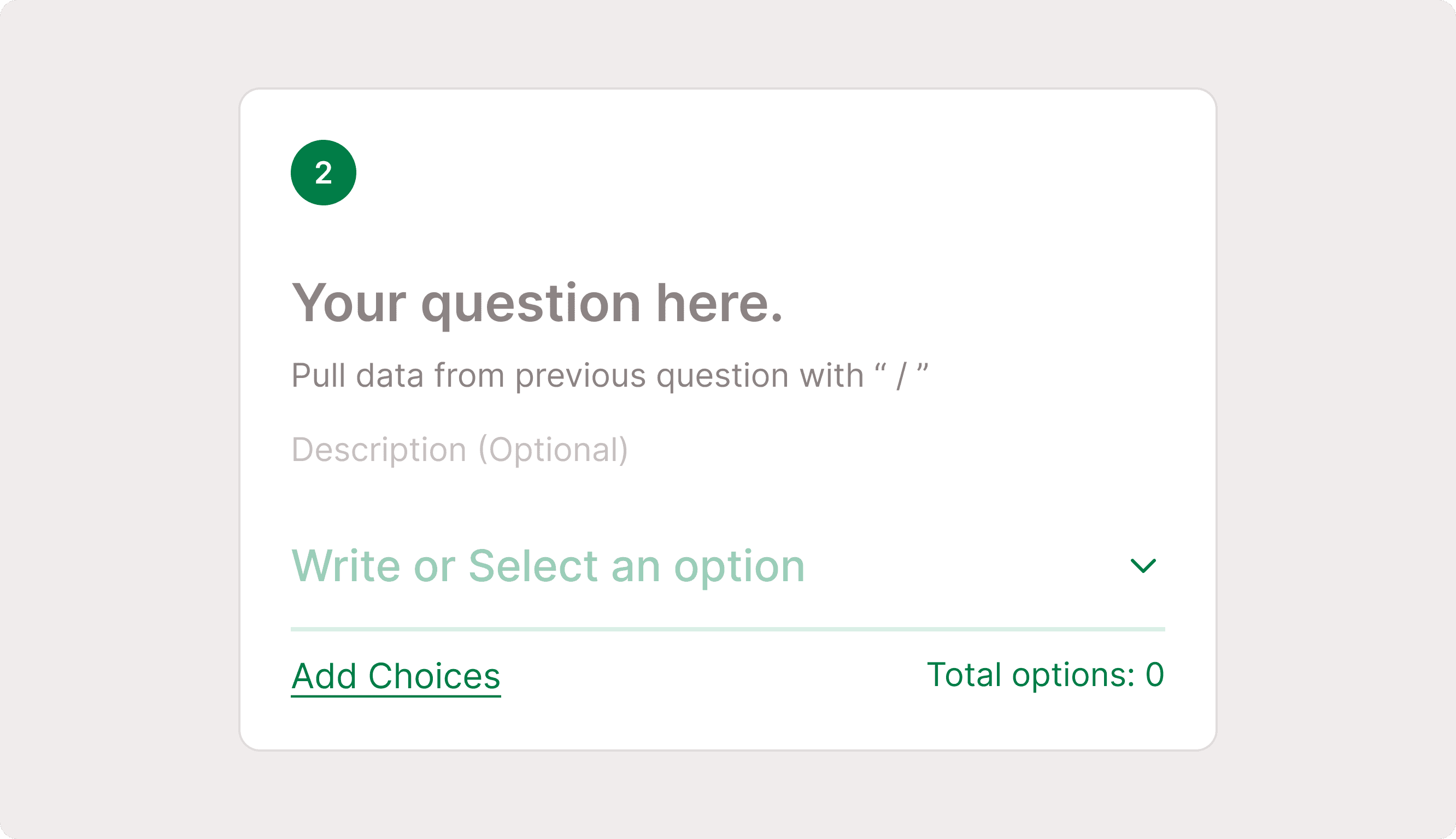
Adding choices to a Dropdown
When you first add a Dropdown field, you’ll see the option to add choices.
Click Add Choices to open the choices pop-up.
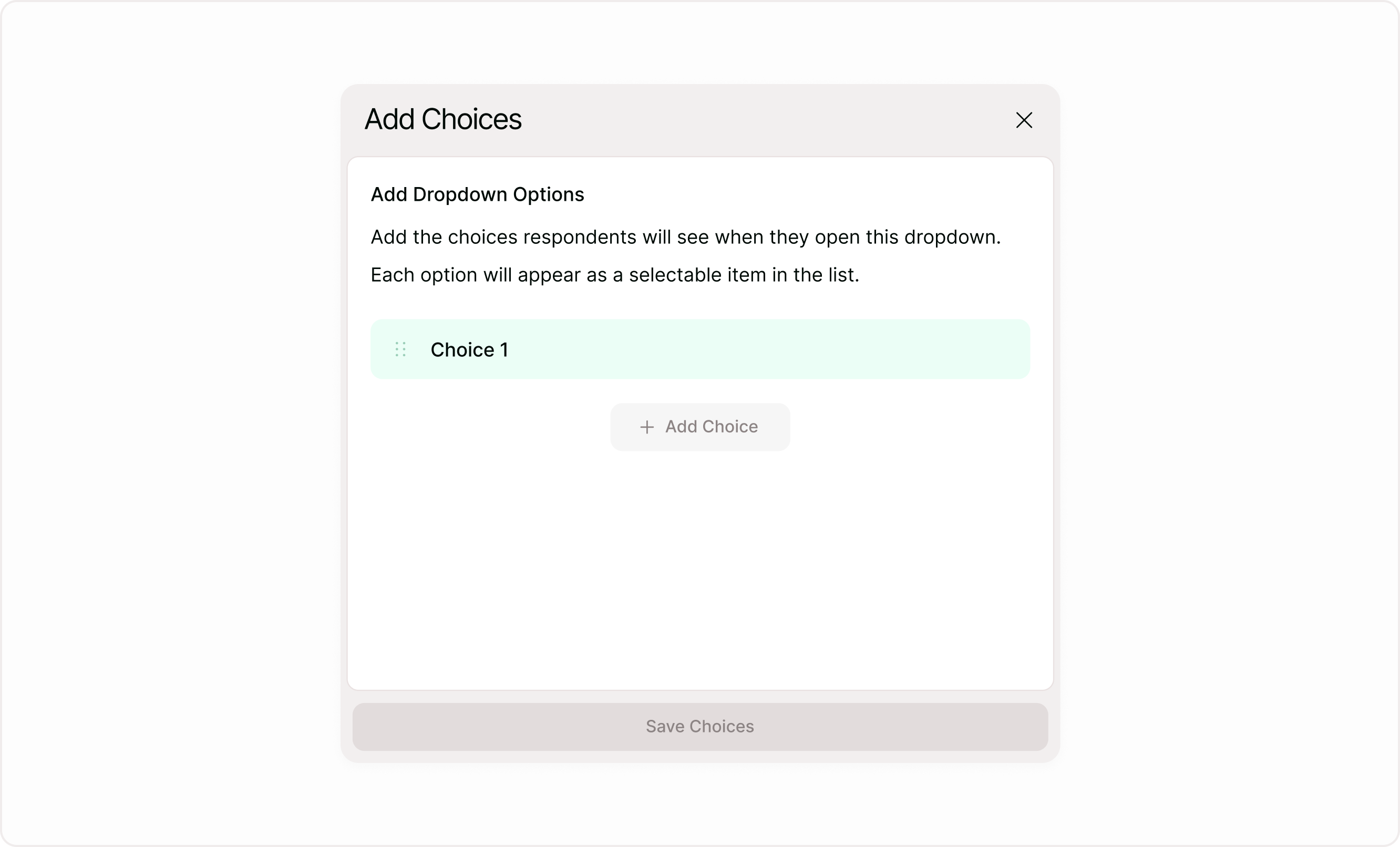
From here you can:
Click + Add Choice to create options
Edit text directly inside each choice row
Add multiple choices quickly
Save once the list is ready
Each option becomes a selectable item in the dropdown list.
Editing and organizing choices
You can update your dropdown options anytime.
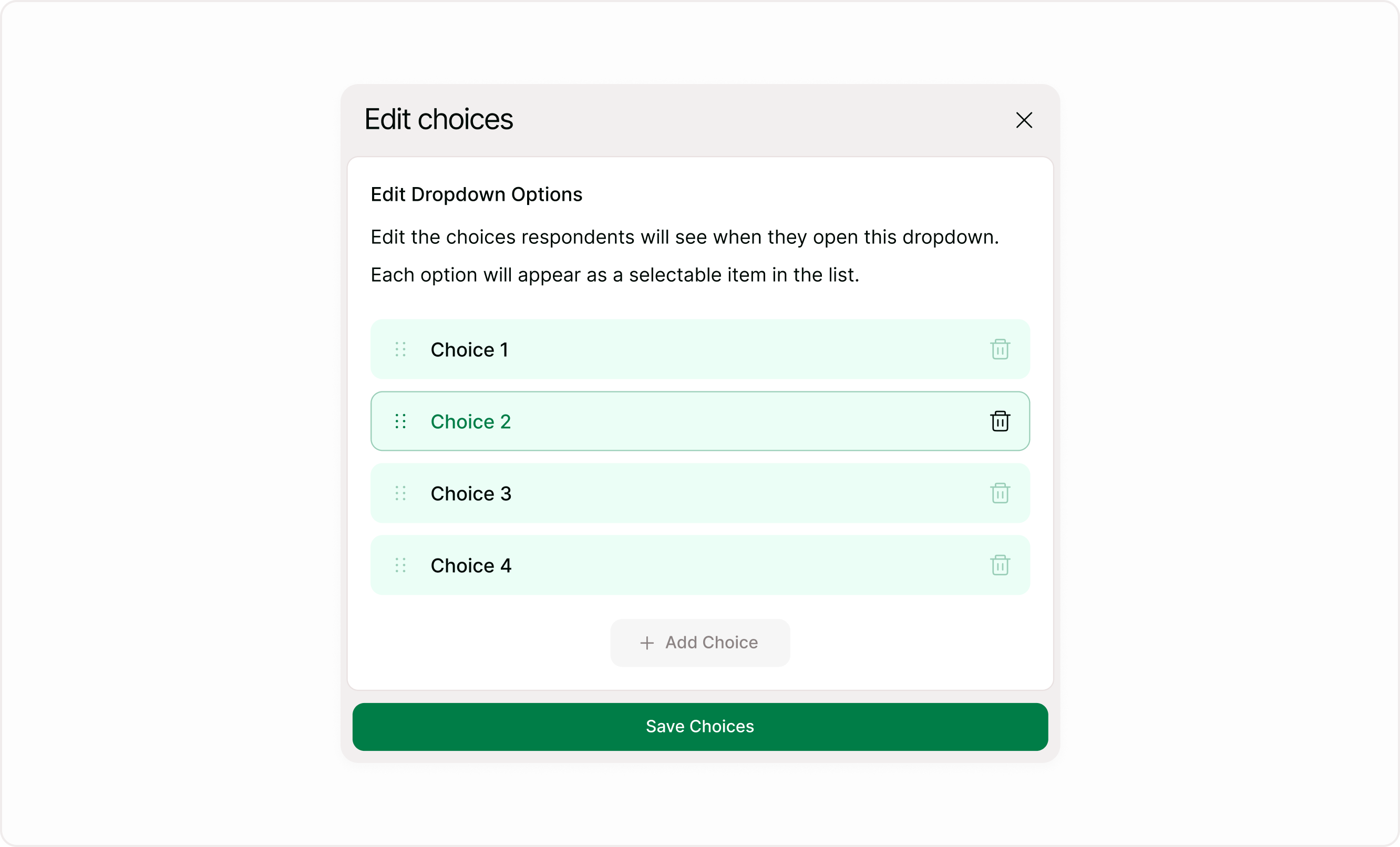
Click Edit Choices on the canvas to open the editing panel.
Inside the pop-up you can:
Edit option text
Drag and drop to reorder
Remove options using the delete icon
Add more options
Save changes instantly
This makes it easy to adjust your list as requirements change without rebuilding the field.
Answer panel settings for Dropdown
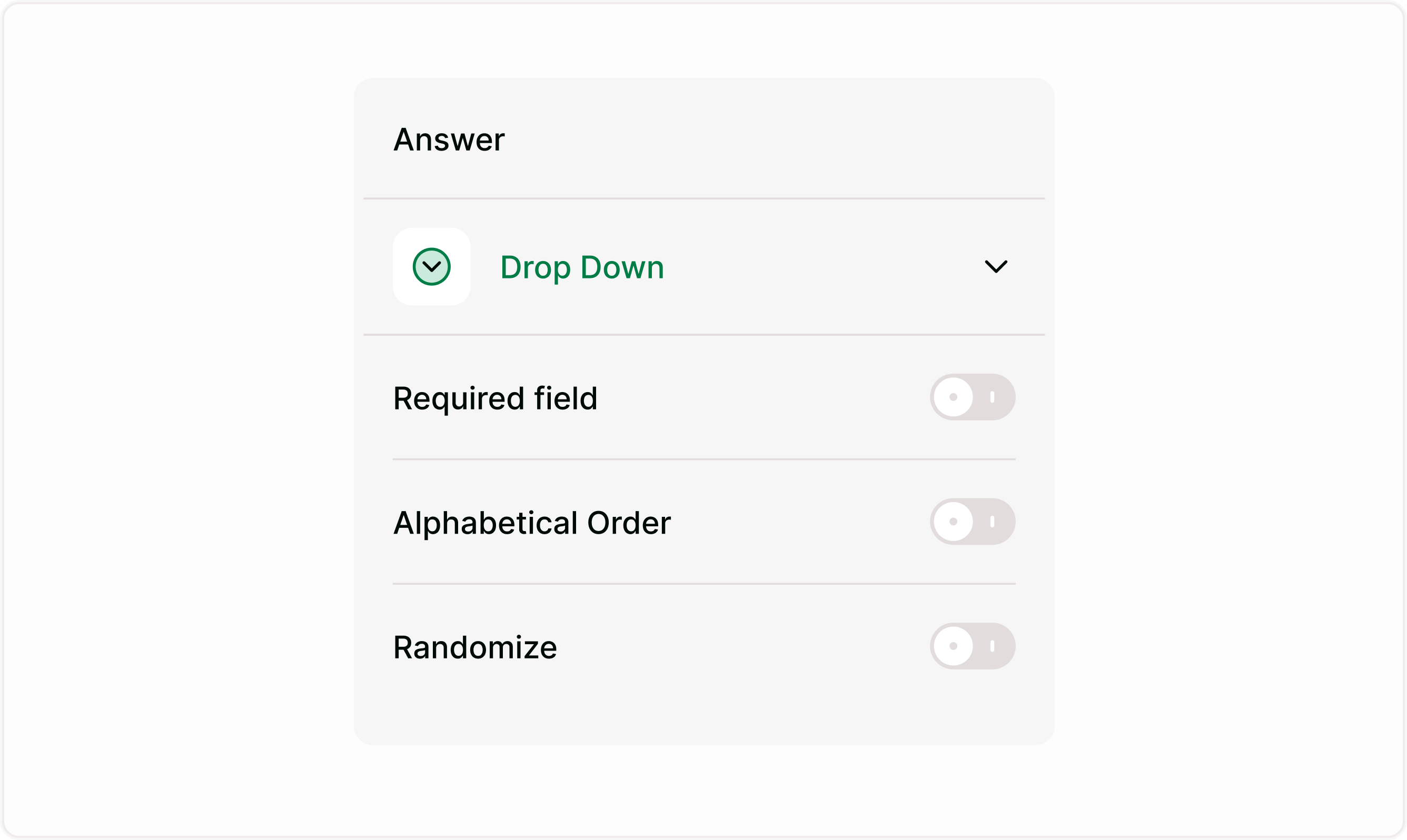
Open the Answer panel on the right to configure how the dropdown behaves.
Required field
Make the dropdown mandatory so respondents must select an option before continuing.
Alphabetical order
Automatically sorts choices alphabetically for consistency and easier scanning.
Randomize
Shuffles option order for each respondent. Useful for surveys where order bias matters.
You can combine alphabetical sorting or randomization depending on your use case.
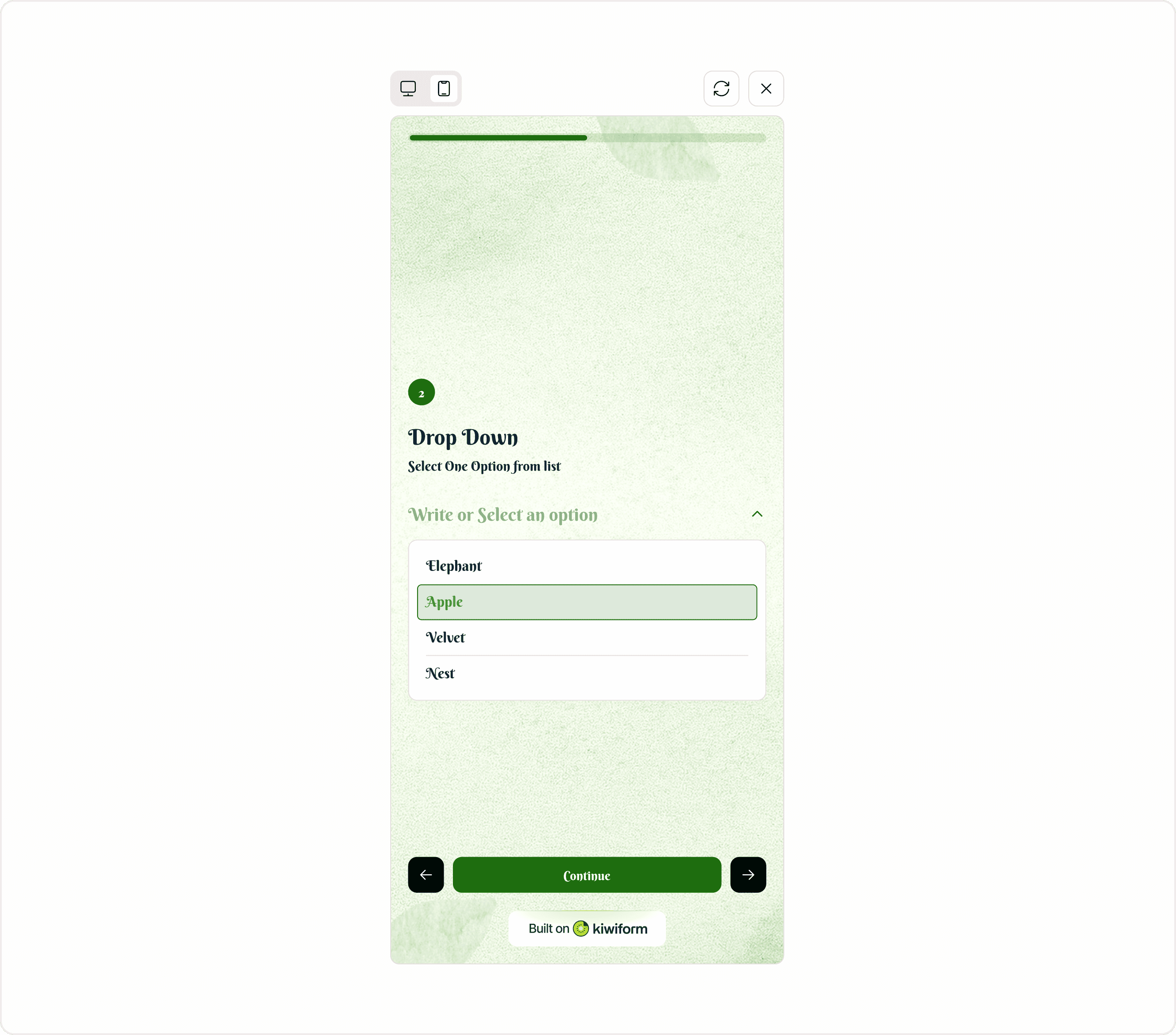
How it appears to respondents
In the live form:
Respondents click the dropdown
A list of options appears
They select one option
The form continues to the next step
The interaction is quick, clean, and familiar across devices.
Common use cases
Country or region selection
Department or role selection
Product categories
Appointment types
Lead qualification
Survey segmentation
Dropdown fields help maintain a clean form layout while supporting large datasets.
Best practices
Keep option labels short and clear
Use alphabetical order for long lists
Avoid too many similar choices
Group related options logically
Update lists regularly if data changes
Dropdowns work best when choices are easy to scan and clearly distinct.
Summary
The Dropdown field helps you present many options without cluttering your form. Add and edit choices easily, reorder with drag-and-drop, and control how options appear to respondents. Whether you’re collecting structured data or simplifying long lists, Dropdown keeps your form organized and easy to complete.