Duplicate responses can affect the accuracy of your results, distort analytics, and reduce trust in your data. Whether you're running a survey, collecting event registrations, or hosting a giveaway, preventing duplicate submissions ensures fair and reliable responses.
Kiwiform gives you flexible duplicate prevention settings so you can choose how strict you want to be.
Where to Find Duplicate Prevention Settings
Open your form in the builder.
Click the Settings button in the top toolbar.
Go to the General tab.
Toggle Prevent Duplicate Submissions ON.
Configure your preferred prevention method.
Click Save.
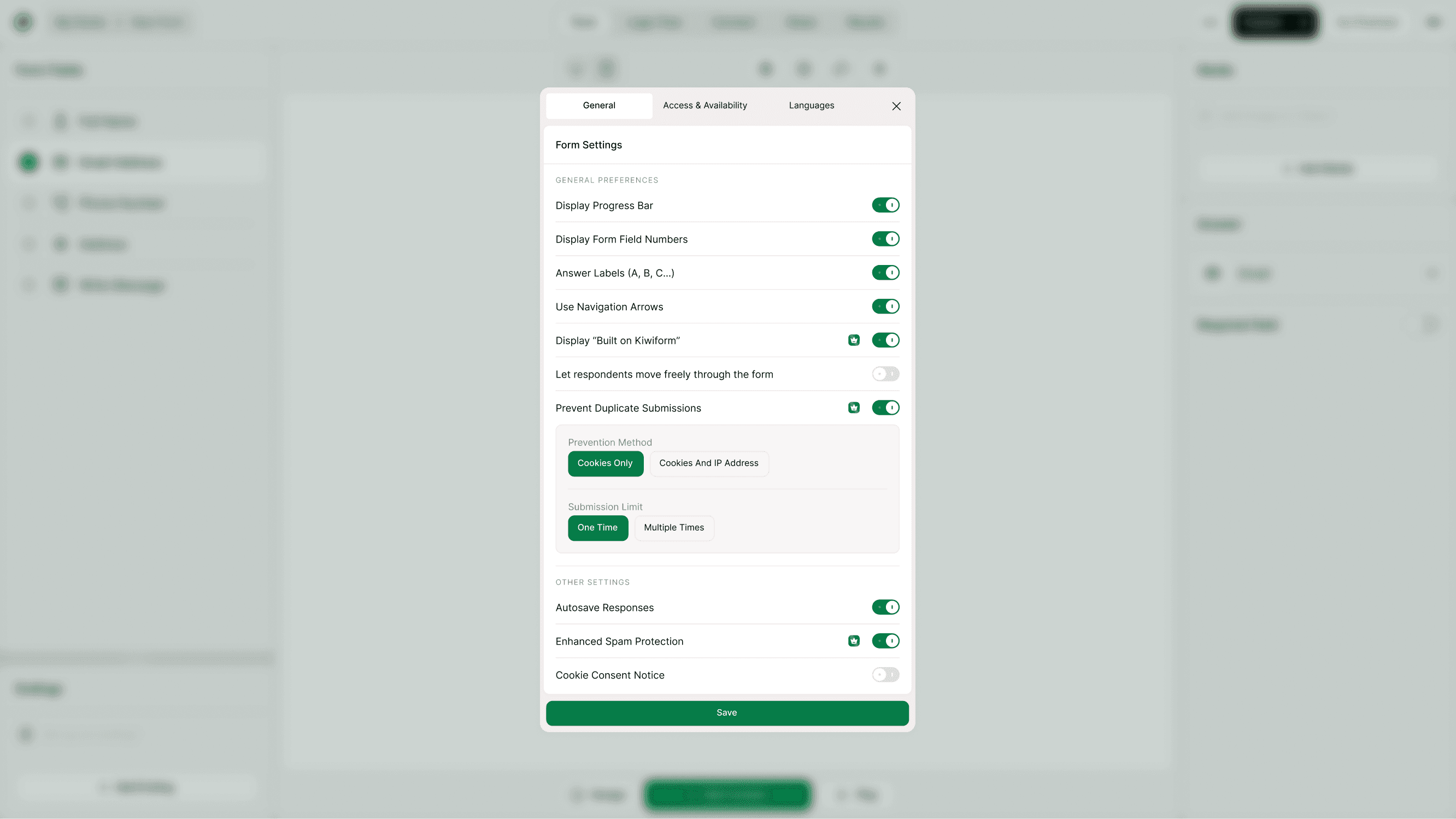
Enable Duplicate Prevention
Prevent Duplicate Submissions (Toggle)
Turn this ON to restrict how many times a person can submit your form.
Once enabled, additional configuration options appear:
Prevention Method
Submission Limit
This gives you full control over how submissions are handled.
Choose a Prevention Method
You can select how Kiwiform identifies repeat submissions.
Cookies Only
This option prevents multiple submissions using browser cookies.
How it works:
A cookie is stored in the respondent’s browser after submission.
If they try to submit again using the same browser and device, they will be blocked.
Best for:
General surveys
Feedback forms
Low-risk data collection
Pros:
Simple
User-friendly
Less strict
Limitations:
Users can bypass by clearing cookies or switching browsers/devices.
Cookies and IP Address
This method combines:
Browser cookies
IP address detection
How it works:
Blocks repeat submissions from the same browser.
Also restricts submissions from the same IP address (depending on your limit settings).
Best for:
Giveaways and contests
Voting forms
Limited-entry campaigns
Application forms
Pros:
More secure
Harder to bypass
Stronger duplicate protection
Important Note:
IP-based restriction may affect users on shared networks (e.g., offices, schools).
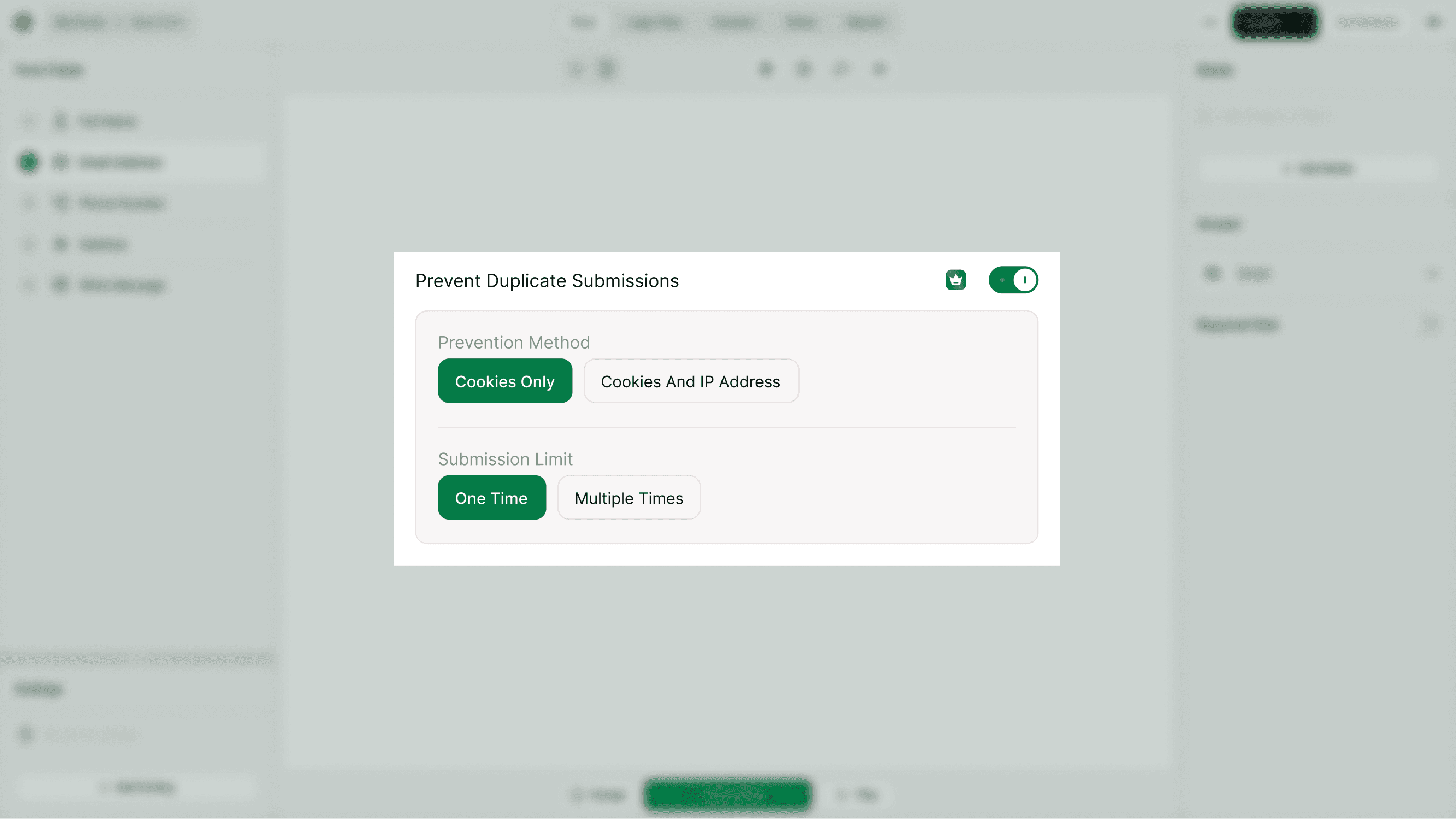
Set Submission Limits
Once duplicate prevention is enabled, you can define how many times someone can submit.
One Time
Allows only a single submission per person.
Best for:
Polls
Voting forms
Event registrations
Scholarship or job applications
If someone tries again, they will see a blocked message.
Multiple Times
Allows more than one submission per person, but with limits.
You can configure:
Number of submissions (e.g., 2)
Per time period (e.g., Day)
Example:
2 submissions per day
3 submissions per week
This is useful when:
Running daily check-ins
Collecting periodic updates
Allowing limited retries
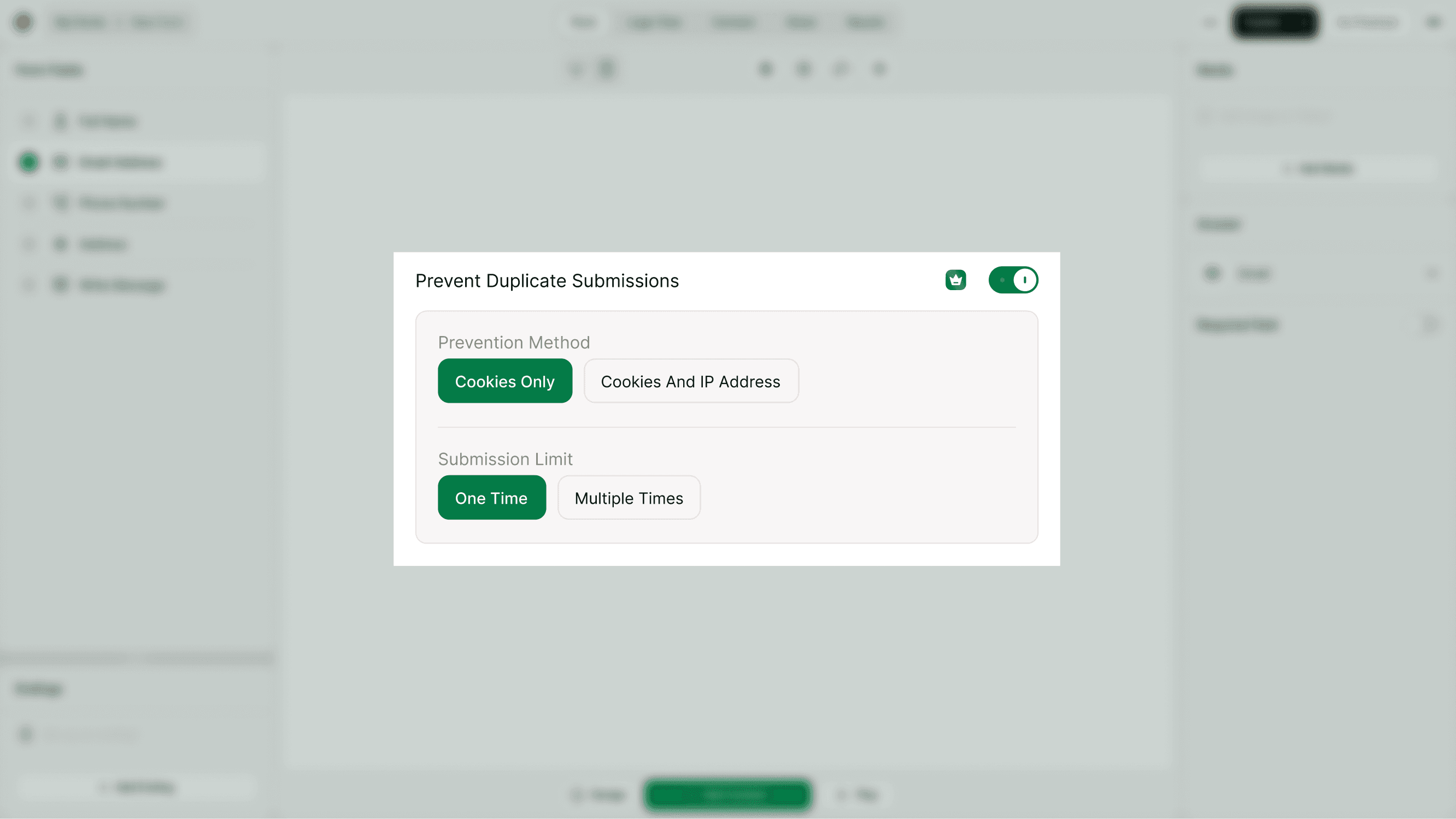
What Respondents See
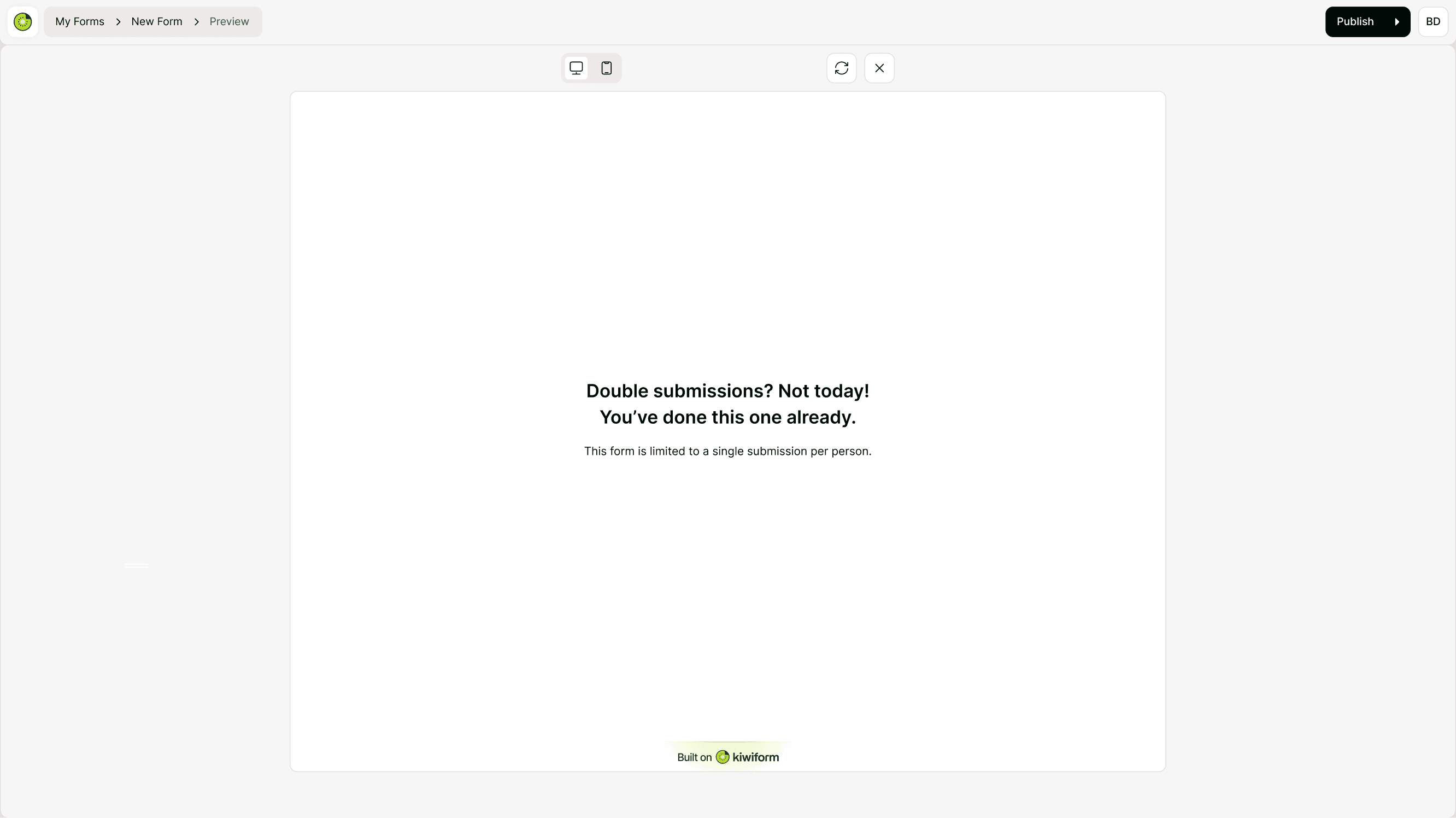
If someone attempts to submit more than allowed, they will see a clear message indicating:
They have already submitted
The form is limited to a specific number of submissions
Example message:
"Double submissions? Not today! You’ve done this one already. This form is limited to a single submission per person."
This ensures transparency and avoids confusion.
When Should You Use Duplicate Prevention?
Use this feature when:
Running contests or giveaways
Conducting polls or voting
Limiting survey responses
Collecting formal applications
Preventing spam or abuse
If response integrity matters, enabling duplicate prevention is highly recommended.
Best Practices
Use Cookies Only for low-risk forms.
Use Cookies and IP Address for higher-stakes forms.
Clearly communicate submission limits in your form description.
Test the form in preview mode before publishing.
Combine with Enhanced Spam Protection for better security.
Important Considerations
Users on shared networks (schools, offices) may share the same IP.
Clearing browser cookies may allow additional submissions (if using Cookies Only).
Duplicate prevention is not a 100% anti-fraud solution but significantly reduces repeat responses.
For maximum control, combine:
Duplicate prevention
Submission limits
Deadline settings
Spam protection
Summary
Duplicate prevention in Kiwiform helps you protect your data from repeated submissions. By choosing between cookie-based or IP-based restrictions and setting flexible submission limits, you can maintain response integrity and ensure fair participation.