What Happens When You Edit a Theme?
A theme controls the visual appearance of forms that use it. When you edit a theme, you are updating the design preset itself.
Any form currently using that theme may reflect the updated styling after changes are saved. This makes theme editing powerful for maintaining consistency, but it should be done carefully—especially if the theme is already applied to multiple live forms.
Editing a theme is useful when:
Your brand colors change
You want improved accessibility or contrast
You are running a new campaign
You want to standardize visual alignment
You need to update typography
How to Edit an Existing Theme
Open the Design Panel of your form:
Open your form.
Click Design.
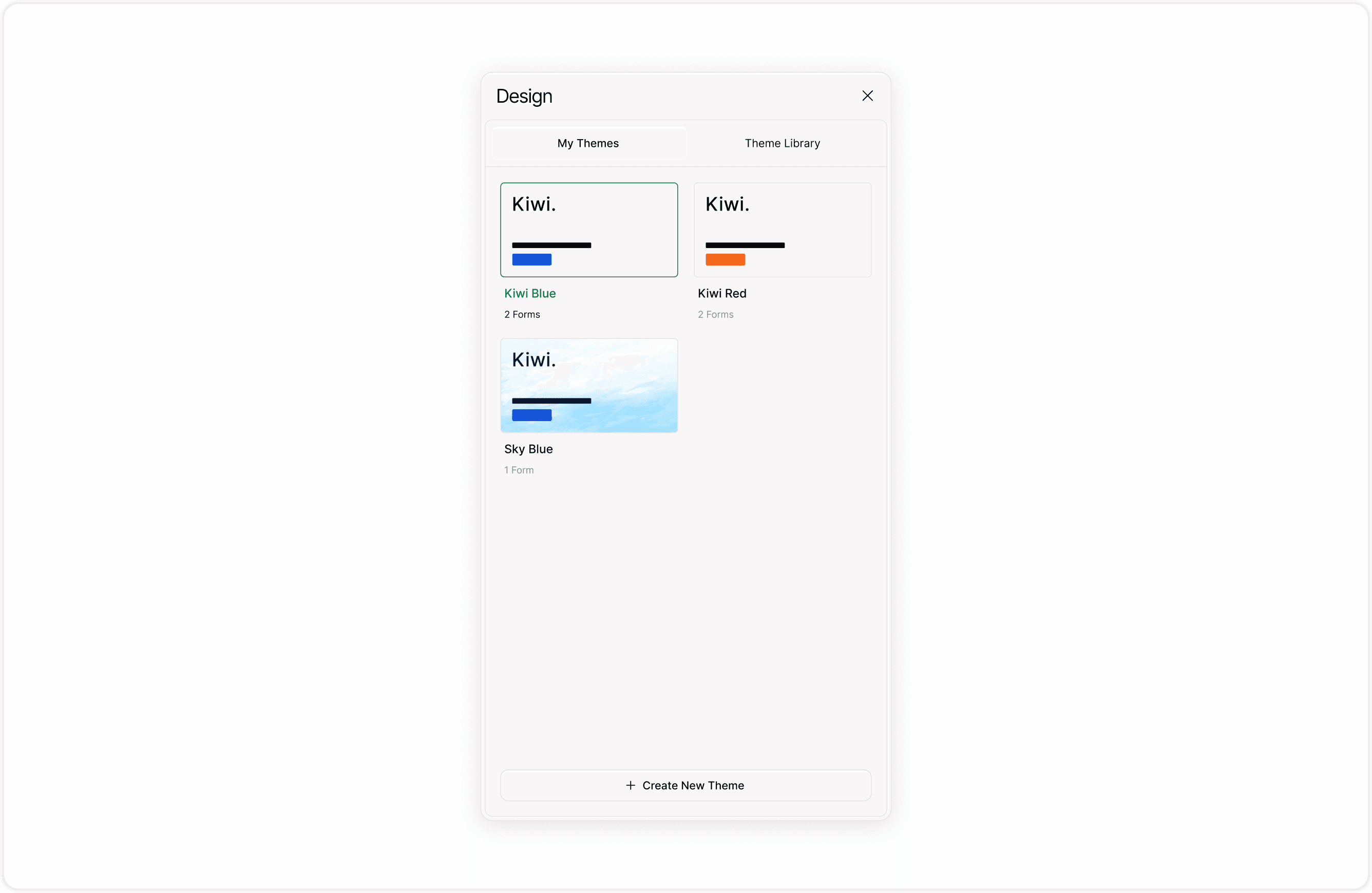
Select My Themes.
You will see a list of themes saved in your workspace.
Access Theme Options
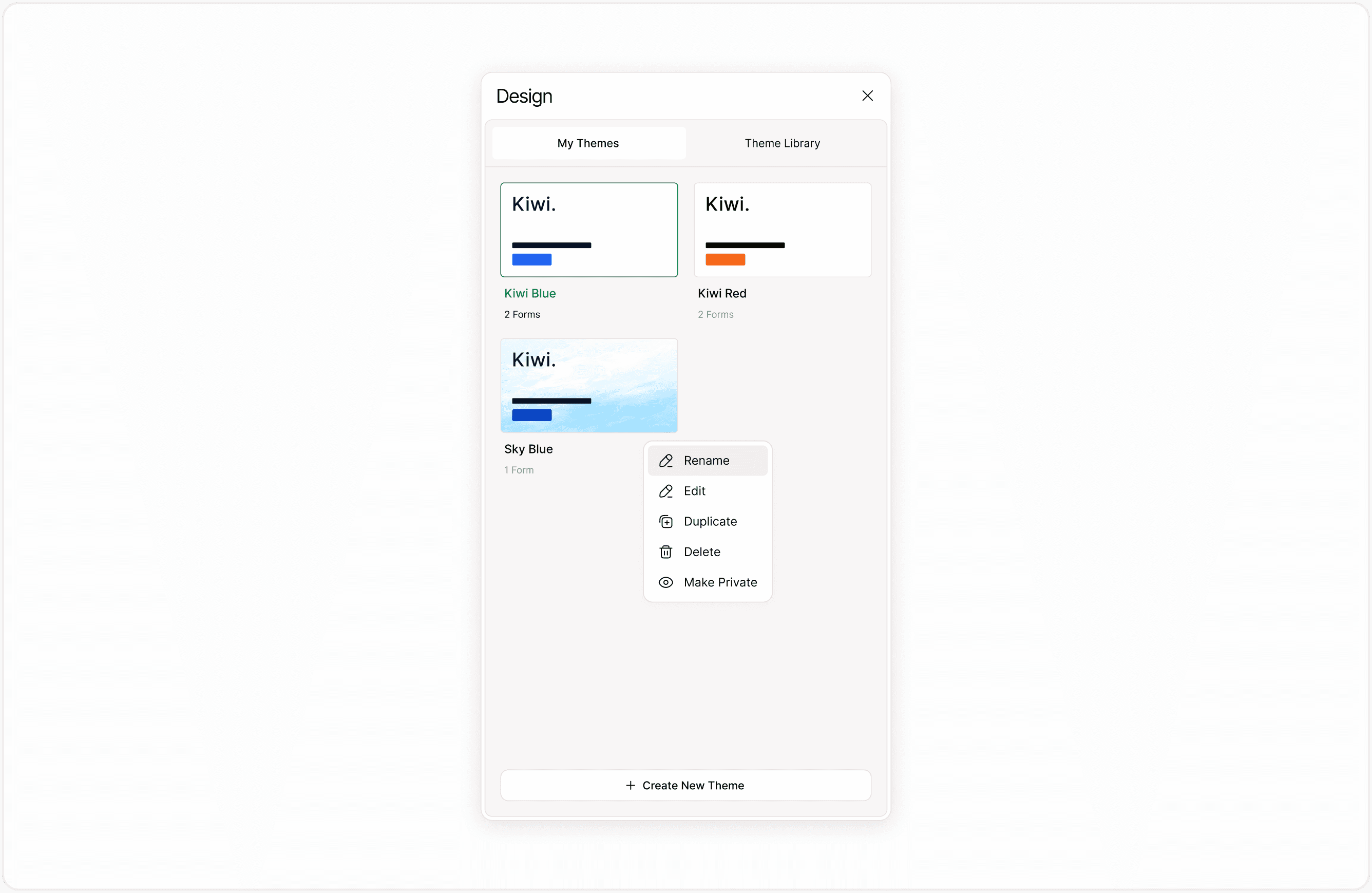
Each theme card includes a menu (three dots). Click the menu to see available actions:
Rename
Edit
Duplicate
Delete
Make Public (if applicable)
Select Edit to open the theme configuration panel.
Update General Theme Settings
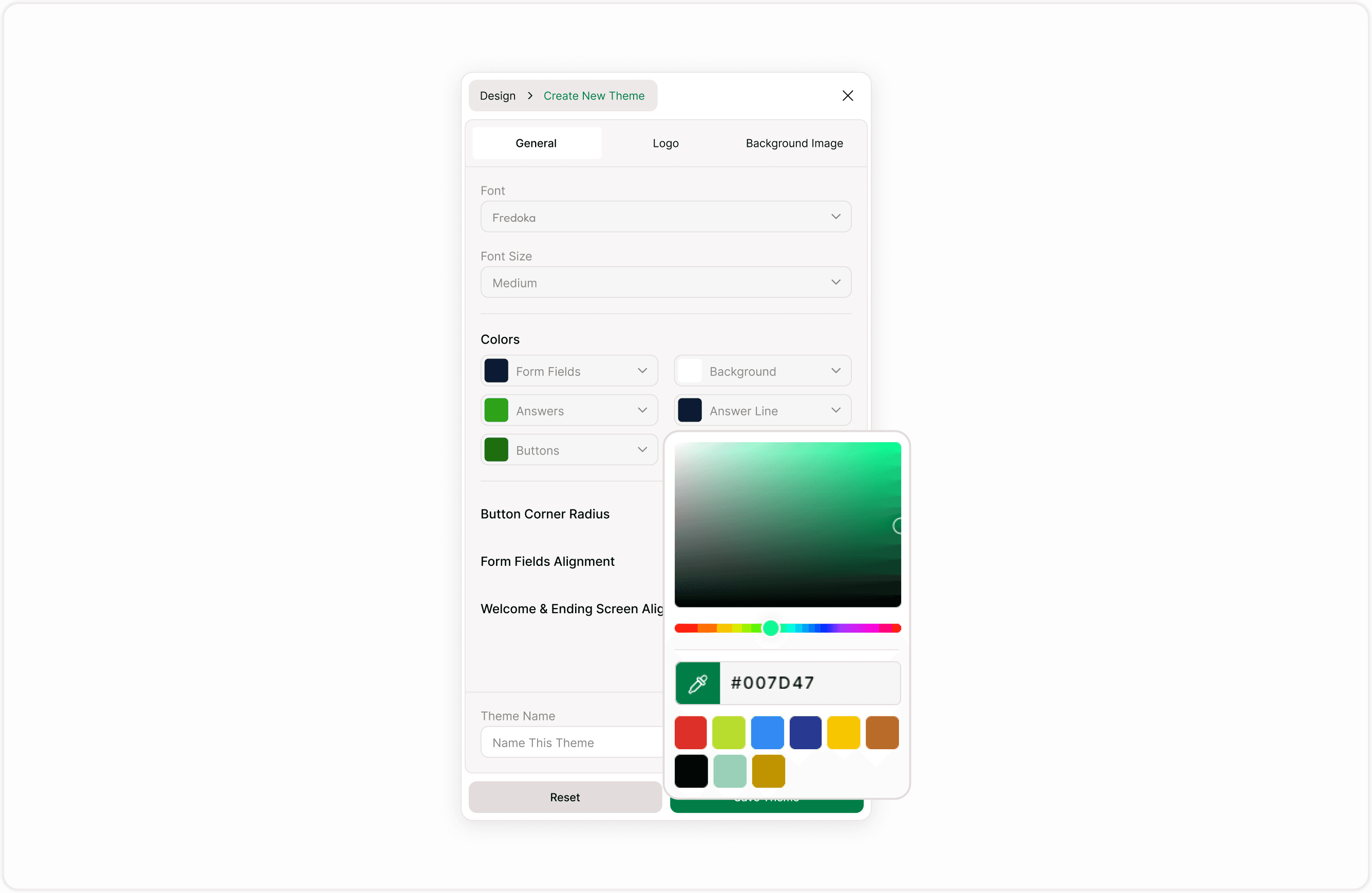
When you open the theme editor, you can modify settings under the General tab.
Font
Change the font to match updated brand guidelines or improve readability.
Font Size
Adjust the font size if you want a more compact layout or better accessibility.
Modify Colors
Under the Colors section, you can update:
Form Fields color
Background color
Answers color
Answers Line styling
Buttons color
Buttons Text color
When adjusting colors, ensure there is enough contrast between text and background elements. This improves readability across devices.
Adjust Layout and Alignment
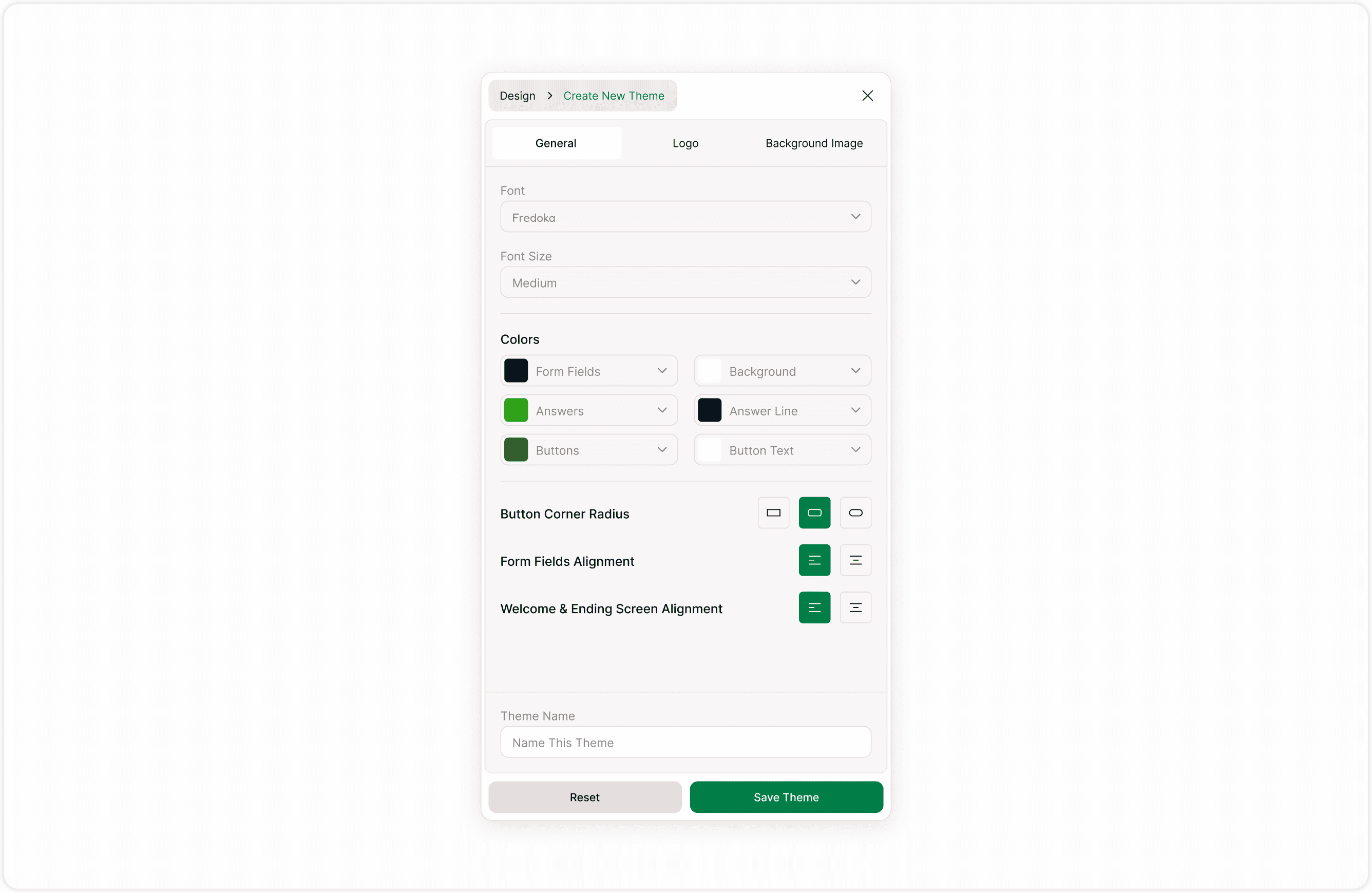
You can refine:
Button Corner Radius
Change button shape to sharp, slightly rounded, or fully rounded corners.
Form Fields Alignment
Control how form content aligns inside the layout.
Welcome & Ending Screen Alignment
Adjust alignment for Welcome and Ending Screens separately.
These settings help maintain visual consistency across different form stages.
Update Logo or Background
Switch to the Logo tab to replace or update your logo.
Switch to the Background tab to change or remove a background image.
Updating visual assets is useful when:
Rebranding
Launching seasonal campaigns
Creating event-specific designs
Updating outdated visuals
Rename the Theme (Optional)
At the bottom of the editor, you can update the Theme Name field.
Renaming a theme helps maintain organization in your Theme Library, especially if the design purpose changes over time.
Example:
Change “Campaign Theme 2023” to “Campaign Theme 2024”
Rename “Draft Theme” to “Final Brand Theme”
Save or Reset Changes
After making updates:
Review all changes carefully.
Click Save Theme to apply modifications.
If you want to discard changes before saving, click Reset.
Saving will update the theme in your Theme Library.
Best Practices Before Editing a Theme
Confirm which forms are currently using the theme.
Duplicate the theme first if you want to preserve the original.
Test changes in preview mode before publishing.
Maintain consistent branding across all forms.
If you need a variation instead of modifying the original design, consider using the Duplicate option to create a new theme based on the existing one.
Summary
This guide explains how to access your saved themes, edit their design settings, rename them, and save changes. You will learn how theme updates affect your forms and how to safely manage design changes without recreating styles from scratch.