About the Email field
The Email field is used when you need respondents to enter a valid email address. It automatically validates the format of the input, helping you collect clean and usable data for follow-ups, notifications, sign-ups, or lead generation.
This field is commonly used in contact forms, waitlists, surveys, onboarding flows, and support requests. Because validation happens automatically, you don’t need to manually check whether the email format is correct, Kiwiform ensures only properly formatted email addresses can be submitted.
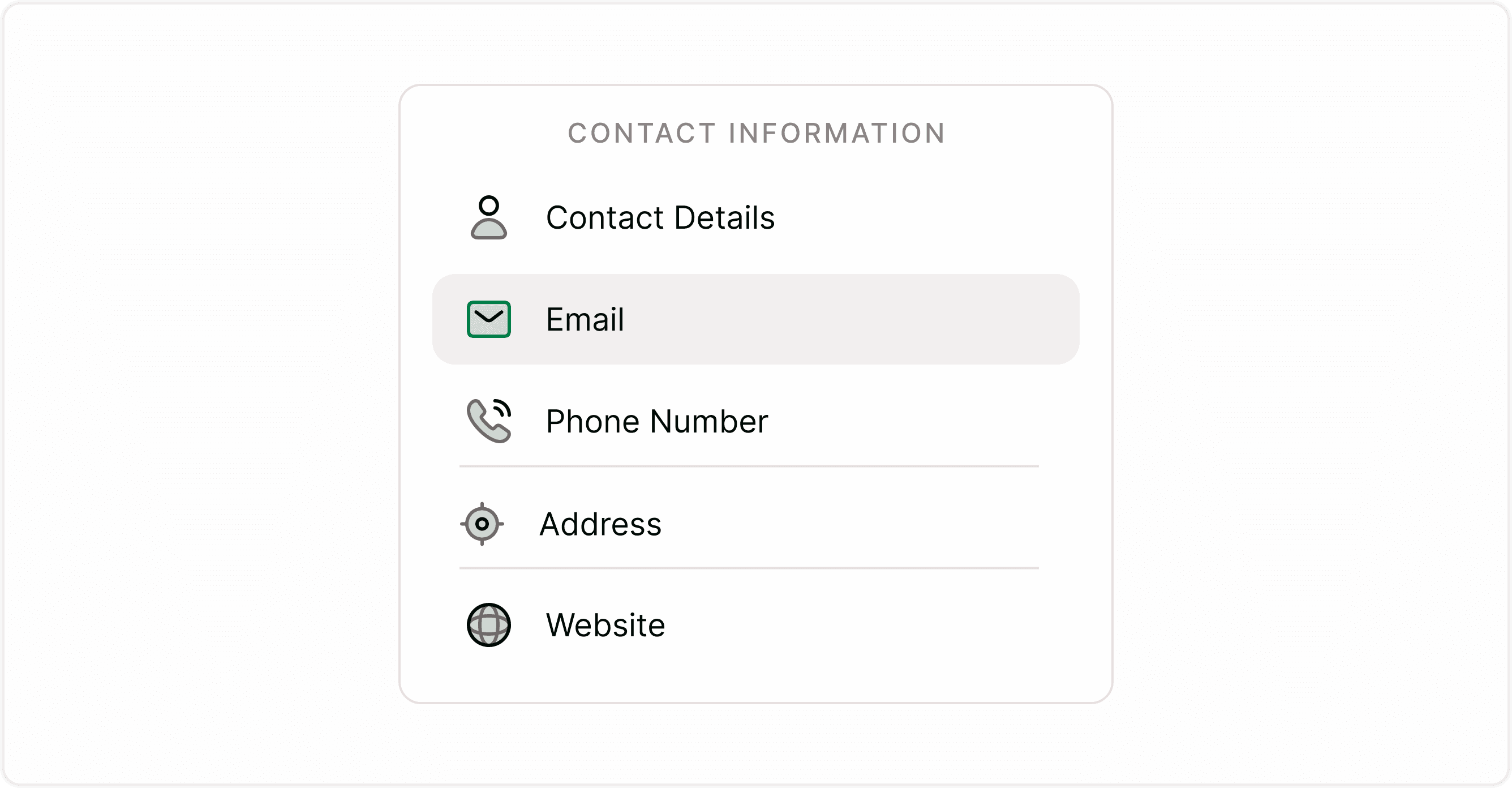
How to add an Email field to your form
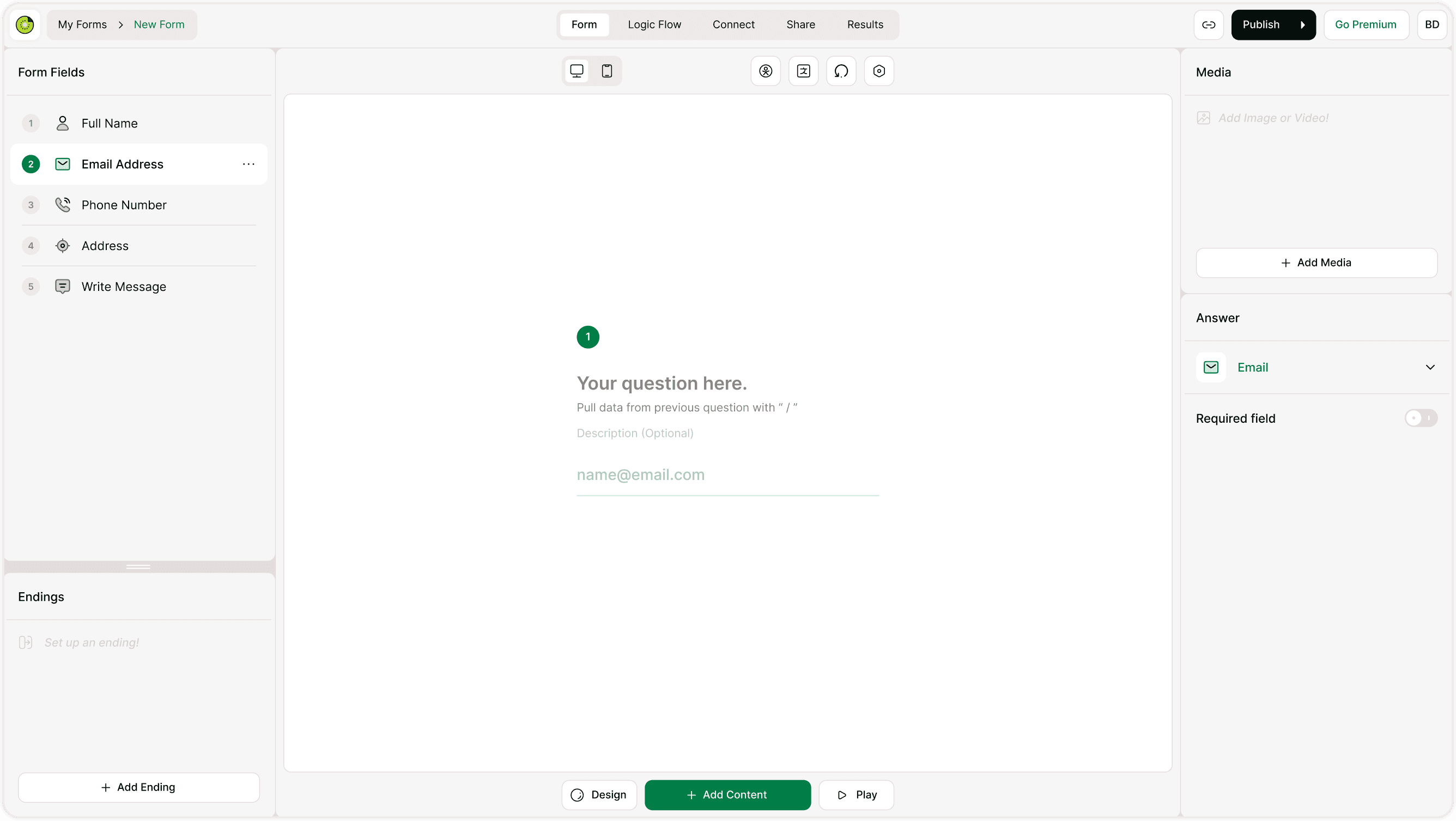
You can add the Email field while building your form in just a few steps:
Open your form in the builder.
Click + Add Content at the bottom.
Select Email under Contact Information fields.
The field will appear in your form and can be edited immediately.
Once added, you can rename the question, add helper text, or place it anywhere in your form flow.
Configuring the Email field
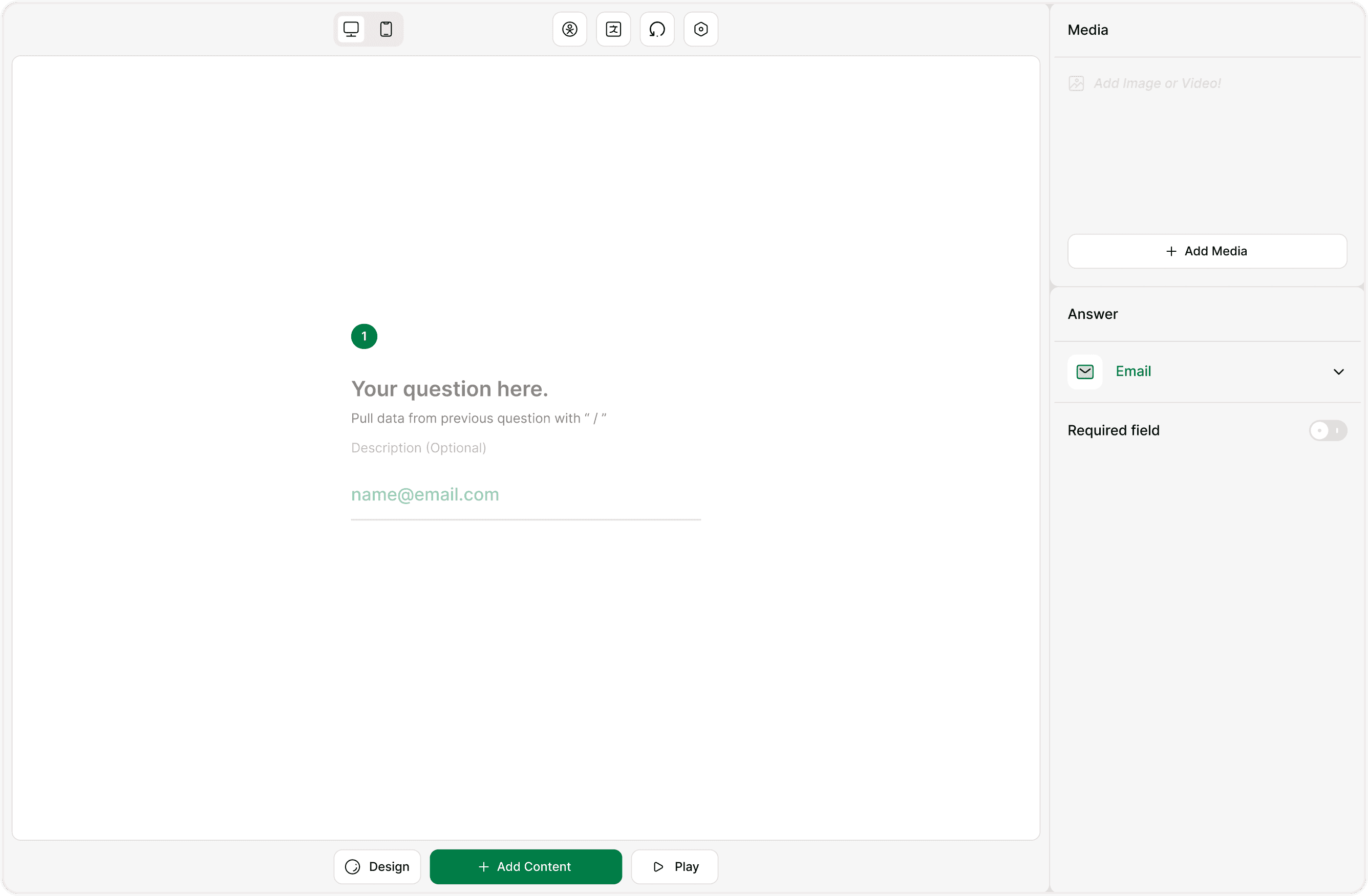
When the Email field is selected, its settings appear in the Answer panel on the right. This is where you control how the field behaves.
Required field
Toggle Required field on to make the email mandatory. Respondents won’t be able to submit the form without entering a valid email address.
Use this when:
You need a reply or follow-up
You’re collecting leads
You’re sending confirmations or receipts
If optional, keep it turned off to allow submission without an email.
Validation and respondent experience
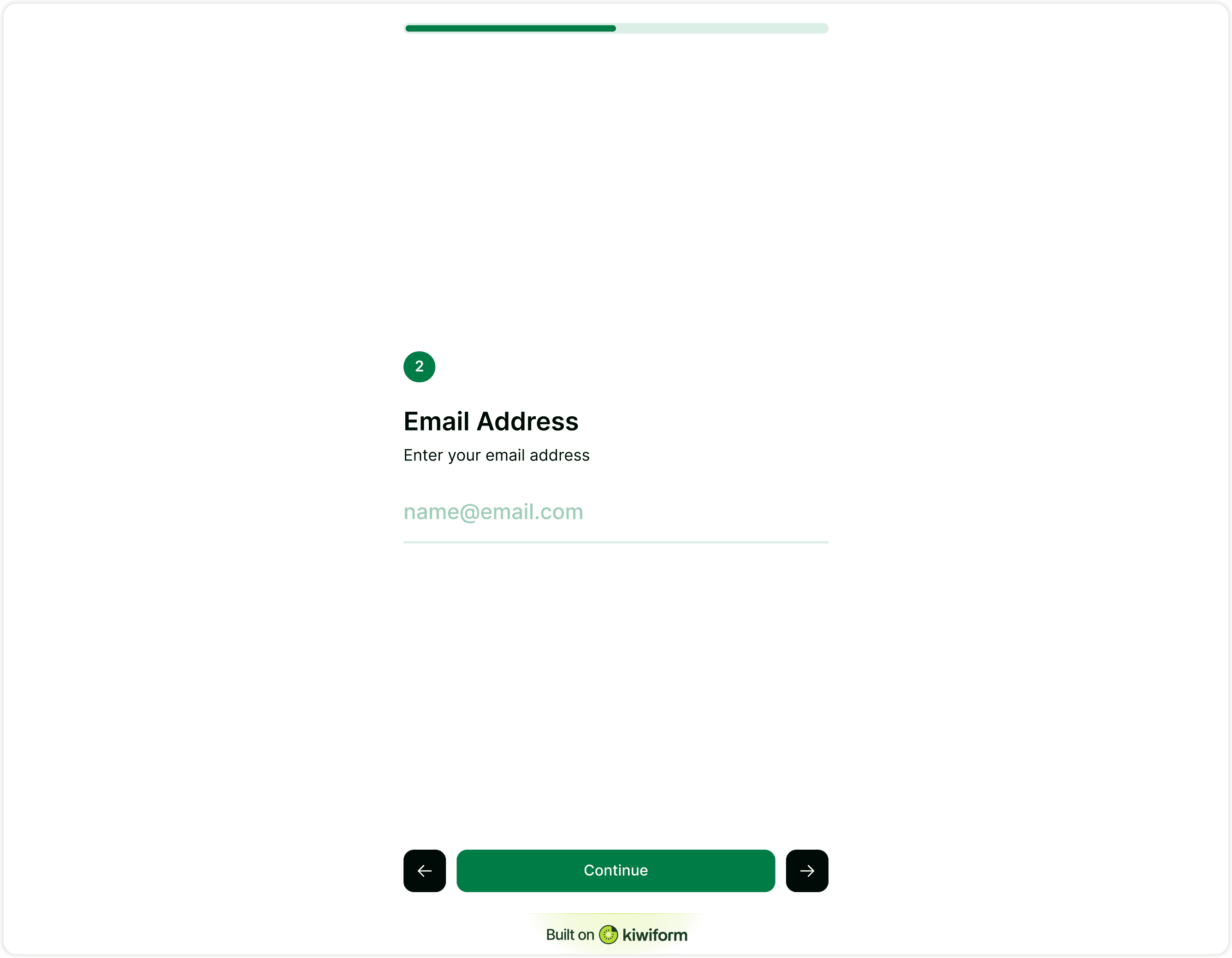
The Email field automatically checks whether the entered value follows a valid email format. If the input is incorrect, respondents will see a prompt to correct it before continuing.
This helps you:
Avoid invalid entries
Reduce follow-up errors
Keep your response data clean
In the respondent view, the Email field appears as a simple input with an email-formatted placeholder and validation built in.
Where Email field works best
Use the Email field in:
Contact forms
Lead generation forms
Newsletter signups
Support or feedback forms
Event registrations
Payment confirmations
It integrates seamlessly with notifications, automations, and integrations configured elsewhere in Kiwiform.
Best practices for using the Email field
Make it required when you plan to contact respondents.
Add helper text to explain why you’re collecting emails.
Use after key questions so respondents are more likely to complete the form.
Avoid asking twice, collect email once and reuse it in logic or integrations.
Summary
The Email field lets you collect validated email addresses with minimal setup. You can mark it required, position it anywhere in your form, and rely on built-in validation to ensure accurate data. It’s a simple but essential field for any form that requires follow-up or communication.