How Email Integration Works
When enabled:
You receive an email for every new submission
The email includes submission details
You can customize subject and message content
You can optionally send confirmation emails to respondents
Email notifications are managed directly inside the Connect tab of your form.
Types of Email Notifications
Kiwiform provides two options:
Email to You
Receive a notification when a new submission is received.
Email to Respondents
Send an automatic confirmation email to the person who submitted the form.
How to Enable Email Notifications
Open your form.
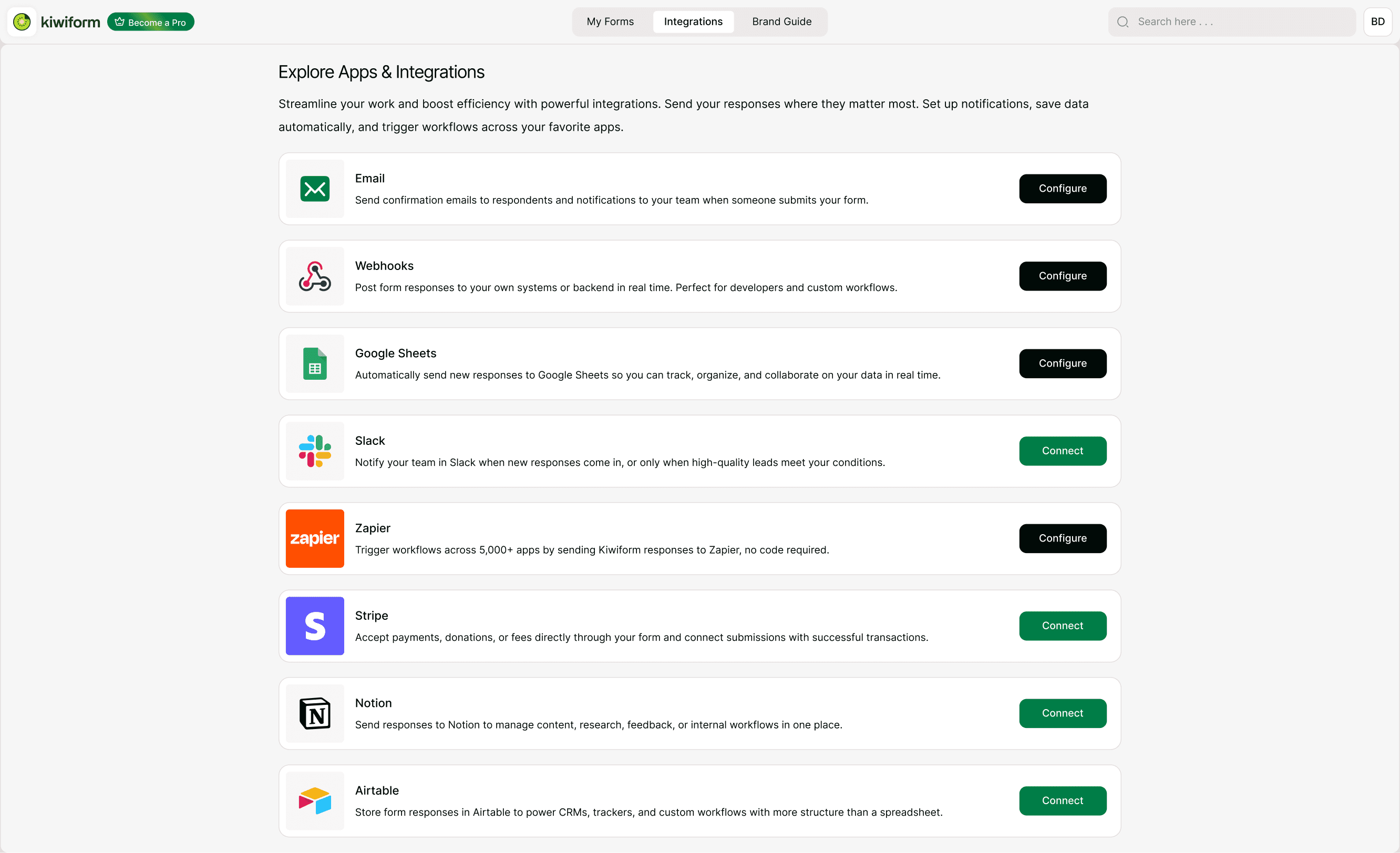
Click Connect in the top navigation.
Select Email.
Enable Receive Email Updates
Turn on the Receive Email Updates toggle.
Confirm your recipient email address.
By default, emails are sent to your account email. remium plans may allow multiple recipients.
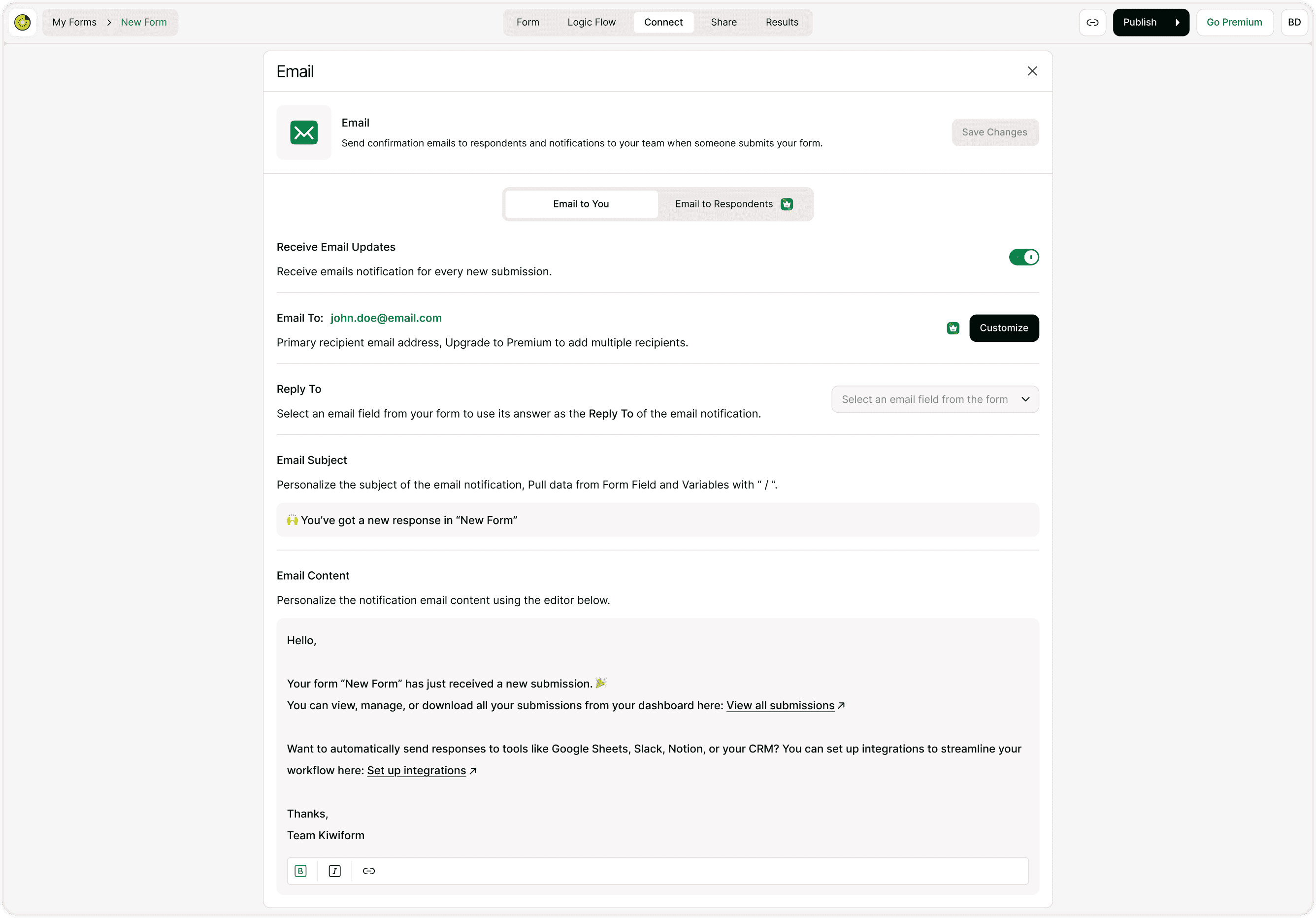
Customizing Email Settings
You can set:
Your primary email address
(Premium) Additional recipients
Reply-To Configuration
You can choose an email field from your form as the Reply-To address. his allows you to reply directly to the respondent from your inbox.
If your form includes an Email field, select it as Reply-To.
When you click “Reply” in your email client, it goes directly to the submitter.
Email Subject
You can customize the subject line.
Default example:
You've got a new response in "Product Feedback Form"
You may edit this to better match your workflow.
Best Practices for Seamless Automation
For effective email notifications:
Use a clear subject line
Set the correct Reply-To field
Keep confirmation messages simple
Test with a sample submission
Avoid overly long email content
If collecting email addresses, ensure proper consent and compliance where required.
Summary
The Email integration in Kiwiform allows you to automatically receive notifications for every new form submission and send confirmation emails to respondents. You can enable alerts to your own inbox, customize the subject and message content, and set a form email field as the Reply-To address for easy responses. This integration helps you stay informed in real time and ensures respondents receive acknowledgment without needing third-party tools.