What are Endings in a Form?
Endings are the final step of your form journey. Once a respondent completes all questions, Kiwiform uses the configured ending to decide what happens next. This could be as simple as showing a thank-you message or as functional as redirecting users, triggering integrations, or sending automated emails.
A well-configured ending improves clarity, sets expectations, and helps you move respondents to the next step, whether that’s confirmation, action, or follow-up.
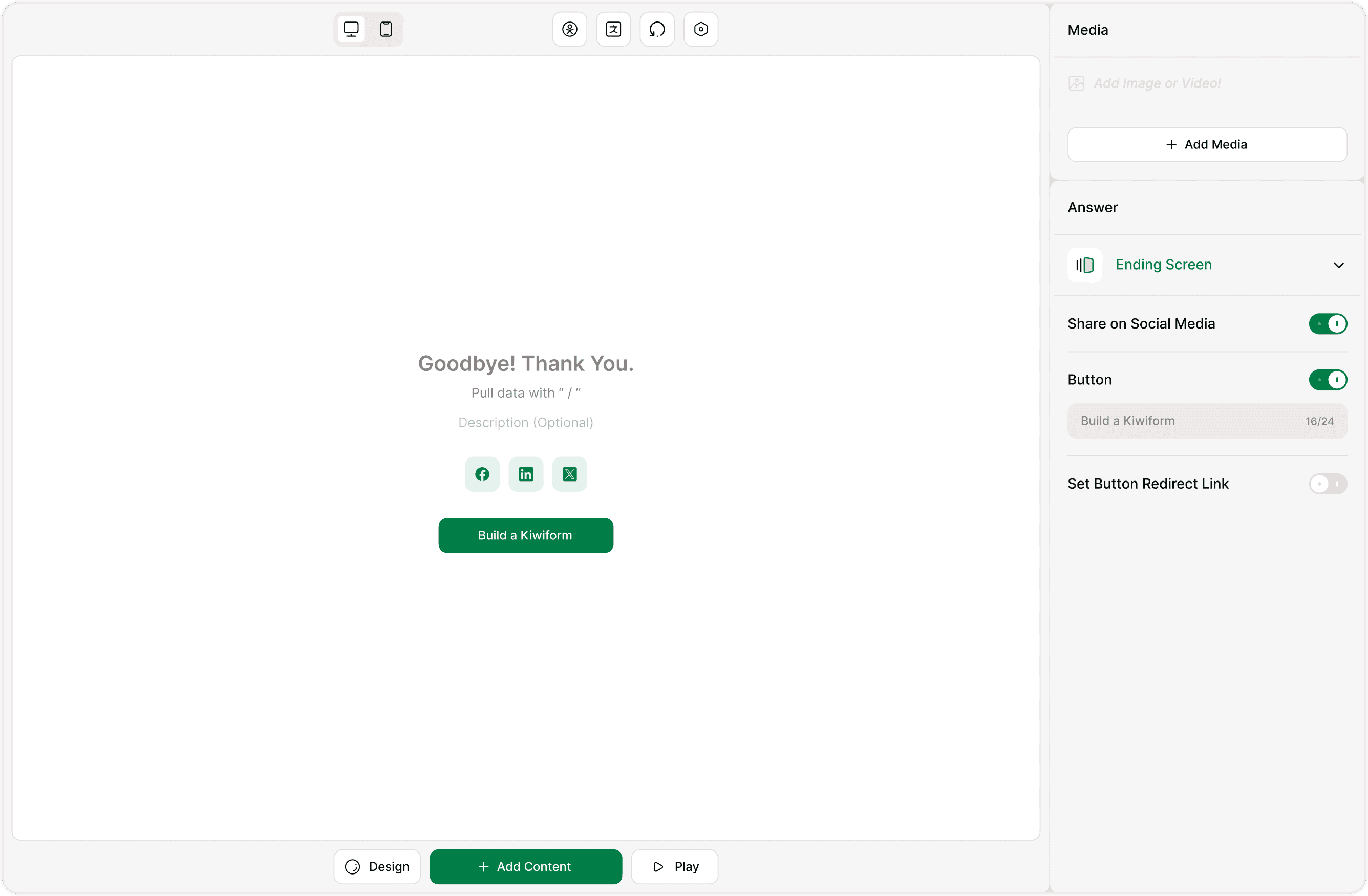
Adding an Ending to Your Form
Every form can have one or more endings. To add an ending:
Scroll to the Endings section in the Form Builder.
Click Add Ending.
Choose the type of ending you want to set up.
Once added, the ending becomes part of your form flow and is triggered after submission (or via logic, if configured later).
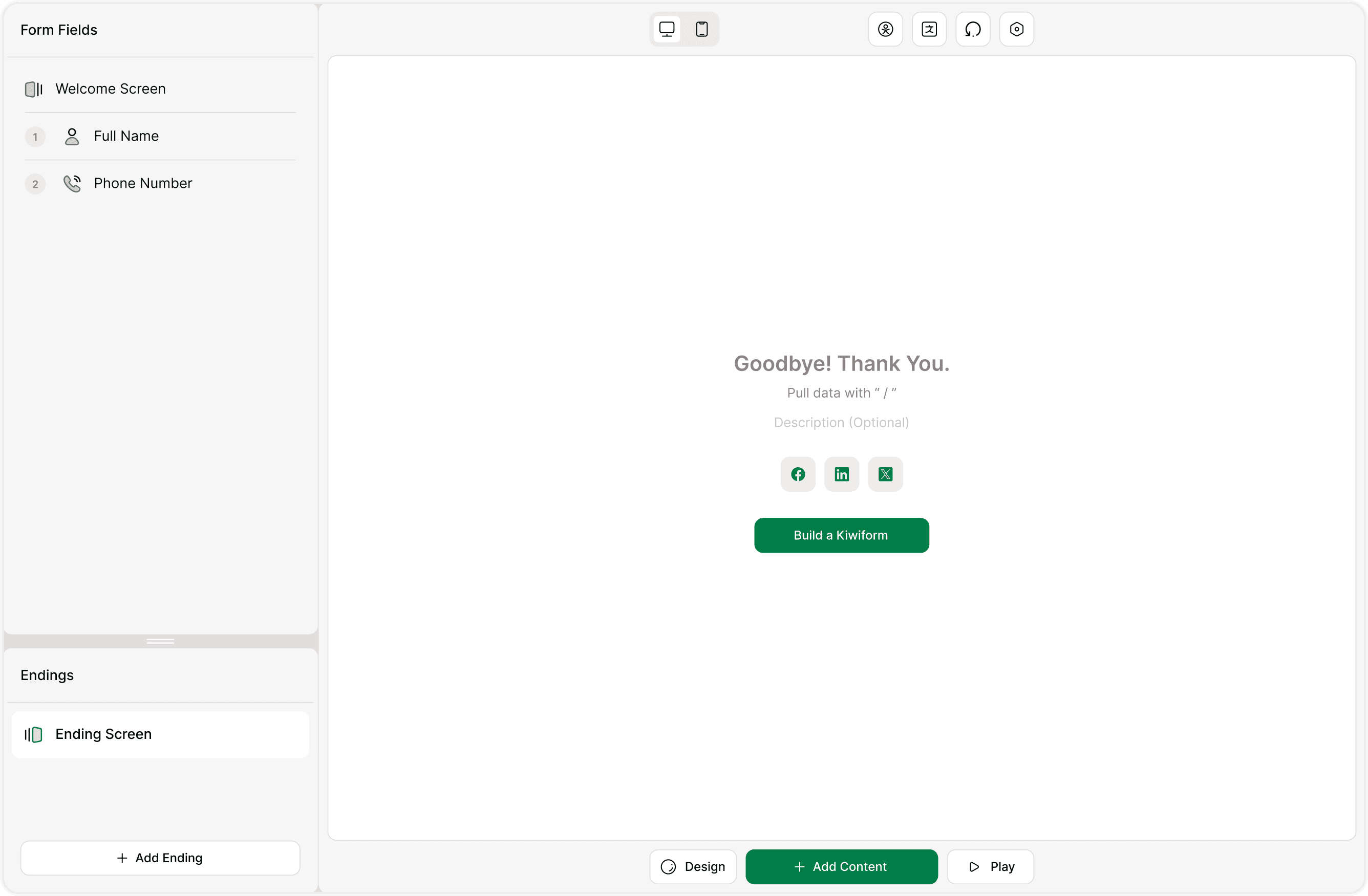
Types of Endings Available
Kiwiform provides multiple ending options so you can control what happens after form submission. Each option serves a different use case and can be configured independently.
Ending Screen : Shows a confirmation or thank-you screen after submission. This is useful for acknowledging responses, sharing next steps, or displaying a custom message.
Redirect to Link : Automatically sends respondents to a specific URL after they submit the form. Common use cases include redirecting to a website, payment page, booking tool, or resource.
Connect to Apps : Allows you to connect your form with external tools and services. Selecting this option takes you to the Integrations section of the dashboard, where you can link your form to supported apps. This is commonly used to send form data to CRMs, databases, or automation tools.
Automated Messages : Enables email-based actions linked to form submissions. This includes receiving notifications when someone submits a form and sending confirmation or follow-up emails to respondents.
This option connects your form with Kiwiform’s email automation capabilities.
When to Use Each Ending Option
Different forms require different outcomes.
For example:
Use an Ending Screen to confirm submissions or share instructions.
Use Redirect to Link to move users to the next step instantly.
Use Connect to Apps to automate data flow.
Use Automated Messages to stay informed and communicate with respondents.
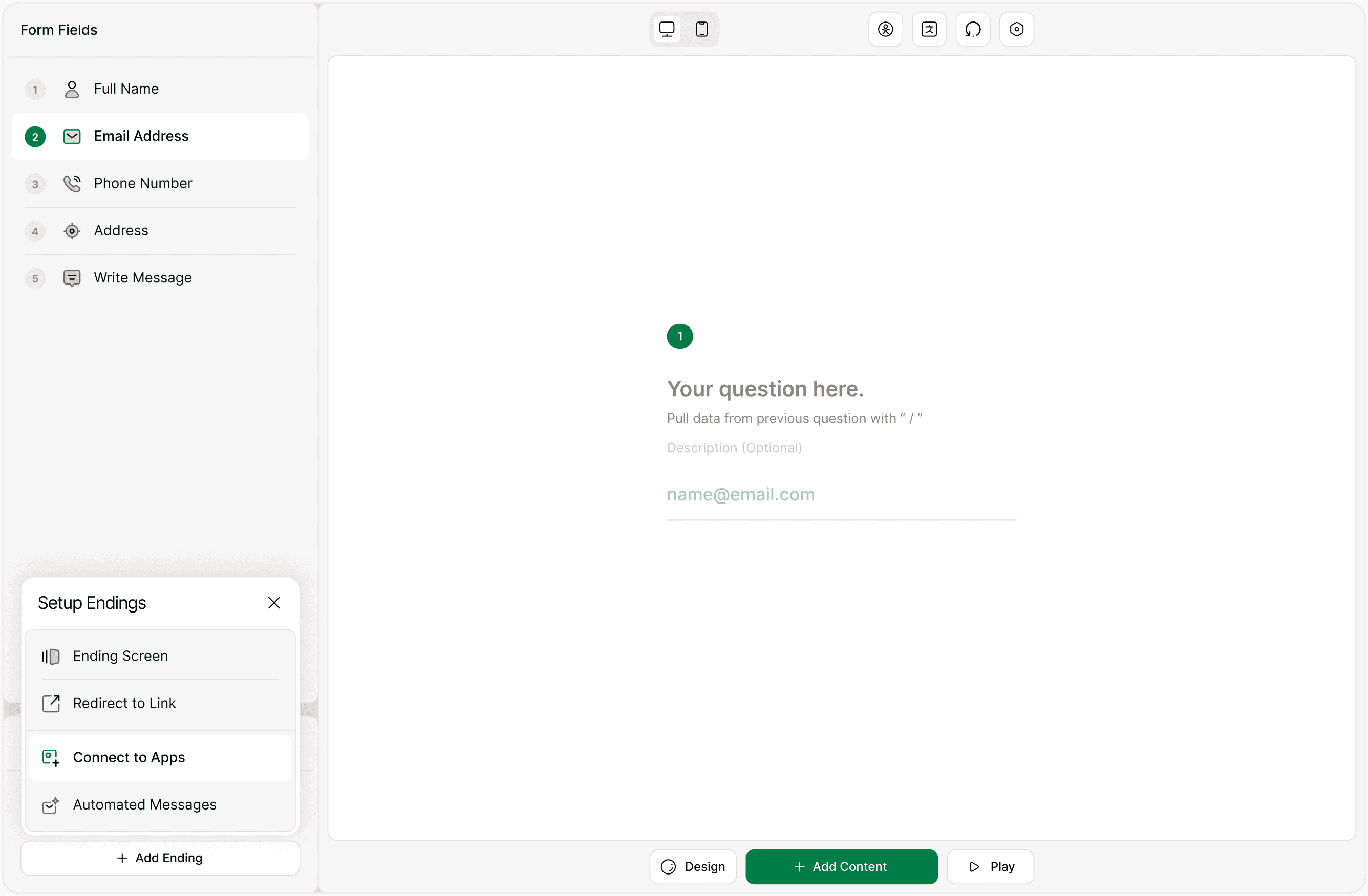
Summary
Endings complete your form experience. In Kiwiform, you can choose how submissions conclude—through confirmation screens, redirects, integrations, or automated emails. These options give you flexibility without complexity, keeping your forms clear, purposeful, and conversion-focused.