What the Feedback Score field does
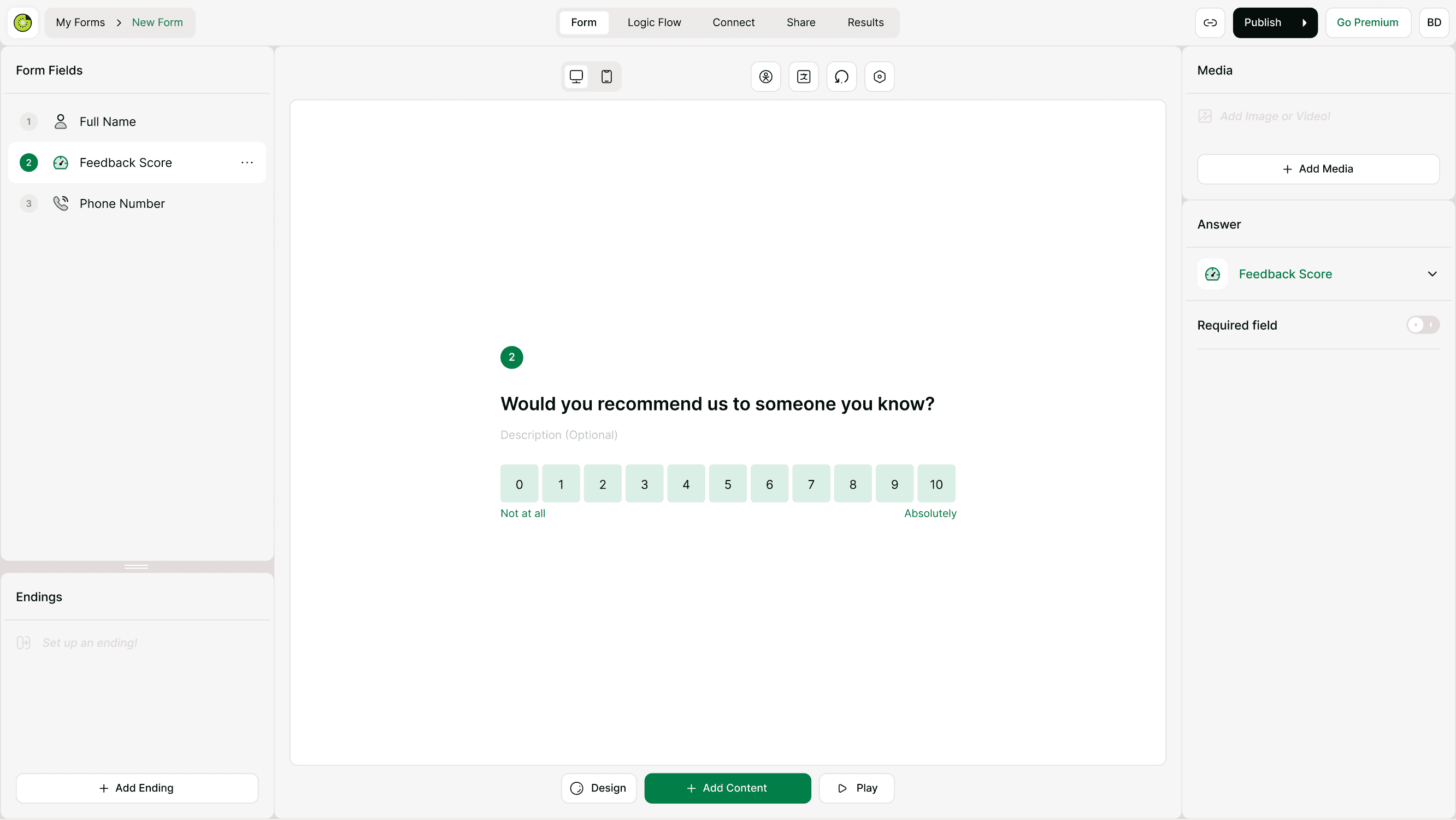
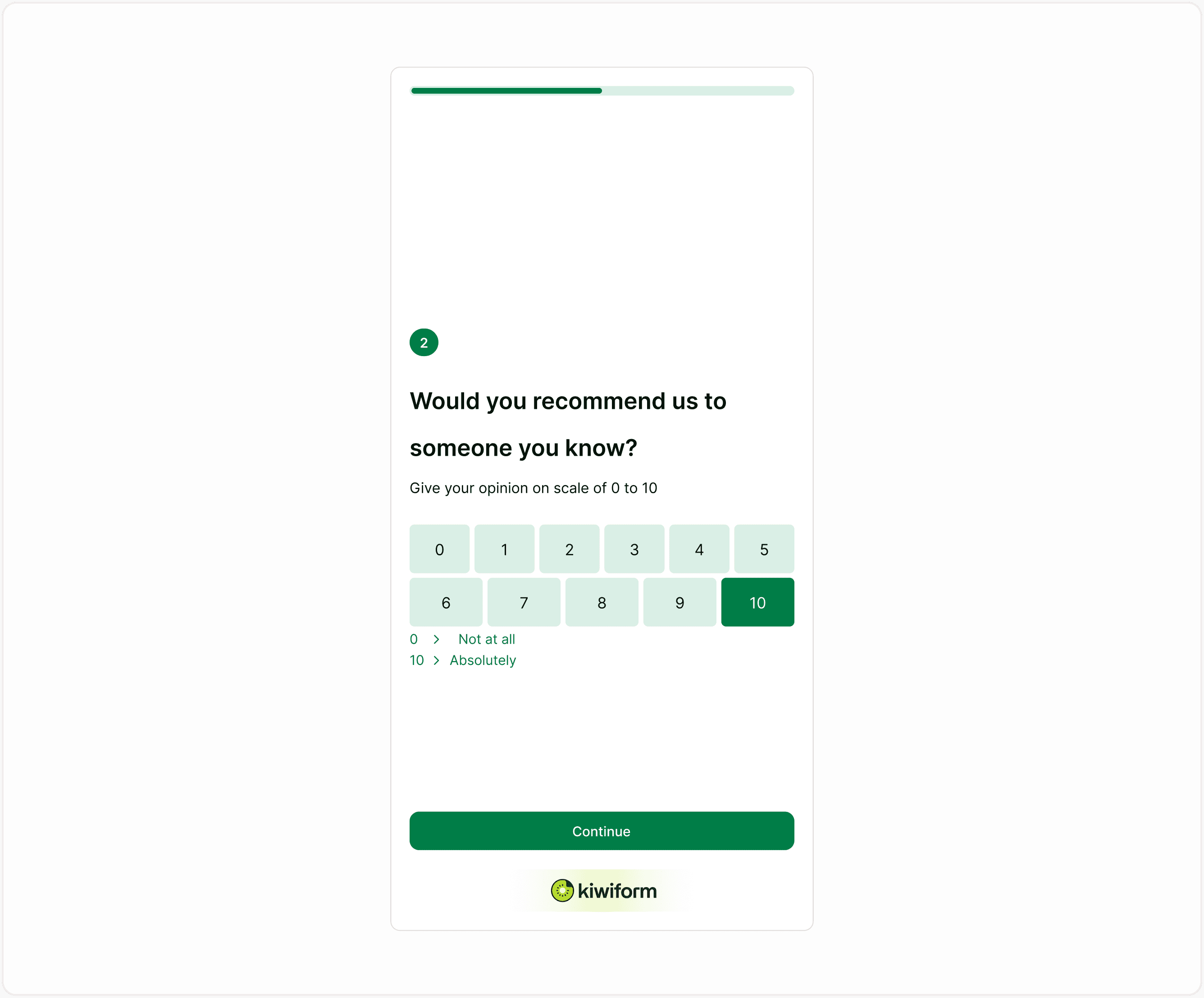
The Feedback Score field presents a range of numbers that respondents can select to express how they feel about a product, service, event, or experience. Each number represents a level of satisfaction or likelihood.
This field is commonly used for questions such as:
Would you recommend us to someone you know?
How satisfied are you with your experience?
How likely are you to return?
Because responses are numeric and standardized, they are easy to review in analytics, filter in results, and use in decision-making.
When to use Feedback Score
Use the Feedback Score field when you need a quick, consistent way to measure sentiment. It works well in surveys, feedback forms, post-purchase forms, and support follow-ups.
Typical use cases include:
Customer satisfaction measurement
Net promoter-style feedback
Event or workshop feedback
Product experience rating
Service quality evaluation
Post-interaction surveys
The numeric scale helps you compare results across responses and track trends over time.
How respondents experience this field
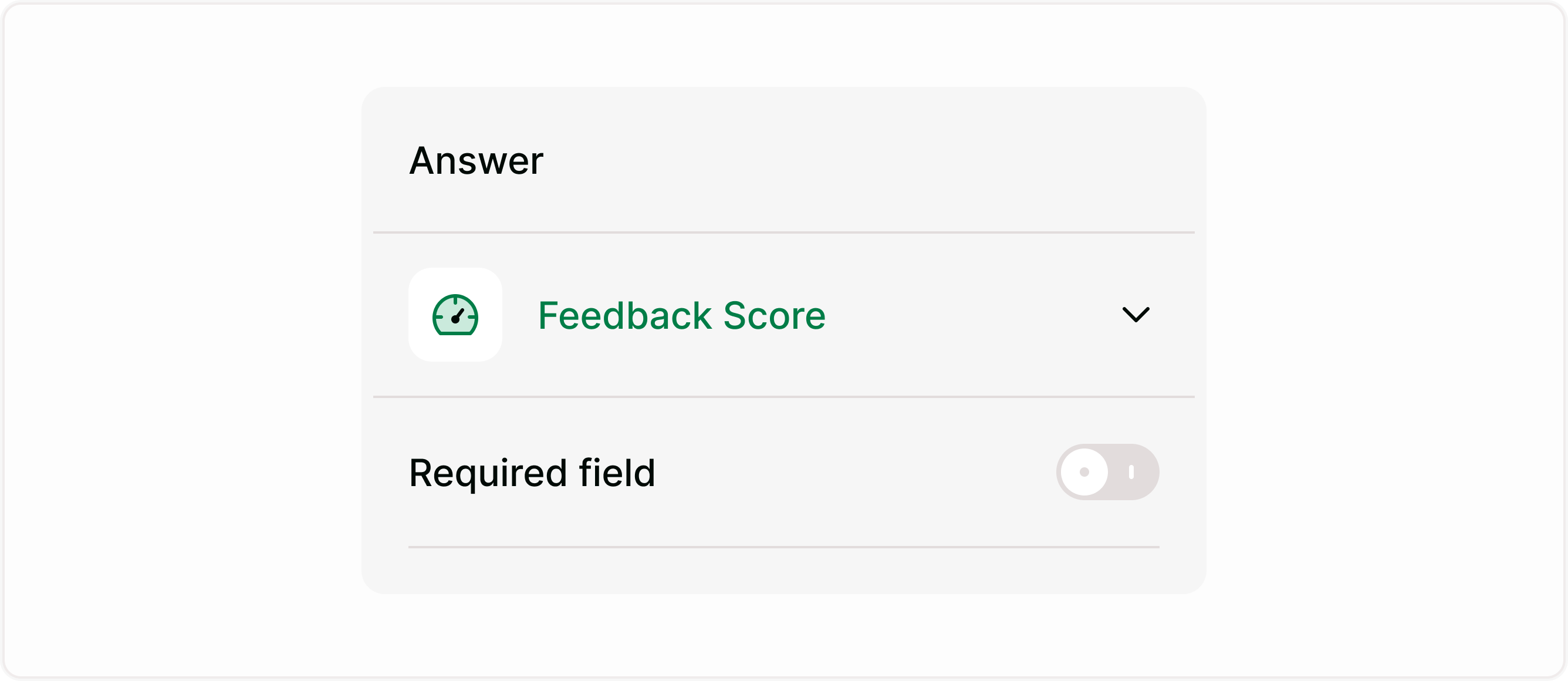
Respondents see a row of numbers and choose the one that best reflects their opinion. You can add labels or descriptions to clarify what the lowest and highest scores mean. This makes it easier for respondents to understand how to answer and keeps feedback consistent.
The step-by-step conversational layout ensures that the field is clear and easy to complete, even on mobile devices.
Add a Feedback Score field to your form
To use this field:
Open your form in the builder.
Click Add Content.
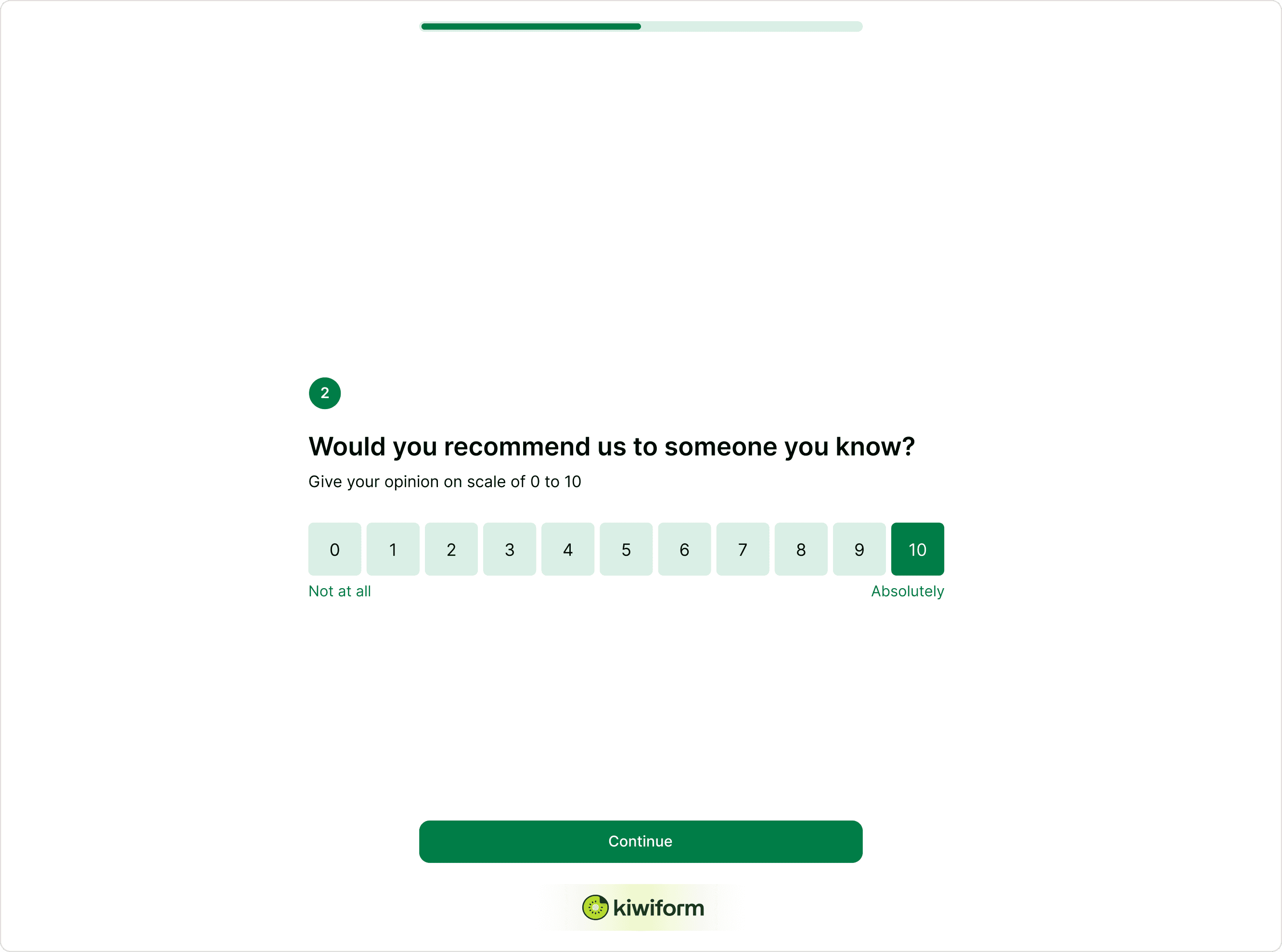
Choose Feedback Score from the field list.
Enter your prompt or question.
Add optional labels or description.
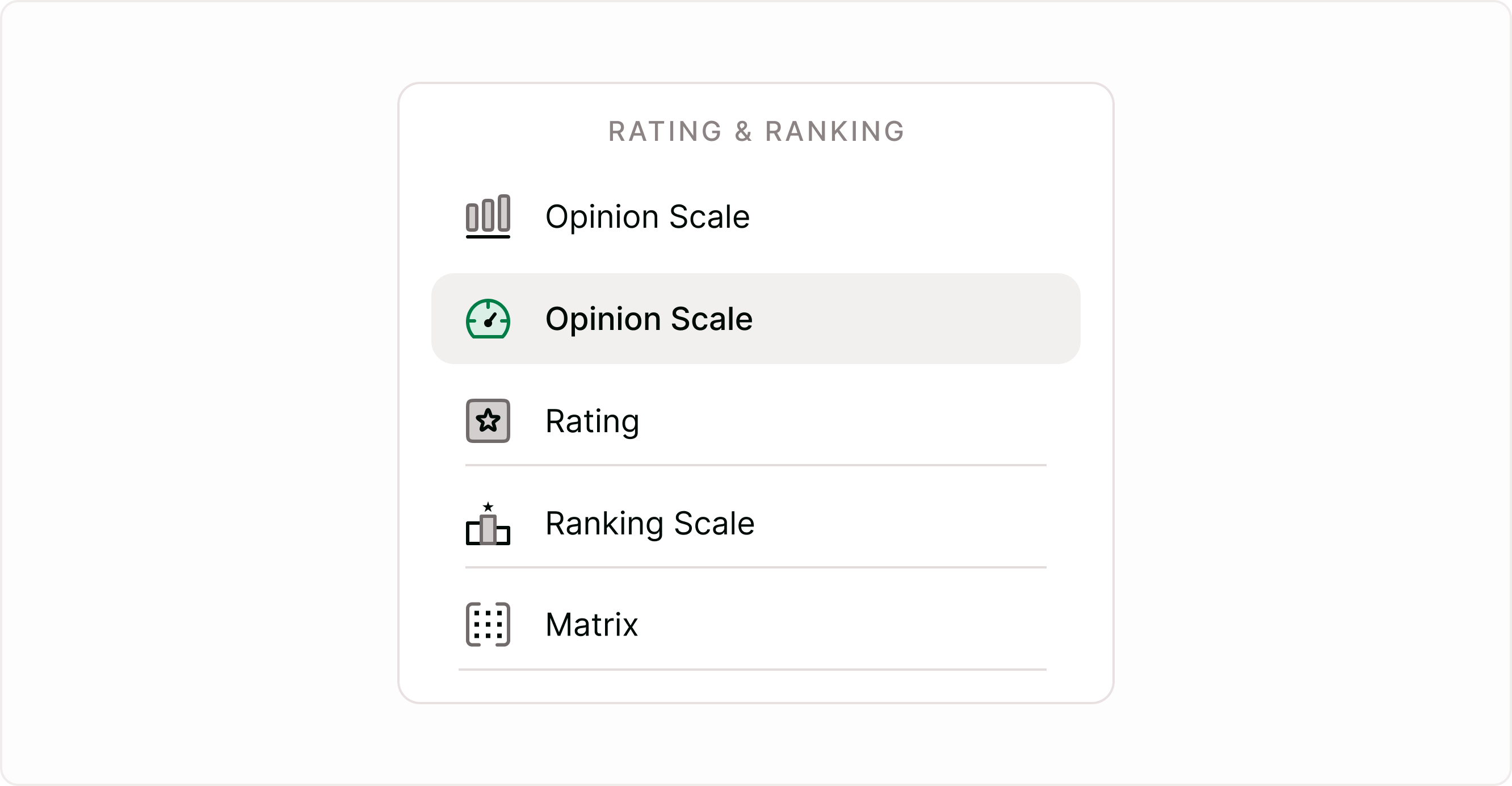
Adjust required settings if needed.
The field will appear in your form flow and can be reordered like any other field.
Customize the Feedback Score field
Add a clear question
Write a direct question that explains what respondents are rating.
For example: “How likely are you to recommend us to a friend?”
A clear question improves response quality and helps with analysis later.
Add optional description
You can include a short description below the question to provide context. This is helpful when asking about a specific experience or interaction.
Use labels for clarity
You may add labels at the ends of the scale, such as:
Not at all
Extremely likely
Labels help respondents interpret the scale consistently.
Set the field as required
You can make the Feedback Score field required so respondents must choose a number before moving forward. This is useful when the score is essential to your workflow or analysis.
Review and analyze responses
All Feedback Score responses appear in your results and analytics. Because responses are numeric, you can quickly:
Identify trends
Filter by score range
Compare satisfaction levels
Export data for reporting
You can also combine scores with other responses to understand context and improve decision-making.
Use Feedback Score with logic
The Feedback Score field works well with logic and routing. You can guide respondents to different follow-up questions based on their score.
Examples:
Show a follow-up question if score is low
Ask for a testimonial if score is high
Send respondents to different endings
Tag responses for filtering
This allows you to personalize the form experience and collect more meaningful feedback.
Best practices
Keep the question short and clear.
Add labels to explain scale meaning.
Use follow-up questions for deeper insight.
Make the field required if the score is essential.
Review analytics regularly to identify patterns
Using these practices helps ensure your feedback data is reliable and useful.
Summary
The Feedback Score field lets you ask respondents to rate their experience on a numeric scale, typically from 0 to 10. It is commonly used to measure satisfaction, loyalty, or recommendation intent. This page explains how the Feedback Score field works, when to use it, and how to configure it effectively inside your form.