What Is Filtering?
Filtering allows you to:
Show only completed or incomplete submissions
Display responses based on specific question answers
Combine multiple conditions
Segment data for deeper analysis
It helps you turn raw submissions into actionable insights.
How to Open the Filter Panel
Go to your form.
Click Results.
Open the Responses tab.
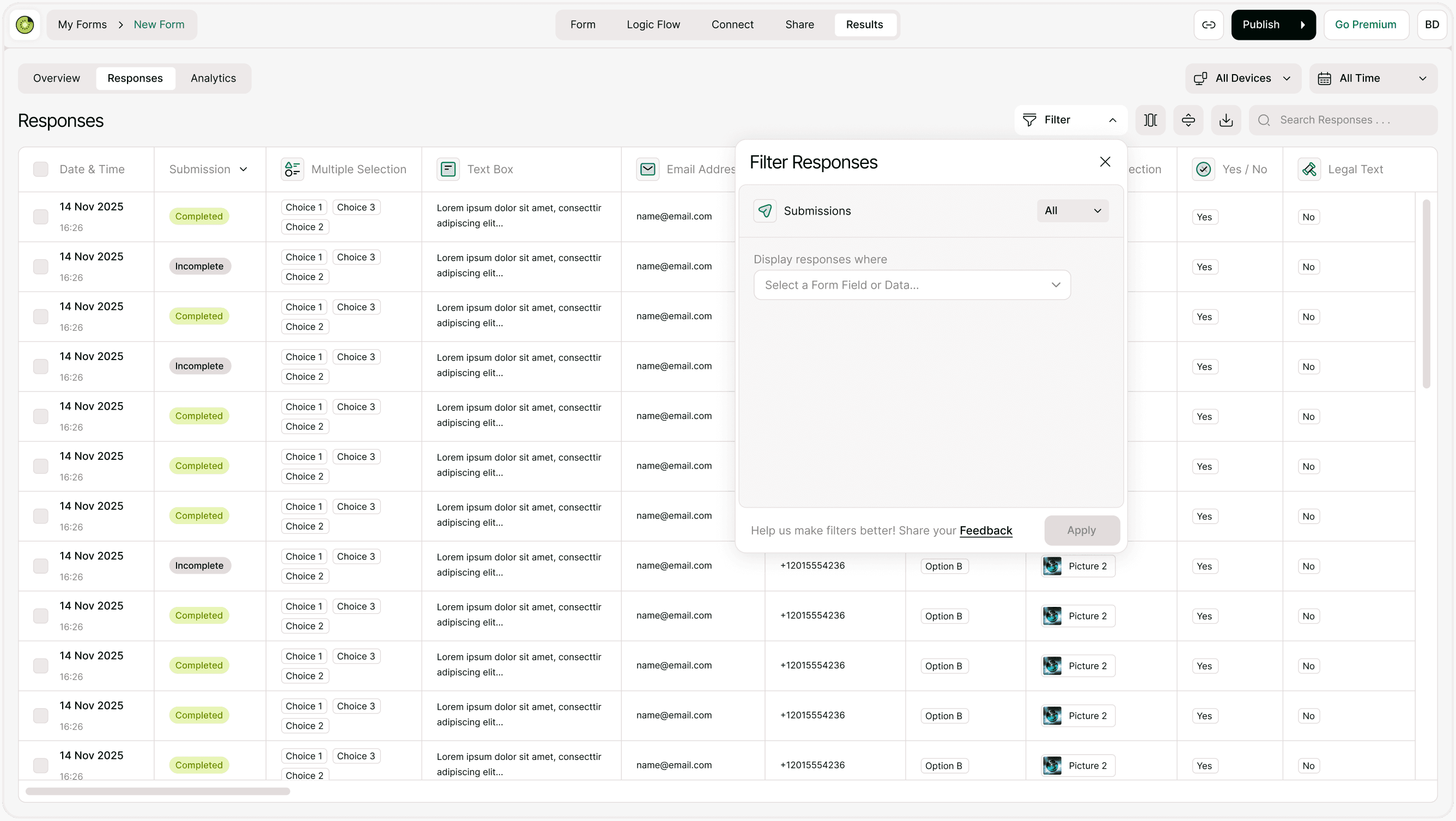
Click the Filter button.
The Filter Responses panel will open on the right side.
Filtering by Submission Status
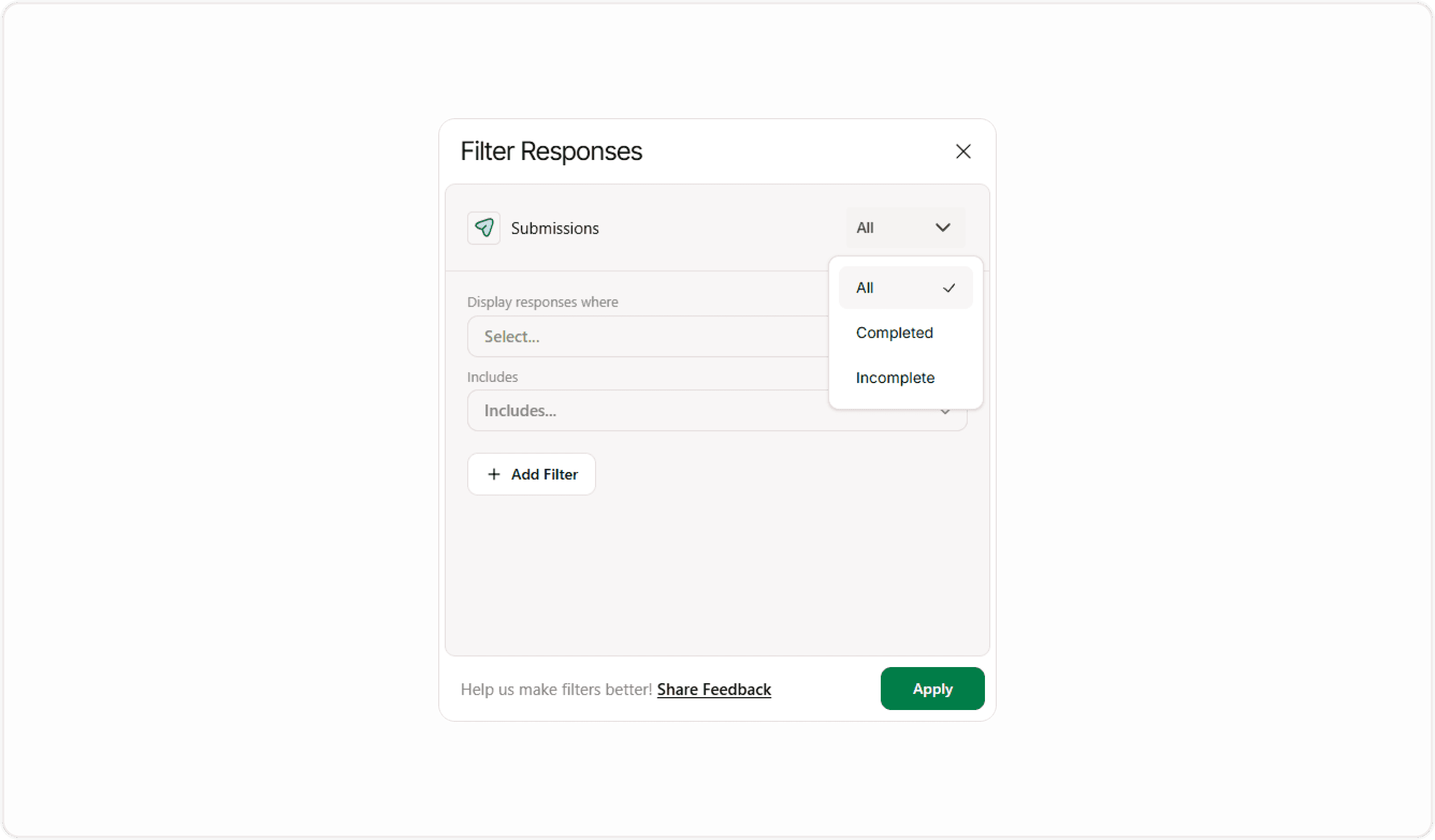
At the top of the panel, you’ll see the Submissions dropdown.
You can filter by:
All
Completed
Incomplete
This is useful when you want to:
Review only finished entries
Analyze drop-offs
Focus on valid submissions
Filtering by Form Fields
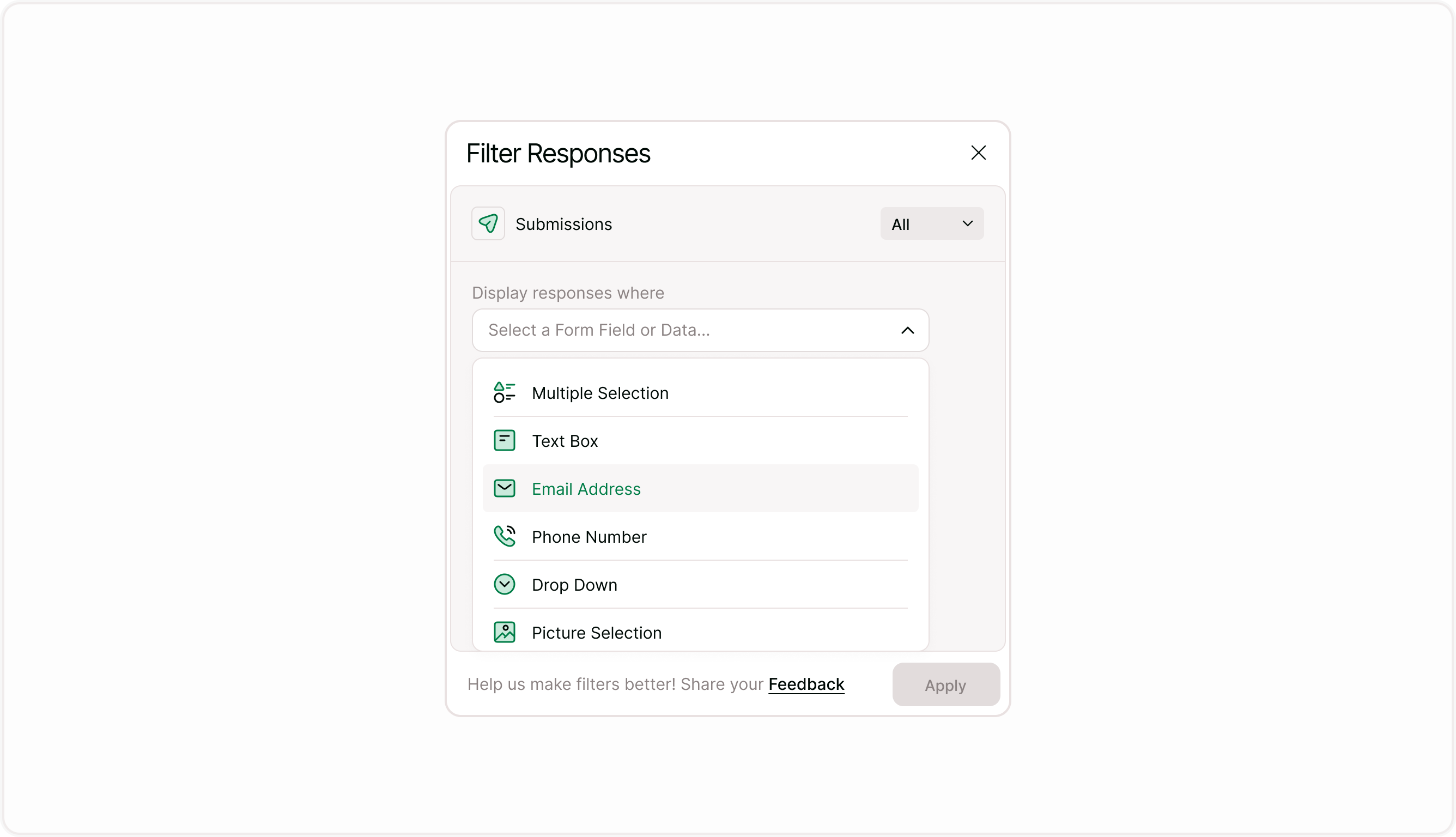
You can filter responses based on any form field, such as:
Multiple Selection
Text Box
Email Address
Phone Number
Drop Down
Picture Selection
Yes / No
Legal Text
To do this:
Click Select a Form Field or Data.
Choose the field you want to filter by.
Define the condition (e.g., includes, equals, contains).
Select the specific option or value.
Filtering Multiple Selection Fields
If your form includes a multiple selection question:
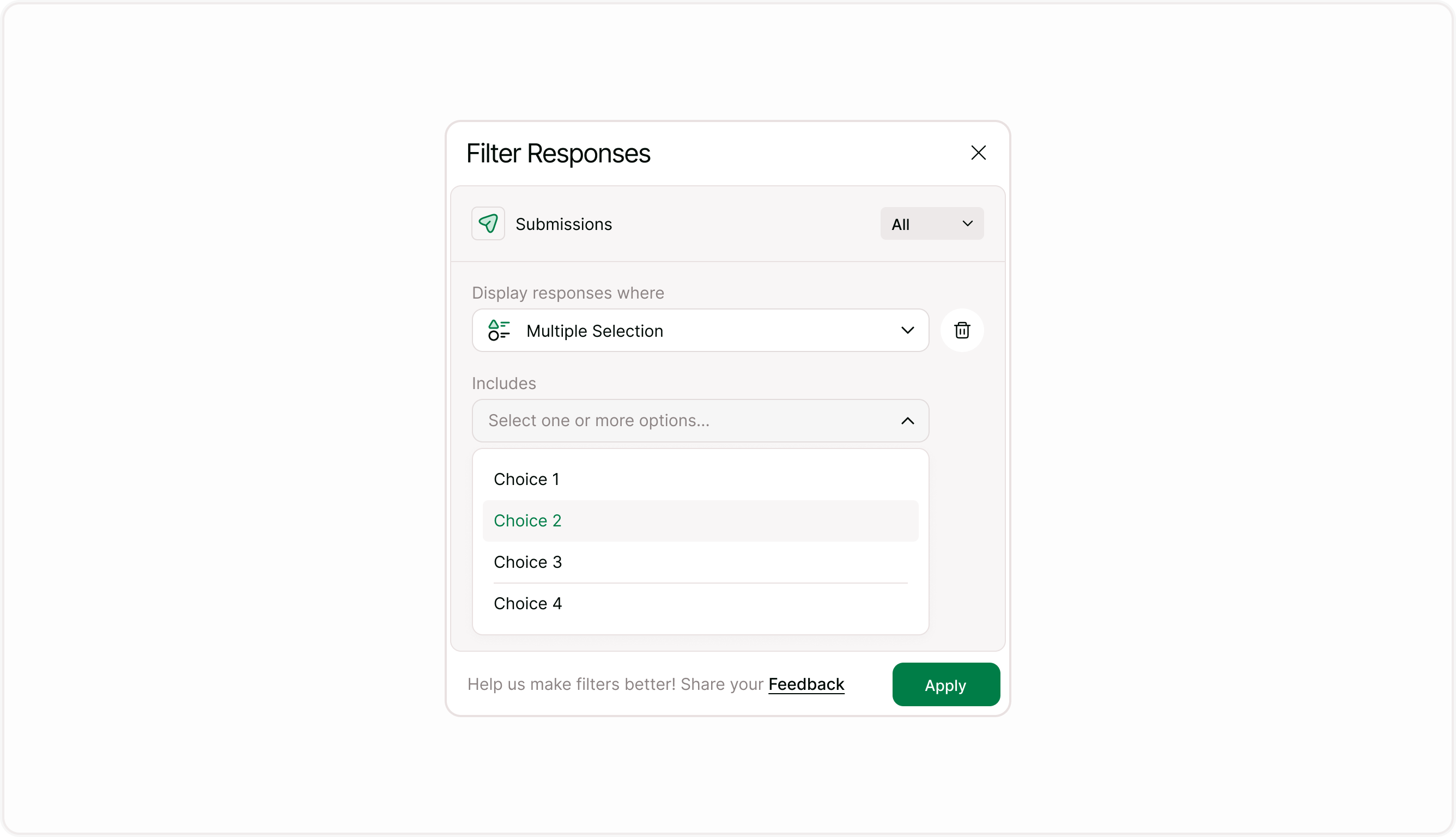
Choose Multiple Selection from the field list.
Select which choice(s) to include.
Apply the filter.
Display responses where Choice 1 was selected.
This is helpful for analyzing trends and popular options.
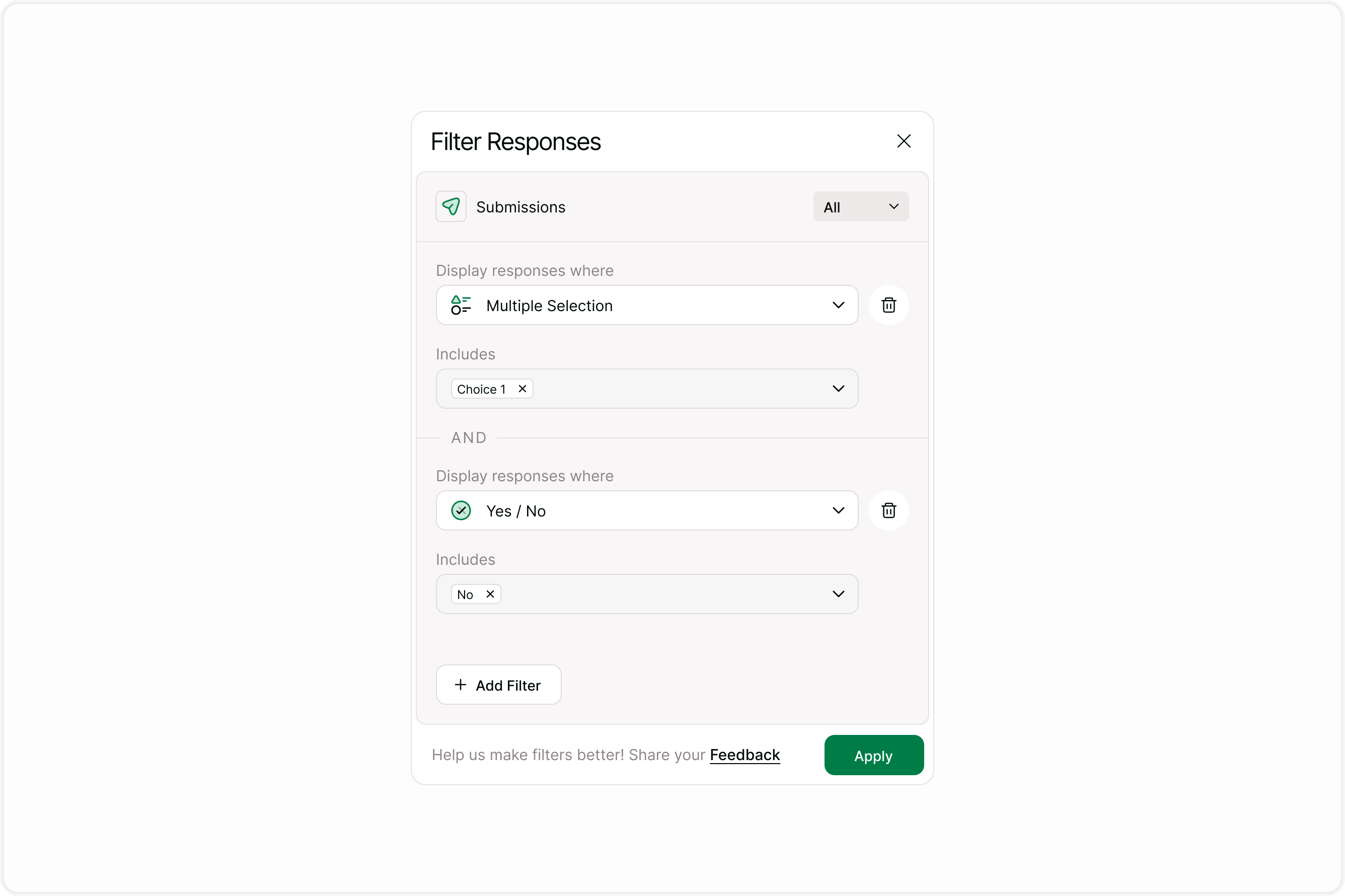
Combining Multiple Filters (AND Logic)
You can add more than one filter using the + Add Filter button.
Filters work with AND logic, meaning:
The response must meet all selected conditions.
Removing or Editing Filters
You can:
Click the delete icon to remove a filter
Modify selected values
Adjust conditions before applying
Once ready, click Apply to update your results table.
Practical Use Cases for Filtering
Filtering is especially useful for:
Reviewing only qualified leads
Finding negative feedback responses
Segmenting users by preferences
Identifying users who selected a specific option
Analyzing incomplete submissions
It saves time and improves data clarity.
Best Practices for Using Filters
Start with broad filters, then narrow down.
Use submission status filters first.
Combine 2–3 filters for precise segmentation.
Export filtered data if needed.
Clear filters before starting a new analysis.
Smart filtering makes large datasets manageable.
Summary
Filtering allows you to narrow down responses based on submission status and specific form answers. By combining multiple conditions, you can segment data precisely and analyze only the submissions that matter to you.