Where to Change Fonts
Font settings are managed inside the Design panel when creating or editing a theme.
Each theme card includes a menu (three dots). Click the menu to see available actions:
Rename
Edit
Duplicate
Delete
Make Public (if applicable)
Select Edit to open the theme configuration panel.
You will see a searchable list of available fonts.
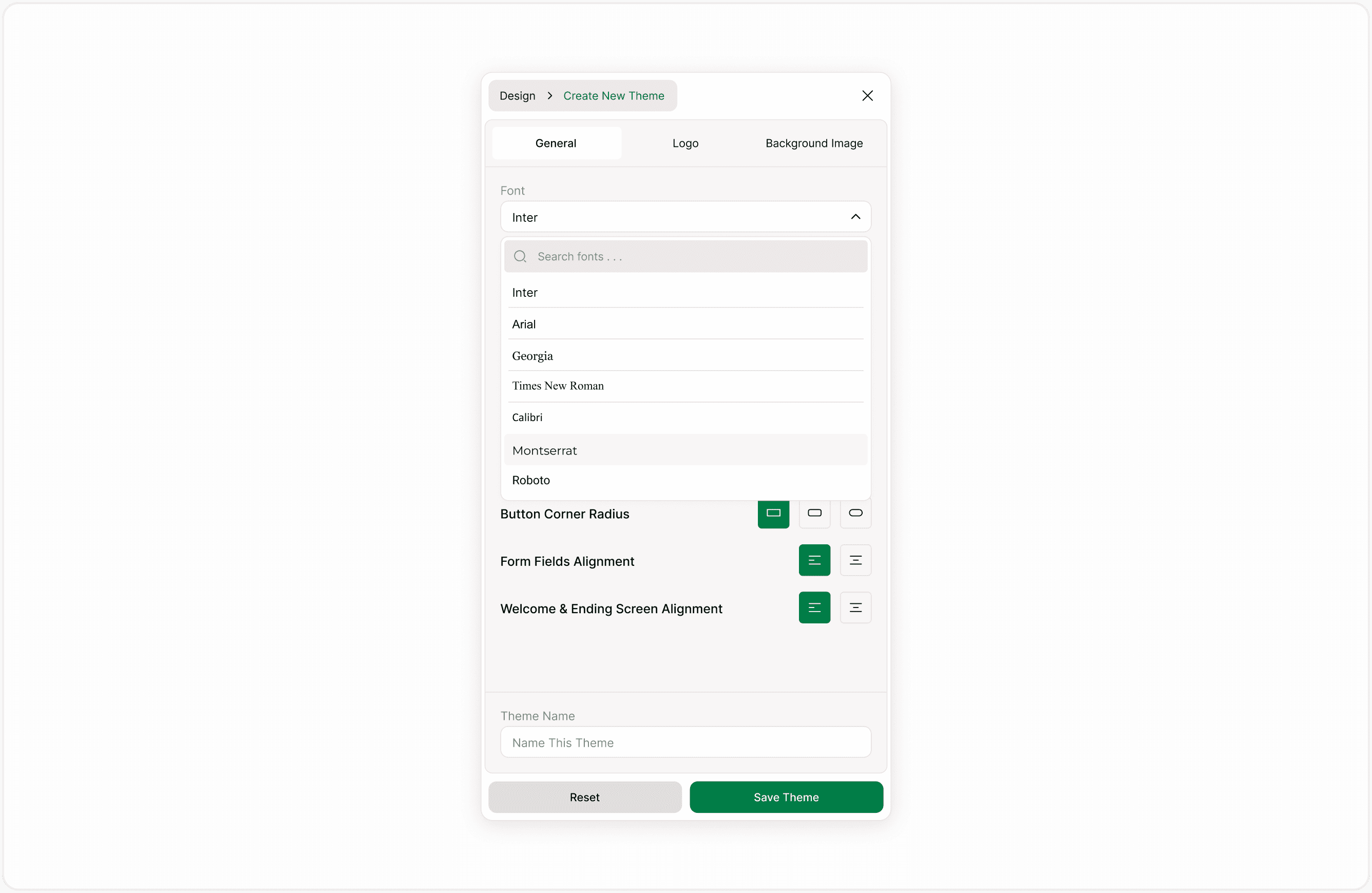
Available Fonts
Kiwiform supports all Google Fonts.
This means you can:
Search for specific fonts by name.
Browse popular and modern typefaces.
Select fonts that align with your brand identity.
Choose fonts optimized for readability on web and mobile devices.
Because Google Fonts are web-optimized, they load efficiently and maintain consistency across devices and browsers.
What the Font Setting Affects
The selected font applies to:
Form titles
Form Fields
Button text
Informational text
Welcome and Ending Screens
Changing the font updates the overall visual tone of your form while keeping the structure intact.
If the form uses a theme, updating the font inside the theme will affect all forms that use that theme.
How to Choose the Right Font
When selecting a font, consider:
Readability
Choose fonts that are easy to read on both desktop and mobile screens. Avoid overly decorative styles for long forms.
Brand Consistency
If your organization uses a specific Google Font, apply it across all forms to maintain visual alignment.
Tone and Purpose
Clean sans-serif fonts are suitable for professional and business forms.
Serif fonts may suit editorial or formal experiences.
Minimal fonts work well for surveys and data collection forms.
Accessibility
Ensure the font remains legible at different sizes and works well with your chosen color scheme.
Using Font Search
The font dropdown includes a search field. This allows you to:
Quickly find a specific font.
Filter the list as you type.
Reduce scrolling through long font lists.
This is useful if your brand already uses a defined Google Font.
Changing Font Size
Along with font selection, you can adjust Font Size in the General settings.
Smaller sizes create compact layouts.
Larger sizes improve accessibility and readability.
Font size works together with the selected typeface to determine overall clarity.
Best Practices for Fonts in Forms
Use one consistent font across all forms within a brand.
Avoid mixing multiple font styles in a single theme.
Test your form on mobile devices before publishing.
Ensure high contrast between text and background colors.
Keep readability as the primary priority.
Common Use Cases
You may want to update fonts when:
Rebranding your organization
Launching a new campaign.
Creating forms for a specific client.
Improving accessibility.
Standardizing form design across teams.
Using themes ensures that once a font is set, it can be reused across multiple forms without repeating the setup process.
Summary
This guide explains how to change fonts in your form, where font settings are applied, and how to select the right font for clarity and accessibility. You will also learn how fonts work inside themes and how to ensure consistent typography across multiple forms.