What is Form Accessibility?
Form Accessibility ensures your form can be used by everyone, including respondents who use assistive technologies such as screen readers or keyboard navigation.
Kiwiform includes a built-in Accessibility Checker that scans your form for common issues. It highlights areas such as color contrast, missing alt text, and unclear content so you can fix them before publishing.
Accessibility is not just about compliance. It improves clarity, increases completion rates, and creates a better experience for all users.

Where to find the Accessibility Checker
Open your form in the builder.
In the top control bar, click the Accessibility icon.
The Accessibility Overview modal will open.
The checker reviews your entire form and organizes results into categories such as Color, Alt Texts, Content, and Other.
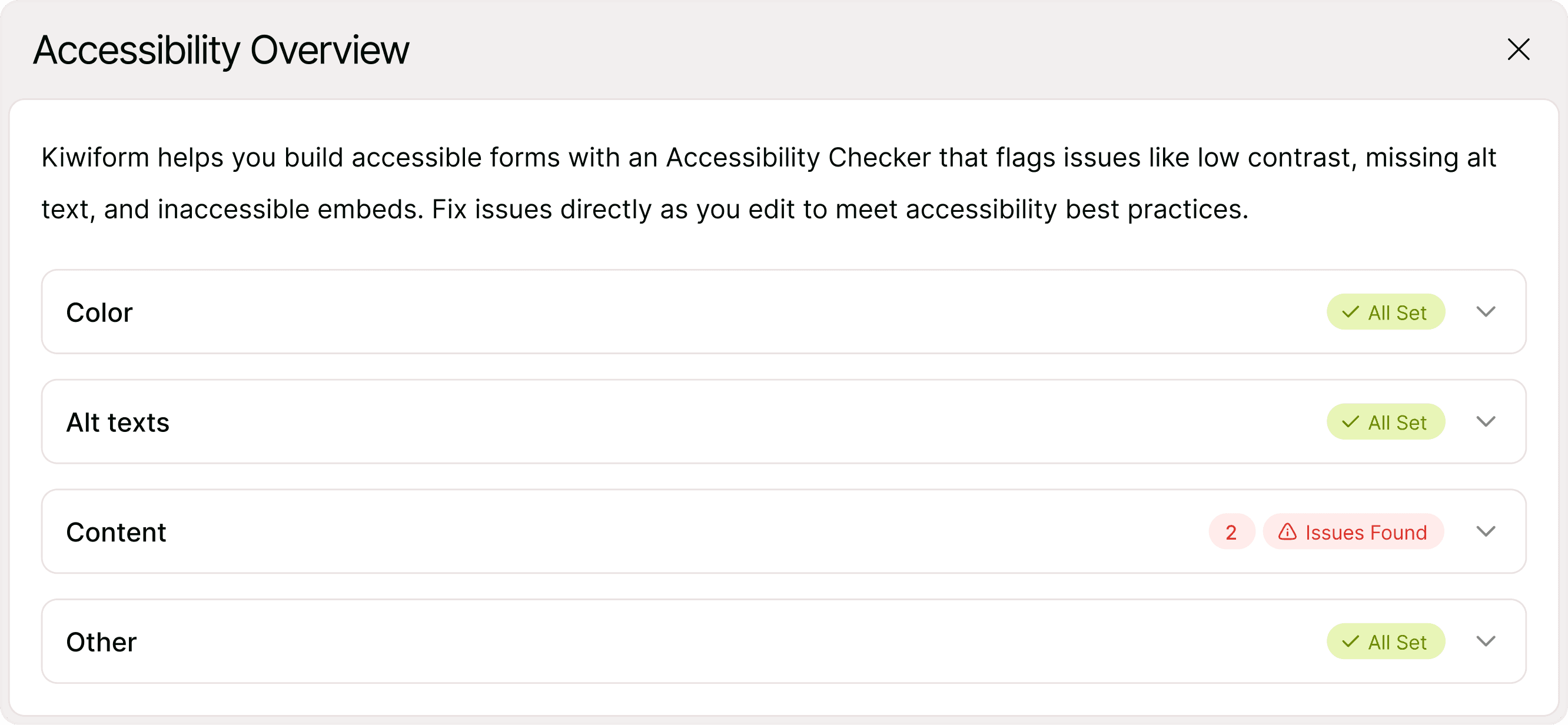
Understanding the Accessibility Overview
The Accessibility Overview groups issues into clear sections:
Color
Checks whether text, buttons, and backgrounds meet contrast guidelines.
For readability:
Aim for at least 4.5:1 contrast ratio for standard text
Aim for 3:1 contrast ratio for large text and graphics
If color contrast is insufficient, the checker will flag it so you can adjust theme colors.
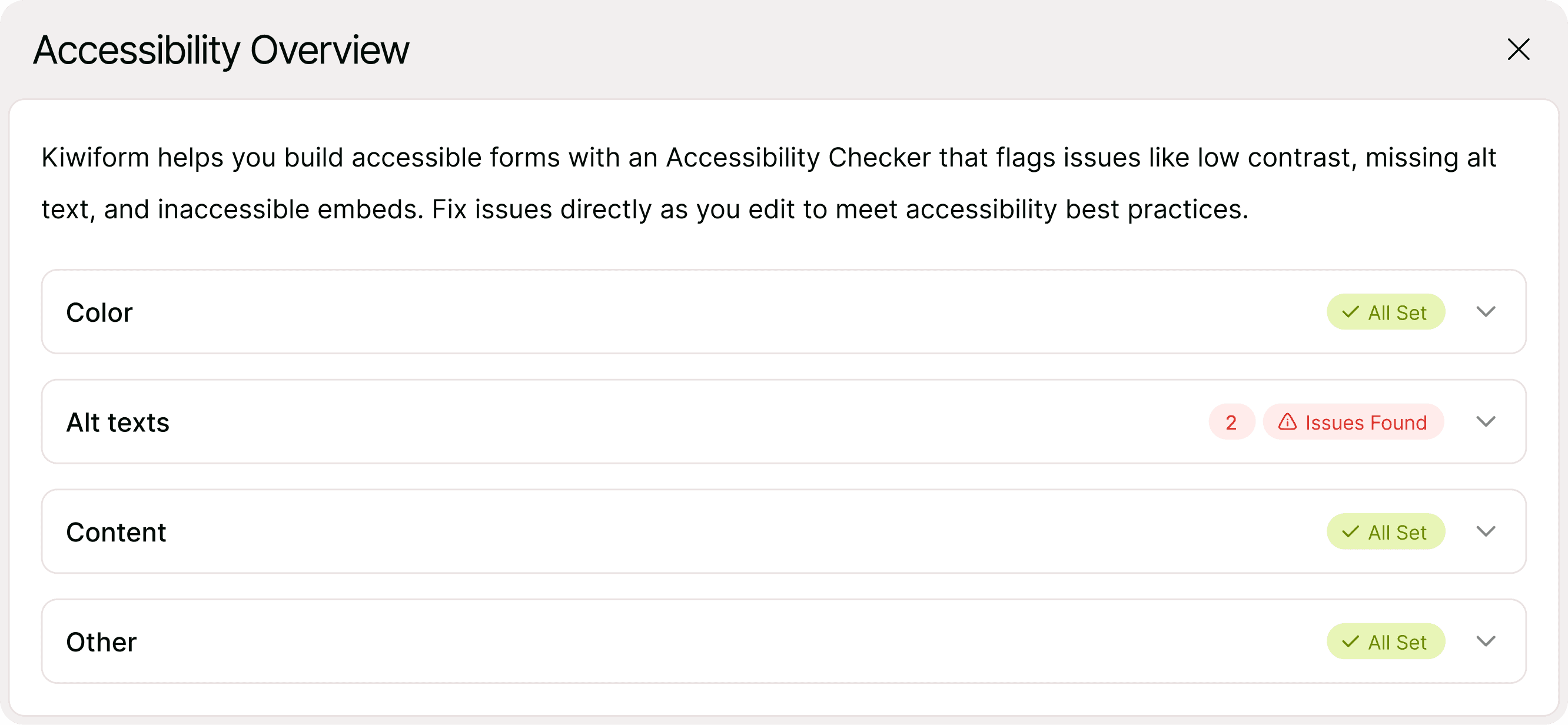
Alt texts
Checks whether images include descriptive alternative text.
Alt text helps screen readers describe images to users with visual impairments.
For example:
Picture selection images should include meaningful labels
Ending screen images should include descriptive alt text
If alt text is missing, the checker will highlight the specific field where it needs to be added.
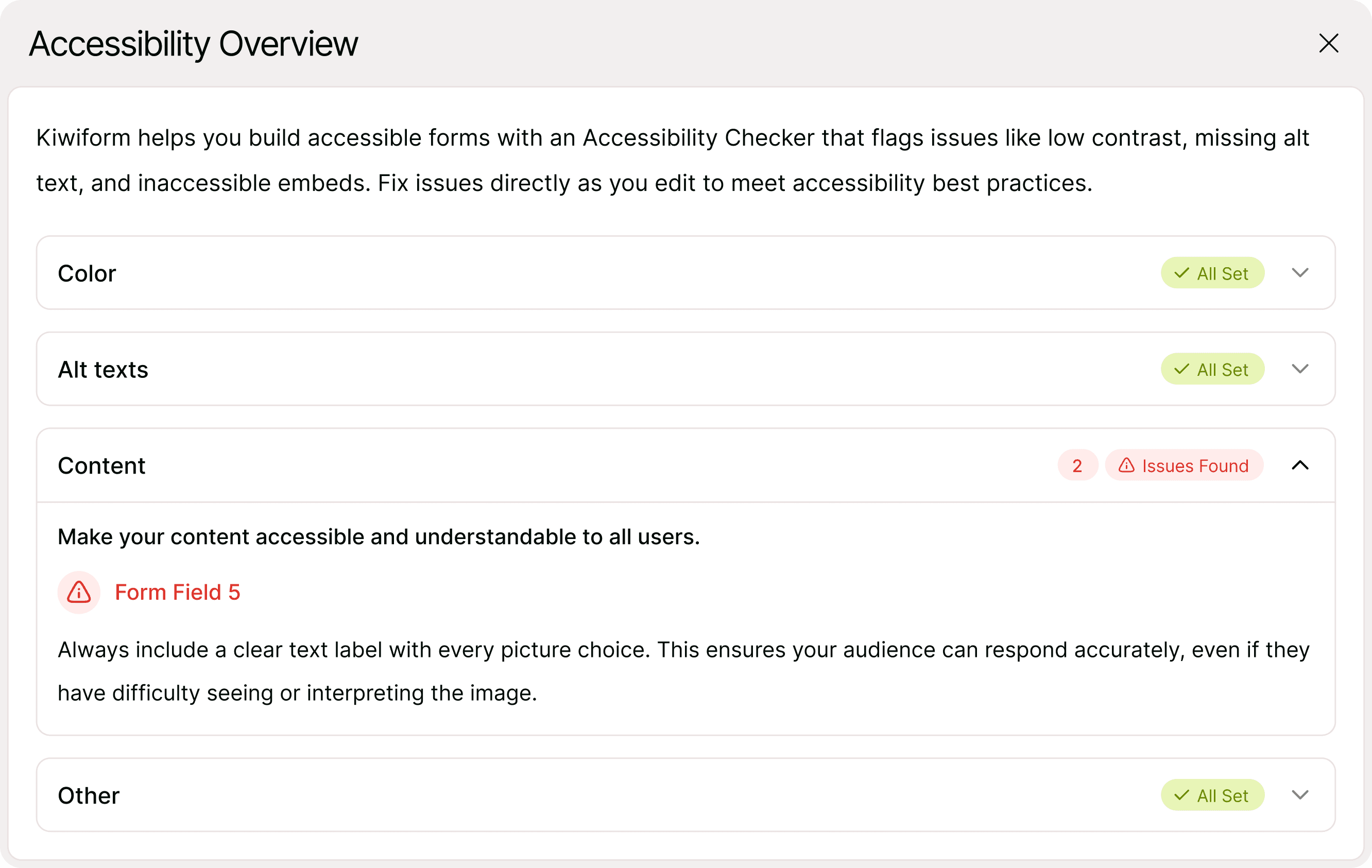
Content
Checks whether your form content is clear and understandable.
For example:
Picture choices should include clear text labels
Questions should not rely only on images
Instructions should be concise and descriptive
If the checker finds unclear content, it will show the field number and explain what needs improvement.
Other
Confirms whether additional accessibility standards are met.
If everything is compliant, you will see a confirmation message such as “All Set.”
How to fix accessibility issues
When the Accessibility Checker flags an issue:
Click on the highlighted section in the modal.
Identify the specific field or setting mentioned.
Return to the builder and edit the field.
Adjust colors, add alt text, or improve wording as required.
Reopen the Accessibility Checker to confirm the issue is resolved.
Fixing issues in real time helps ensure your form remains accessible before going live.
Why accessibility matters
Accessible forms:
Reach a wider audience
Improve usability and trust
Increase completion rates
Support inclusive design standards
Reduce confusion and errors
Checking accessibility before publishing ensures your form is ready for all respondents.
When to check accessibility
You should review accessibility:
Before publishing a new form
After updating theme colors
After adding images
After modifying content
Before sharing publicly
Regular checks help maintain compliance and usability.
Best practices for accessible forms
Use high-contrast color combinations
Avoid using color alone to communicate meaning
Add alt text to every image
Include clear labels with picture-based questions
Write simple and descriptive question text
Avoid overly complex instructions
Accessibility improves clarity for everyone, not just users with disabilities.
Summary
Form Accessibility ensures your form is usable by everyone, including people using screen readers or assistive technologies. Kiwiform includes an Accessibility Checker that scans for issues like low contrast, missing alt text, and unclear labels. Fixing accessibility issues improves usability, compliance, and completion rates. Accessible forms are clearer, more inclusive, and more professional.