What are Form Details?
Form Details define how a form is identified inside your workspace and how it appears to respondents. These settings help teams keep forms organized while also ensuring that respondents understand the purpose of the form they are completing.
Clear form details are especially useful when managing multiple forms across different projects, campaigns, or teams. Updating them regularly helps maintain clarity, improves collaboration, and ensures consistency across your workspace.
Where to find Form Details
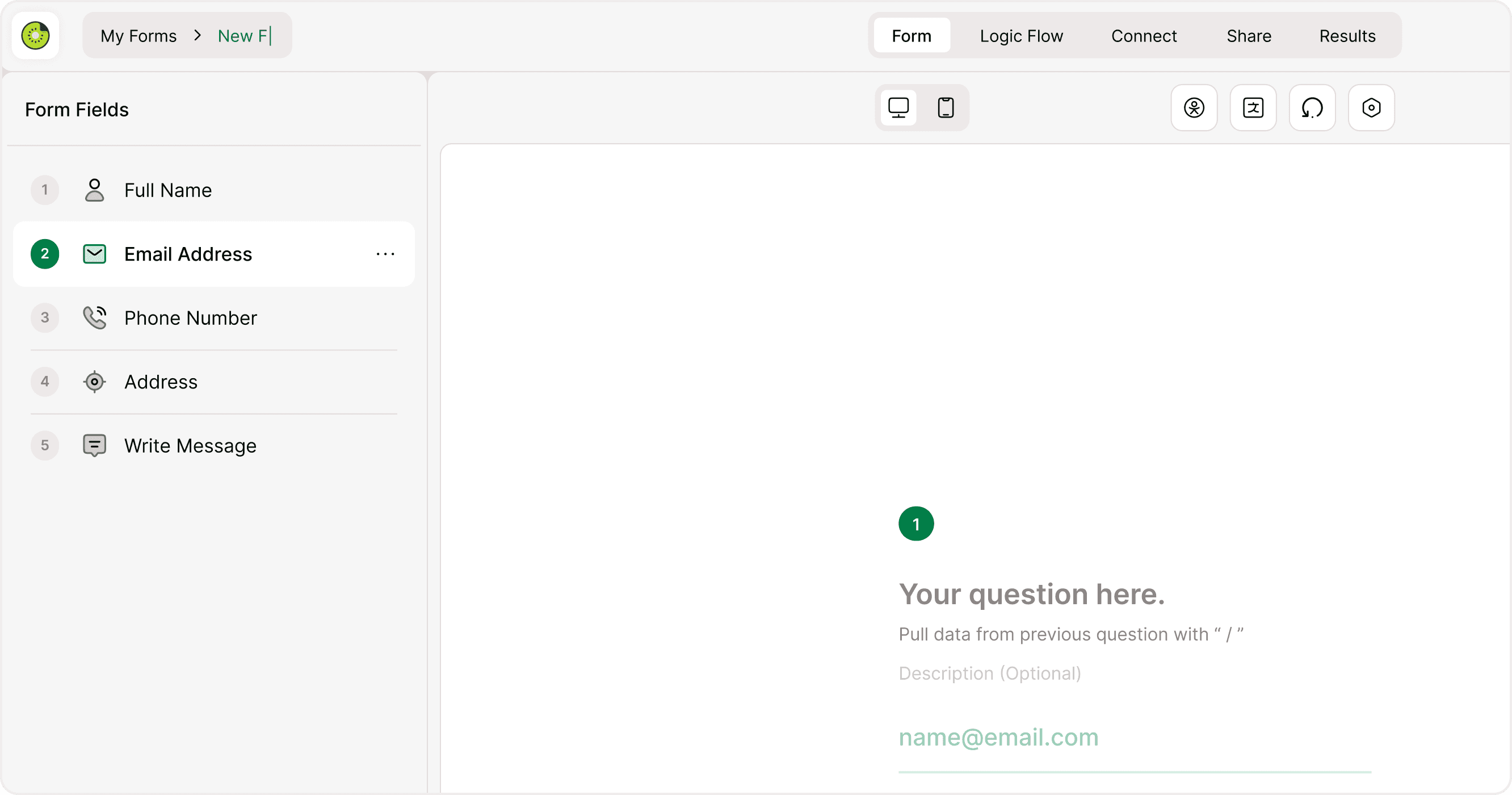
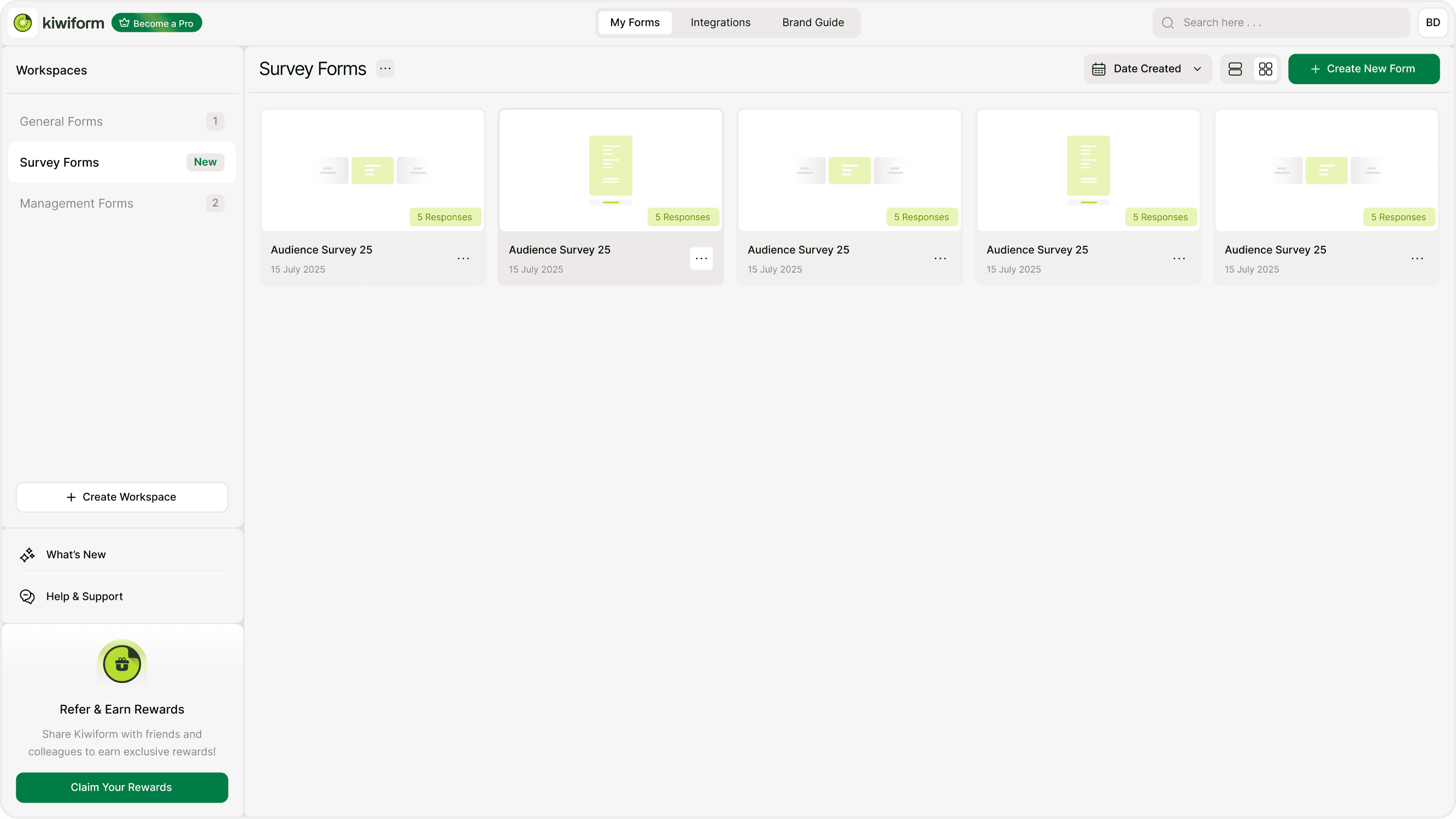
You can update Form Details from inside the form builder or from the form list view.
Open your workspace and select a form.
In the builder, locate the form name at the top of the page.
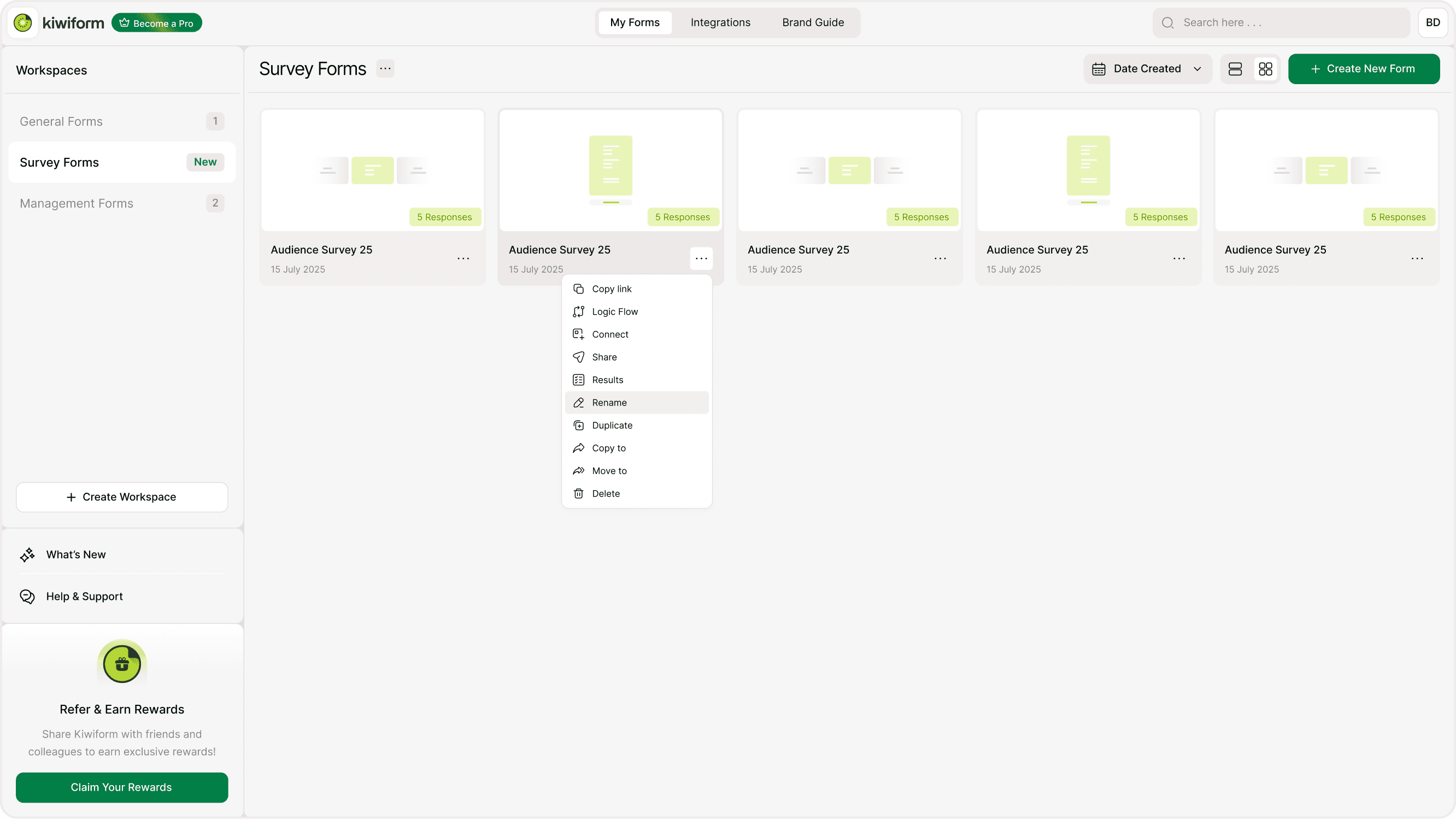
Click the name or use the options menu to rename or update details.
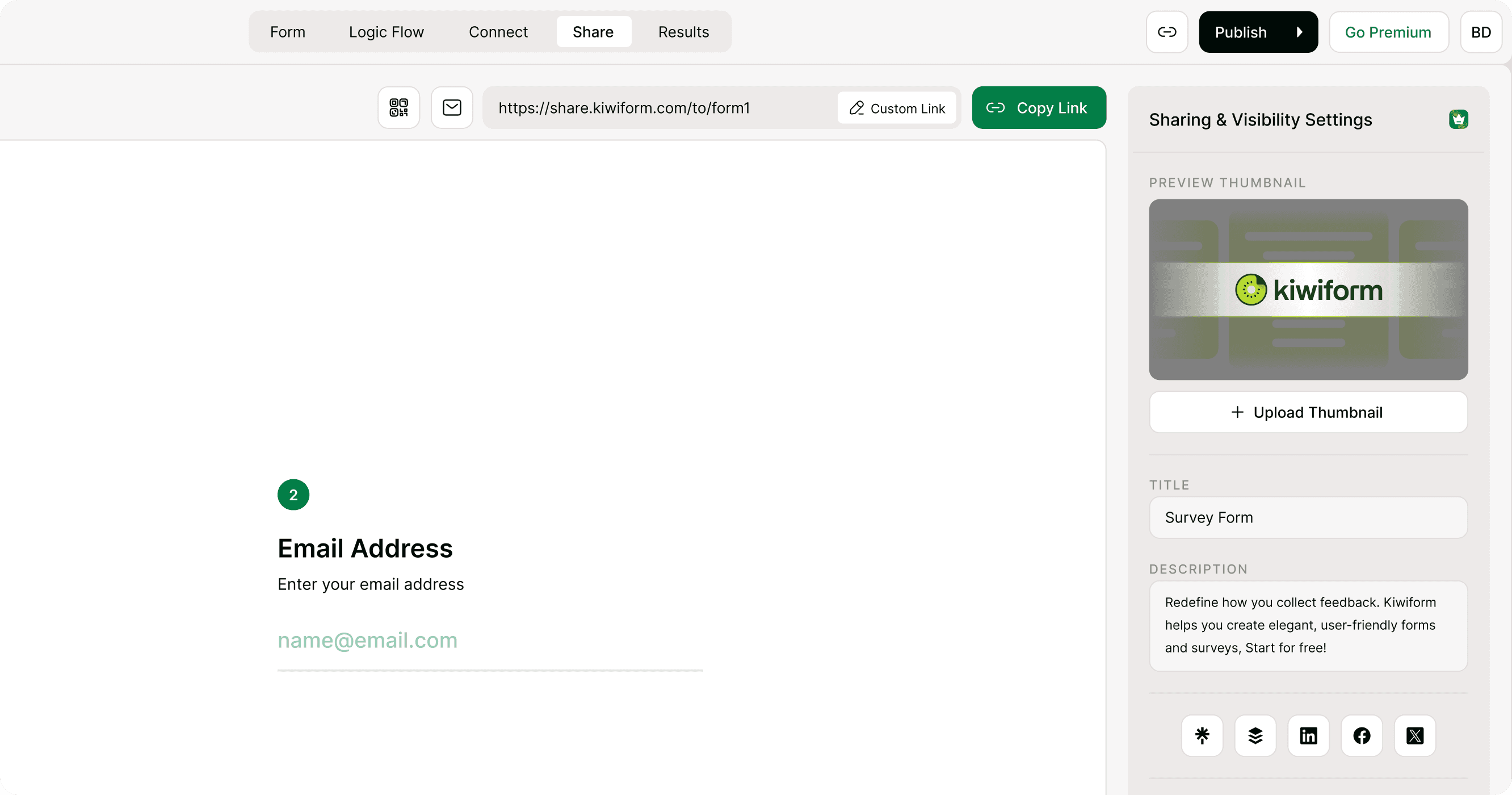
Add or edit the form description if available.
These updates are saved automatically and apply to the form across your workspace.
Edit the form name
The form name helps you identify the form inside your workspace and across projects. It also appears in certain internal views and can be used for tracking and organization.
Use a clear naming convention that reflects the form’s purpose, such as:
Event Registration – March
Customer Feedback – Website
Lead Capture – Product Demo
Updating the form name does not affect collected responses or the form link. It simply helps you keep your forms organized.
Add or update form description
The form description provides additional context about the form. It can be used internally for team reference or shown to respondents depending on where it appears in the form.
Use the description to:
Explain the purpose of the form
Add internal notes for collaborators
Provide context for future updates
Keeping descriptions clear helps teams understand the form’s role and reduces confusion when forms are reused or duplicated.
Why Form Details matter
Clear form details improve organization and usability across your workspace. They help teams quickly find the right form and ensure respondents understand what they are filling out.
Use cases include:
Managing multiple campaign forms
Organizing surveys across departments
Updating form context before publishing
Maintaining consistent naming across teams
Updating Form Details is often one of the first steps when creating or duplicating a form.
When to update Form Details
You may want to update Form Details when:
Starting a new project
Duplicating an existing form
Changing the form’s purpose
Organizing forms across workspaces
Preparing a form before publishing
Regular updates ensure your forms remain clear and easy to manage over time.
Best practices
Use consistent naming across your workspace
Add descriptive titles that reflect the form’s purpose
Update details when reusing or duplicating forms
Keep descriptions short but informative
Review form details before publishing
Clear and consistent form details make it easier to manage forms at scale and improve collaboration across teams.
Summary
This page explains how to edit the title, description, and identifying details of your form. You will learn where to update these settings, how they affect organization and respondent clarity, and when to adjust them during the form lifecycle.