What Are Form Languages?
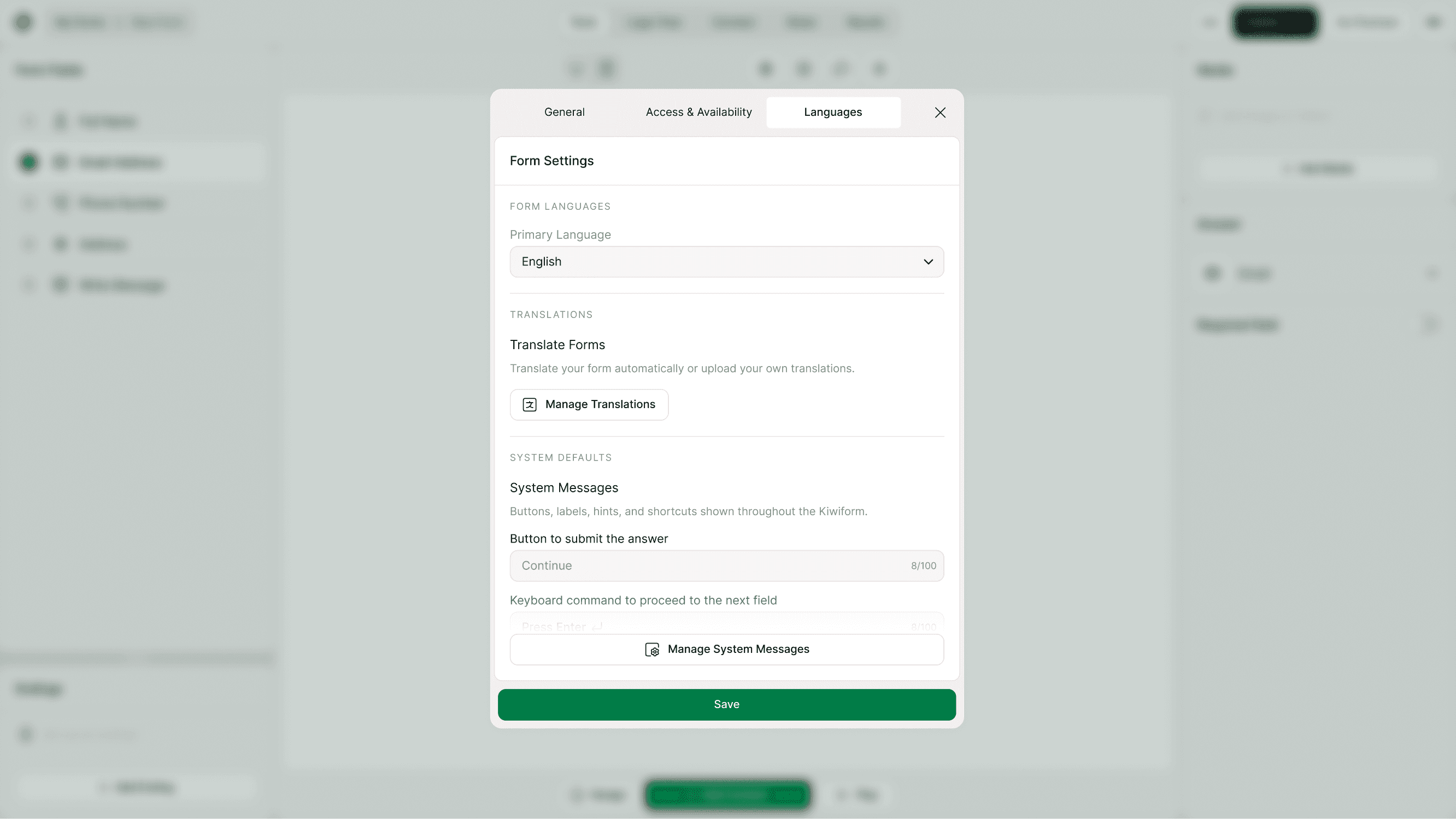
Form Languages control the interface language of your form — including built-in labels, navigation prompts, and default system text shown to respondents.
This setting ensures your form feels natural and easy to use for people in different regions or language groups. It applies to elements like navigation prompts, validation text, and default UI labels.
Form Languages do not translate your questions or custom content. They only control how the form interface appears. If you need to translate your questions, you can manage that separately in Form Translations.
Why Form Language Matters
Setting the correct language improves clarity and completion rates. When respondents see familiar system prompts and instructions, they’re more likely to finish the form without confusion.
Use this setting when:
Your audience speaks a different primary language
You’re creating region-specific forms
You want consistent localized UI text
You’re sharing forms globally
For example, a form shared in France can have French interface prompts, even if your team builds it in English.
How to Change the Primary Language
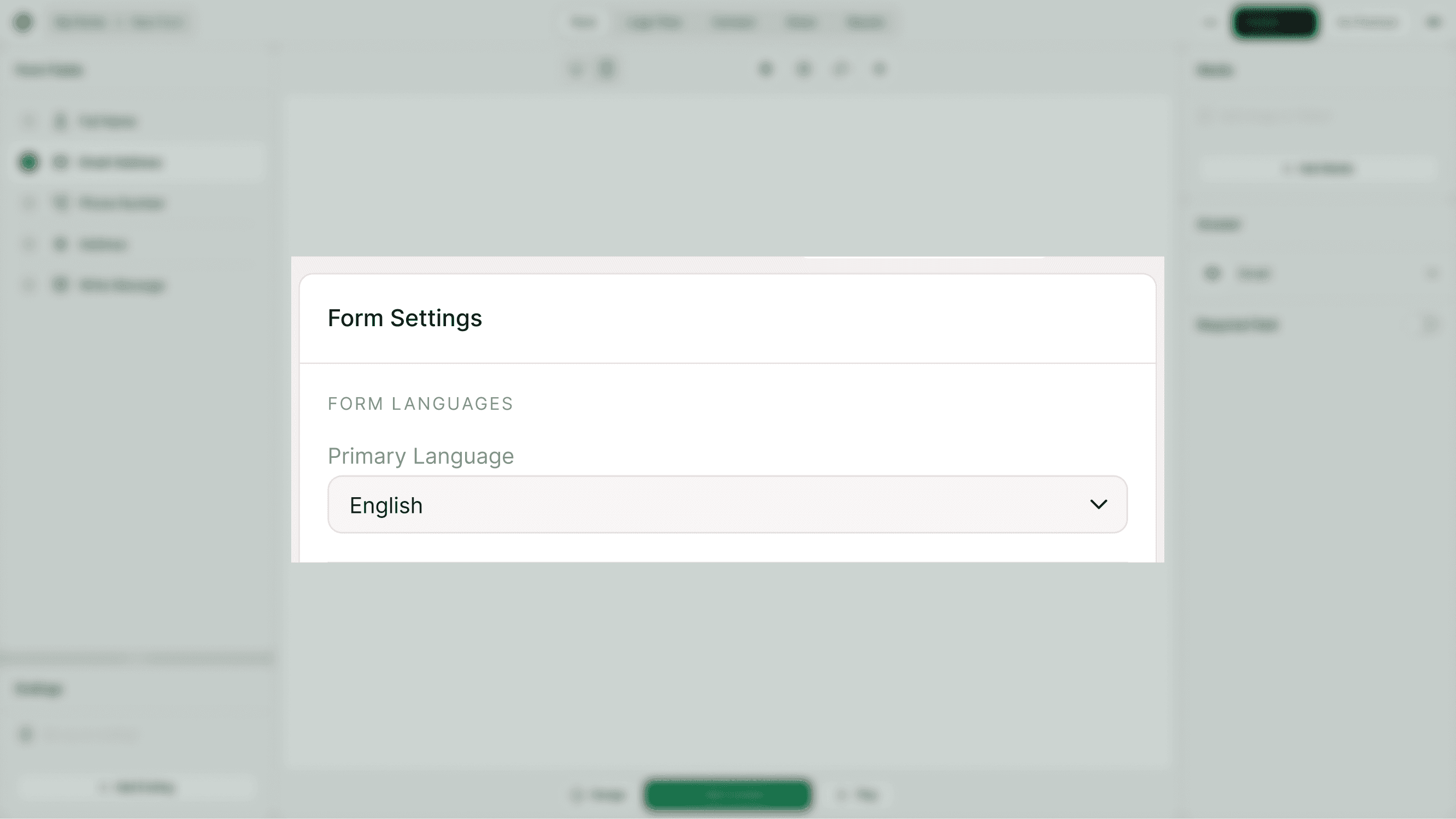
You can update the form’s primary language directly from the form builder settings.
Steps
Open your form in the builder.
Click the Settings button in the top bar.
Go to the Languages tab.
Select a Primary Language from the dropdown.
Click Save.
The selected language will immediately apply to the form interface.
Form Language vs Form Translations
These two settings work together but serve different purposes:
Form Language
Controls built-in interface text
Changes navigation and system prompts
Applies one main language to the form
Form Translations
Translates your questions and content
Allows multiple language versions
Lets respondents switch languages
If you need a multilingual form, configure both:
Set a primary language first, then add translations from the Form Translations section.
When to Use This Setting
Form Languages are helpful for:
International surveys
Global product feedback
Regional lead capture forms
Education and training forms
Events with multilingual audiences
Even if your questions stay the same, setting the correct form language makes the experience smoother and more accessible.
Best Practices
Choose a primary language before sharing your form publicly.
Match the interface language to your audience region.
Preview your form after changing language settings.
Use translations if your audience speaks multiple languages.
Summary
Form Languages in Kiwiform let you set the primary display language for your form’s interface. This ensures built-in prompts and navigation text appear correctly for your audience while keeping your form clear, accessible, and easy to complete.