What are Form Meta Settings?
Form Meta Settings control how your form appears when you share it via link. These settings define:
The Meta Title (Form Title shown in previews)
The Meta Description (Short description shown in previews)
The Preview Thumbnail (Image shown when shared)
When someone shares your form on platforms like WhatsApp, LinkedIn, Facebook, X, Slack, or email, these details determine how your form looks in the preview card.
A well-optimized meta setup increases clicks, builds trust, and improves engagement.
When can you edit Form Meta Settings?
Form Meta Settings are available after you Publish your form.
How it works:
Build your form
Click Publish in the top-right header
Once published, click Share in the center navigation
On the right side, open Sharing & Visibility Settings
From here, you can update the thumbnail, title, and description.

Where to find Meta Settings
After clicking Share, you will see:
A shareable form link
Copy link button
Custom link option
Sharing & Visibility Settings panel (right side)
Inside this panel, you can manage:
Preview Thumbnail
Form Title (Meta Title)
Form Description (Meta Description)
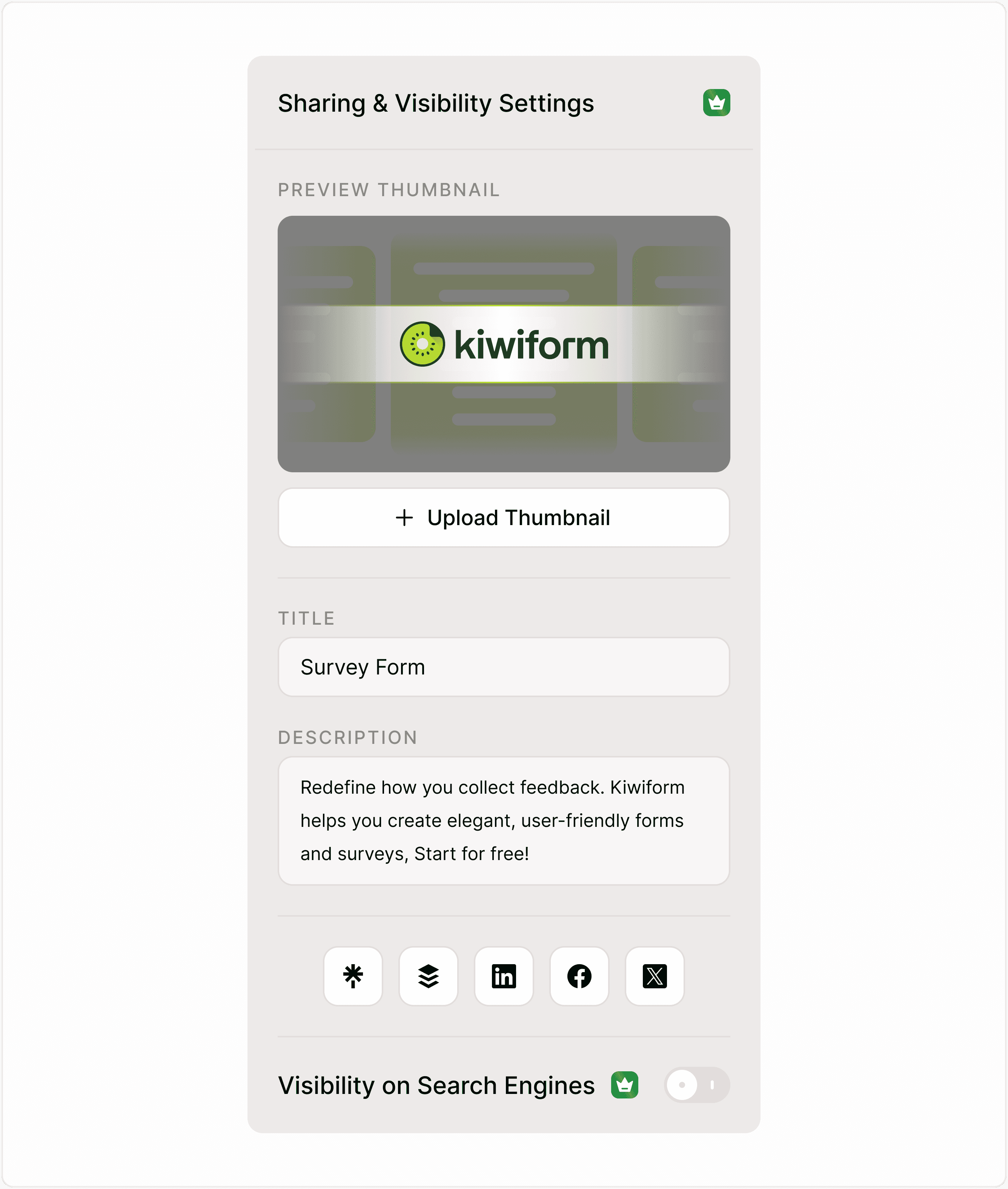
Preview Thumbnail
The preview thumbnail is the image shown when your form link is shared.
By default, Kiwiform uses a standard thumbnail. However, you can upload a custom image to:
Match your brand identity
Add campaign-specific visuals
Increase click-through rates
Improve professionalism
Best practices for thumbnails:
Use clear, high-quality images
Keep branding visible
Avoid too much text
Use recommended aspect ratios (landscape format works best)
Meta Title (Form Title)
The Meta Title appears as the bold headline in link previews and sometimes in browser tabs.
This should clearly communicate what the form is about.
Examples:
“Customer Feedback Survey”
“Apply for Early Access”
“Book Your Consultation”
“Event Registration Form”
Best practices:
Keep it clear and concise
Include relevant keywords
Make it action-oriented when possible
Avoid overly long titles
A strong meta title improves trust and click rates.
Meta Description (Form Description)
The Meta Description is the short summary shown below the title in previews.
It helps respondents understand what they will get or what the form is about.
Examples:
“Share your feedback in under 2 minutes.”
“Register now to secure your spot.”
“Apply today and join our early access program.”
Best practices:
Keep it under 160 characters
Focus on clarity
Add value or incentive
Avoid keyword stuffing
A compelling description increases the likelihood of link clicks.
How Meta Settings impact sharing
Your meta settings affect:
Social media previews
Messaging apps previews
Email link previews
Browser tab titles
Link cards in collaboration tools
However, they do not control search engine indexing. Search visibility is managed separately under Search Visibility settings.
How to update Meta Settings (Step-by-step)
Publish your form
Click Share
Locate Sharing & Visibility Settings
Upload thumbnail (optional)
Edit Title
Edit Description
Changes apply instantly
Always copy your link and test it in a messaging app to confirm the preview displays correctly.
Use Cases
For Businesses
Customize link previews for campaigns, product launches, and lead generation forms.
For Creators
Make your form look branded when shared in bio links or communities.
For Agencies
Create professional previews for client-facing forms.
For Internal Teams
Improve clarity when sharing forms inside Slack, Teams, or email.
Tips for Better Conversion
Add urgency in the description (Limited spots, Apply today)
Keep language simple and benefit-driven
Match thumbnail with campaign visuals
Use action verbs in title
Avoid generic labels like “Form”
Summary
Form Meta Settings allow you to control how your form looks when shared. By customizing your thumbnail, title, and description, you create a professional and clickable link preview experience.
Optimized meta settings improve engagement, trust, and response rates — especially when sharing publicly.