Understand form options while building
Form options help you review, test, and adjust your form as you build it. Instead of switching between multiple screens, you can preview your form, check how it looks on different devices, and access important tools directly inside the builder. This makes it easier to refine the experience before publishing and ensures that respondents see your form exactly as intended.
You’ll use these controls often while creating forms for surveys, contact pages, feedback collection, registrations, and more. They help you move quickly between editing and testing so you can build with confidence.
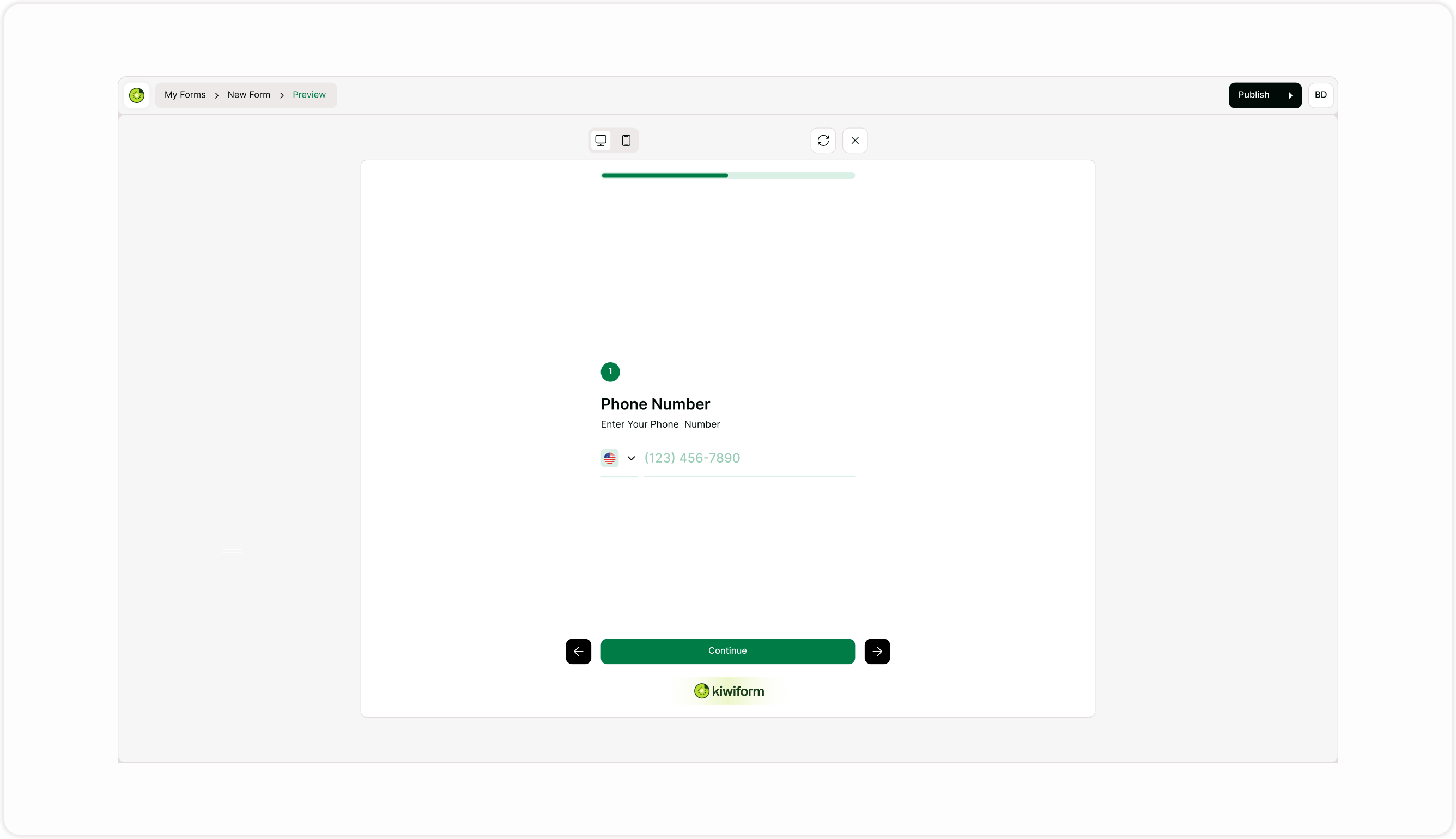
Preview your form
The preview option lets you experience the form the same way a respondent will. This is useful for checking flow, clarity, and navigation before sharing your form publicly.
Use preview to:
Test how questions appear
Check logic and branching
Review navigation between steps
Confirm endings and messages
Experience the form on mobile and desktop
Preview helps you catch small issues early and ensures the final experience feels smooth and clear.
Switch between device views
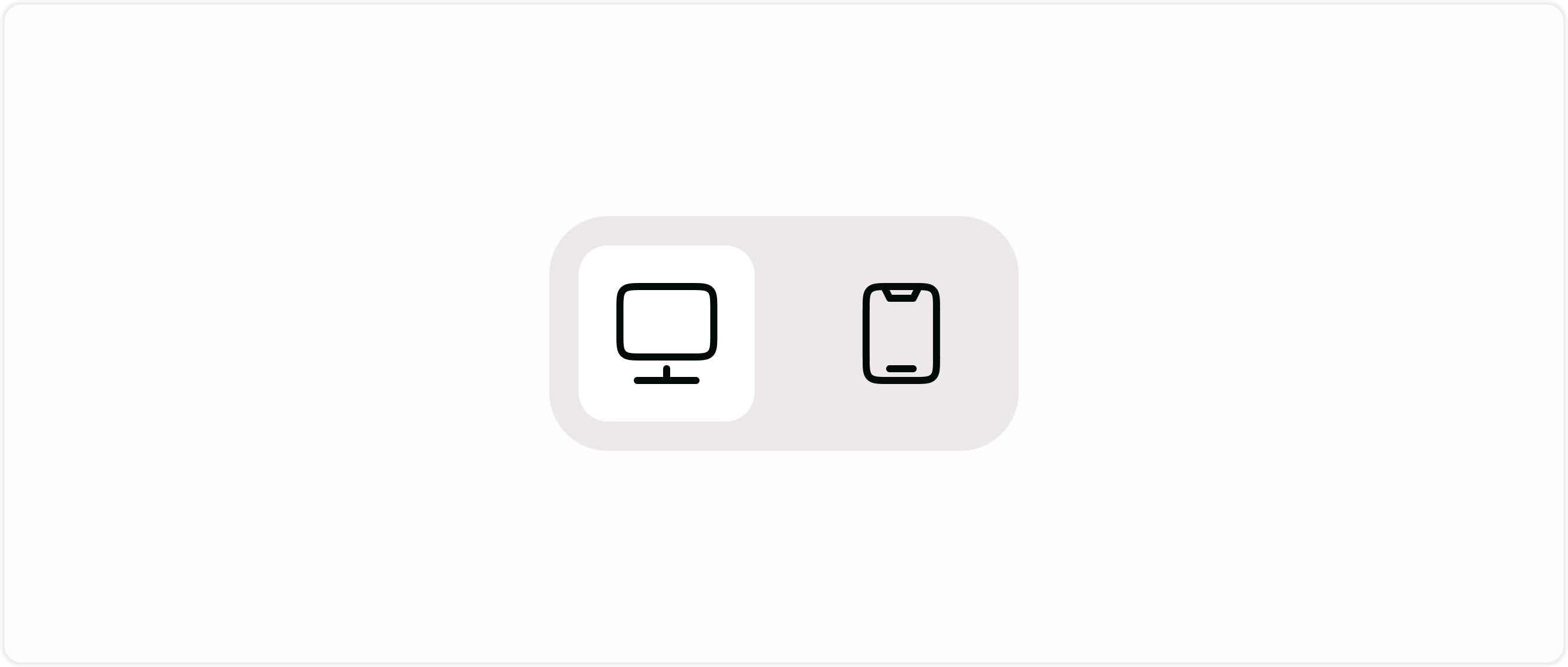
Forms should feel natural on any device. The device toggle allows you to switch between desktop and mobile views while building. This helps you confirm spacing, readability, and layout without needing a separate device.
You can quickly check:
Text readability
Button placement
Progress bars
Media alignment
Input spacing
This ensures your form is comfortable to complete on phones, tablets, and desktops.
Access design while building
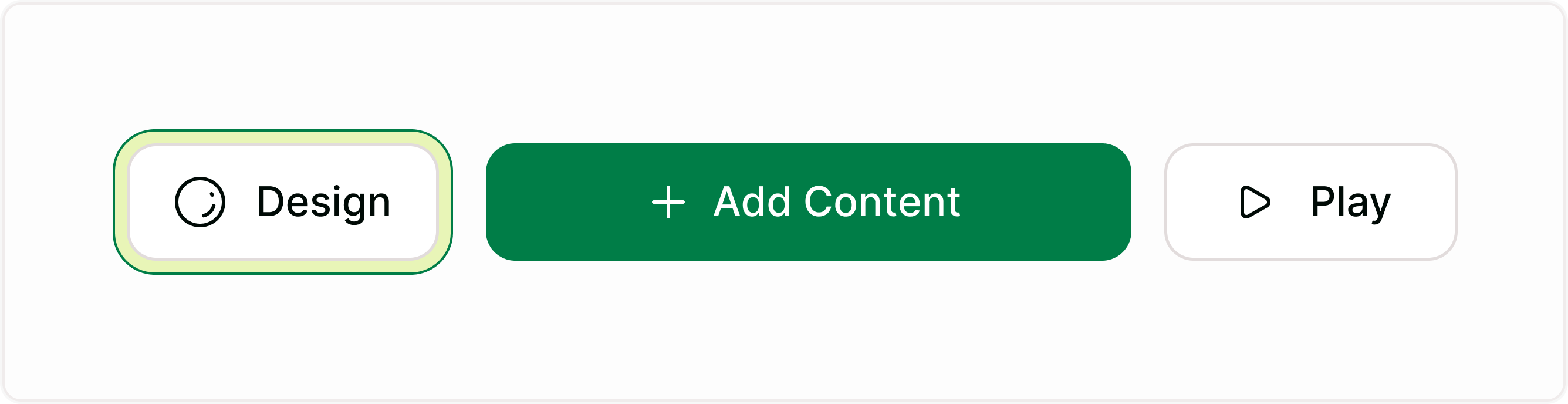
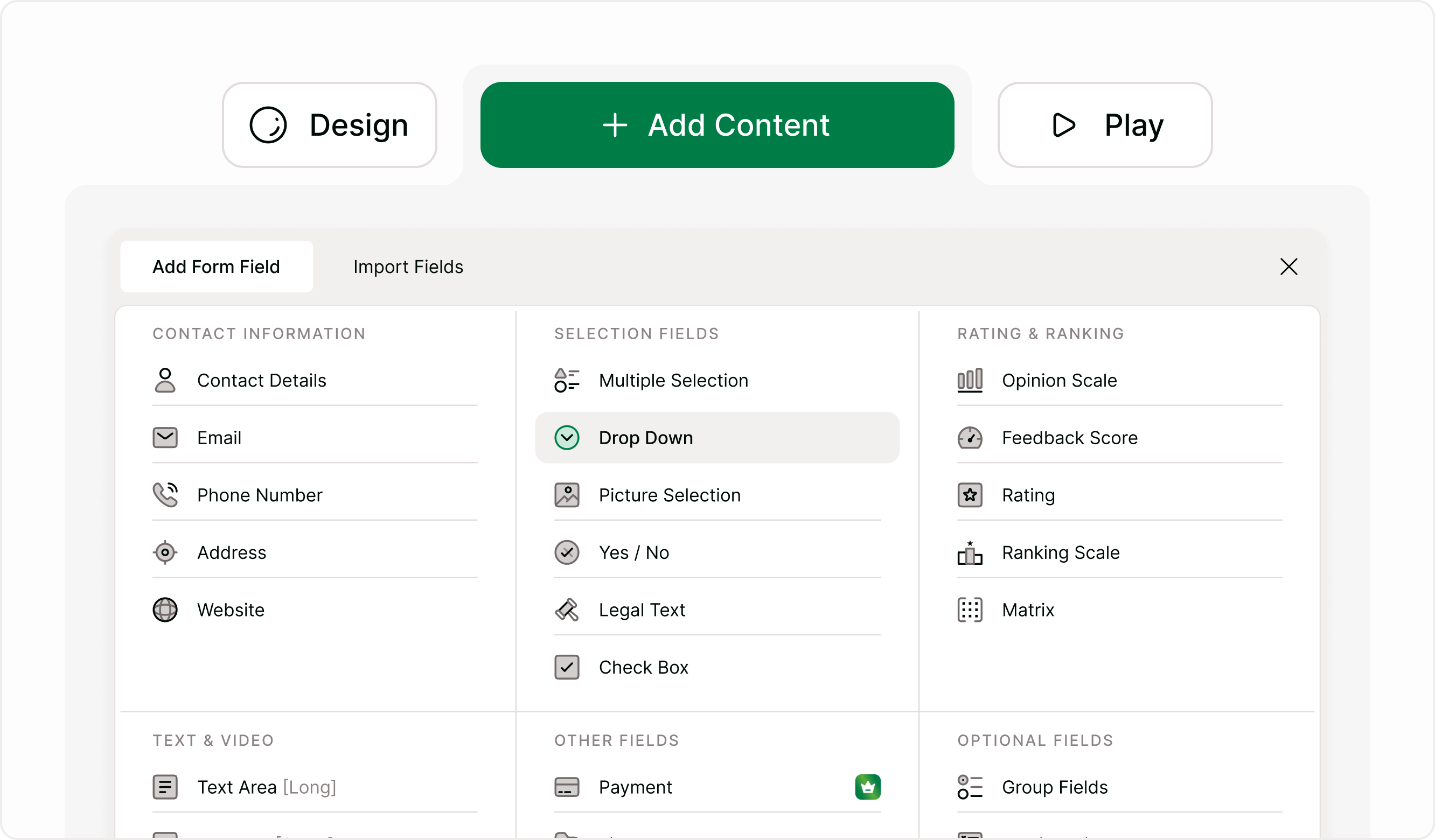
You can adjust visual styling without leaving the builder. The design option allows you to move between content editing and styling so you can refine how the form looks as you build it.
This helps you:
Maintain brand consistency
Test visual changes instantly
Review fonts and colors
Check backgrounds and spacing
Switching between building and design is quick, so you don’t lose momentum.
Add content without breaking your flow
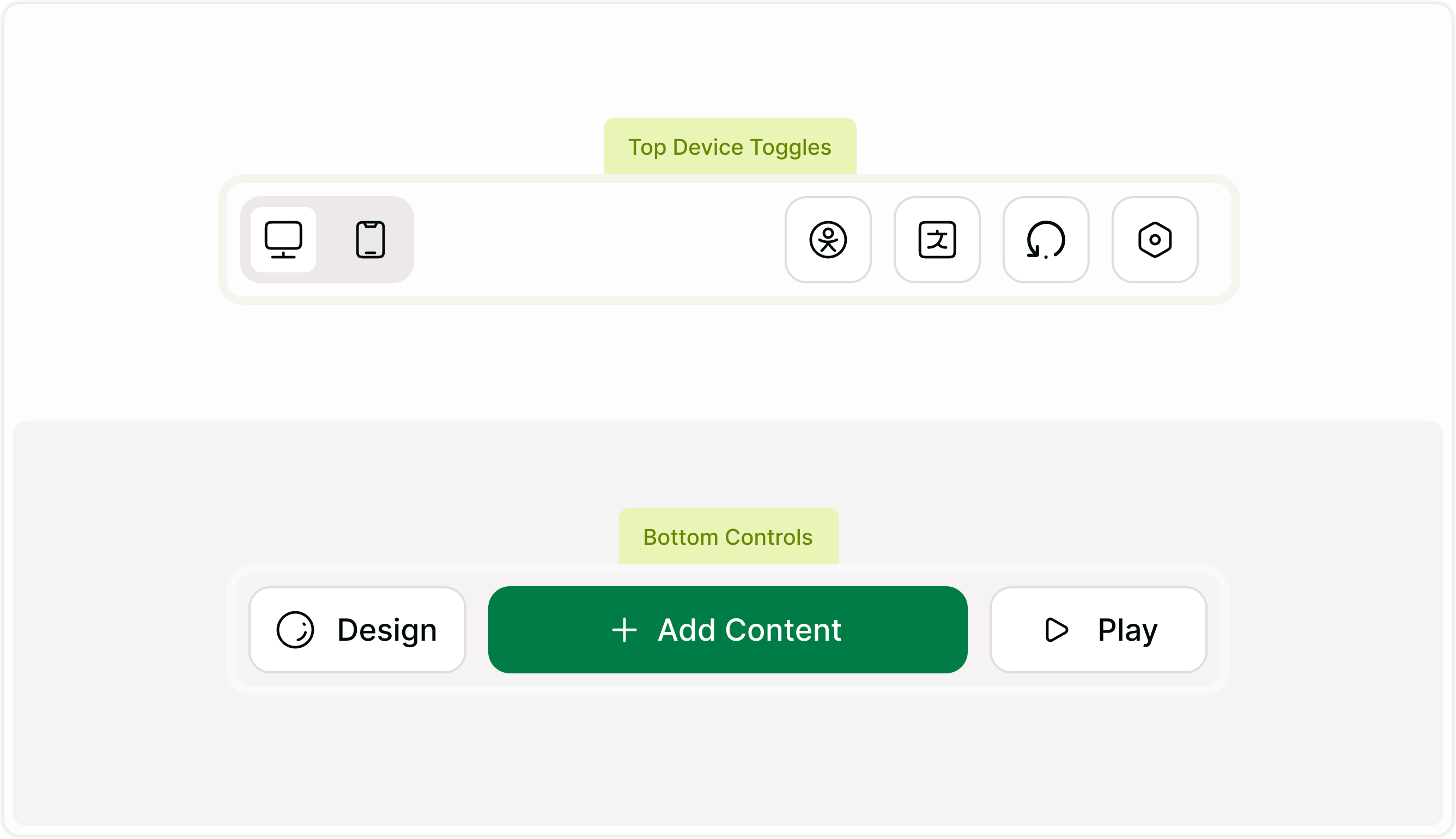
The Add Content button lets you insert new questions, media, or structural elements at any time. This keeps the building process flexible and allows you to expand or adjust your form as ideas evolve.
You can add:
New fields
Media
Welcome or ending screens
Additional steps
Everything updates instantly inside the builder.
Builder tools connected to form options
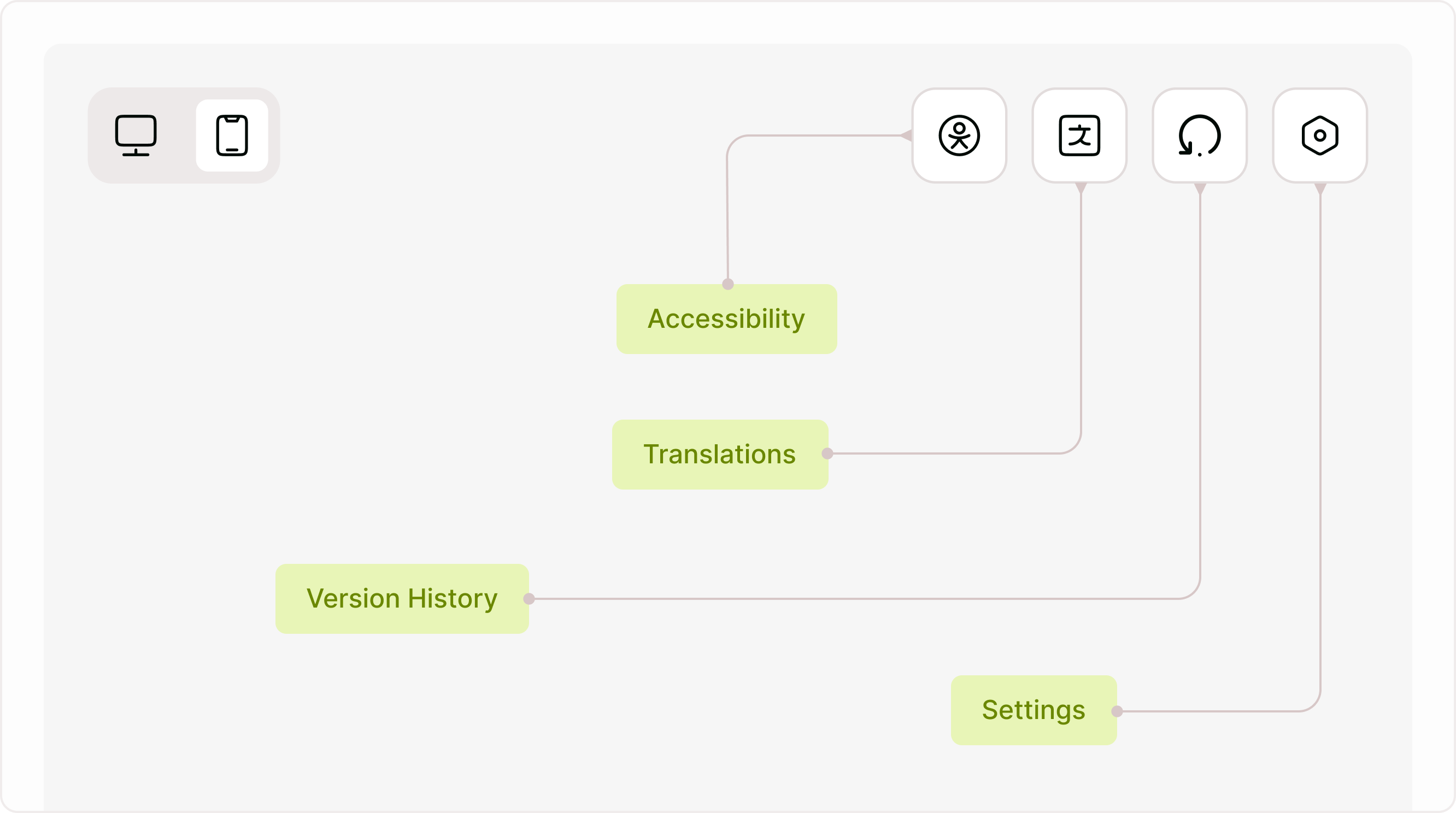
While working on your form, you can also access tools that help you prepare it for different audiences and scenarios. These tools keep important controls within reach so you can manage your form without leaving the builder.
You can access:
Accessibility settings
Translations
Version history
General form settings
These options help you review, adapt, and finalize your form before publishing.
Why form options matter
Using form options while building helps you create forms that feel polished and ready for real responses. Instead of building everything first and testing later, you can refine the experience step by step.
This leads to:
Clearer forms
Better completion rates
Fewer errors
Faster publishing
More confidence when sharing
Keeping preview, design, and controls close to the builder makes the entire process smoother.
Summary
Form options allow you to preview, test, and refine your form as you build. You can switch device views, adjust styling, add content, and review settings without leaving the editor. This keeps your workflow focused and ensures your form is ready before you publish or share it.