Access form translations
You can manage translations directly from the form builder.
How to open the translation panel
Open your form in the builder.
Click the Language or Translations icon in the top toolbar.
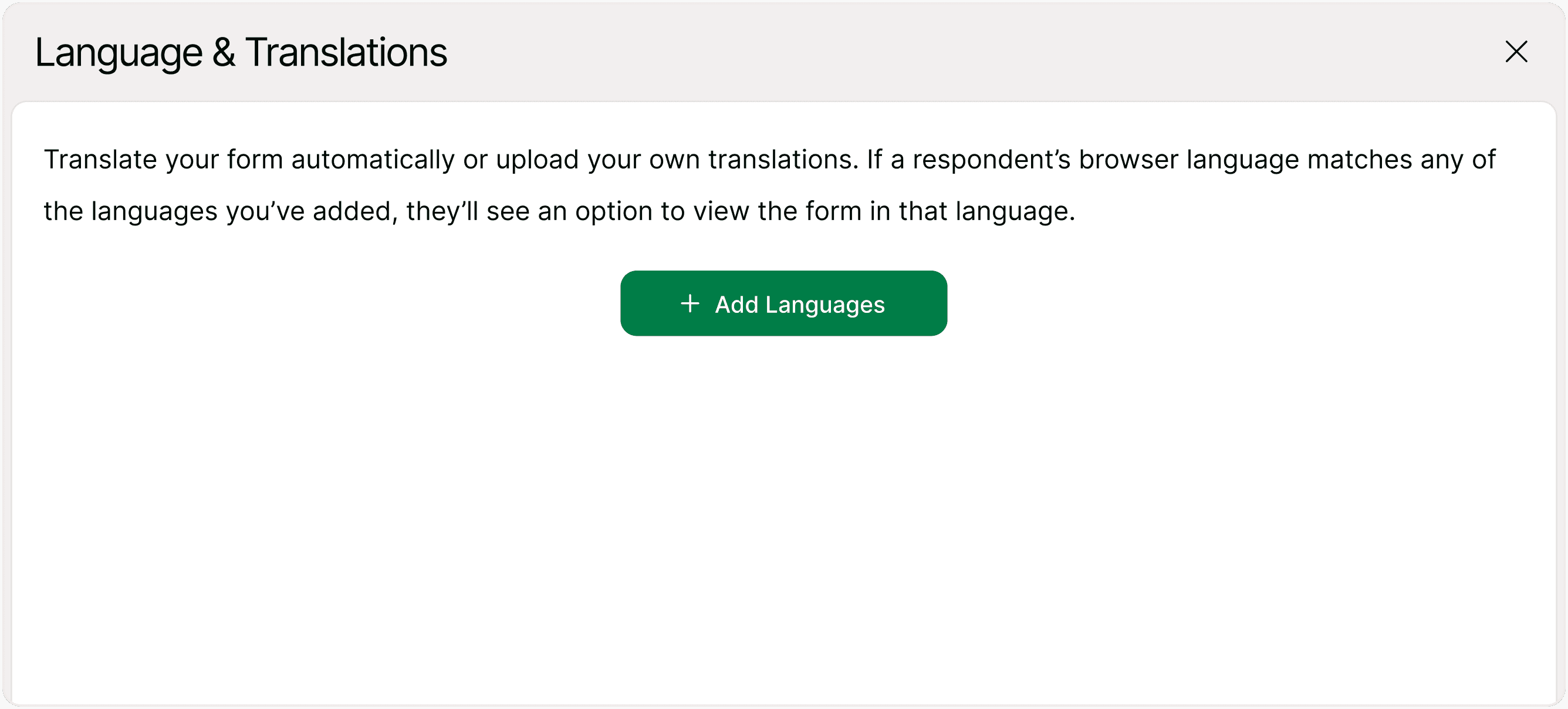
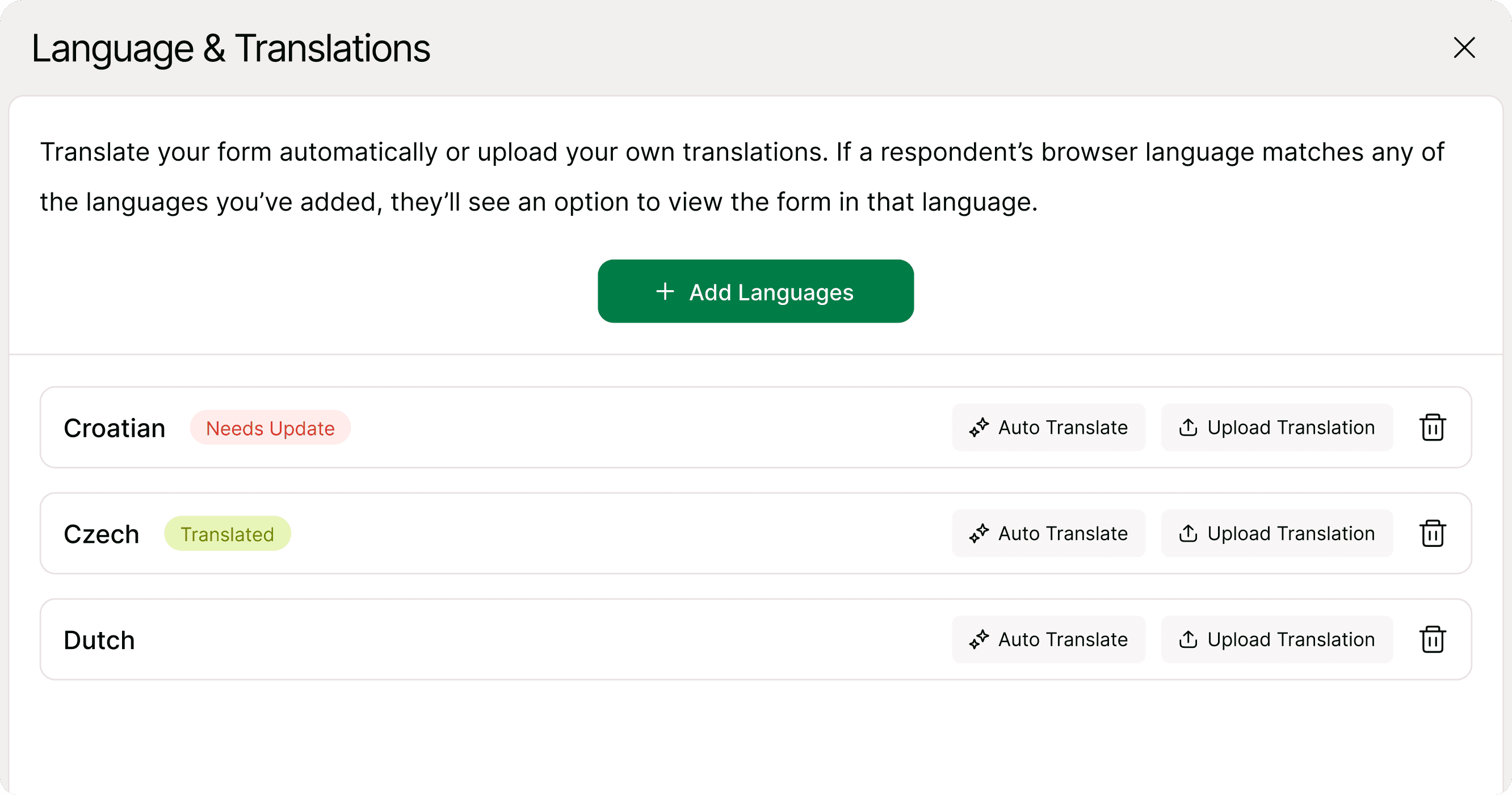
The Language & Translations modal will open, showing all configured languages and translation options.

Add languages to your form
Before translating content, you need to add the languages you want to support.
Steps
Open the Language & Translations panel.
Click Add Languages.
Select one or more languages from the list.
Click Add to confirm.
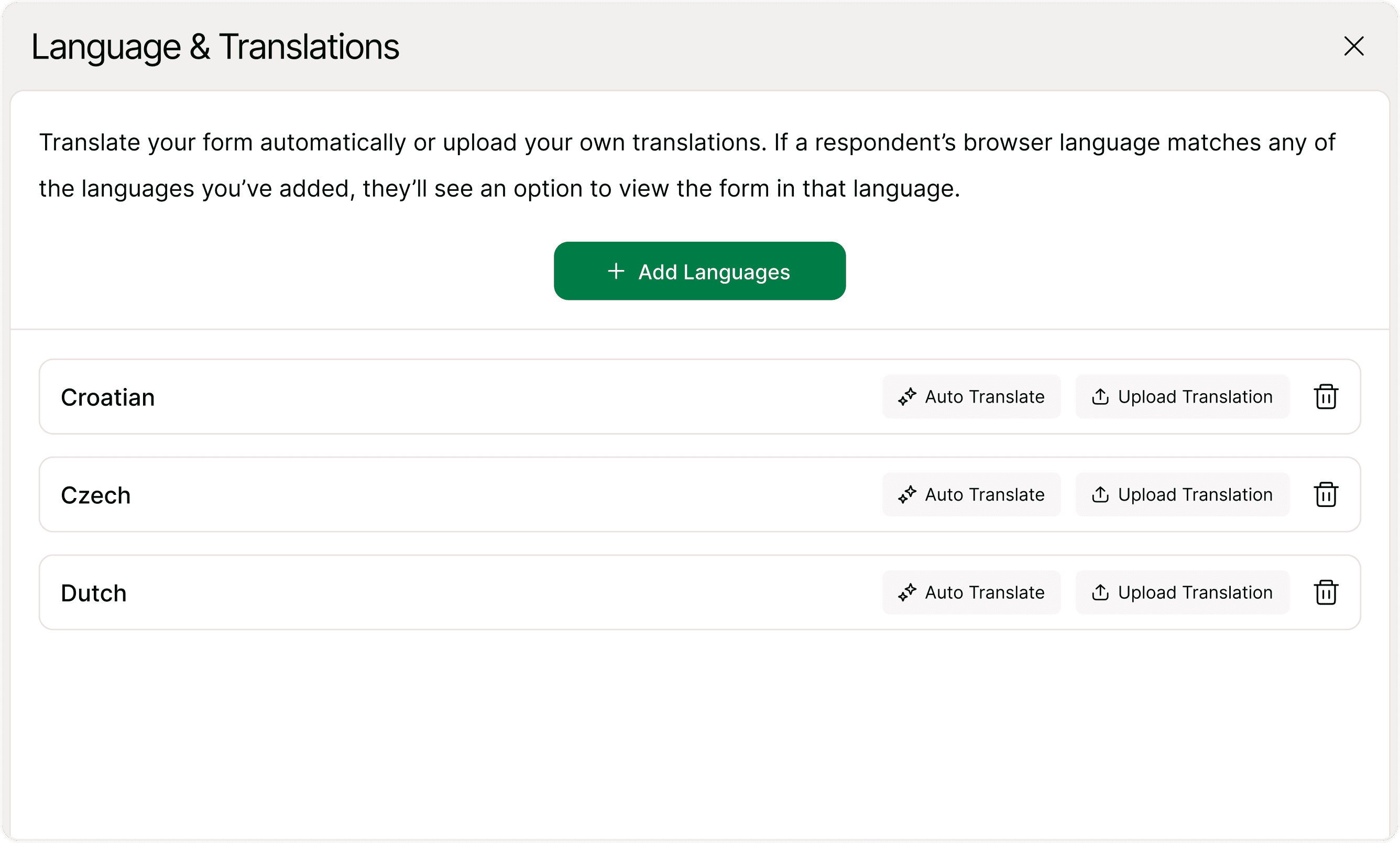
Once added, each language appears in the translations list with options to translate or manage it.
Translate your form automatically
Kiwiform allows you to automatically translate form content for each added language.
To auto translate
In the language list, click Auto Translate next to a language.
The form content will be translated automatically.
A Translated status label appears beside that language once completed.
Auto translation is useful when you want a quick multilingual version. You can still review and refine translations later.
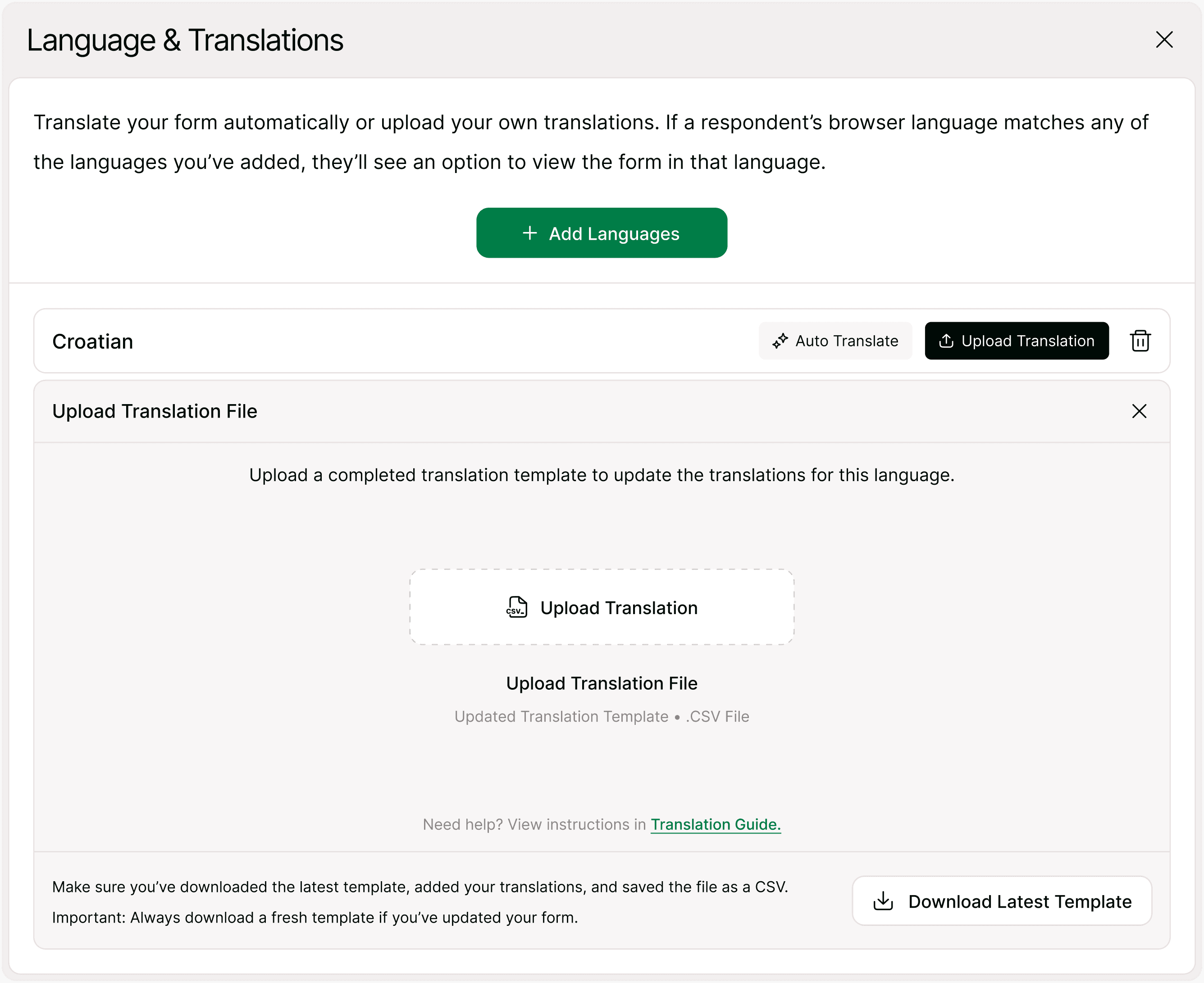
Upload your own translation file
If you prefer manual or professionally edited translations, you can upload a translation template.
Important before uploading
Download the latest translation template.
Add your translations in the template.
Save the file as a CSV.
Always download a fresh template if you update your form structure or content.
Steps to upload
In the translations list, click Upload Translation next to a language.
Download the latest template if you have not already.
Upload your completed translation file.
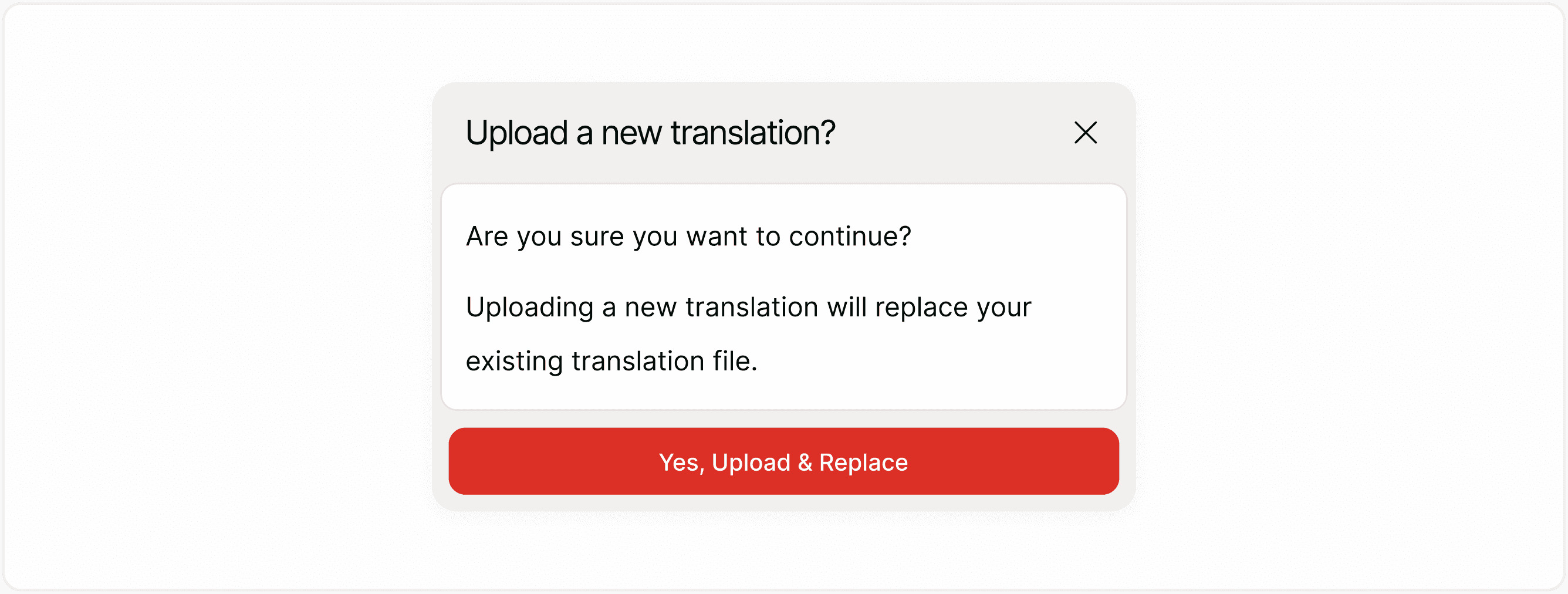
Confirm the upload when prompted.
Uploading a new file replaces the existing translation for that language.
Confirmation before replacing translations
When uploading a new translation file, you will see a confirmation message.
This ensures you understand that the new file replaces the current translation.
Tip: Always review the template and confirm that the correct version is being uploaded before replacing.
Keep translations updated when the form changes
If you edit or add fields after translating your form, some translations may become outdated.
Kiwiform shows a Needs Update label next to languages affected by recent changes.
This indicates that the translation should be reviewed or updated.
To update:
Use Auto Translate again, or
Upload a revised translation file.
Keeping translations updated ensures that all respondents see accurate content.
Delete a language
You can remove a language if it is no longer needed.
Steps
Open the translations panel.
Find the language you want to remove.
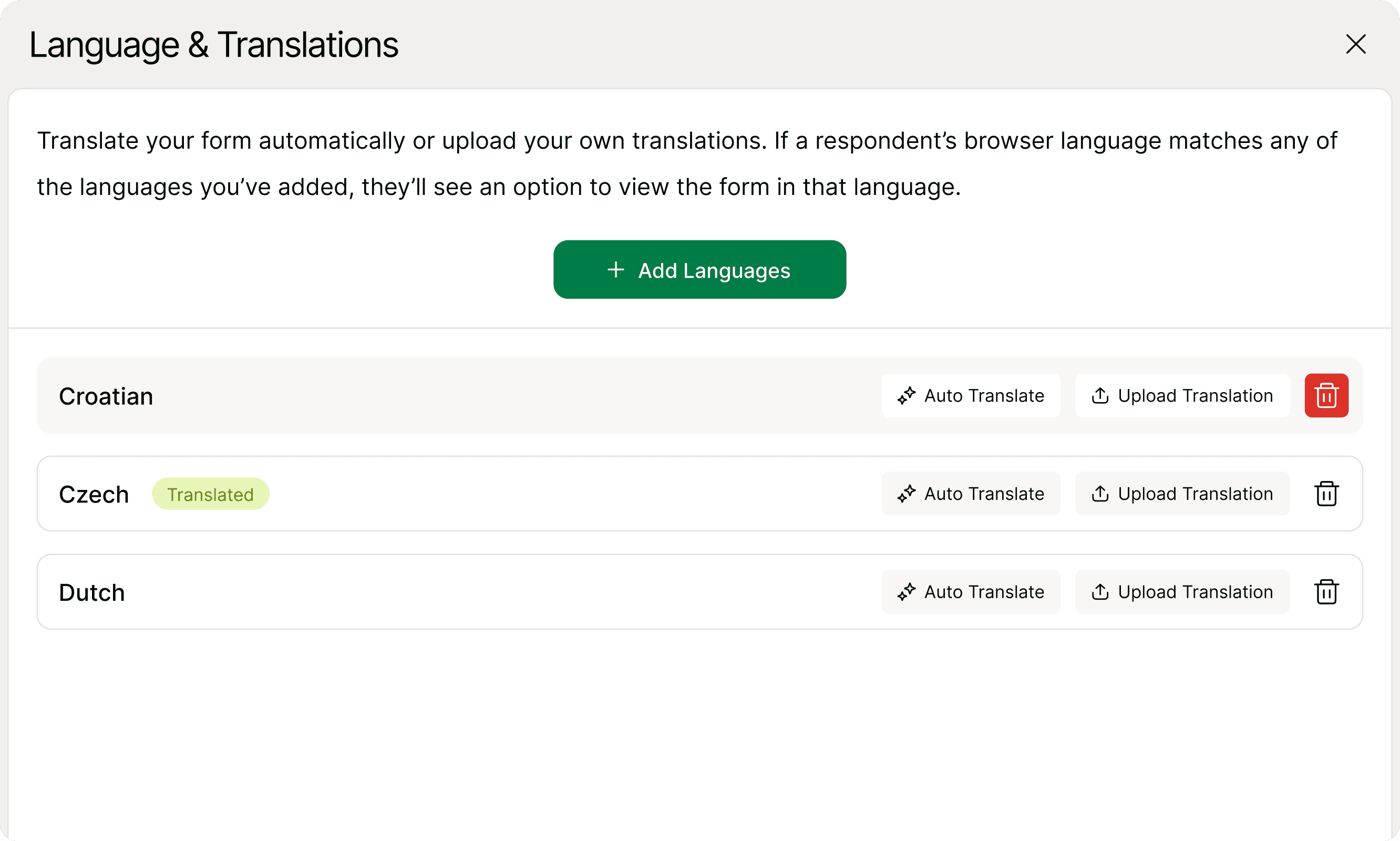
Click the delete icon next to that language.
Confirm removal.
Deleting a language removes its translation from the form but does not affect other languages.
How translations affect respondents
When multiple languages are available:
Respondents may see a language option.
The form may match the respondent’s browser language if available.
Each translated version reflects the same form structure but in different languages.
Translations improve accessibility, clarity, and completion rates for international audiences.
Best practices for multilingual forms
Add languages before sharing the form publicly.
Review auto-translations for accuracy.
Always download a new template after editing the form.
Update translations when fields change.
Test each language version before publishing.
These steps help ensure consistent and accurate respondent experiences across languages.
Summary
Form Translations lets you create multilingual forms so respondents can complete them in their preferred language. You can add, manage, and upload translations directly from the form builder. This helps you reach a global audience, improve clarity, and increase completion rates across regions. Multilingual forms make your surveys, applications, and registrations more accessible worldwide.