What Form Version History does
Form Version History keeps a timeline of structural changes made to your form. Every significant edit creates a new version snapshot so you can revisit earlier states if needed. This is useful when testing different layouts, making updates to a live form, or collaborating with teammates.
Version tracking helps you:
Review past edits
Restore earlier versions
Understand when changes were made
Prevent accidental loss of structure
Safely experiment with updates
Form Version History focuses on structure and content changes. It does not replace analytics or response viewing tools.

How to open Form Version History
Open your form in the builder.
Look at the top toolbar.
Click the Version History icon.
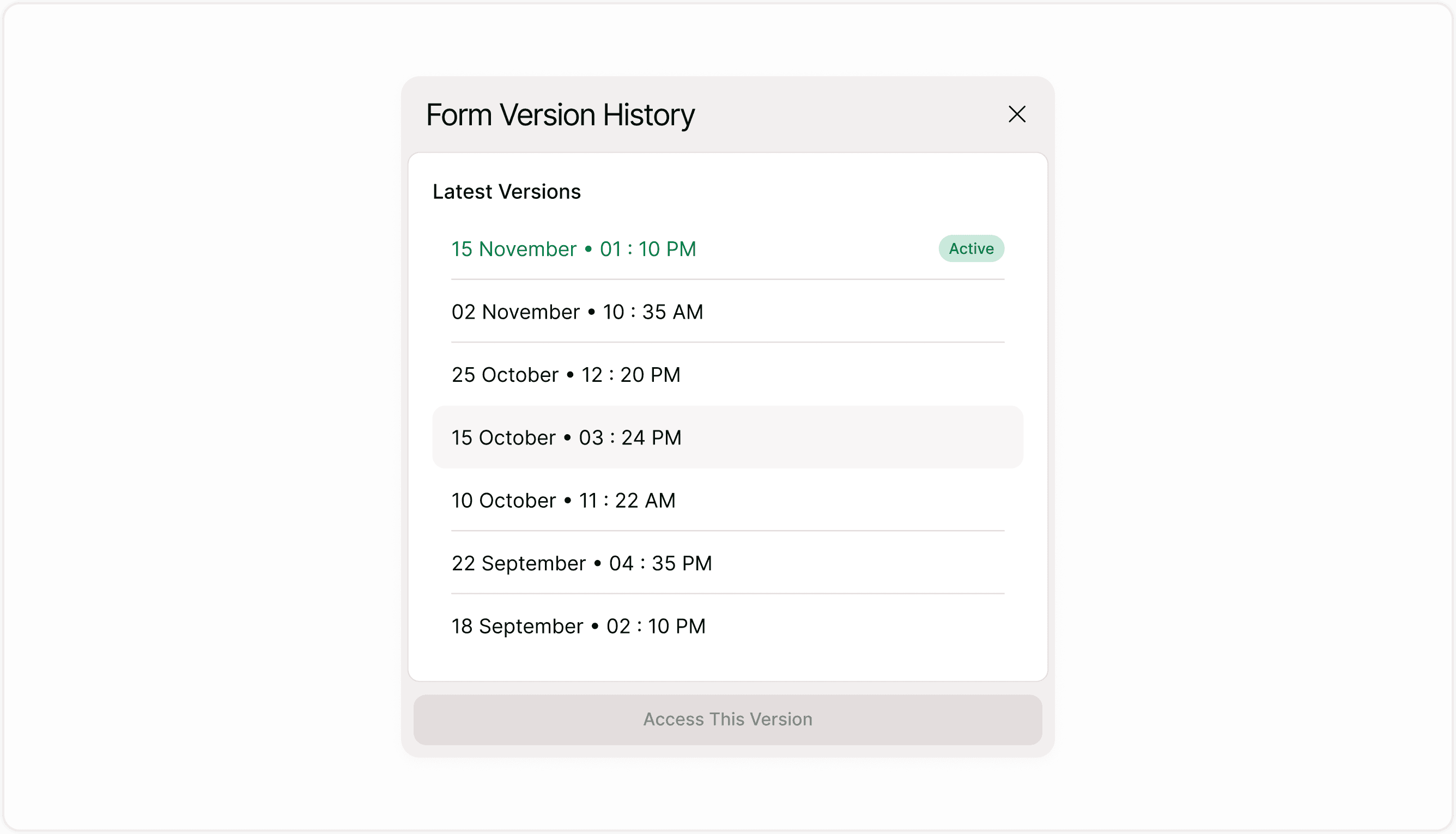
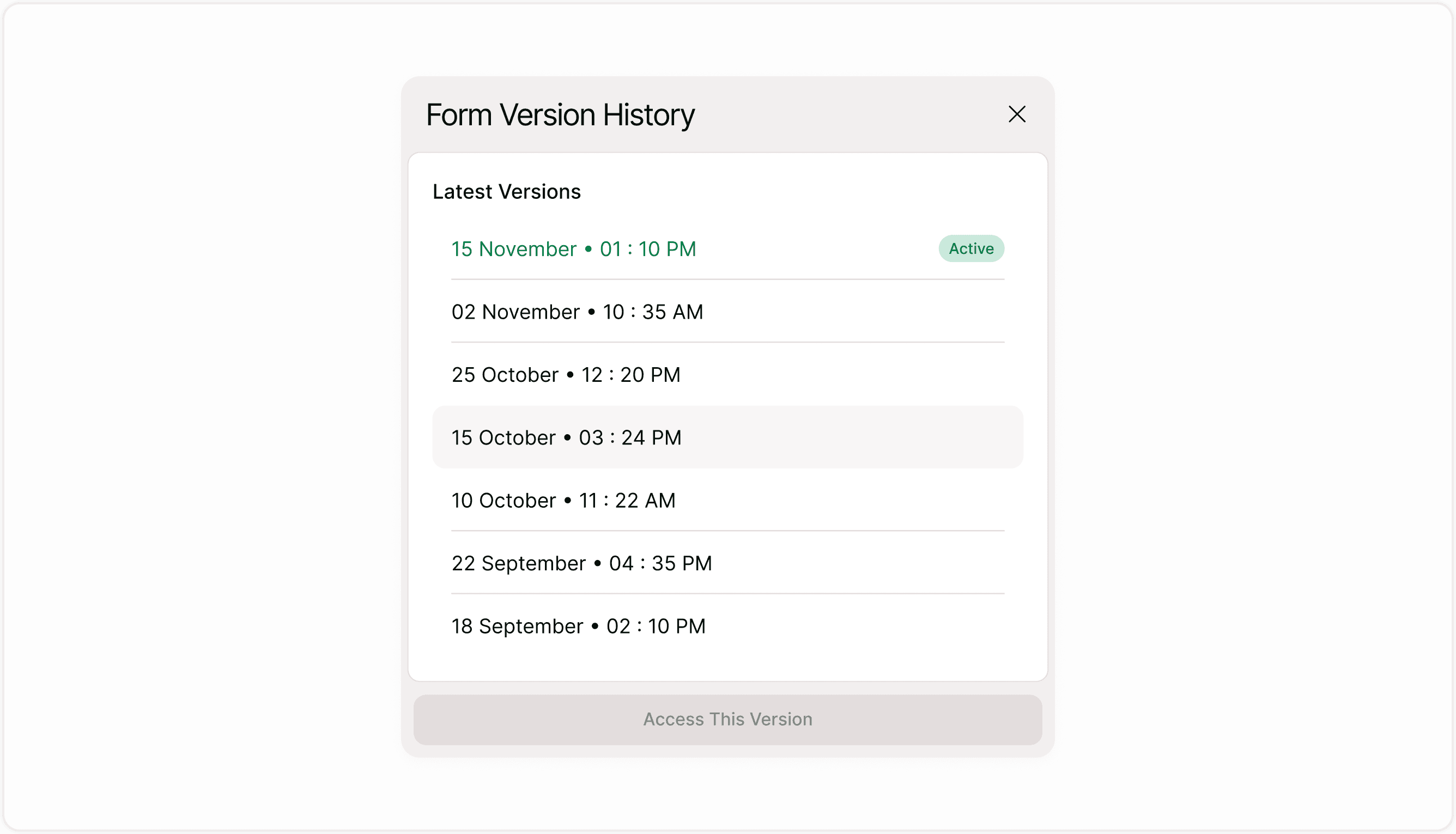
A panel opens showing previous versions with timestamps.
Each version is listed by date and time. The most recent version is marked as active.
Understanding version entries
Each entry in the version list represents a saved structural state of your form.
You can see:
Date and time of the version
Which version is currently active
Older versions available for restoration
Versions are ordered from newest to oldest so you can quickly find recent edits.
This helps teams understand what changed and when changes were made.
Restoring a previous version
You can restore a previous version if you need to revert changes. This is helpful if:
A recent edit caused issues
You want to return to an earlier structure
A test change needs to be undone
A collaborator made unintended edits
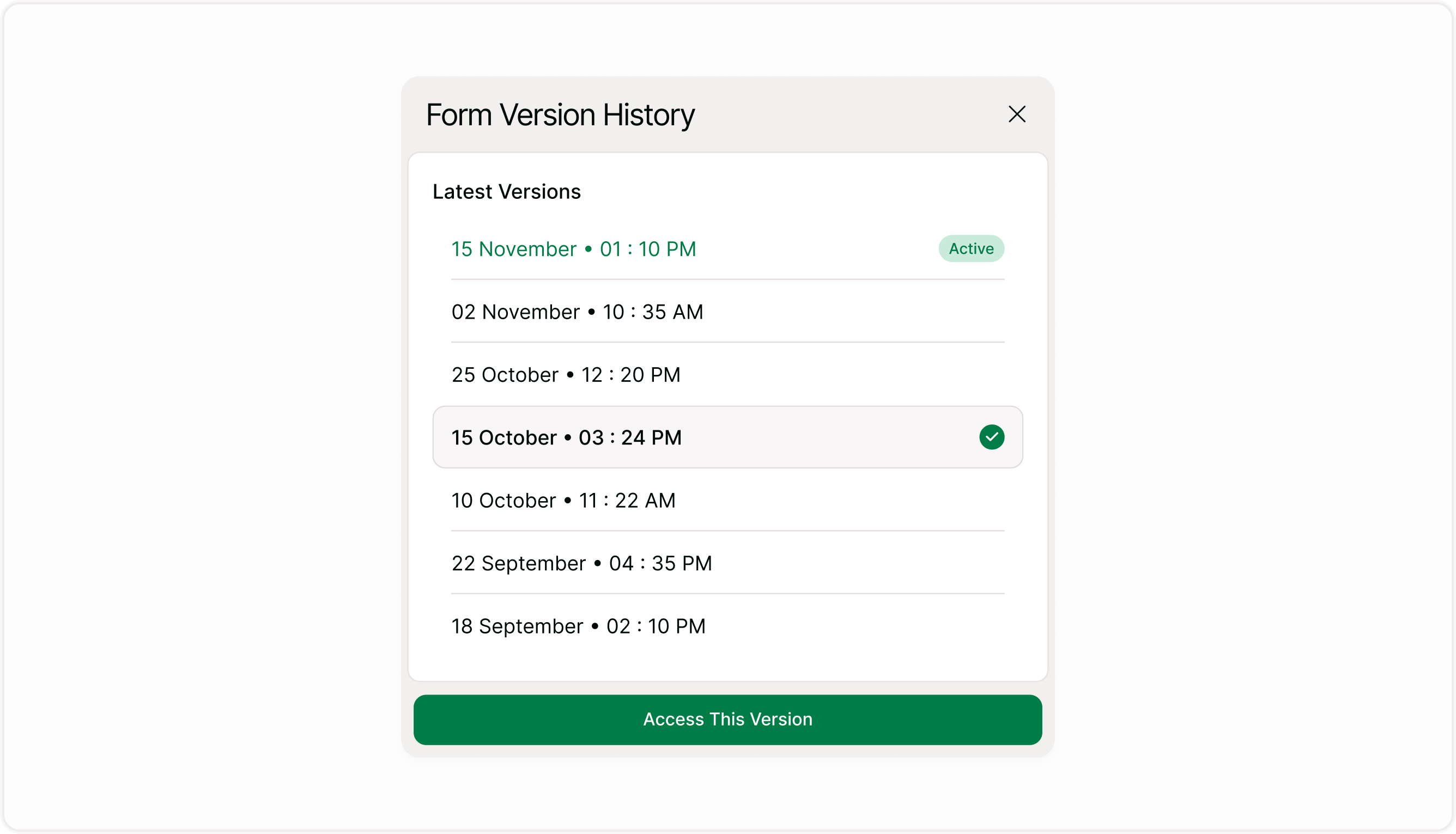
Steps to restore
Open Version History.
Select the version you want to restore.
Click Access This Version.
Confirm the warning message.
The selected version becomes the active version in the builder.
Important warning before restoring
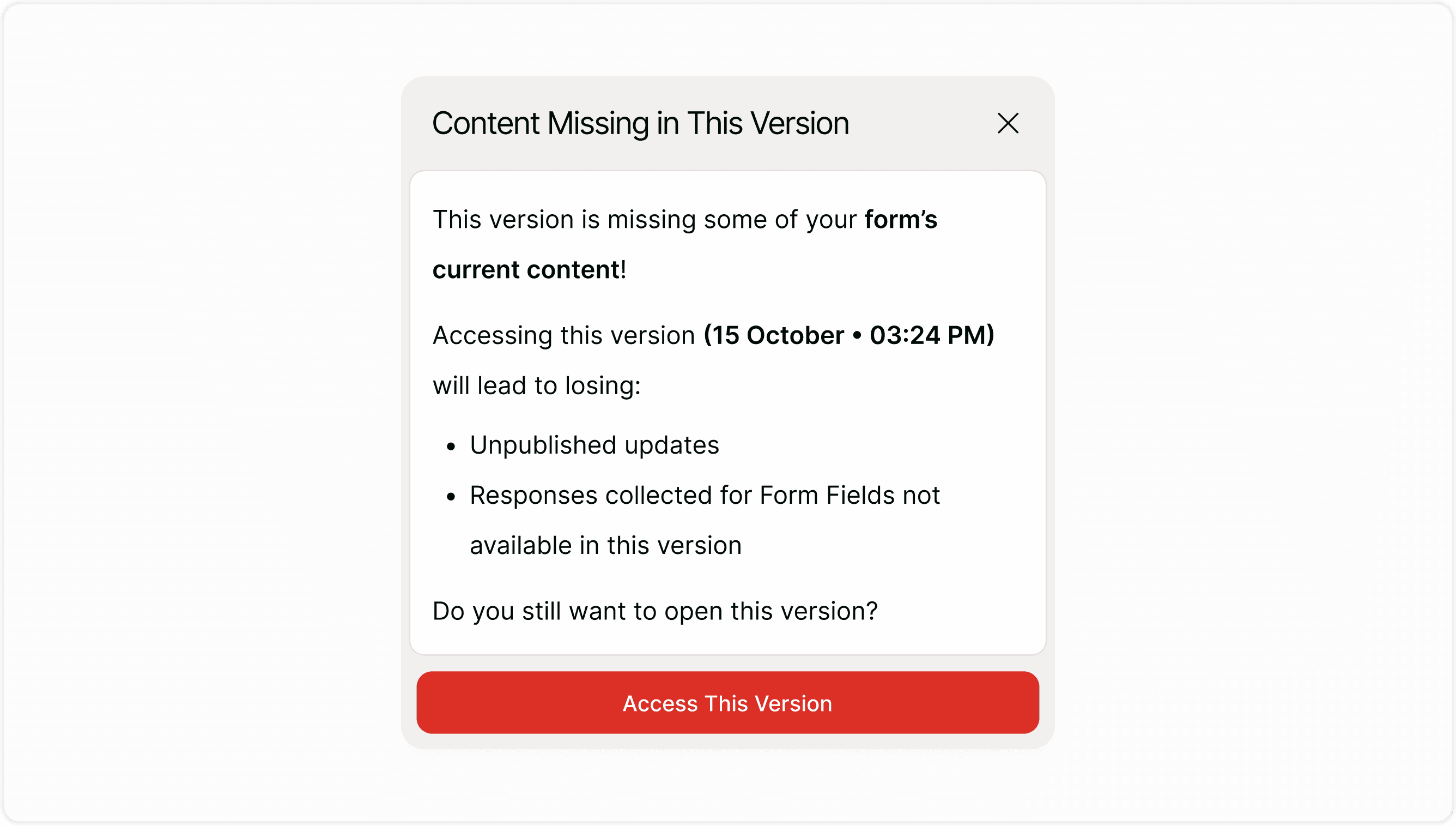
When switching to an older version, Kiwiform may show a warning message. This appears if restoring will remove changes or affect responses tied to newer fields.
The warning explains:
Unpublished edits may be lost
Responses linked to fields not present in the older version may be affected
Always review this message carefully before restoring a version.
How version history works with live forms
Version history tracks structural edits but does not automatically republish your form.
Key points to understand:
Restoring a version updates the builder view
You may need to publish again after restoring
Existing responses remain stored
Removing fields in older versions may affect how some response data appears
If your form is live, always review changes before republishing.
Use cases for Form Version History
Fixing mistakes
If a question was deleted accidentally, you can restore a version where it existed.
Testing different layouts
You can experiment with form structure and revert if needed.
Team collaboration
When multiple users edit a form, version history helps track changes and recover earlier setups.
Managing live updates
If a live form update causes issues, restore a stable version quickly.
Best practices
Review before restoring
Always check the warning message and understand what changes will occur.
Publish carefully
After restoring, confirm everything looks correct before publishing again.
Use versions for testing
Create changes freely knowing you can revert if needed.
Coordinate with your team
If multiple people edit the form, communicate before restoring older versions.
Troubleshooting
Review before restoring
Always check the warning message and understand what changes will occur.
A field disappeared after restoring
That field may not exist in the version you restored. Check the version timeline.
Responses seem different
Responses remain stored, but removed fields from older versions may not appear in the current structure.
When to use Form Version History
You should review accessibility:
You want to undo recent structural changes
You need to recover a deleted field or screen
You want to compare earlier layouts
You are testing new form versions
Do not use version history for:
Viewing analytics
Exporting responses
Managing form settings unrelated to structure
Summary
Form Version History allows you to view and restore previous versions of your form. Every important change is saved automatically, so you can go back to an earlier version if needed. This is especially helpful when testing updates, making structural changes, or collaborating with a team. Version History protects your work and gives you confidence when editing live forms.