How the Google Drive Integration Works
When connected, any file uploaded using a File Upload field is automatically sent to your selected Google Drive folder.
Here’s what happens:
A respondent uploads a file through your form.
The file is securely stored.
It is automatically saved to your connected Google Drive folder.
The submission record in Kiwiform includes file details.
You no longer need to manually download and re-upload files.
When to Use Google Drive Integration
Google Drive integration is useful when you collect:
Job applications and resumes
Assignment submissions
Identity verification documents
Media files (images, audio, video)
Legal documents
Client contracts
Event materials
If your form includes file uploads, connecting Google Drive helps you centralize storage automatically.
How to Connect Google Drive
Open your form in Kiwiform.
Click Connect in the top navigation.
Select Google Drive from the integration list.
Click Connect.
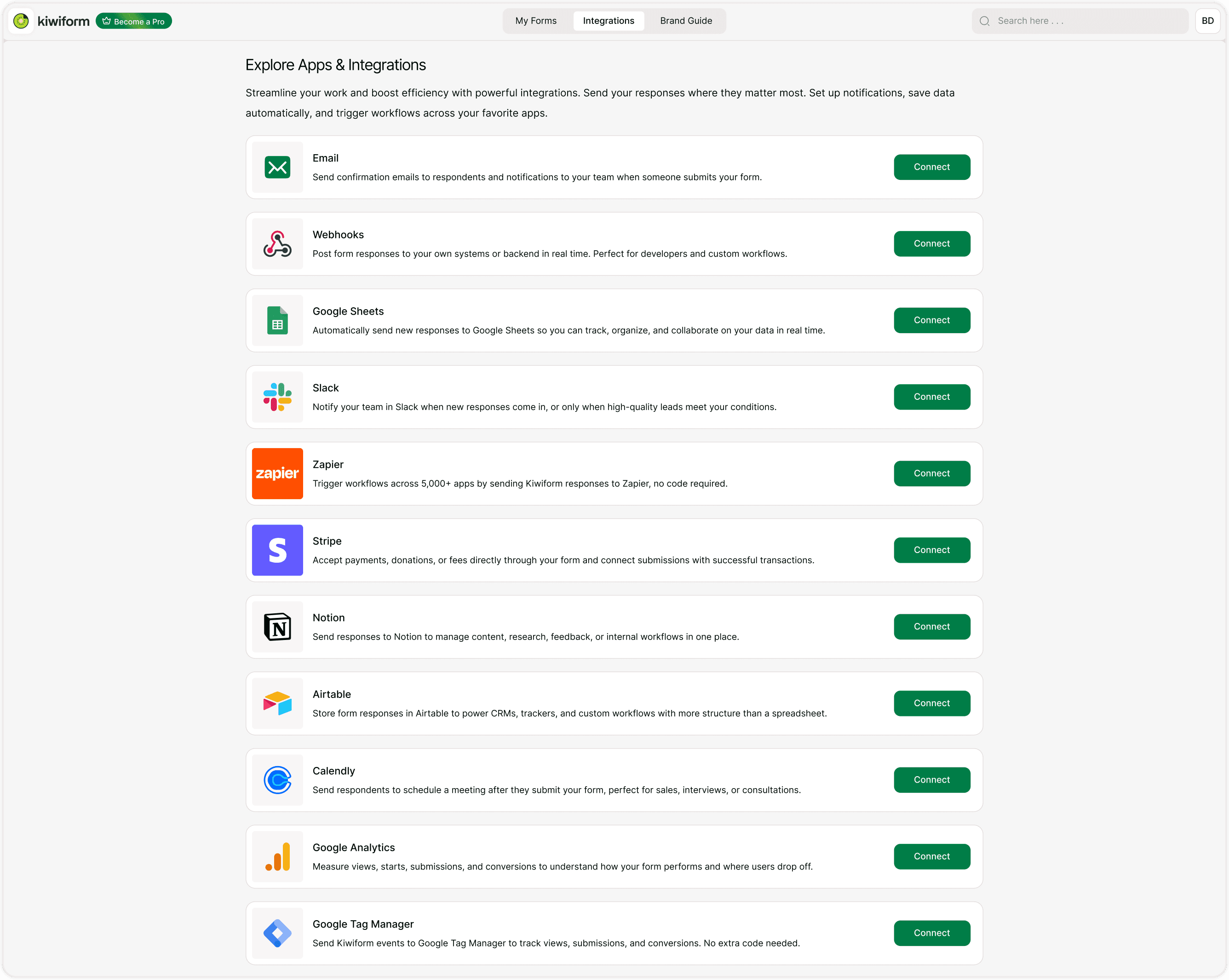
Authorize Your Google Account
You will be redirected to Google:
Select your Google account.
Grant permission for Kiwiform to access and store files in Drive.
Authorization allows Kiwiform to upload files to your Drive securely.
Select a Folder
After authorization, you can:
Choose an existing folder
Create a new folder
Organize uploads inside a specific directory
All future uploaded files will be saved in the selected folder.
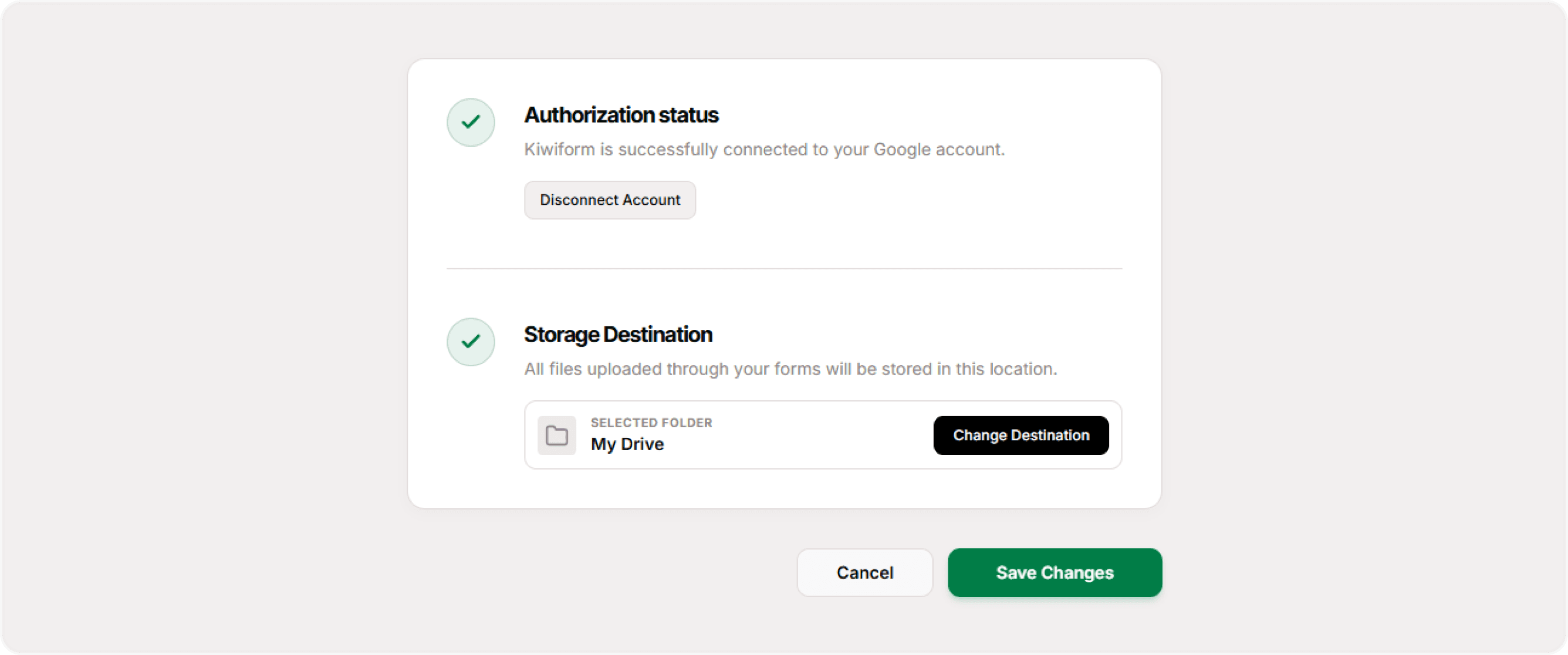
How Files Are Stored
Each uploaded file:
Is saved inside the selected Drive folder
Keeps its original file name
Is tied to the specific form submission
Can be accessed directly from Google Drive
Currently, payments are processed as one-time charges.
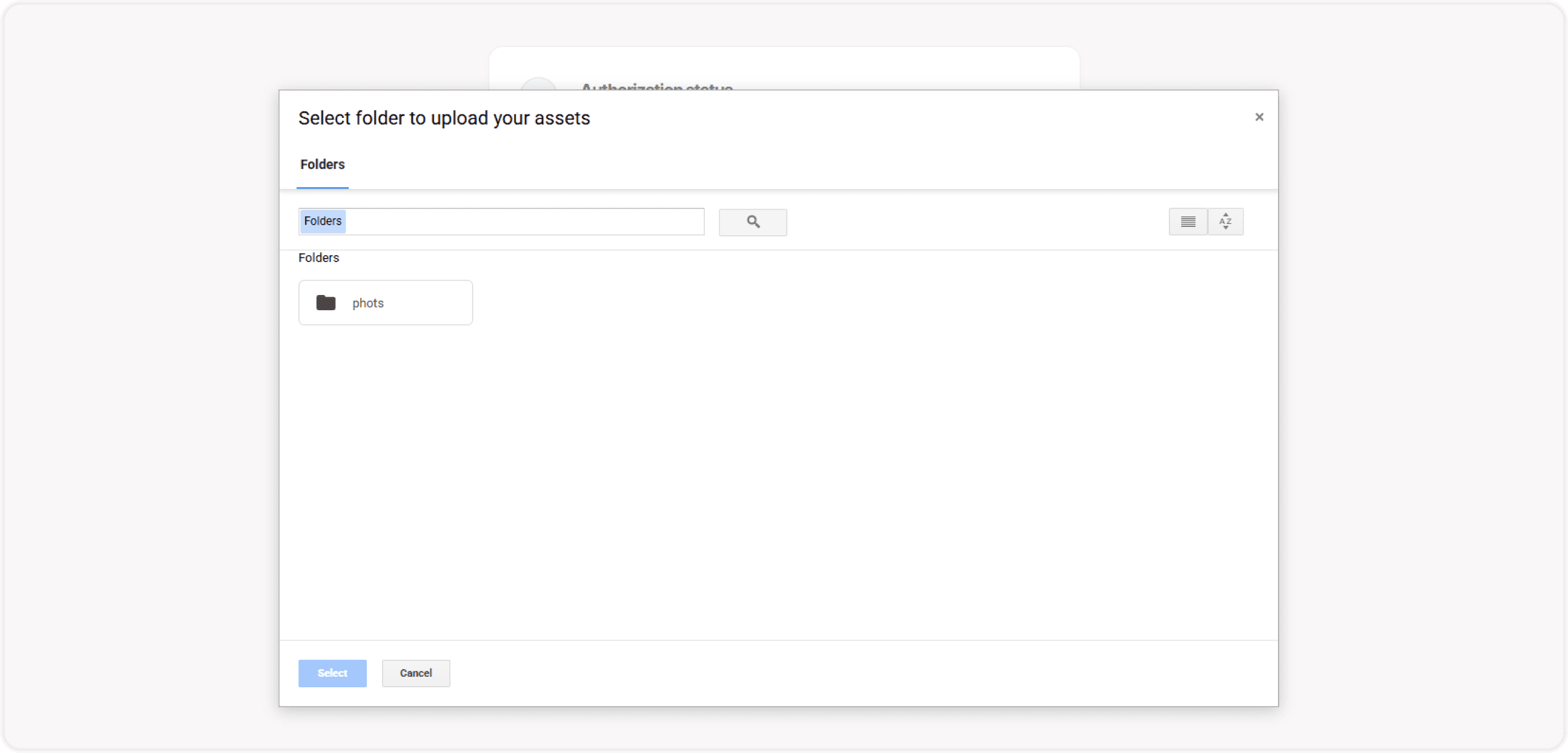
Managing the Integration
From the Connect tab, you can:
Disconnect Google Drive
Reconnect to a different folder
Reauthorize your Google account
Disconnecting stops future uploads but does not delete previously stored files.
Best Practices
For organized storage:
Create a dedicated folder per form
Use clear file naming conventions in your form instructions
Inform respondents about supported file formats
Regularly review Drive storage usage
If collecting sensitive documents, ensure proper folder access permissions inside Google Drive.
Summary
The Google Drive integration allows you to automatically store file uploads from your Kiwiform forms directly in your Google Drive. When a respondent submits a form with a File Upload field, the uploaded files are saved to a selected Drive folder in real time, keeping all documents organized and accessible in one place. This integration is useful for collecting resumes, assignment submissions, design files, contracts, and other attachments while maintaining a structured storage system without manual downloads.