What is the Image Editor in Kiwiform?
The Image Editor allows you to crop and resize images directly inside the form builder. Instead of editing images externally and re-uploading them, you can make quick visual adjustments at the moment you add or update an image.
This editor is intentionally lightweight. It focuses on the most essential task “cropping”, so you can move fast while keeping your form visually aligned and professional.
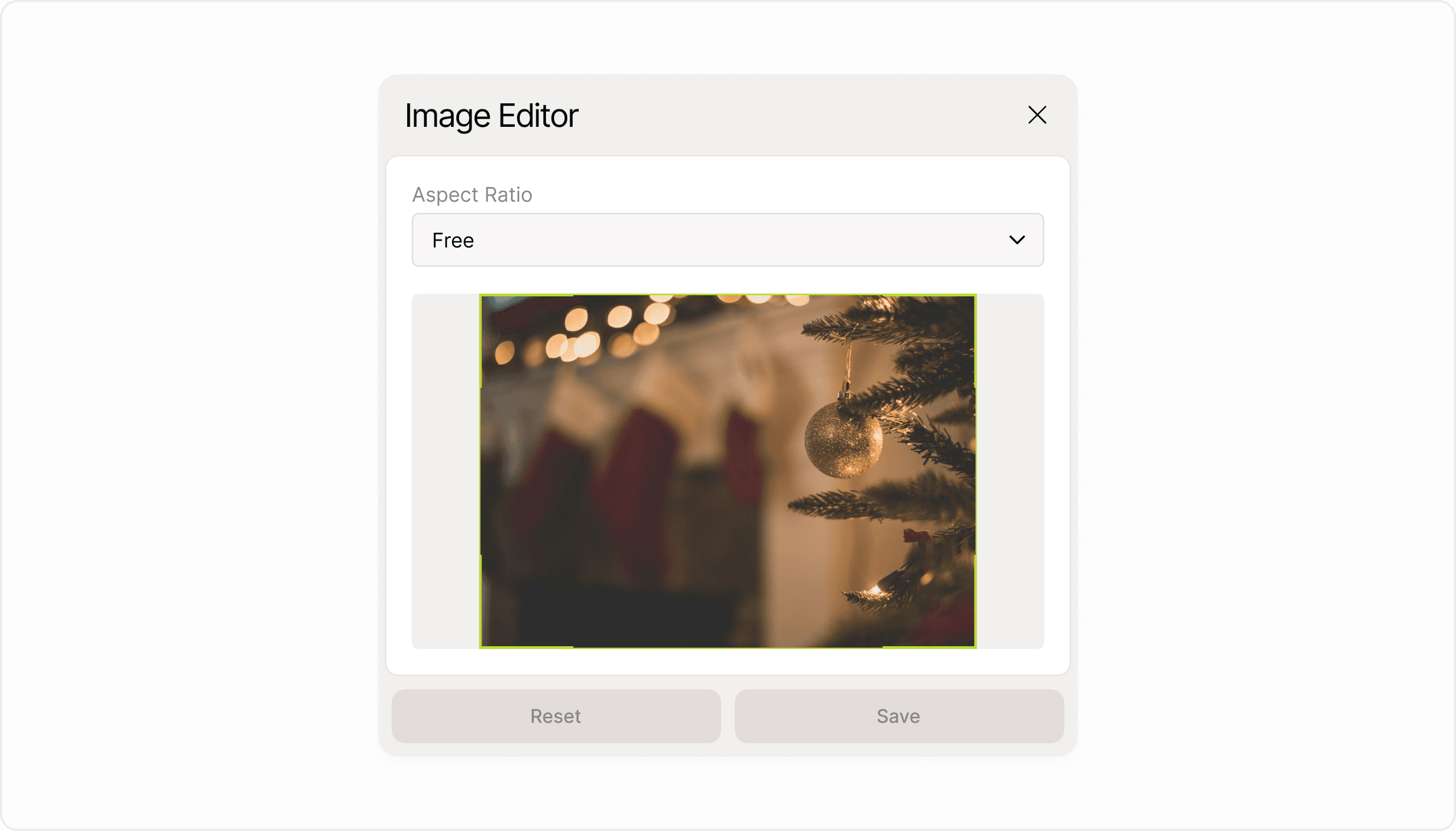
How to Open the Image Editor
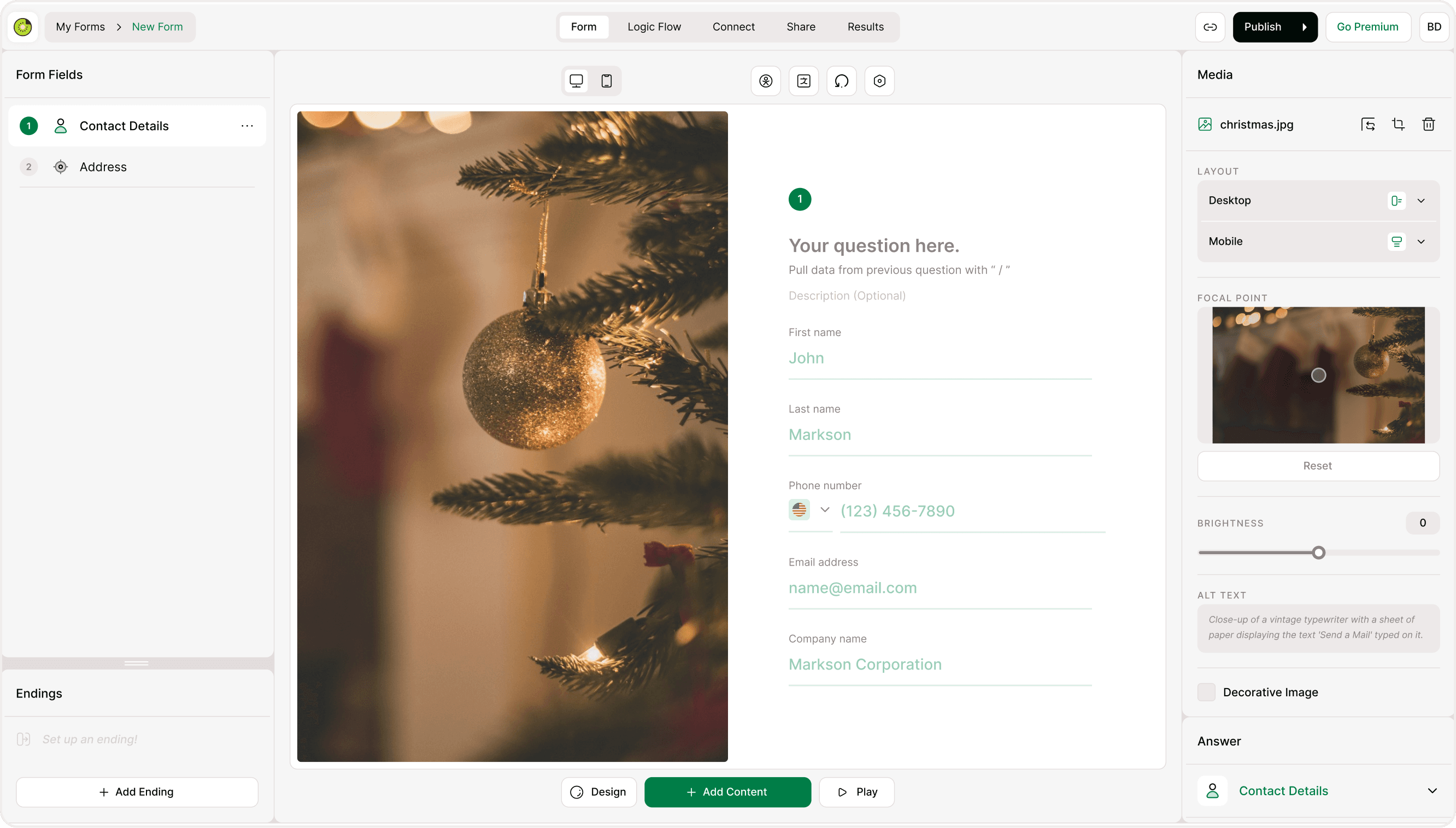
You can access the Image Editor in two simple ways:
Editing an Existing Image: When an image is already added to your form, the Media panel displays the image file name along with action icons. Clicking the crop icon opens the Image Editor popup.
Editing Immediately After Upload: When you upload a new image to a form, the Image Editor opens automatically right after the upload is complete. This lets you adjust the image before it appears in the form layout.
This workflow helps ensure images look right from the start, without extra steps.
Cropping Images Using Aspect Ratios
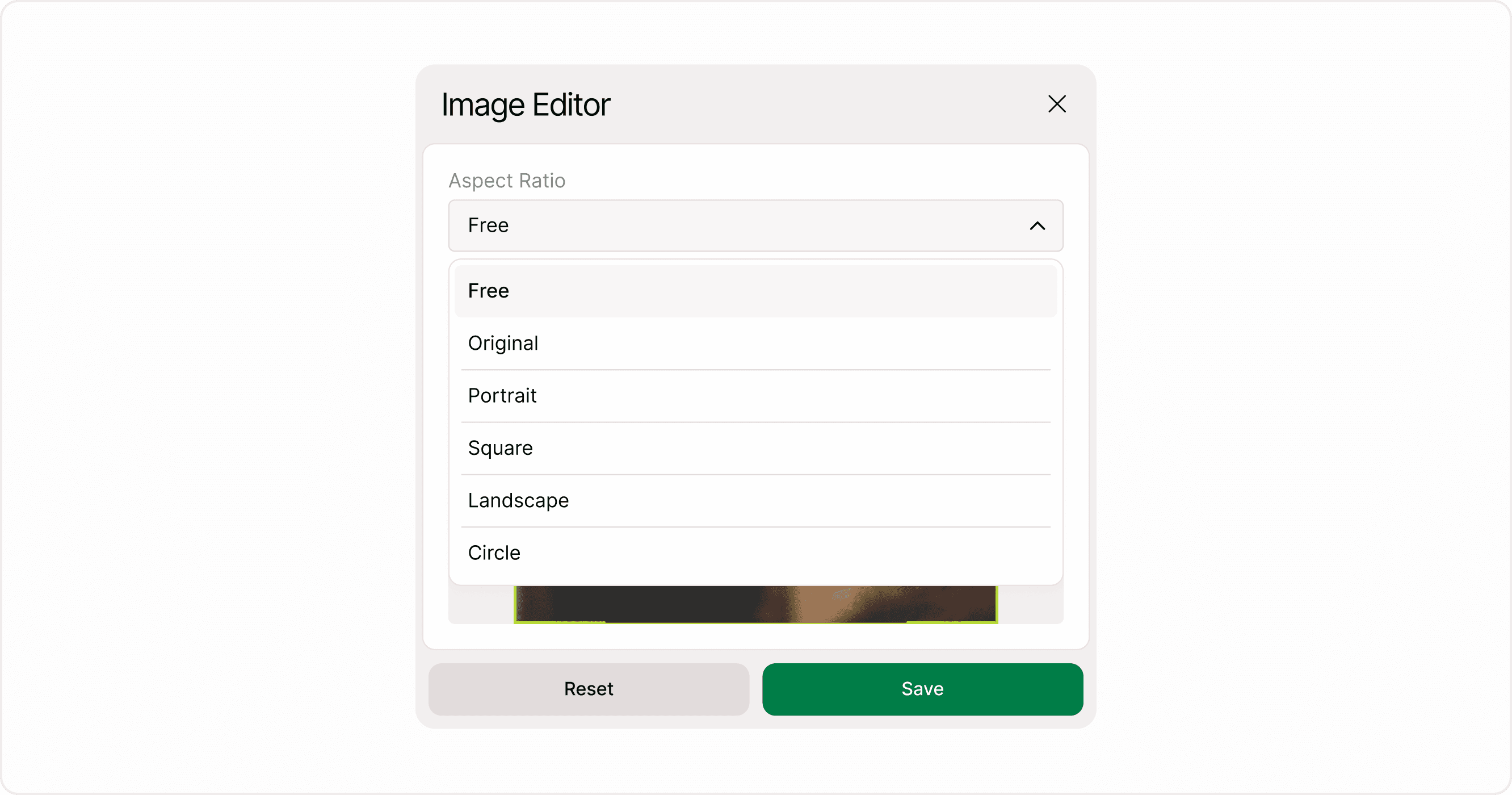
At the core of the Image Editor is the Aspect Ratio control. This determines how your image is cropped and displayed within the form.
Available Aspect Ratios
Free : Crop the image without restrictions
Original : Preserve the image’s original dimensions
Portrait : Ideal for vertical visuals and mobile-first layouts
Landscape : Best for wide images and banners
Square : Useful for balanced layouts and thumbnails
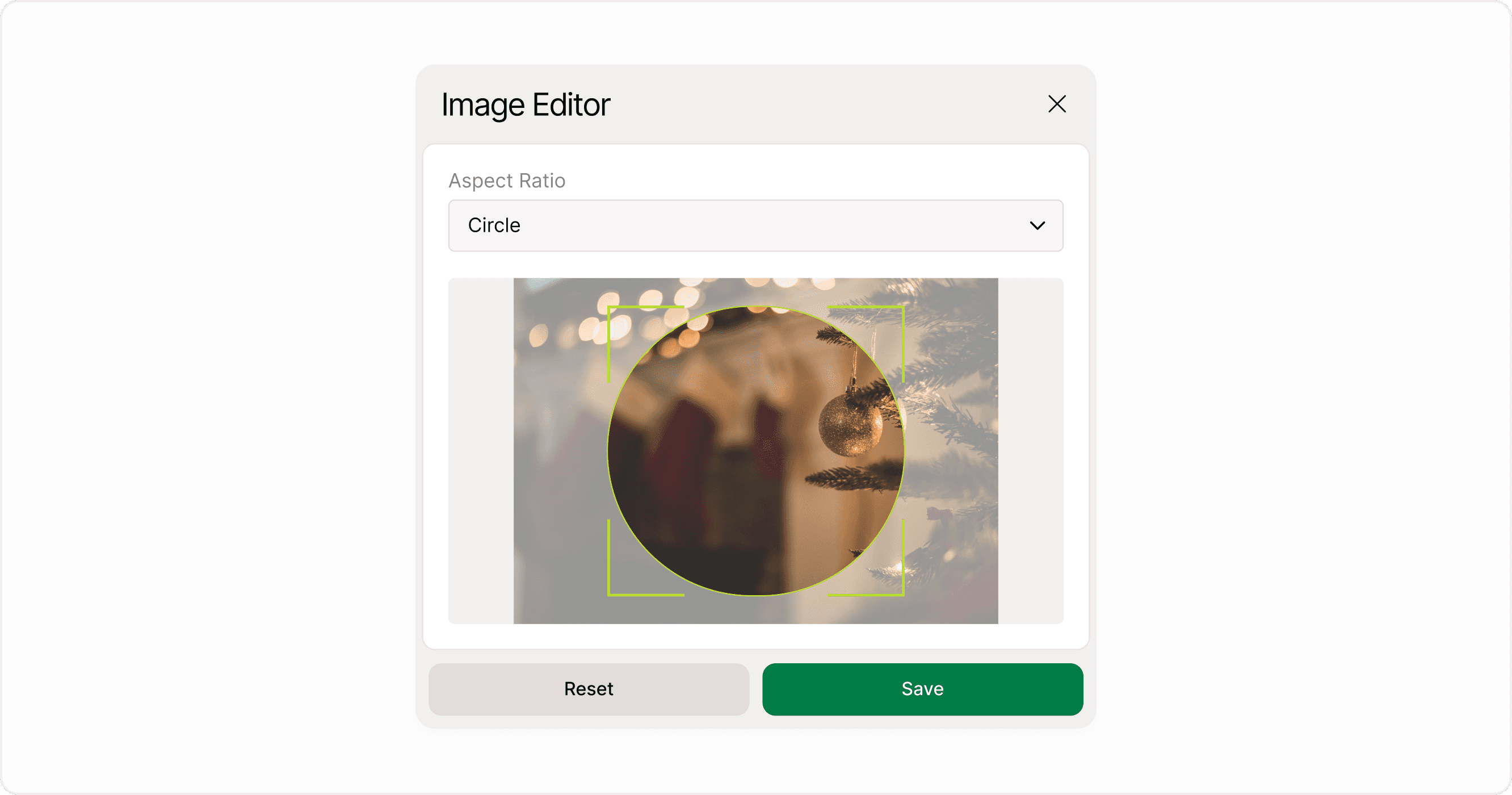
Circle : Suitable for avatars or decorative elements
Each layout is configured separately, so your form looks intentional, not resized; on smaller screens.
Resetting and Saving Changes
Reset restores the image to its original, uncropped state
Save applies the crop and updates the image inside your form
If no changes are made, the Save button remains inactive—helping prevent accidental edits
This keeps image handling predictable and safe, especially when collaborating or iterating on form design.
Where the Image Editor Fits in the Form-Building Flow
The Image Editor works alongside other form media tools, but its role is focused:
Media panel : Manages image placement and layout
Image Editor : Controls how the image itself is cropped and framed
This separation keeps each step simple and avoids overwhelming the builder with too many controls at once.
Best Practices for Using the Image Editor
Choose an aspect ratio that matches your form layout before cropping
Keep important visual details centered within the crop area
Use simpler crops for mobile-first forms to avoid accidental cut-offs
Preview your form after saving to confirm the image feels balanced
Summary
The Image Editor helps you maintain visual consistency without slowing down form creation. By keeping cropping simple and accessible, Kiwiform ensures your forms look polished while staying easy to build and reinforcing its position as a free Typeform alternative designed for clarity, speed, and modern form experiences.