What is Invite Members in Kiwiform?
Invite Members allows you to collaborate with your team inside a shared workspace. Instead of working individually, you can bring in teammates to create forms, review responses, and manage workflows together.
Each workspace acts as a shared environment where members can access forms and contribute based on their assigned role. This is especially useful for teams handling surveys, client data, feedback collection, or internal processes.
With Invite Members, you stay in control of:
Who can access your workspace
What actions they can perform
How your team collaborates on forms and responses
Where to Find the Invite Option
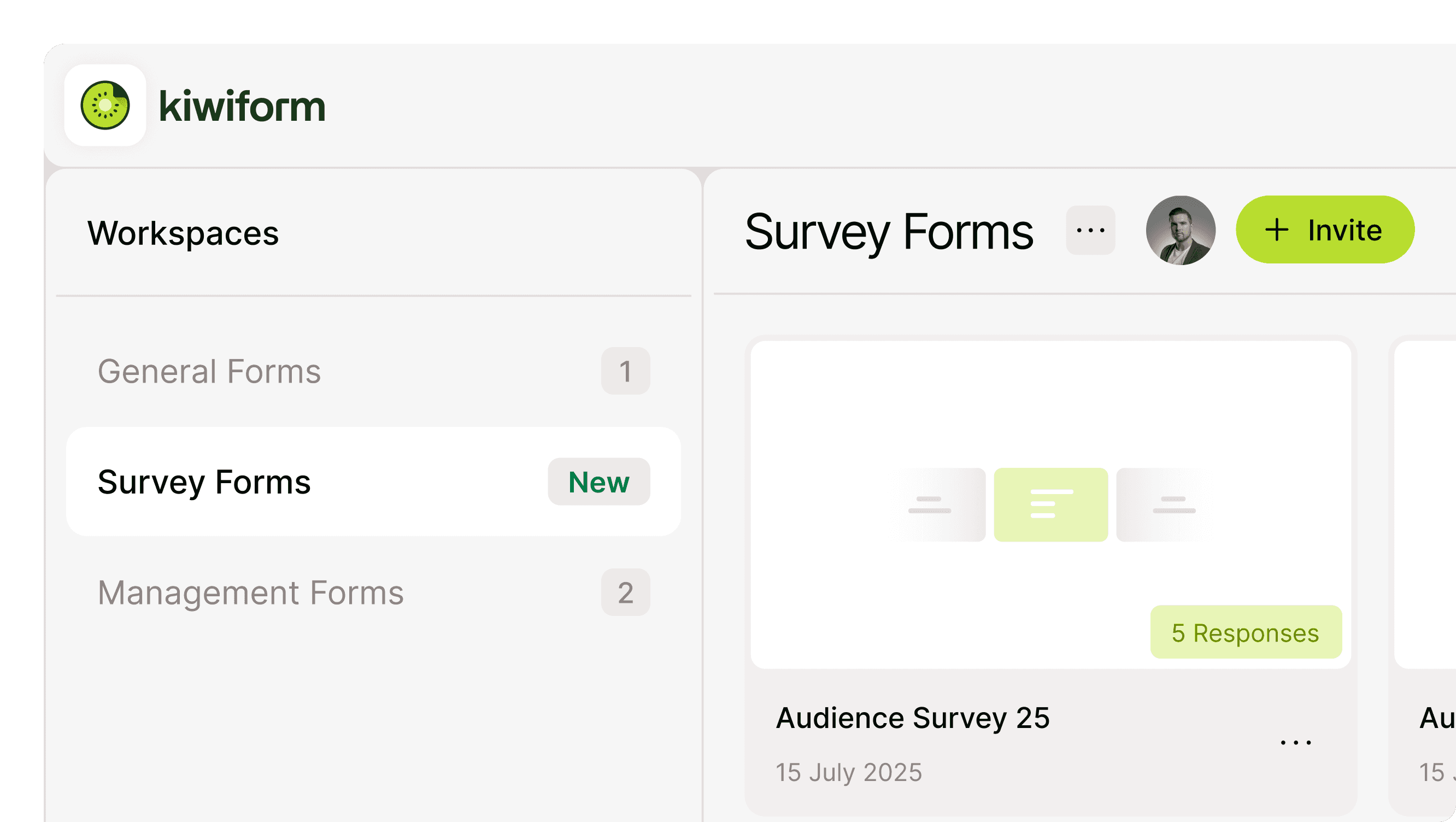
You can invite members directly from your workspace screen.
Open your workspace
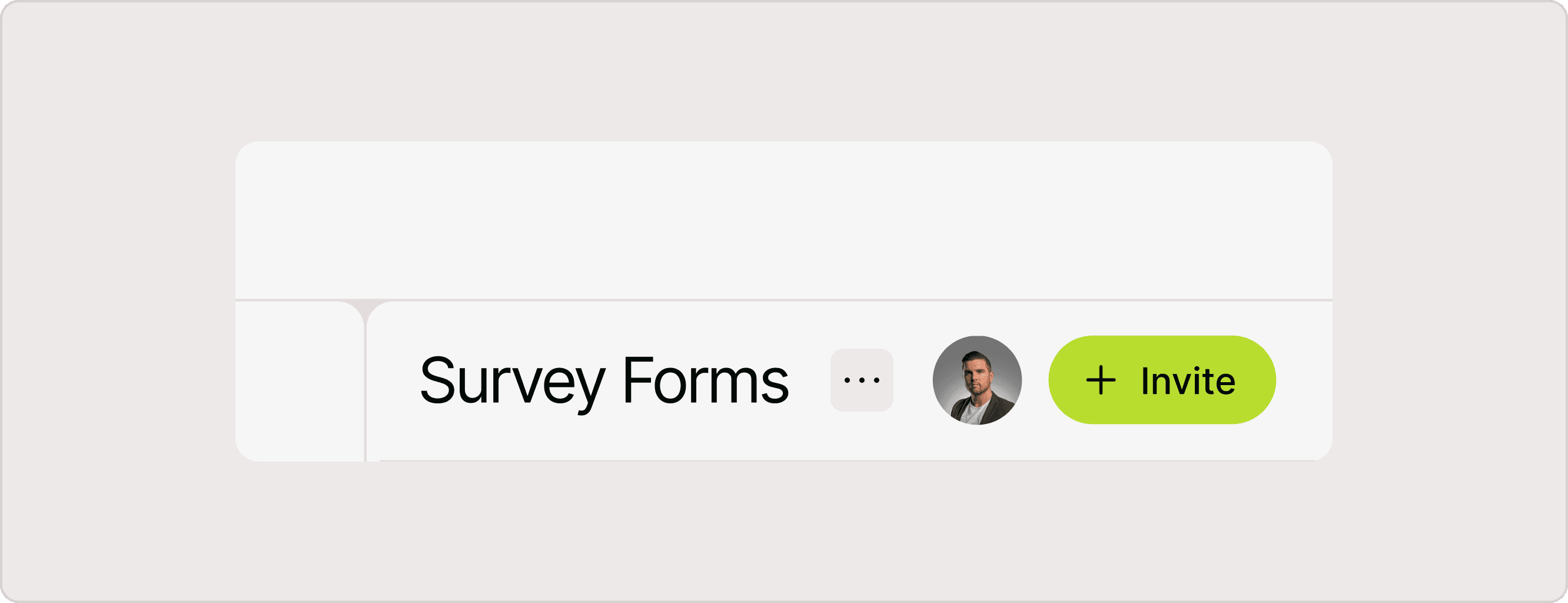
Locate the workspace header at the top
Click on the “+ Invite” button next to the user profile icons
This opens the Invite Members modal, where you can add new members and manage existing ones.
How to Invite Members
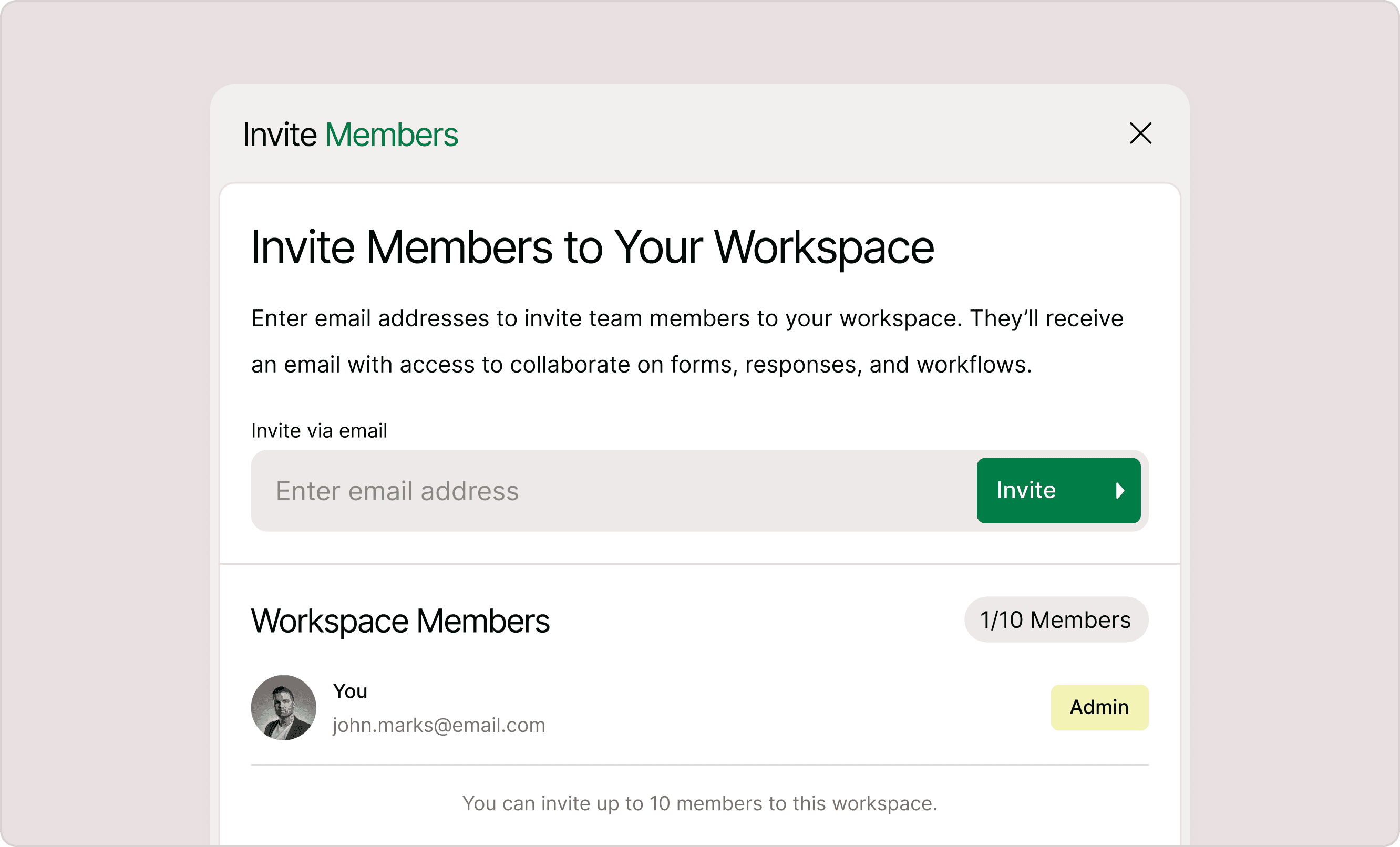
Inviting members is quick and works through email.
Click + Invite in the workspace header
Enter the email address in the input field
Click Invite
Once invited:
The user receives an email invitation
If they already have a Kiwiform account → they are added directly
If they don’t → they will sign up using that email and then access the workspace
This ensures a smooth onboarding experience without manual setup.
What Happens After Sending an Invite
After sending an invitation, the process depends on the recipient:
Existing users:
Can access the workspace immediately after accepting the invite
New users:
Are guided through sign-up
Automatically land inside the invited workspace
This eliminates friction and ensures team members can start collaborating right away.
Managing Workspace Members
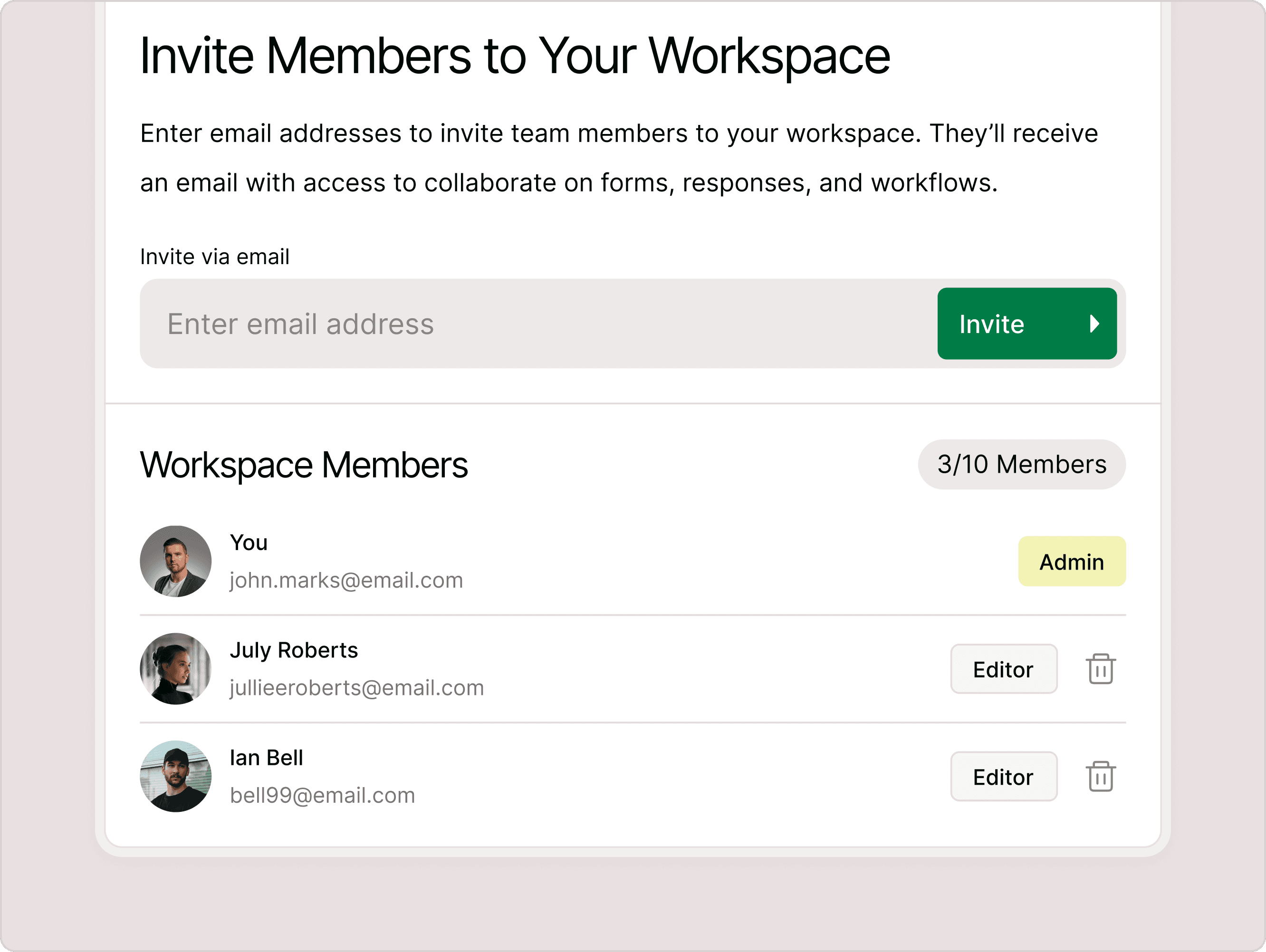
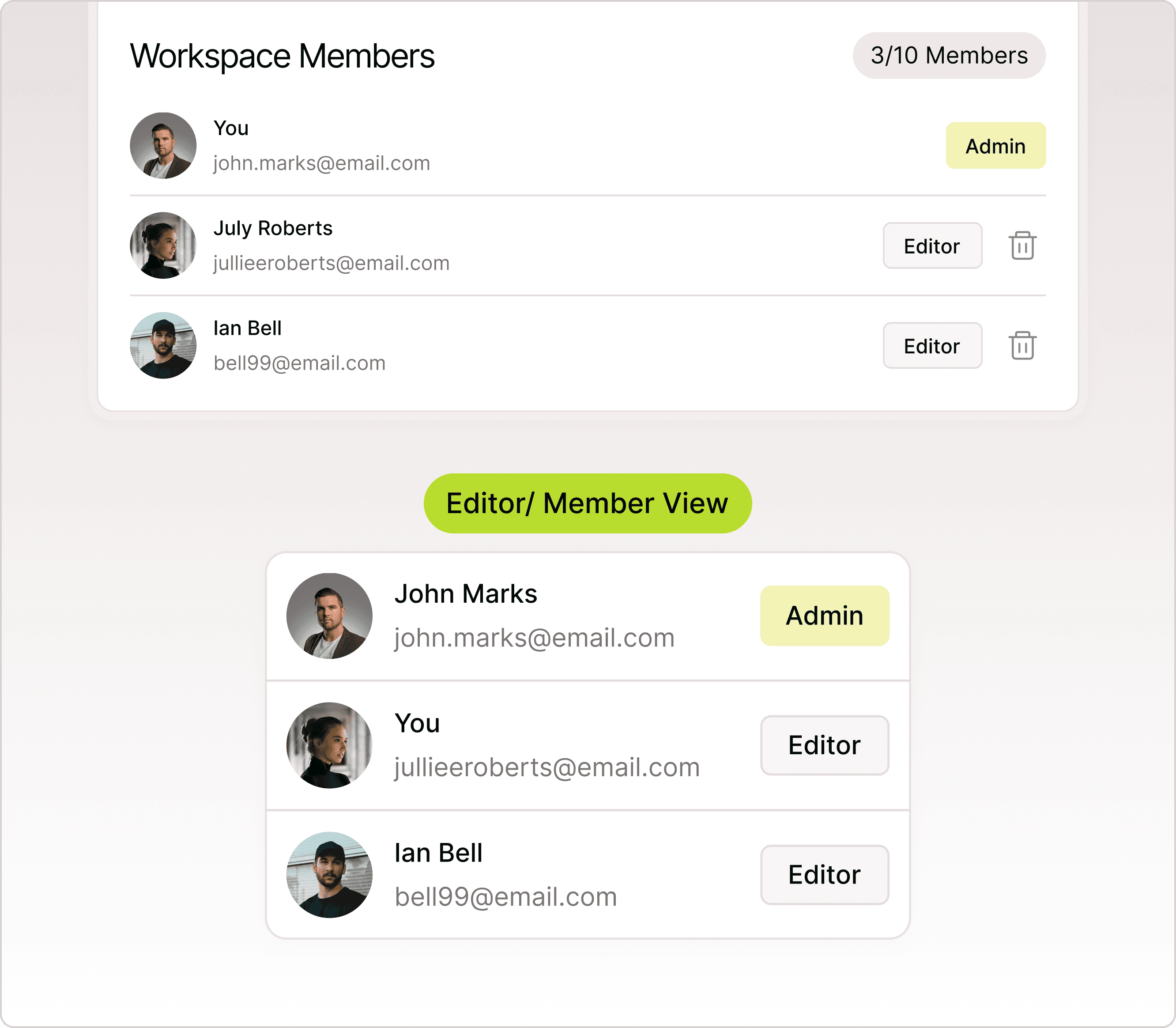
Inside the Invite Members modal, you’ll see a list of all current members.
Each member includes:
Profile image
Name and email address
Role tag (Admin or Editor)
Roles Explained:
Admin
Full control over the workspace
Can invite and remove members
Can manage roles and settings
Editor
Can create and edit forms
Can view and manage responses
Cannot manage members or workspace settings
Admins can remove editors using the delete icon next to their role.
Viewing Members from Workspace
You can also view members without opening the modal.
Click on the profile icons in the workspace header
A member list card will appear
This gives a quick overview of:
Who has access
Their roles
Active collaborators
The current user is labeled as “You” for clarity.
Member Limit
Each workspace has a maximum number of members.
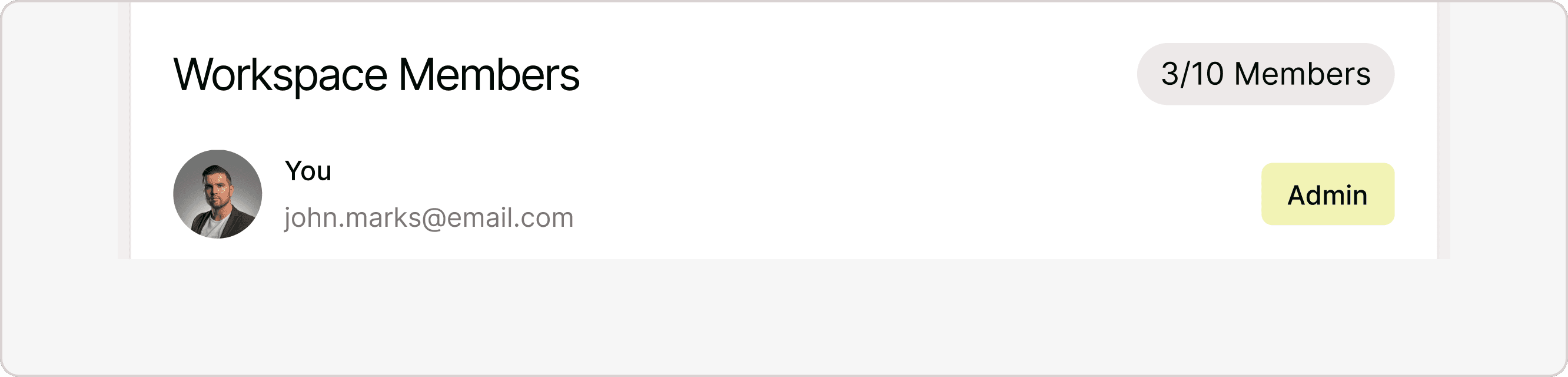
Example: 1/10 Members
This indicates how many members are added vs allowed
If the limit is reached:
You won’t be able to invite new members
You’ll need to remove an existing member to add another
This helps maintain structured collaboration and prevents overcrowding.
Why Use Invite Members
Using Invite Members improves how teams work with forms:
Faster collaboration: Multiple people can work simultaneously
Better organization: Centralized workspace for all forms
Access control: Assign roles based on responsibility
Scalability: Easily add or remove team members as needed
It ensures your workflow stays efficient without compromising control.
Best Practices
To get the most out of Invite Members:
Use Editor roles for contributors who only need form access
Keep your workspace organized when working with larger teams
Regularly review and remove inactive members
Ensure invited emails are correct to avoid access issues
These practices help maintain a clean and secure collaboration setup.
Summary
Invite Members in Kiwiform allows you to collaborate efficiently by adding team members to your workspace with controlled access and clear roles. You can invite users via email, manage permissions through Admin and Editor roles, and monitor workspace members from a centralized view. Whether you're working with a small team or scaling collaboration, this feature ensures your forms, responses, and workflows stay organized, accessible, and easy to manage within a free Typeform alternative designed for team-based productivity.