When to use the Legal Text field
Use the Legal Text field when you need respondents to explicitly agree or decline a statement before continuing.
Common use cases include:
Accepting terms and conditions
Agreeing to privacy policies
GDPR consent confirmation
Data processing consent
Liability disclaimers
Event waivers
Marketing opt-in consent
Unlike a simple Yes / No field, Legal Text is specifically designed to present formal agreement statements where clear acknowledgment is important.
Add a Legal Text field to your form
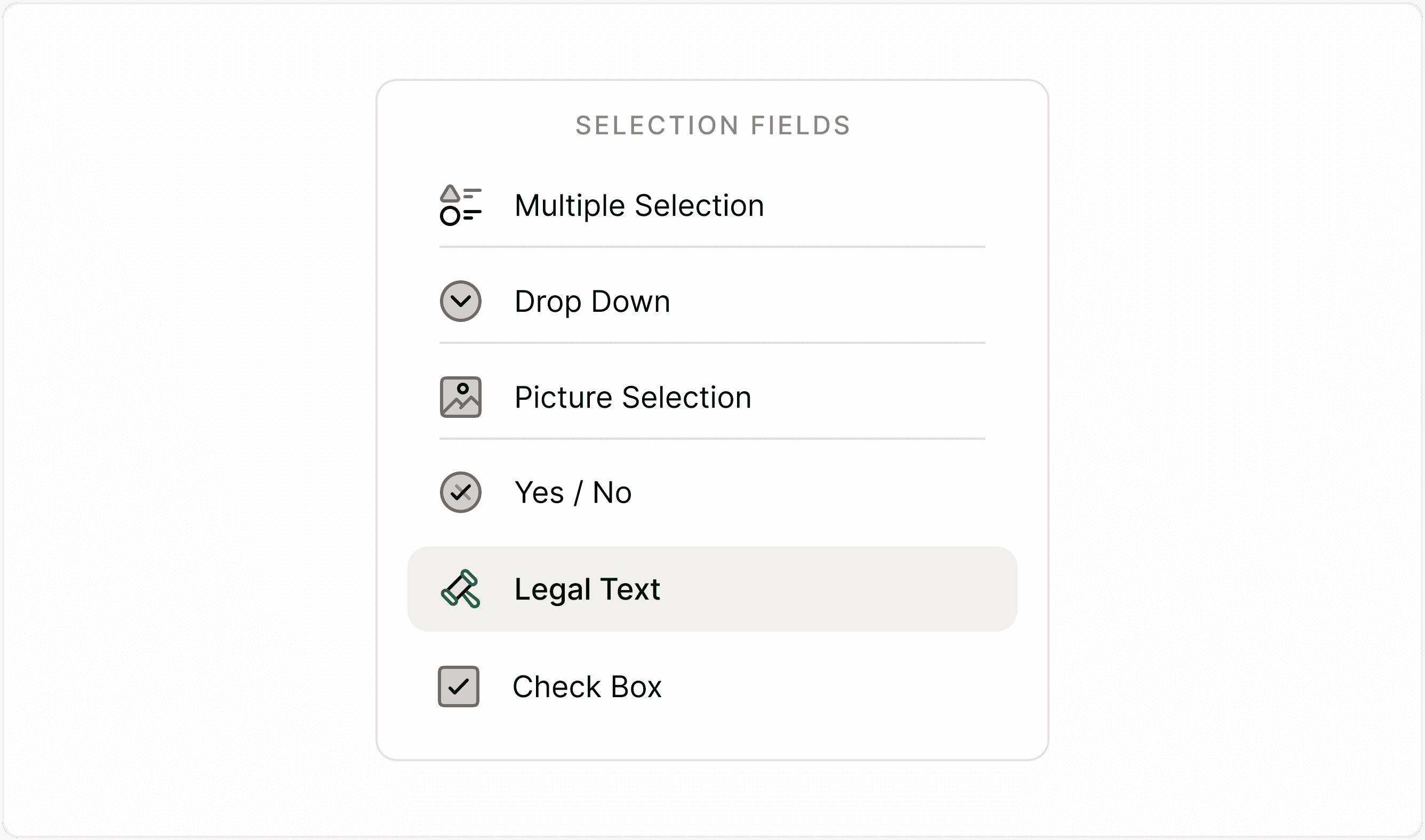
To insert the Legal Text field:
Open your form in the builder.
Click Add Content.
Select Legal Text from the form fields list.
Enter your agreement statement.
Add an optional description if additional clarification is required.
Write the agreement clearly and concisely. If referencing external policies, include direct links within the text.
Configure the Legal Text field
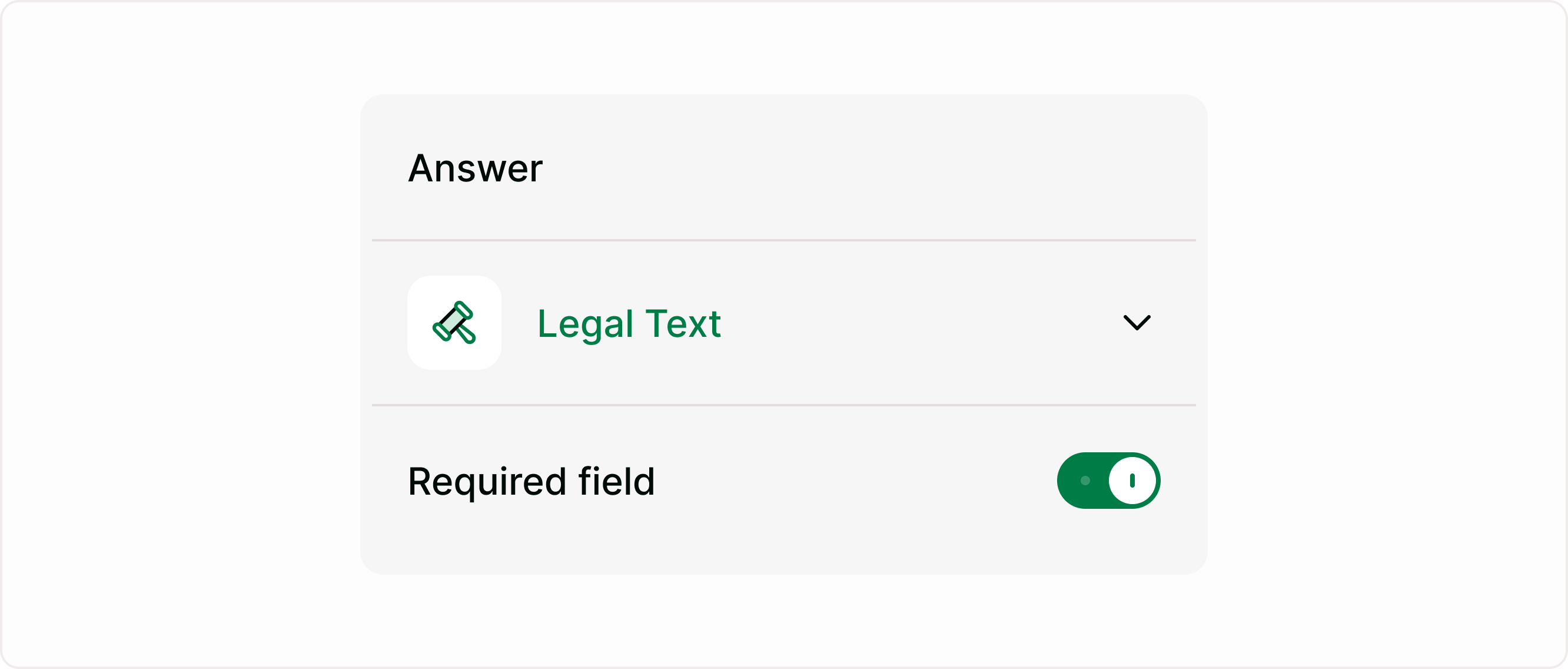
When the Legal Text field is selected, the Answer panel appears on the right side.
Required field
Enable Required field if respondents must agree before submitting or moving forward. This is strongly recommended for legal compliance scenarios.
Use required mode when:
Collecting GDPR consent
Requiring agreement to terms
Collecting legally binding acknowledgments
Capturing mandatory waivers
If the field is not required, respondents may skip it, which may not be suitable for compliance-related workflows.
Using Legal Text with form logic
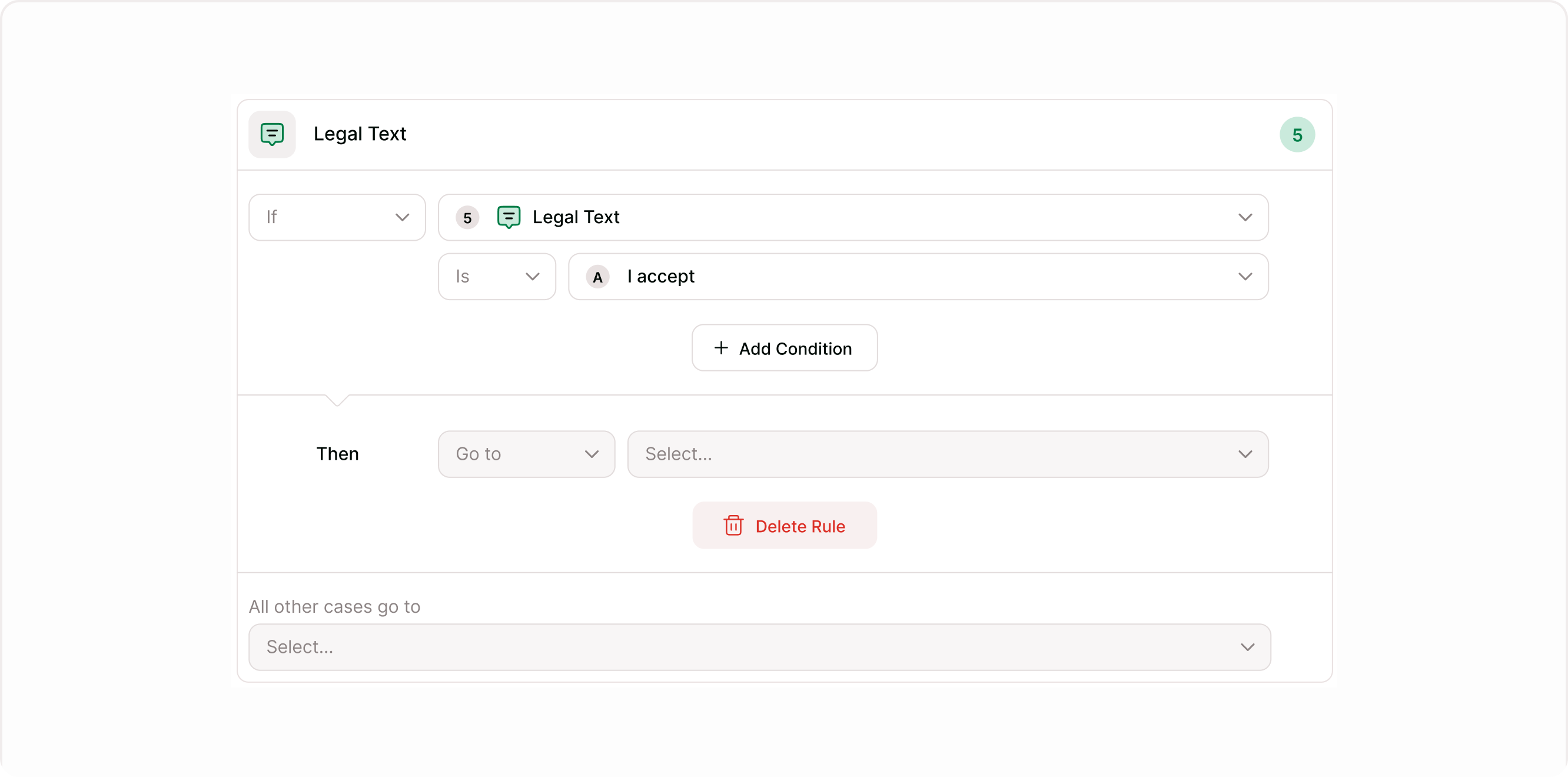
The Legal Text field works effectively with logic and branching.
You can:
End the form if a respondent does not accept
Show additional steps only after acceptance
Trigger different endings based on agreement
Control access to downloads or confirmation
This allows you to create compliant flows that protect both your organization and respondents.
How respondents see the Legal Text field
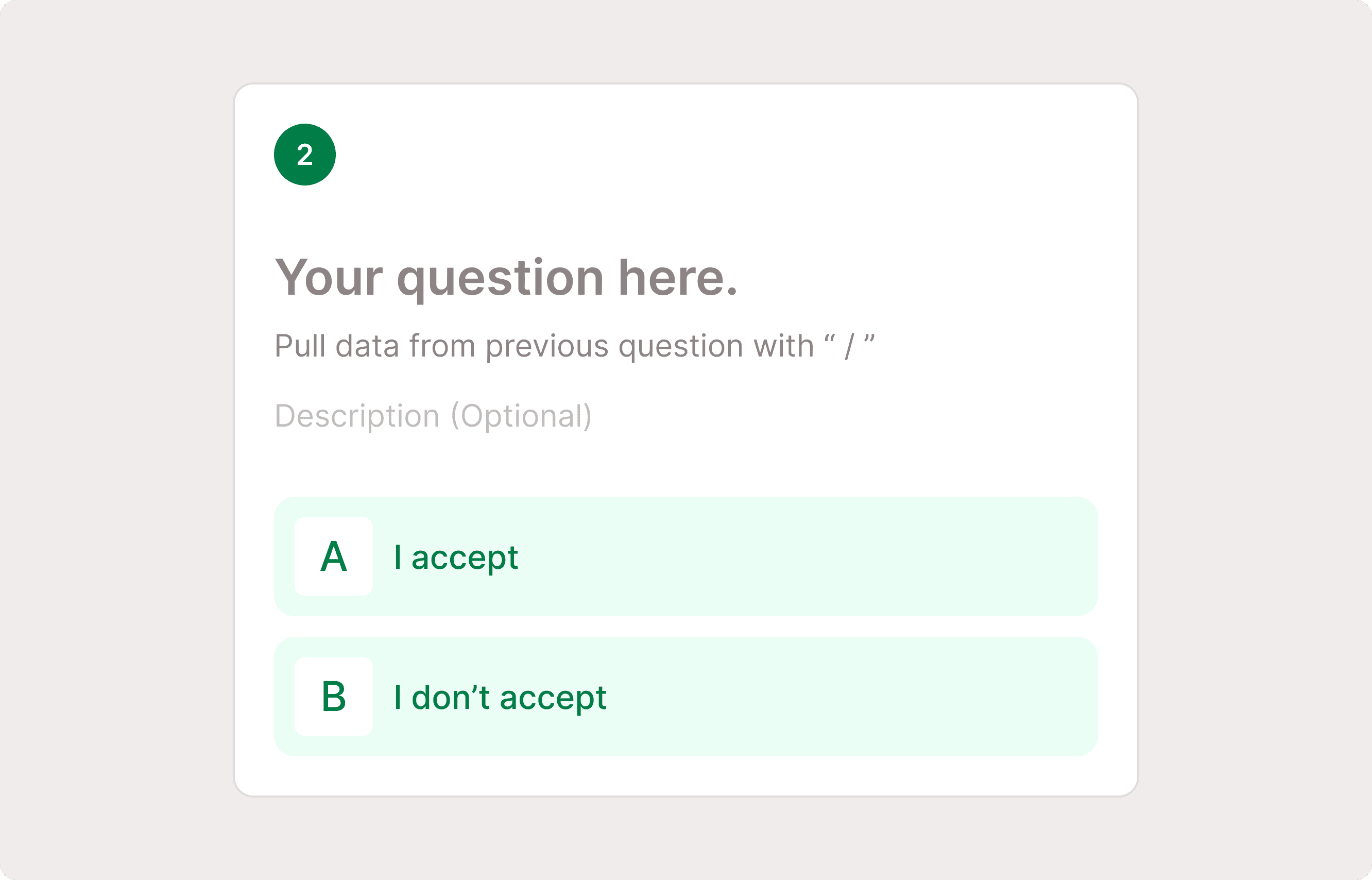
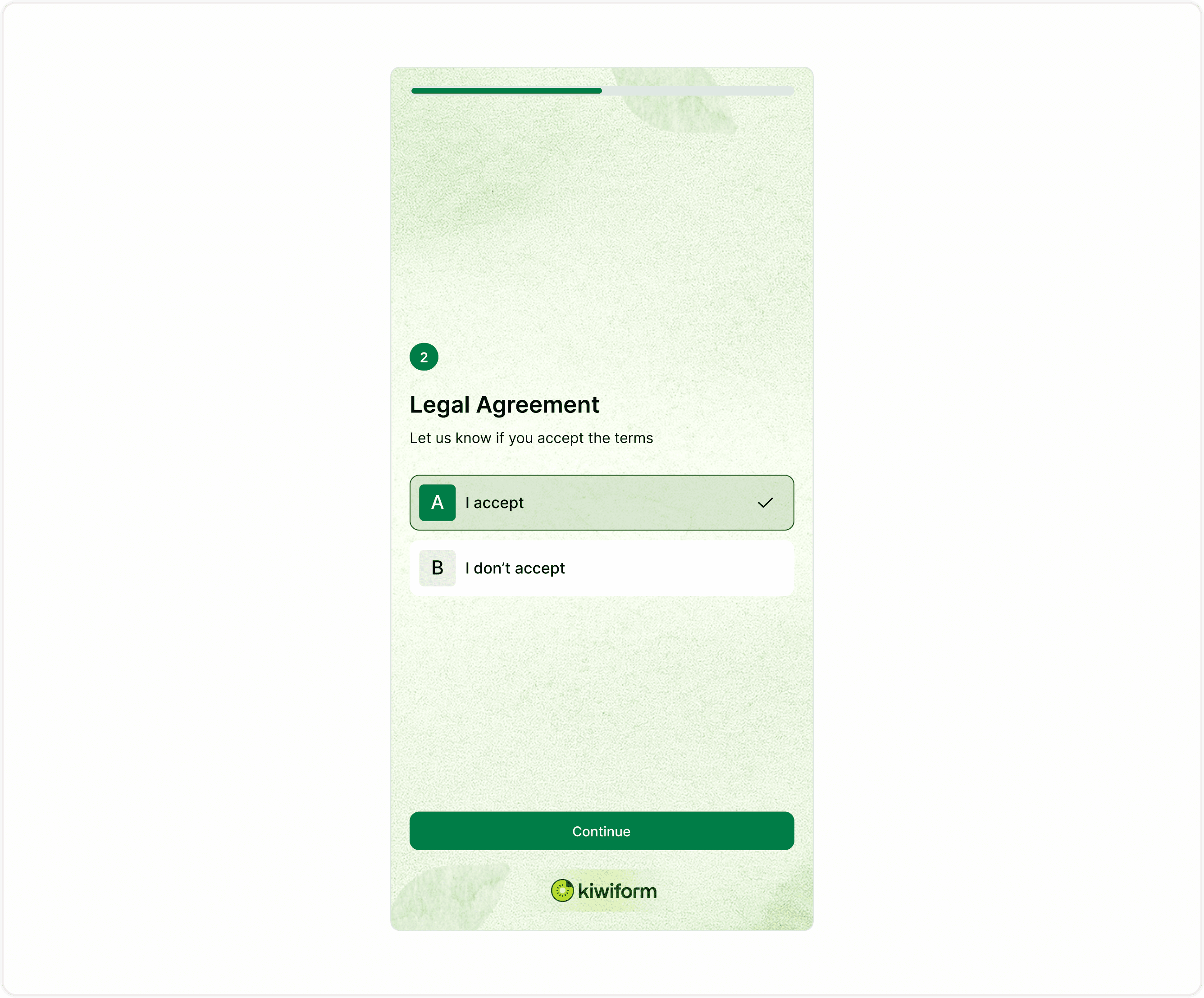
In the live form, respondents see your agreement statement with two selectable options such as:
I accept
I don’t accept
This ensures that consent is clearly recorded and tied to the specific submission. The structured format keeps responses consistent and easy to review later.
Best practices
Keep the agreement clear and easy to understand.
Avoid overly complex legal language where possible.
Link to full policies rather than embedding long legal documents.
Make the field required when compliance matters.
Test the form to ensure logic behaves correctly.
Summary
The Legal Text field is designed for collecting explicit agreement from respondents. It is commonly used for terms and conditions, privacy policy consent, disclaimers, and data usage confirmations. This article explains how to add the field, configure required settings, and use it properly so your forms stay compliant and structured.