What is logic in Kiwiform?
Logic lets your form respond dynamically to answers. Instead of showing every question to everyone, you can guide each respondent through a tailored path based on what they select, type, or qualify for. This makes your form shorter, more relevant, and more engaging.
In Kiwiform, logic is managed from the Logic Flow view—your visual map of how questions connect. From here, you can create branching paths, reorder flow, and design how respondents move from one field to another.
Logic helps you:
Personalize form experiences
Skip irrelevant questions
Segment respondents
Create quizzes, lead funnels, and onboarding flows
Improve completion rates
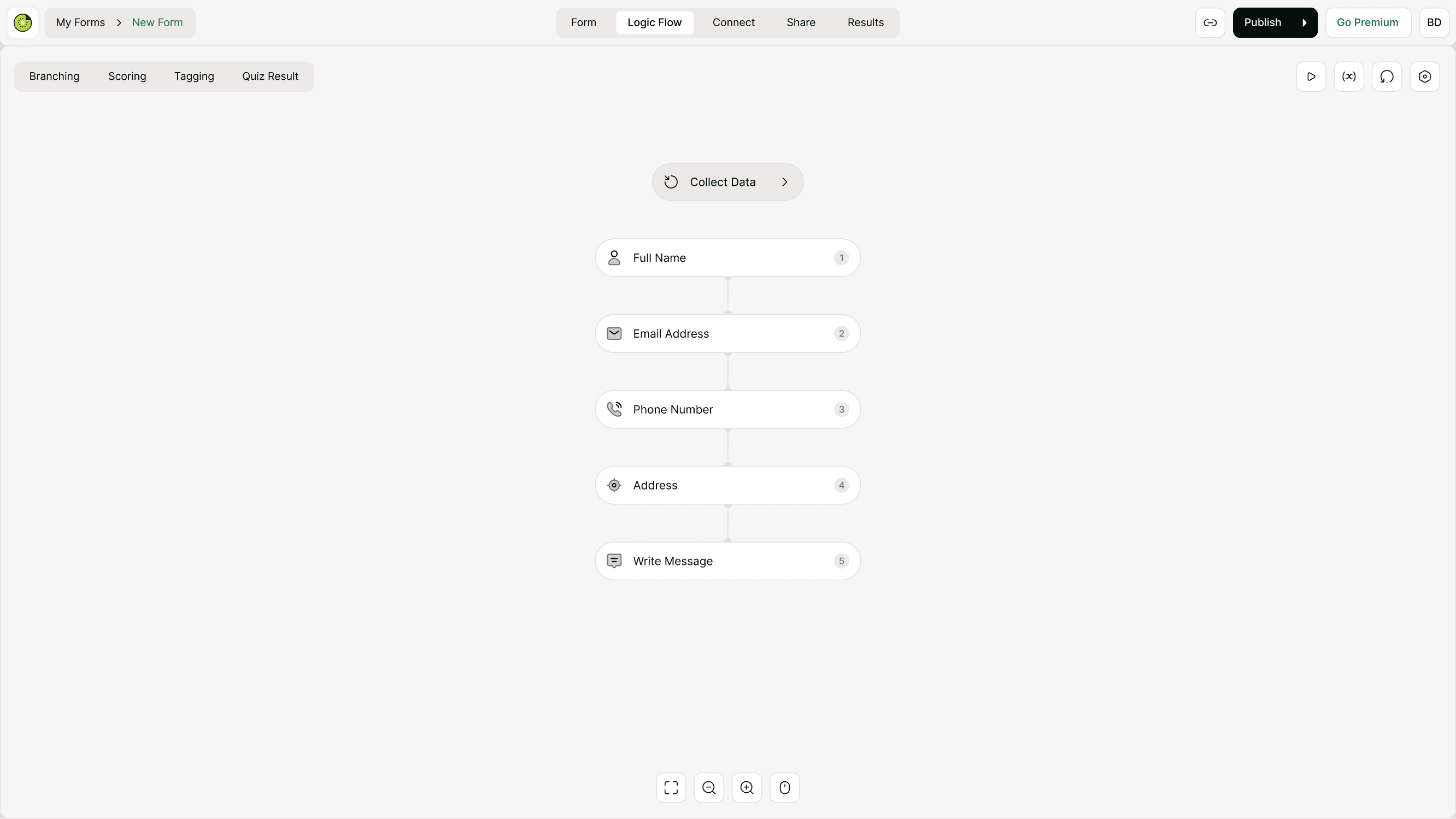
Where to find Logic Flow
Open your form in the builder and click Logic Flow from the center navigation at the top. This opens the visual logic board where all questions appear in order.
At the top left, you’ll see logic tools:
Branching
Scoring
Tagging
Quiz Result
At the top right:
Preview
Variables
Version history
Form settings
At the bottom:
Fit to screen
Zoom in/out
Trackpad or mouse controls
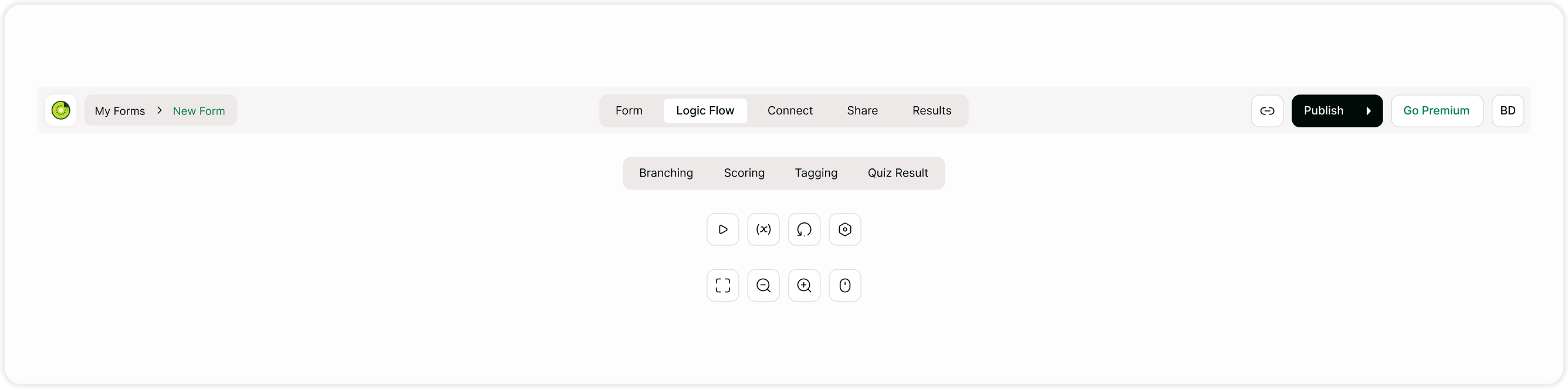
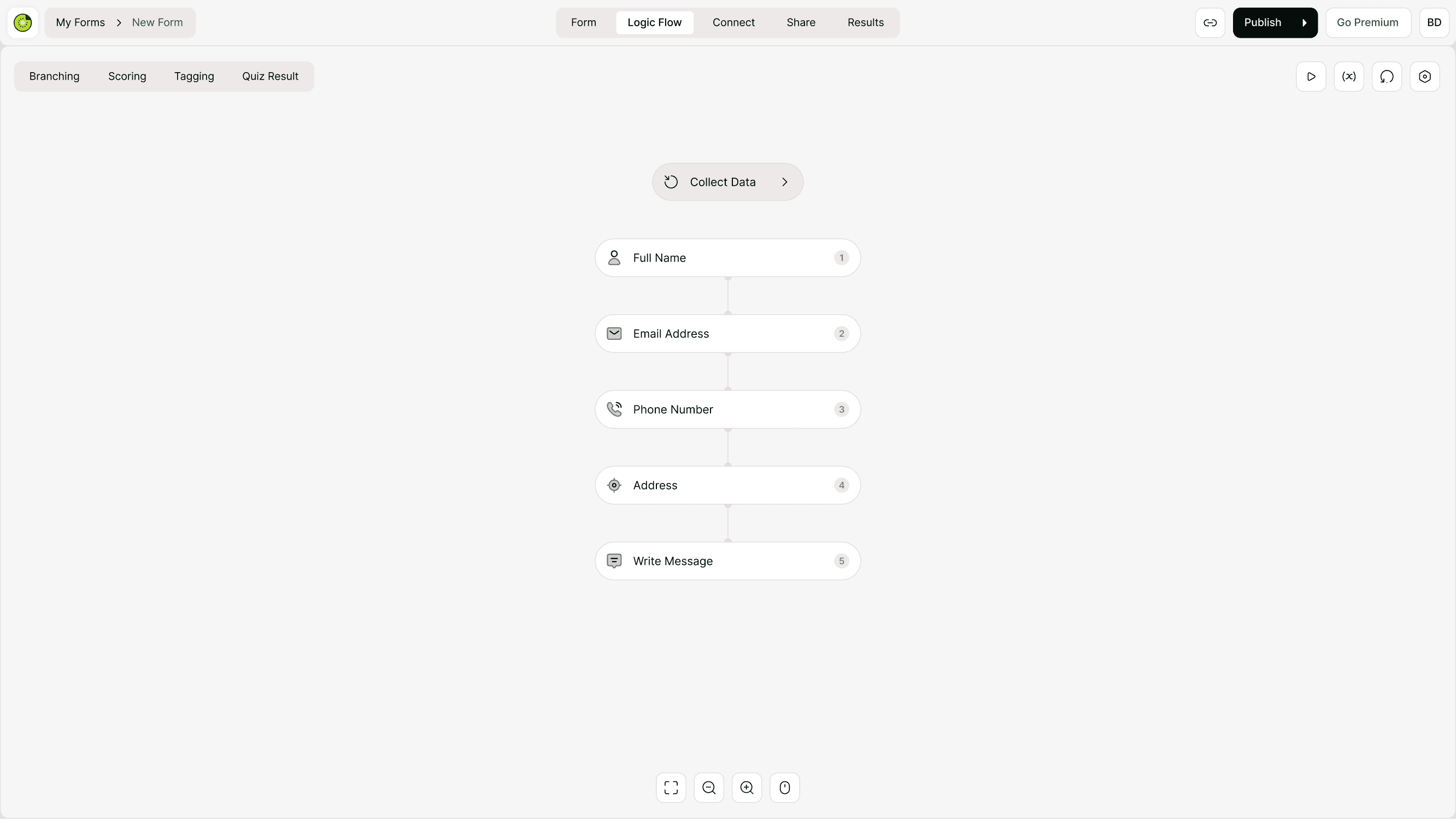
Understanding the logic board
The logic board shows your form as a vertical flow. Each field connects to the next in sequence. You can change this flow by dragging connections between fields to create new paths.
This visual layout helps you:
See how questions connect
Identify alternate paths
Avoid broken flows
Build complex logic clearly
If no logic is added, the form follows a simple top-to-bottom sequence.
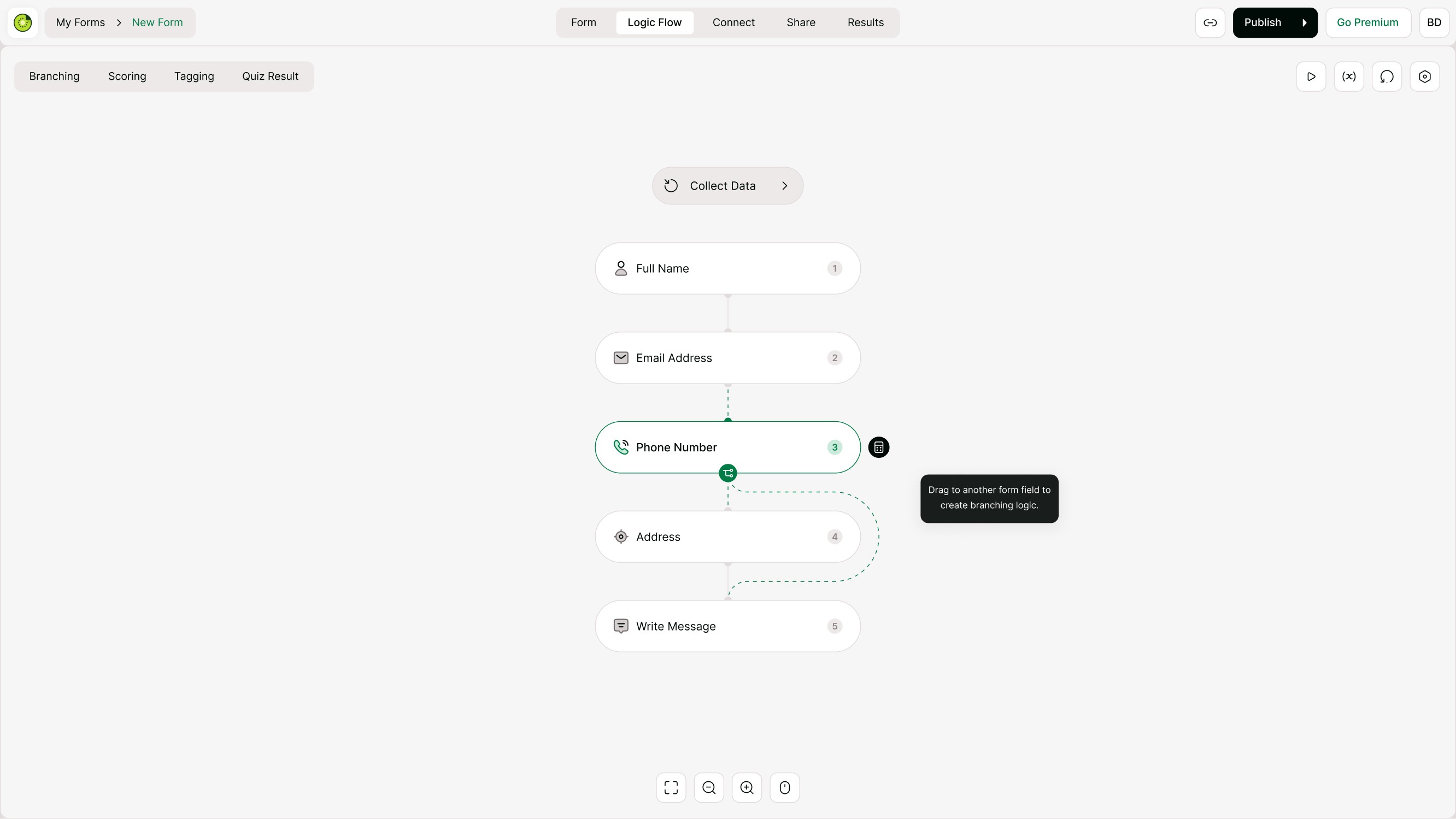
Creating branching logic
Branching allows you to send respondents to different questions depending on their answers.
Example uses:
Show pricing options based on plan selection
Ask follow-up questions only if someone says “Yes”
Skip irrelevant sections
Route leads based on interest
To create branching:
Open Logic Flow
Select a question
Drag its connector to another field
Define the condition
Save
Once added, respondents will follow that new path.
Types of logic available
Kiwiform supports multiple logic types that work together to create dynamic experiences.
Branching
Send respondents to different questions based on answers.
Scoring
Assign points to answers and calculate results. Useful for quizzes, assessments, or lead scoring.
Tagging
Apply tags to responses for segmentation and automation.
Quiz results
Display outcomes based on score or logic conditions.
Each of these tools works within the same visual logic board.

Reordering flow
You can change the order of questions directly in the logic board. Simply drag fields up or down to adjust sequence. This helps you refine structure before adding conditions.
Reordering does not break logic automatically—but always review paths after changes.
Previewing logic
Always test your logic before publishing.
Use the Preview button in the top right to:
Walk through respondent paths
Confirm branching works
Check skipped questions
Verify quiz scoring
Testing ensures a smooth experience and prevents dead ends.

Common use cases
Lead qualification
Route users based on interest, budget, or role.
Surveys
Skip irrelevant sections and personalize follow-ups.
Quizzes
Score answers and show custom results.
Applications
Filter candidates based on criteria.
Onboarding forms
Adapt questions based on user type.
Best practices for using logic
Keep logic simple when possible. Complex flows are powerful but should remain clear and intentional.
Tips:
Start with a clear goal
Map logic before building
Avoid too many branches
Test every path
Keep questions relevant
Use tagging for segmentation
Well-structured logic improves completion rates and data quality.
Troubleshooting logic
If something doesn’t work:
Check connections between fields
Confirm conditions are correct
Ensure there’s an ending path
Test with preview
Review order changes
Most issues come from missing connections or incorrect conditions.
Summary
Learn how logic works in Kiwiform and understand how your form’s flow can adapt based on responses. Explore the Logic Flow board, visualize how fields connect, and build smarter forms by controlling what respondents see and where they go next.