What the Matrix field does
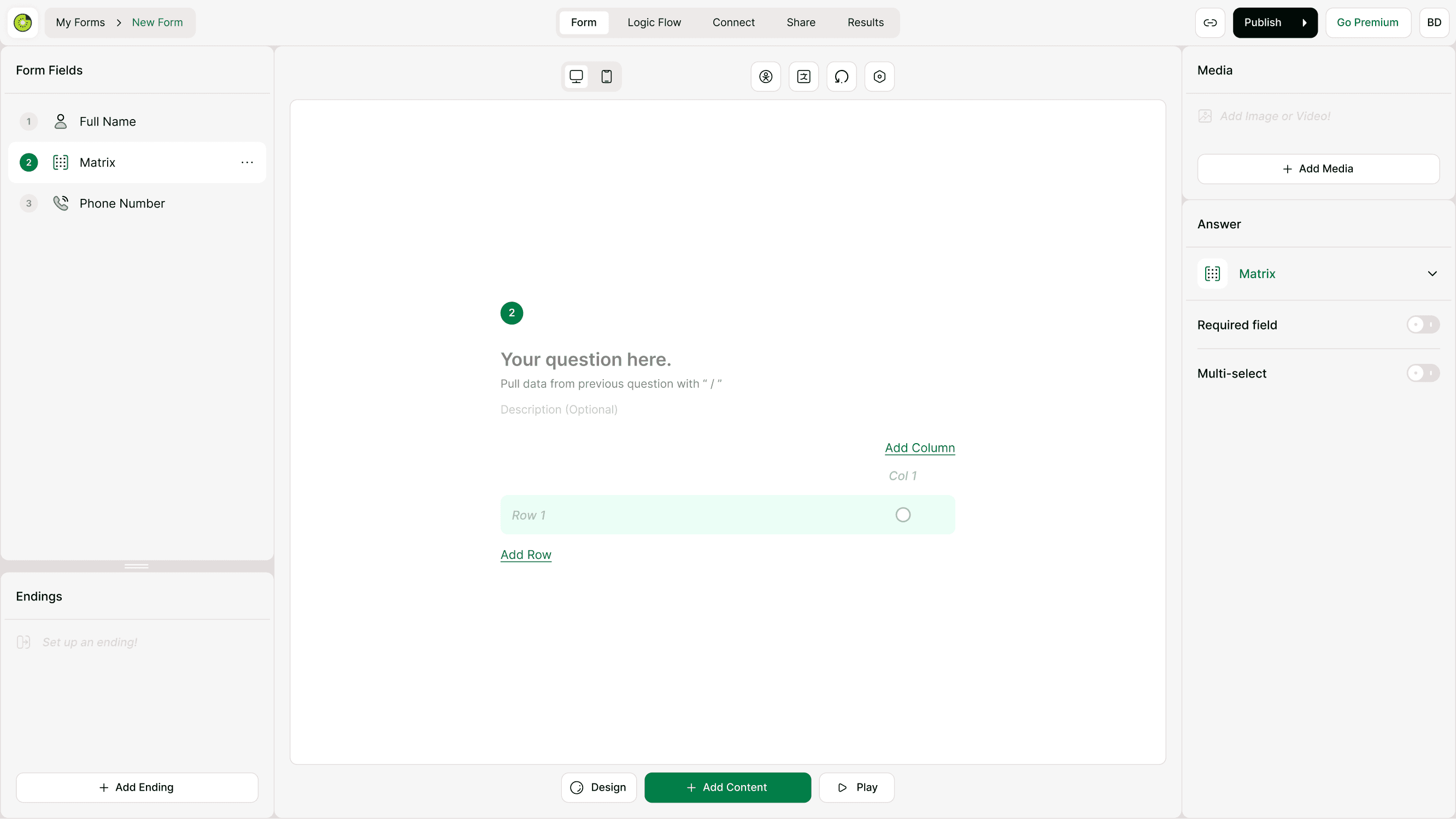
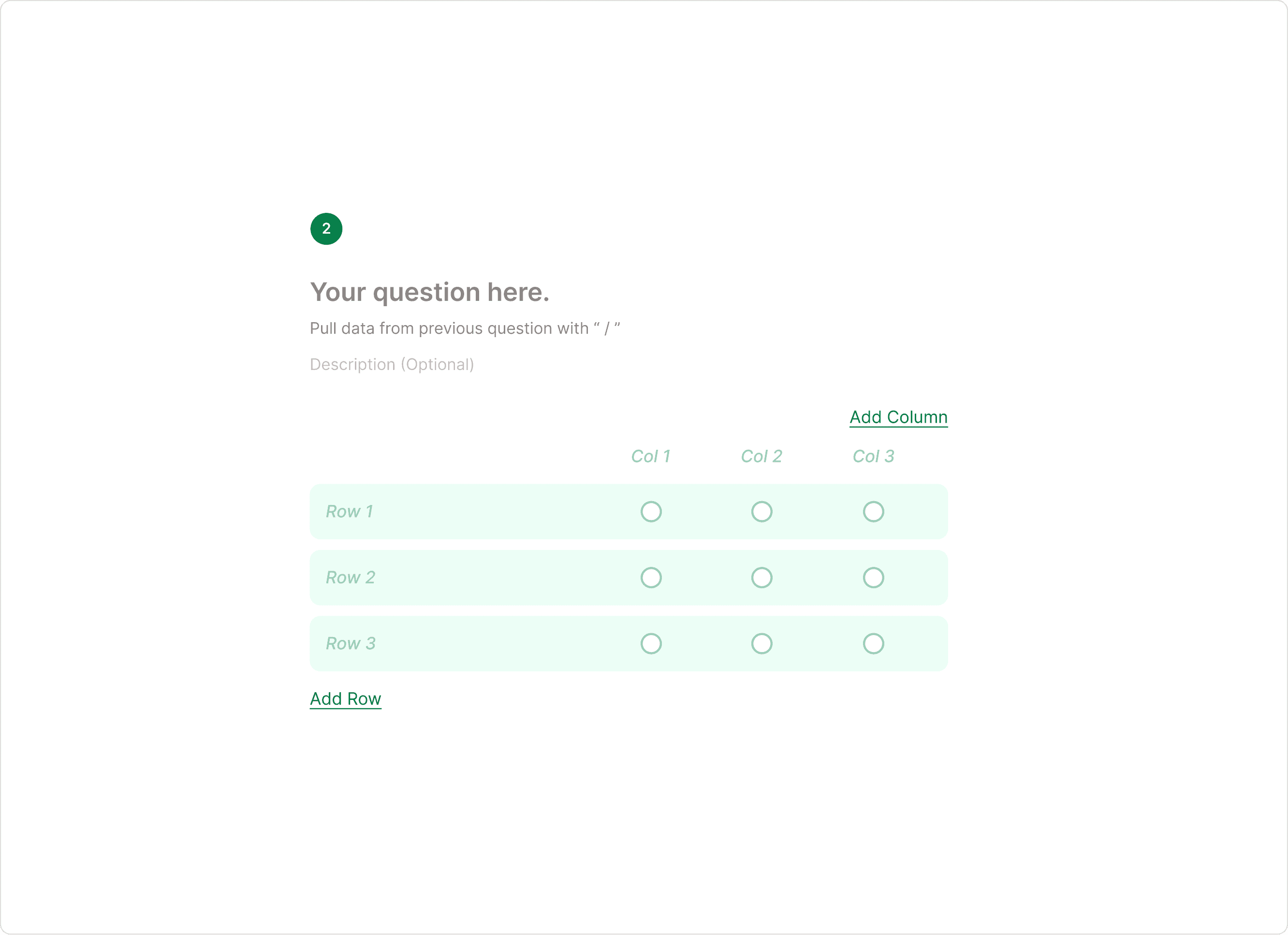
The Matrix field presents rows and columns in a grid. Each row represents an item to evaluate, and each column represents a response option. Respondents can select answers across the grid, allowing you to collect consistent feedback without repeating the same question multiple times.
You can use the Matrix field to measure satisfaction, compare features, collect agreement levels, or gather multi-item responses in a structured way. It keeps forms clean while still capturing detailed data.
When to use a Matrix field
Use the Matrix field when you need structured responses across multiple items.
Common use cases include:
Product or feature feedback
Event or workshop evaluations
Customer satisfaction surveys
Service quality assessments
Employee feedback forms
Course or training evaluations
Instead of asking several similar questions one by one, the Matrix field groups them into a single grid for a smoother response experience.
How to add a Matrix field
Add the field
Open your form in the builder.
Click Add Content.
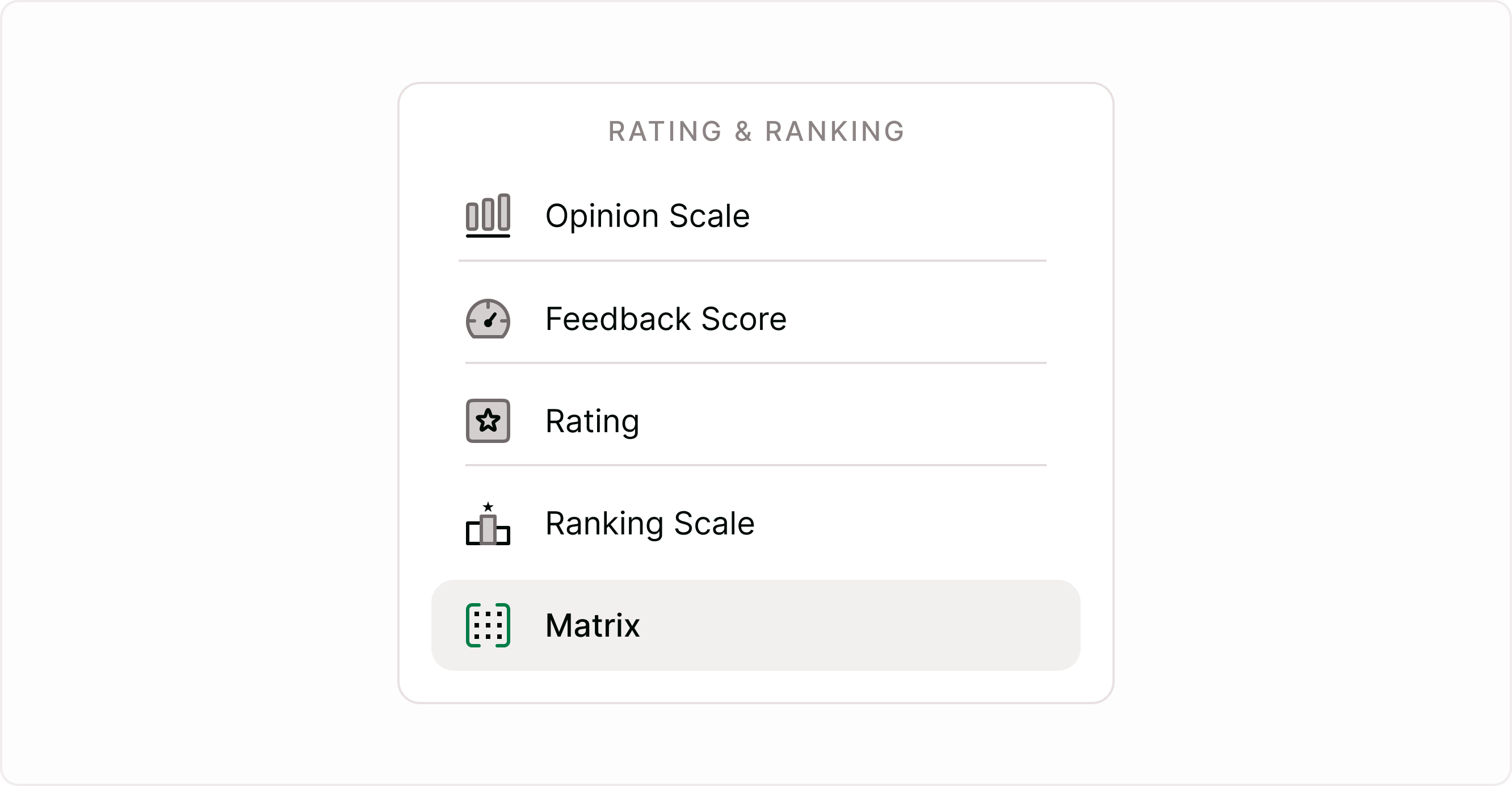
Select Matrix from the field list.
Add your question text.
Add rows (items to evaluate).
Add columns (response options).
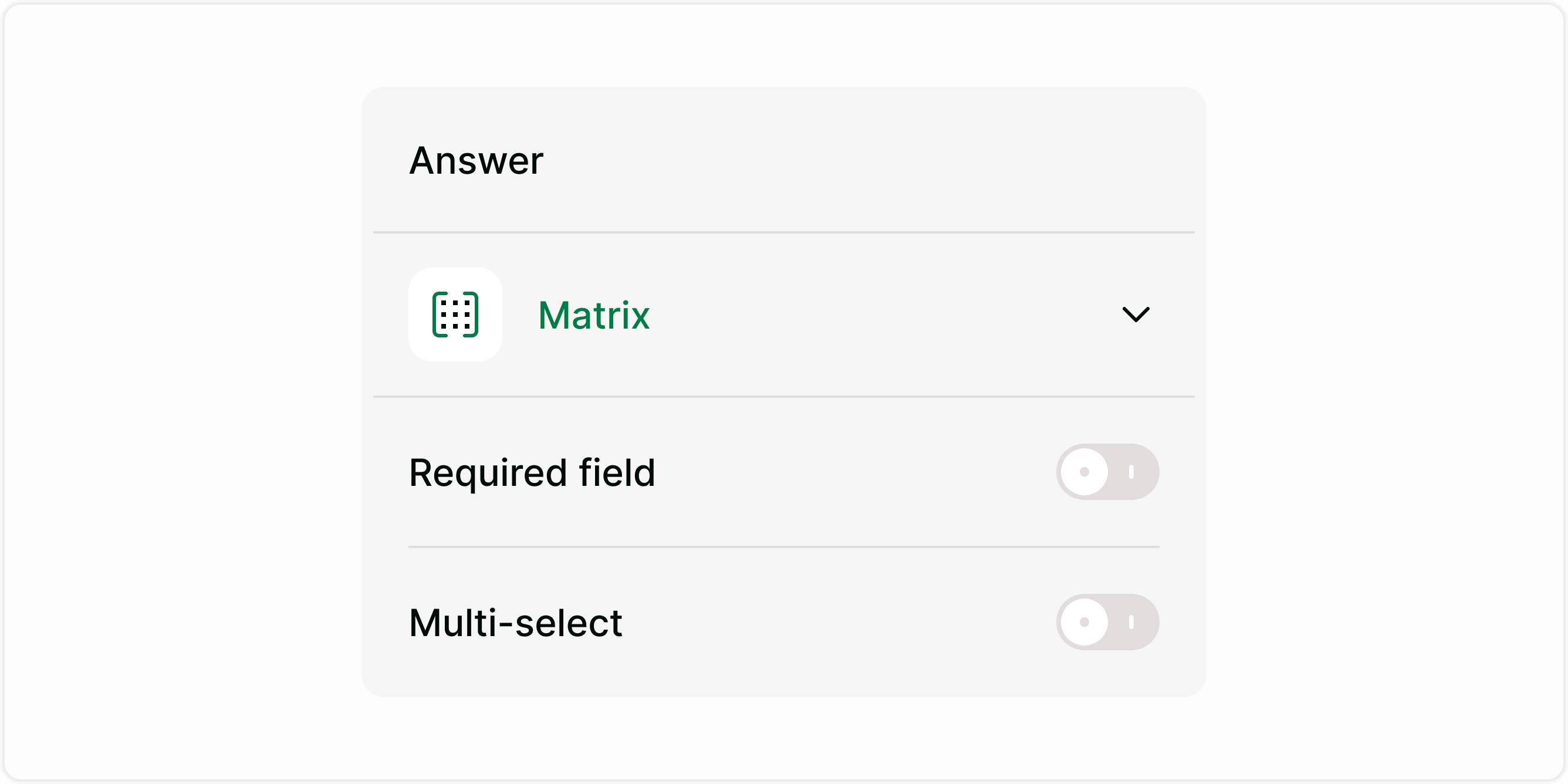
Adjust settings such as required field or multi-select if needed.
Once added, you can preview the Matrix field and adjust layout or wording before publishing.
Matrix field settings
Required field
Enable this setting if respondents must complete the matrix before moving forward. This ensures you collect all necessary responses for each row.
Randomize
Turn on multi-select when respondents should be able to choose more than one option per row. When disabled, only one selection per row is allowed.
This flexibility allows you to use the Matrix field for both single-choice and multiple-choice scenarios.
When to use Matrix vs other fields
Use the Matrix field when you need repeated evaluation across multiple items.
Use Rating or Feedback Score when you only need a single score.
Use Multiple Choice when there is only one item to evaluate.
Choosing the right field keeps your form simple and improves response quality.
Understanding responses
Responses from the Matrix field are stored in a structured format. Each row and column selection is recorded, making it easier to review patterns and export data for analysis. You can view responses individually or download them for reporting.
Best practices
Keep row labels short and clear.
Use consistent column options across all rows.
Avoid too many rows to prevent fatigue.
Group related items together.
Preview on mobile to ensure readability.
A well-structured matrix improves completion rates and makes responses easier to analyze.
Summary
The Matrix field helps you collect structured, comparable feedback across multiple items in one place. It reduces repetition, improves clarity, and keeps forms organized. By using rows and columns effectively, you can gather detailed insights while keeping the form easy to complete.