Add visuals to make forms clearer and more engaging
Media helps people understand questions faster and stay engaged as they move through your form. You can add images or videos to support a question, introduce a section, or create a more polished and branded experience. Whether you’re collecting feedback, running a campaign, or building a lead form, adding the right visual can improve completion and clarity.
In Kiwiform, media is managed from a dedicated panel inside the builder. This keeps your form content and visuals organized in one place so you can focus on building without switching screens.
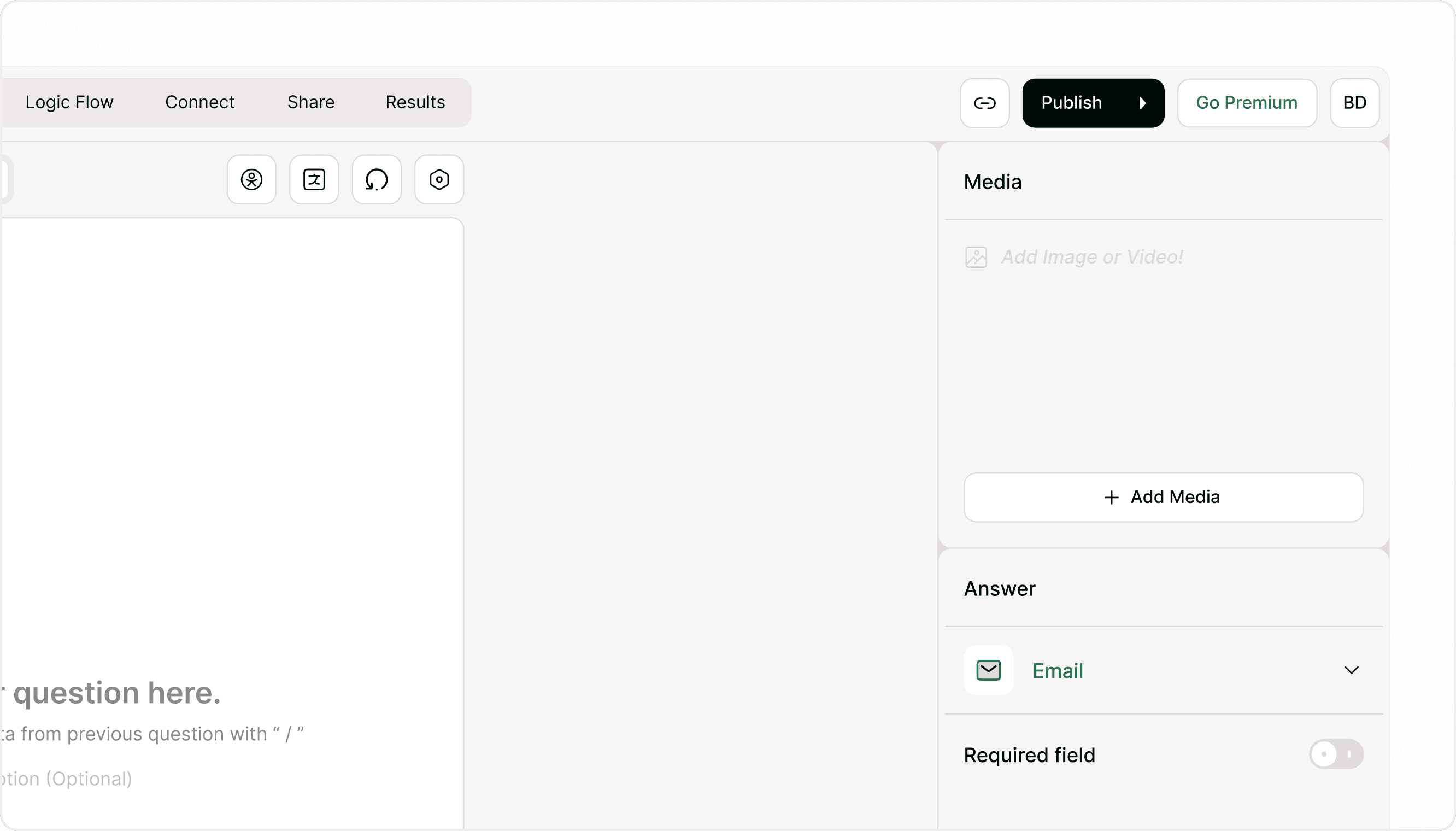
Open the Media panel
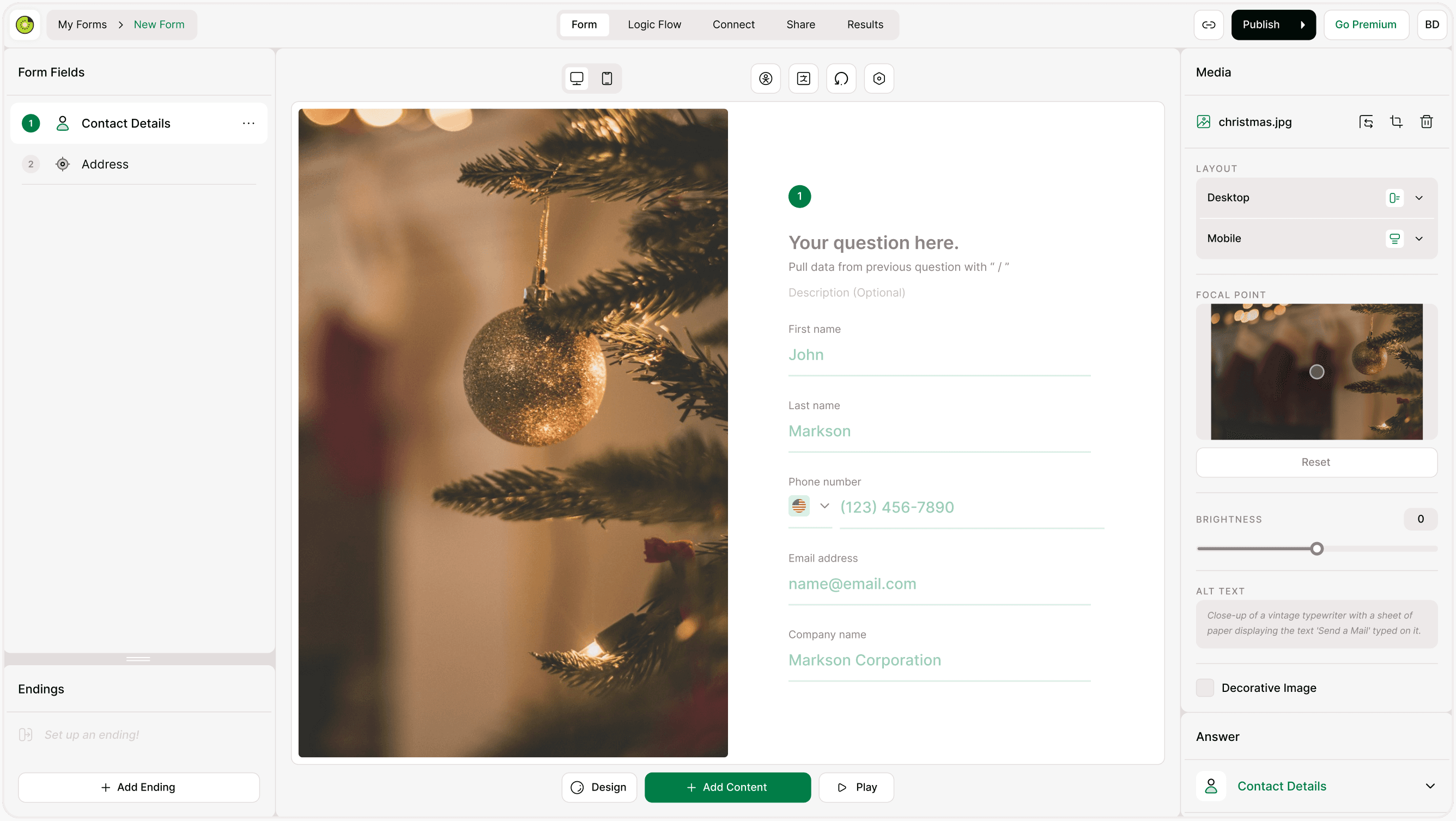
Inside the form builder, the Media panel appears on the right side of the screen above the Answer panel. This is where you upload new visuals or choose from your existing media library.
When you select a question or content element, you can attach media directly to it from this panel. The selected image or video will appear with that question in the form.
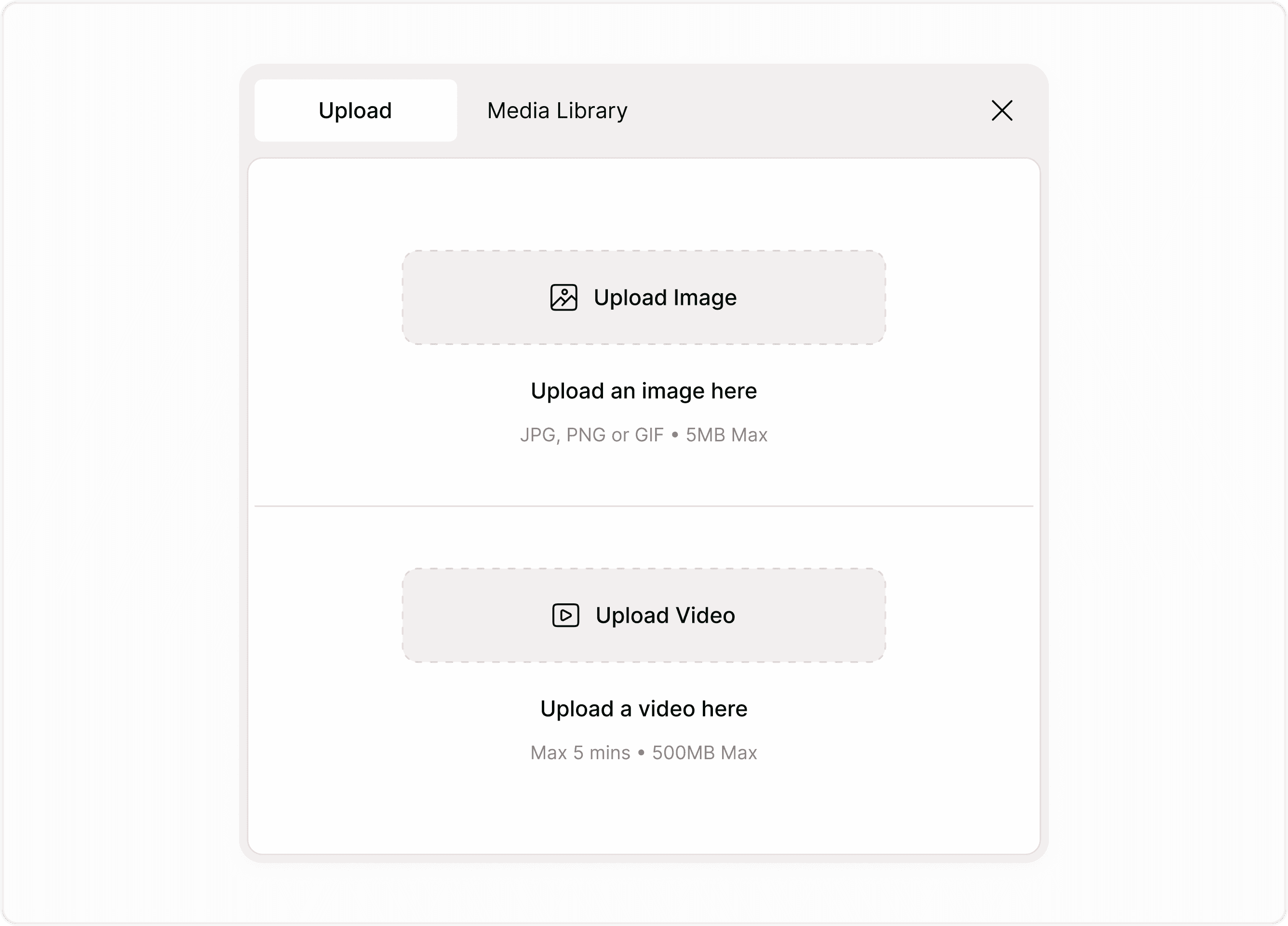
Upload images or videos
You can upload media directly from your device. This is useful when adding product visuals, banners, instructions, or any supporting content.
Supported uploads include:
Images (JPG, PNG, GIF)
Videos (within supported duration and size limits)
After uploading, media becomes available in your library so you can reuse it across forms.
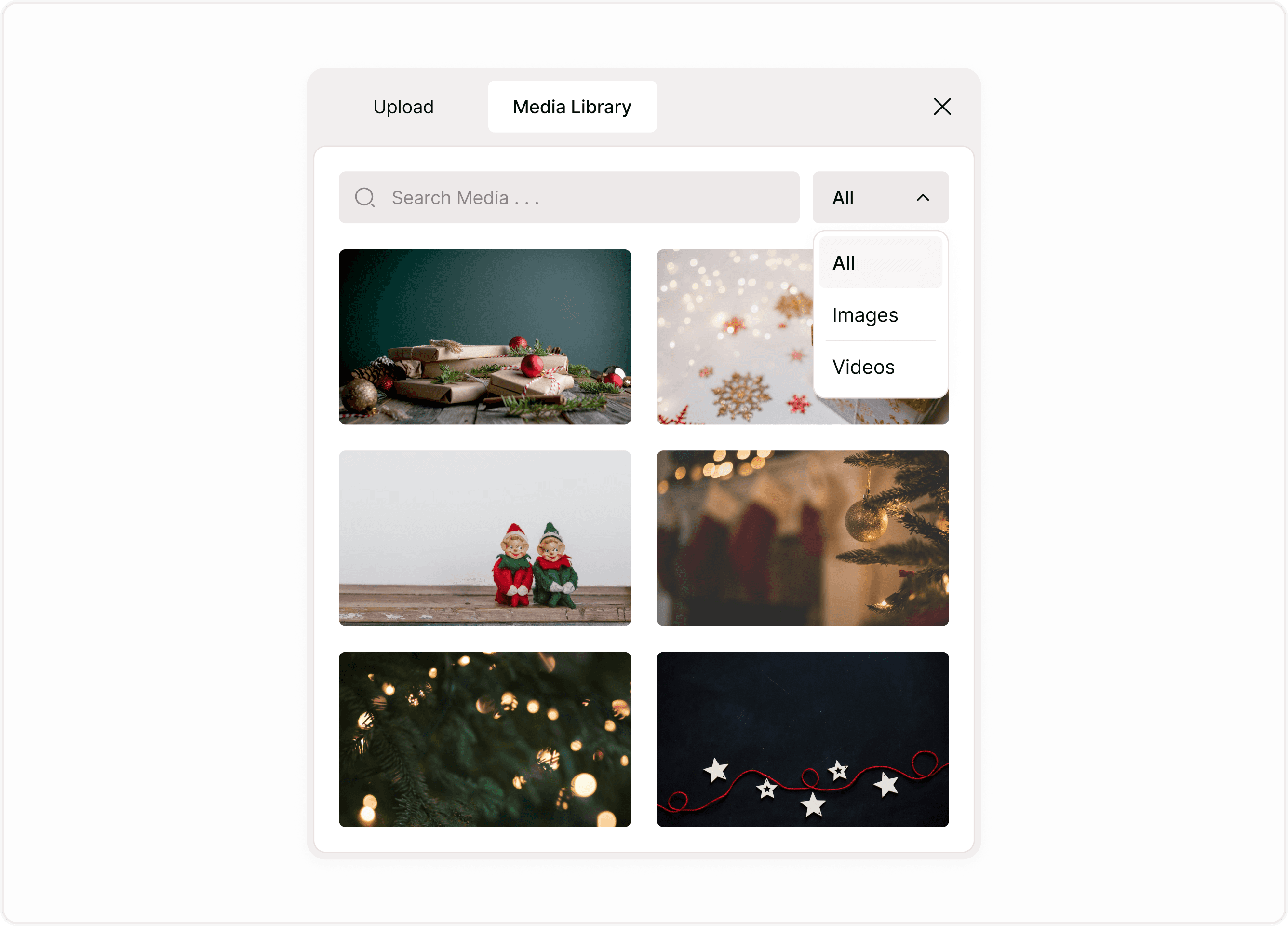
Use the Media Library
Every uploaded file is stored in your Media Library. This helps you reuse visuals across multiple forms without uploading them again.
You can:
Search for previously uploaded media
Filter by images or videos
Select and attach media instantly
This keeps your workflow faster and your forms visually consistent.
Attach media to a question
To add media to a question:
Select a question or content element in the builder
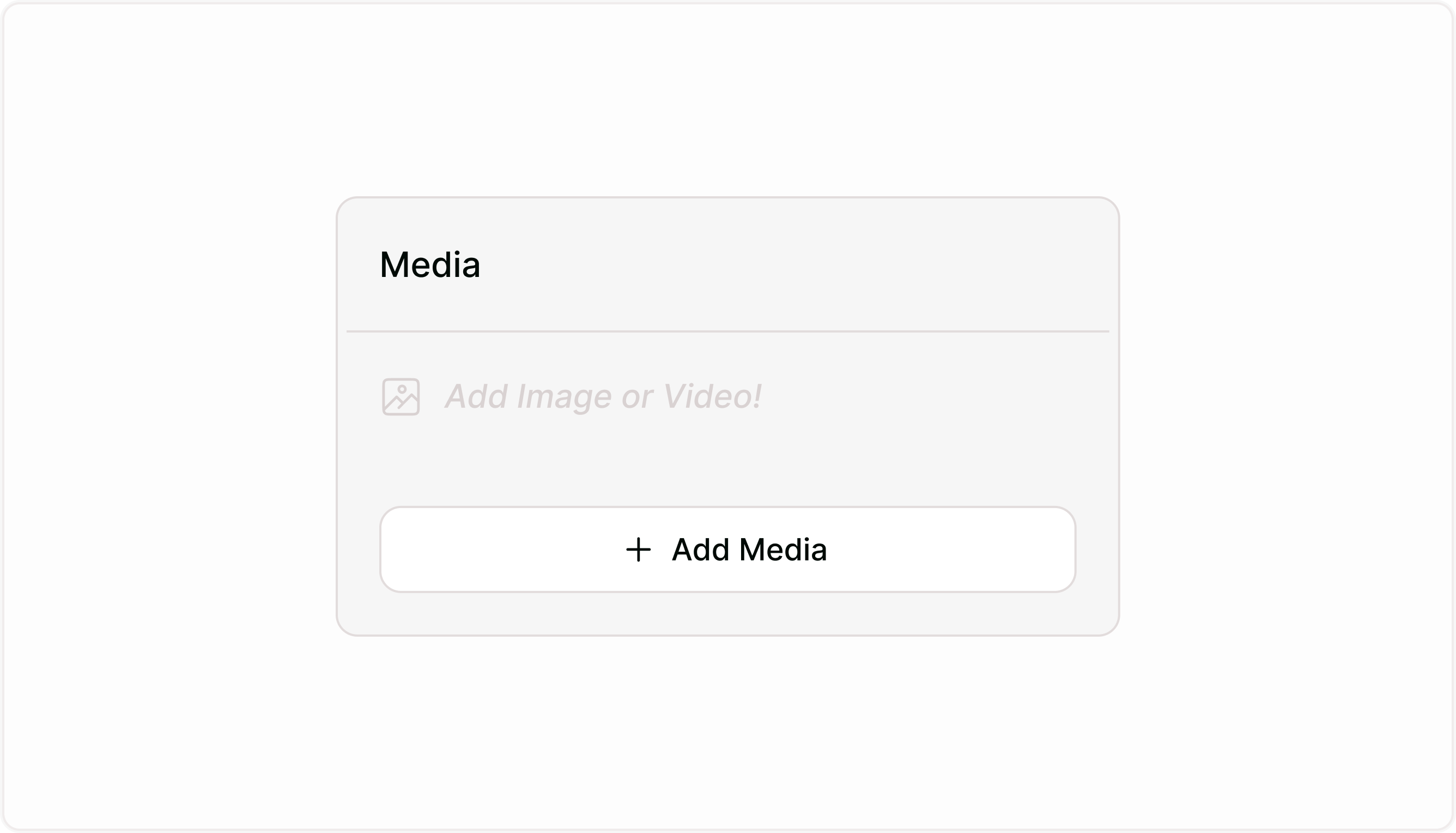
Open the Media panel
Click Add Media
Choose from uploads or the media library
The selected media will appear alongside that question in the form.
This is useful for:
Explaining a question with visuals
Showing product images
Adding instructions
Creating section introductions
Keep your forms visually consistent
Using media consistently across your form helps build trust and improves readability. Try to use visuals that match your brand, support the question being asked, and don’t distract from the form’s purpose.
Media works best when it:
Supports the question
Adds context
Improves clarity
Matches the form design
You can always update or replace media as your form evolves.
When to use media in forms
Consider adding visuals when:
You want to introduce a section or topic
You’re showcasing products or options
You need to provide visual instructions
You want to improve engagement
You’re building branded forms
Used thoughtfully, media helps respondents understand faster and complete forms with confidence.
Summary
Media in Kiwiform helps you create clearer, more engaging forms by combining visuals with questions. From uploading images and videos to managing your library and attaching visuals to questions, everything is designed to keep your workflow simple while improving the respondent experience.