What the Multiple Fields does
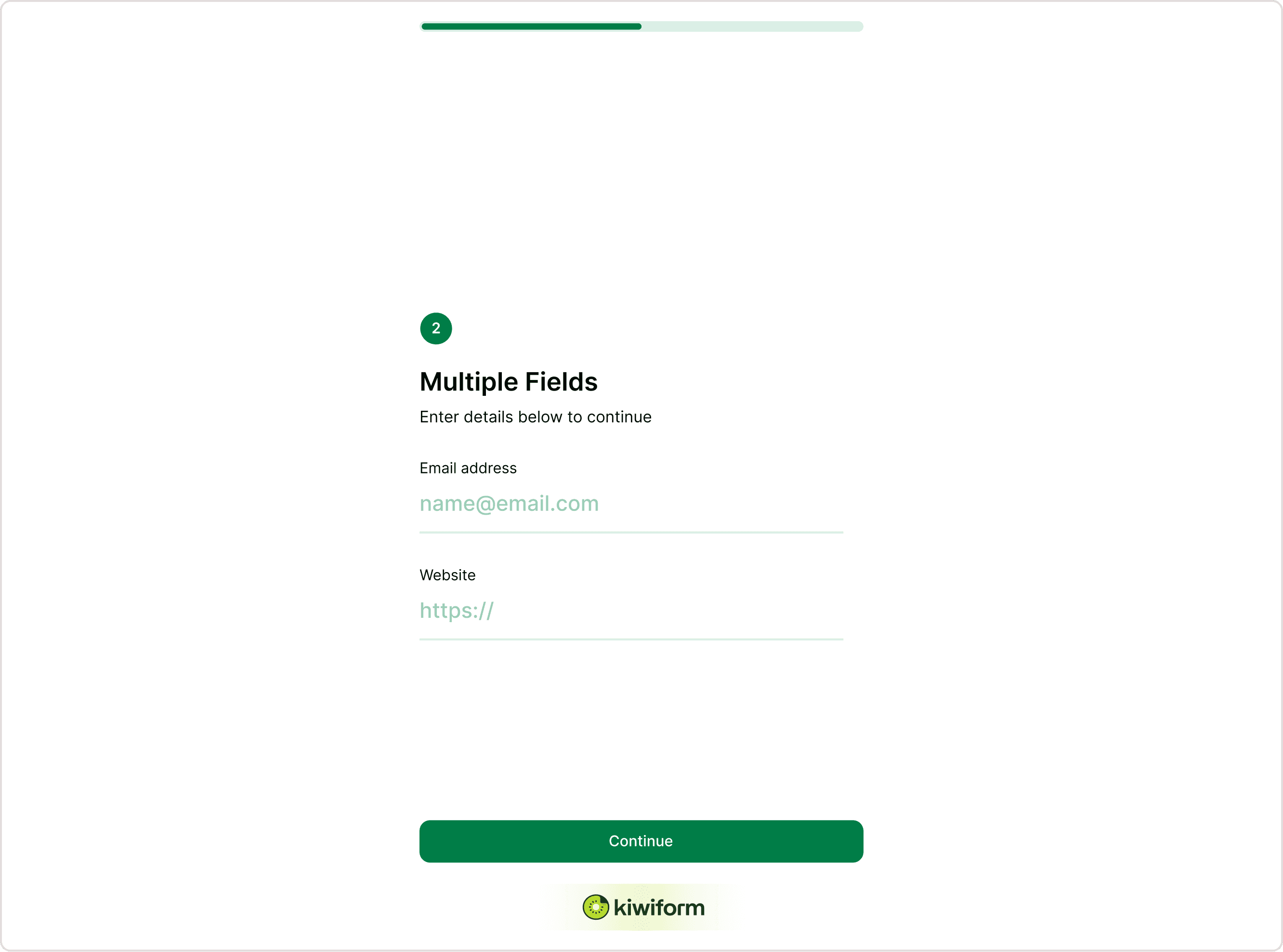
Multiple Fields allow you to add two or more input fields inside one step of your form. For example, you can collect an email address and website URL together, instead of asking them separately.
This is ideal when the questions are connected and should be answered at the same time. It reduces the number of steps in your form and improves completion rates by making the flow more efficient.
Unlike standard single-field steps, Multiple Fields create a compact section that groups inputs while still maintaining clarity and structure.

When to use Multiple Fields
Use Multiple Fields when:
Questions belong together logically
You want to reduce the number of steps in your form
You need structured data in one section
You are creating onboarding or contact forms
You want to speed up completion without overwhelming respondents\
Common use cases include:
Contact information (Email + Website)
Account setup (Username + Password)
Business details (Company Name + Website + Role)
Registration forms (First Name + Last Name + Email)
Profile setup sections\
By grouping related inputs into one step, you make the form feel shorter and more organized.
How to add Multiple Fields
Add Multiple Fields
Open your form in the Form Builder.
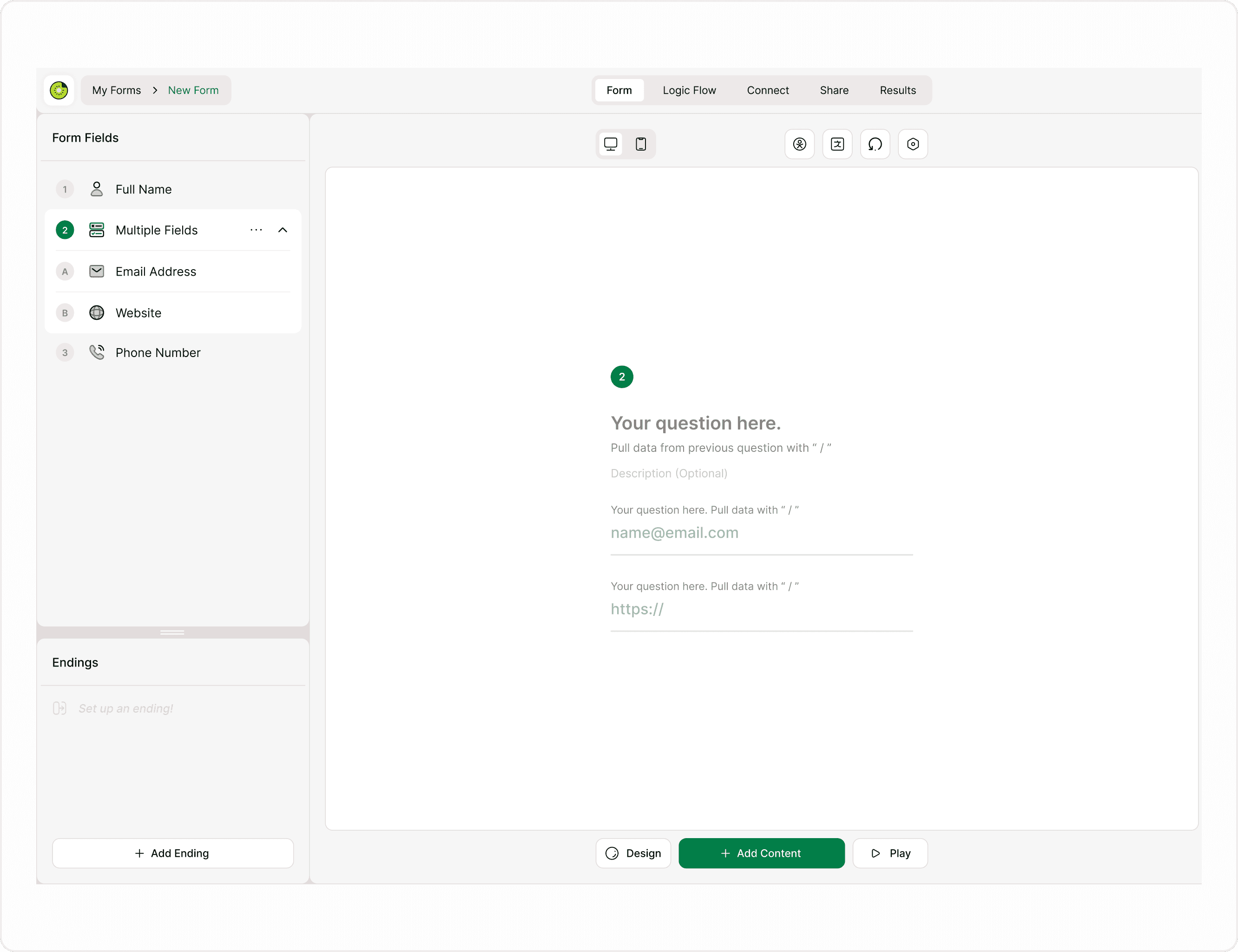
Click Add Content.
Select Multiple Fields.
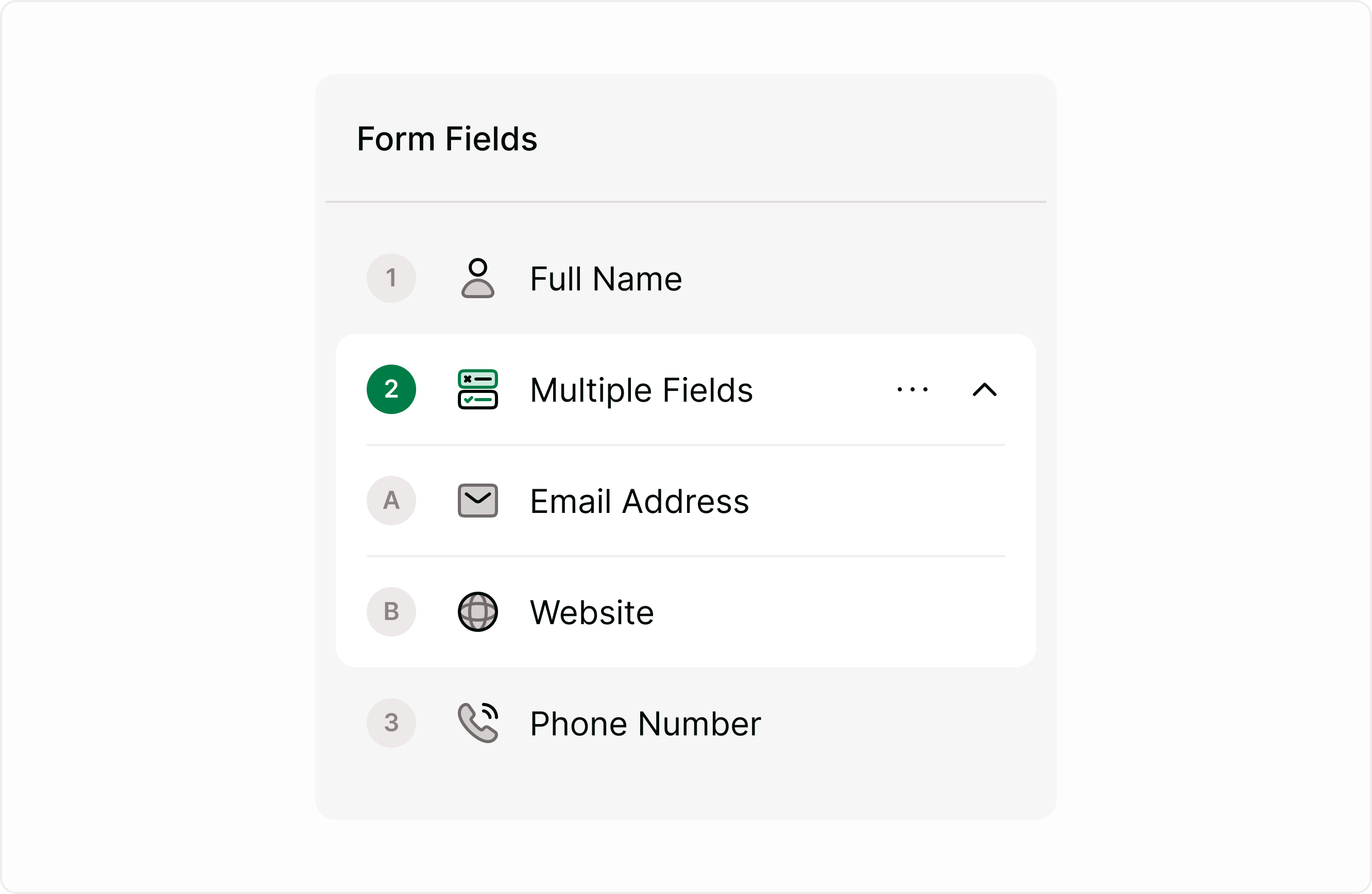
A new Multiple Fields block will appear in the Form Fields panel.
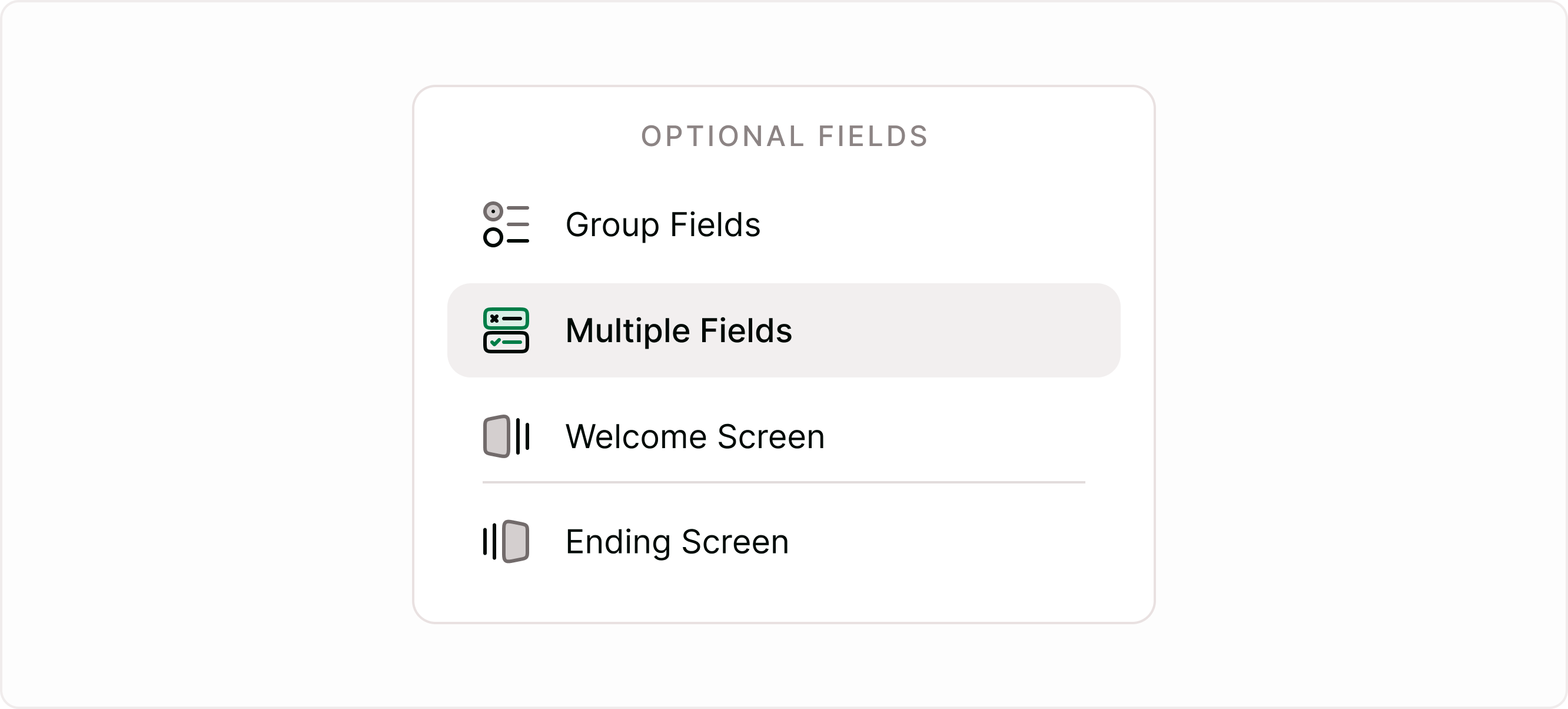
Add or drag individual fields into this block.
Once added, you can expand or collapse the block from the Form Fields panel to manage its internal fields.
Adding fields inside Multiple Fields
After creating a Multiple Fields block:
Drag an existing field into the block
Or create new fields while the block is selected
Reorder fields by dragging them within the block
Each field inside the Multiple Fields block works independently. You can configure validation, required status, and other settings for each one.
For example, you can set the Email field as required while leaving the Website field optional.
Field settings inside Multiple Fields
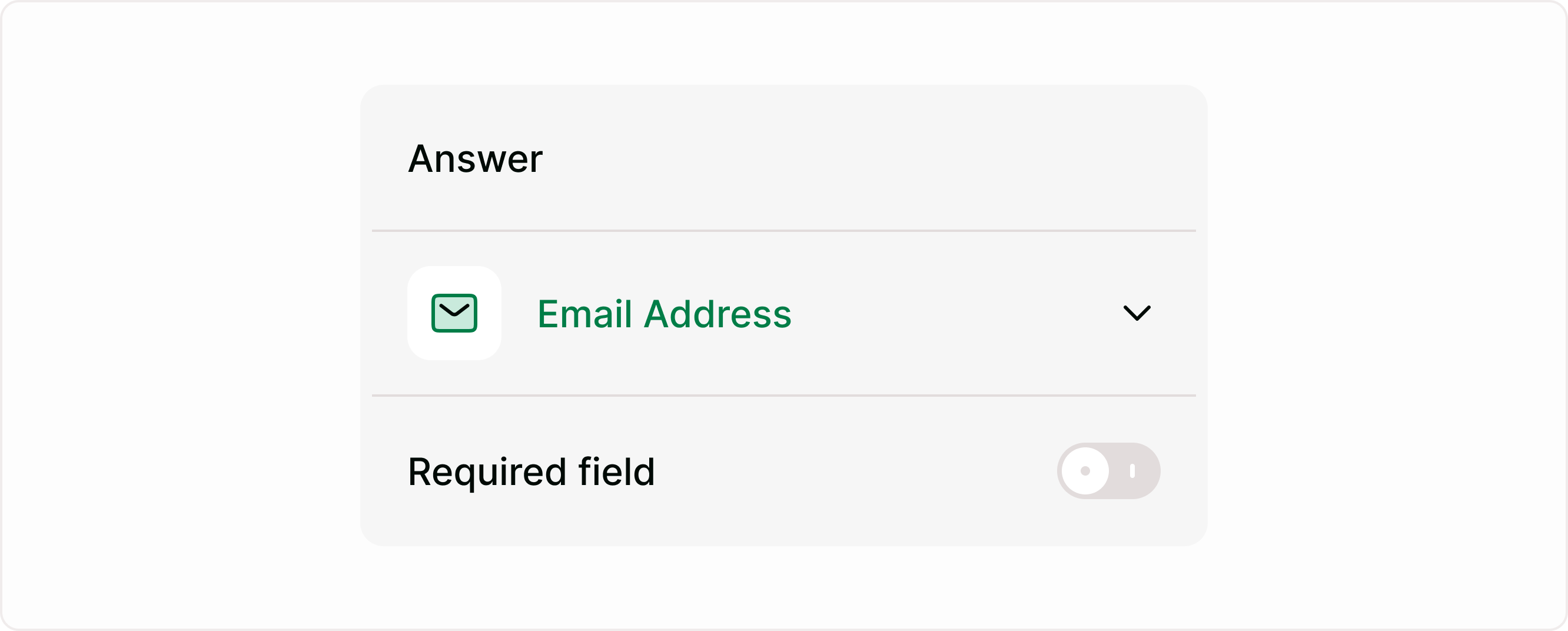
Each field inside a Multiple Fields block has its own Answer settings panel.
You can:
Mark a field as Required
Adjust validation (for Email, Website, etc.)
Rename field labels
Change field order
Each field inside a Multiple Fields block has its own Answer settings panel.
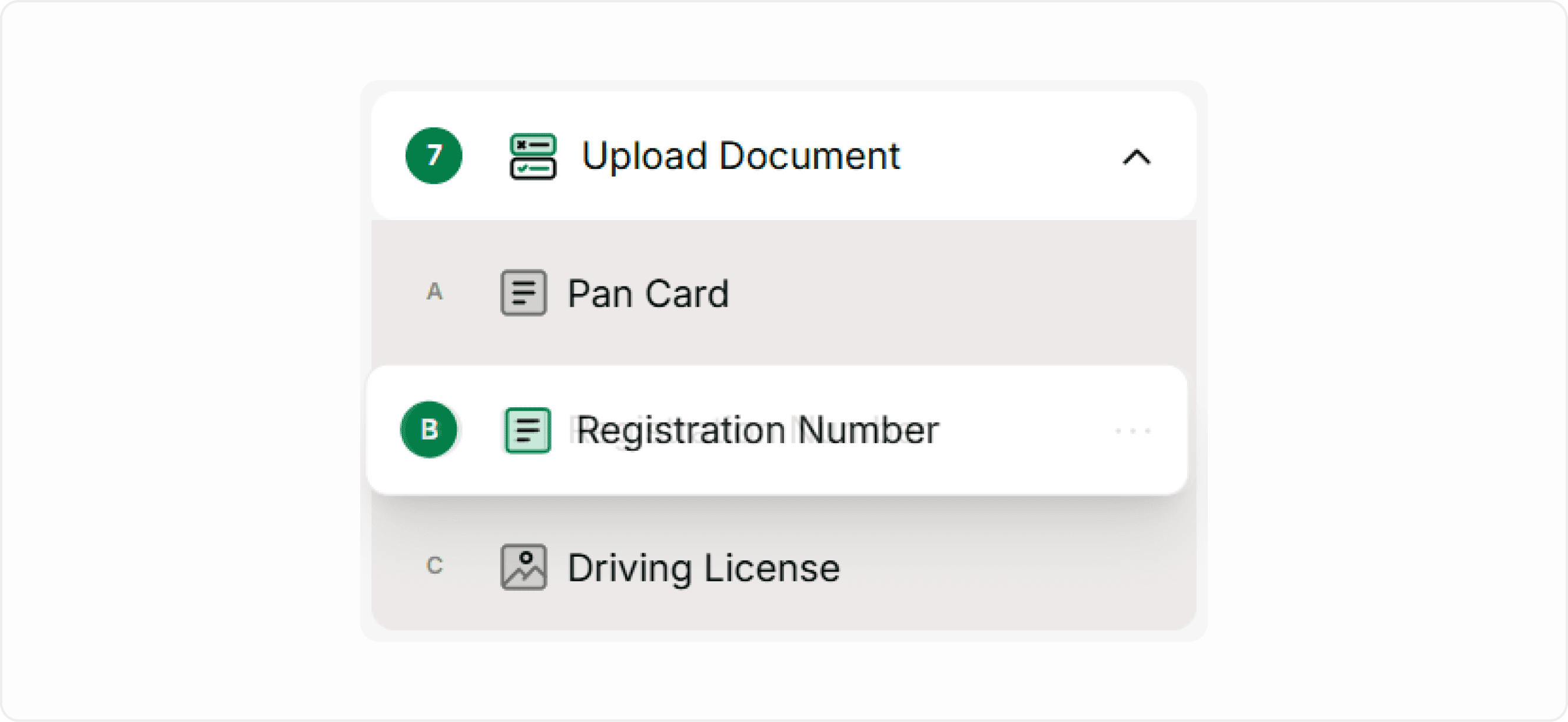
Managing Multiple Fields in the Form Fields panel
In the Form Fields panel, Multiple Fields appear as a structured block:
You can expand or collapse the block
You can drag it to change its position in the form
You can drag fields in or out of the block
You can remove individual fields without deleting the entire block
This makes it easy to maintain clean structure, especially in longer forms.
How Multiple Fields appear to respondents
When respondents reach a Multiple Fields step, they see all included inputs together in one screen. This reduces the number of clicks and transitions.
The layout remains clean and minimal, ensuring that multiple inputs do not feel overwhelming. If designed properly, this improves usability and keeps the form efficient.
Use clear labels and logical grouping to maintain clarity.
Multiple Fields vs Single Fields
Use Single Fields when:
You want a highly conversational, one-question-at-a-time flow
Each question requires focus
Use Multiple Fields when:
You want efficiency
Inputs are closely related
You need structured sections
Combining both approaches strategically helps create better user experiences.
Best practices
Only group fields that logically belong together
Avoid adding too many inputs in one step
Use clear and short labels
Mark only necessary fields as required
Keep visual balance and spacing clean
Well-structured Multiple Fields reduce friction and improve form completion rates.
Summary
Multiple Fields allow you to collect multiple related inputs in one step. They help shorten forms, improve structure, and create a smoother experience for respondents. By grouping connected questions like email and website, you reduce unnecessary steps and make your form more efficient without sacrificing clarity.