What is the Multiple Selection field?
The Multiple Selection field allows respondents to select one or more answers from predefined choices. Unlike single-choice questions, this field supports multiple answers, giving users flexibility while still keeping responses organized and easy to analyze.
It works similarly to a Multiple Choice question but gives you advanced controls such as selection limits, ranges, optional “Other” input, answer randomization, and layout control.
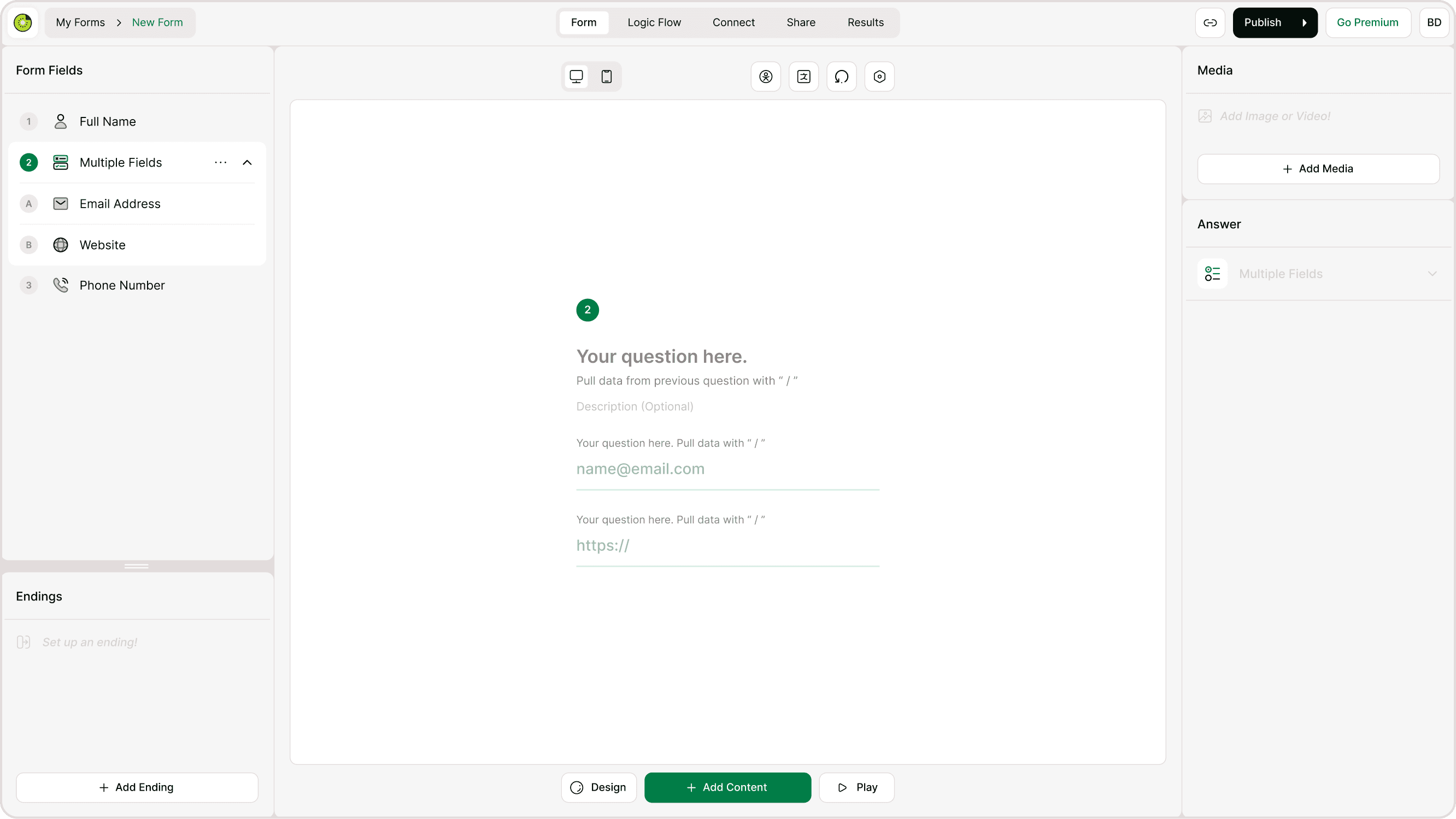
How to add a Multiple Selection field
Open your form in the builder.
Click Add Content.
Select Multiple Selection from the form fields list.
Add your question text.
Add choices using the Add Choice button.
Configure settings in the Answer panel.
You can edit, reorder, or delete choices anytime.
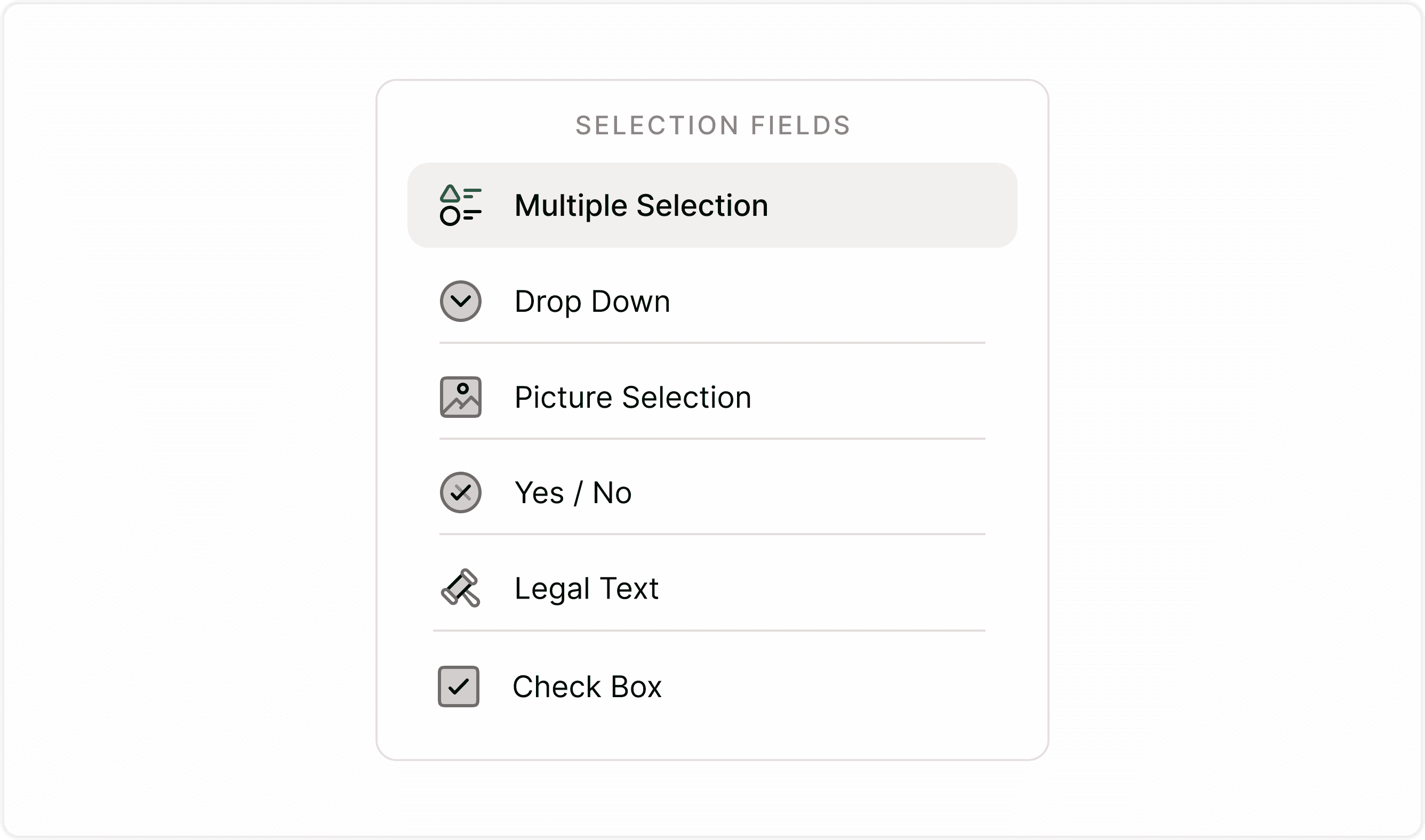
Configure Multiple Selection Settings
All advanced controls are available in the Answer panel.
Required Field
Enable Required field if respondents must select at least one option before continuing.
Use this when:
The answer is critical for segmentation.
You need mandatory qualification.
The question determines logic flow.
Leave it off when:
The question is optional.
You want lower friction in the form experience.
Number of Selection
This setting allows you to control how many options respondents can select.
You can choose:
Unlimited
Respondents can select as many options as they want.
Best for:Feature usage surveys
Preference lists
Multi-interest forms
Set Limit
Set a fixed maximum number of selections.
Example:
“Select up to 3 features.”
“Choose 2 sessions.”
This prevents over-selection while still giving flexibility.Range
Set a minimum and maximum selection range.
Example:
Minimum 2, Maximum 4 selections
Between 1 and 3 options
This is useful when:
You require at least a certain number of responses.
You want balanced data collection.
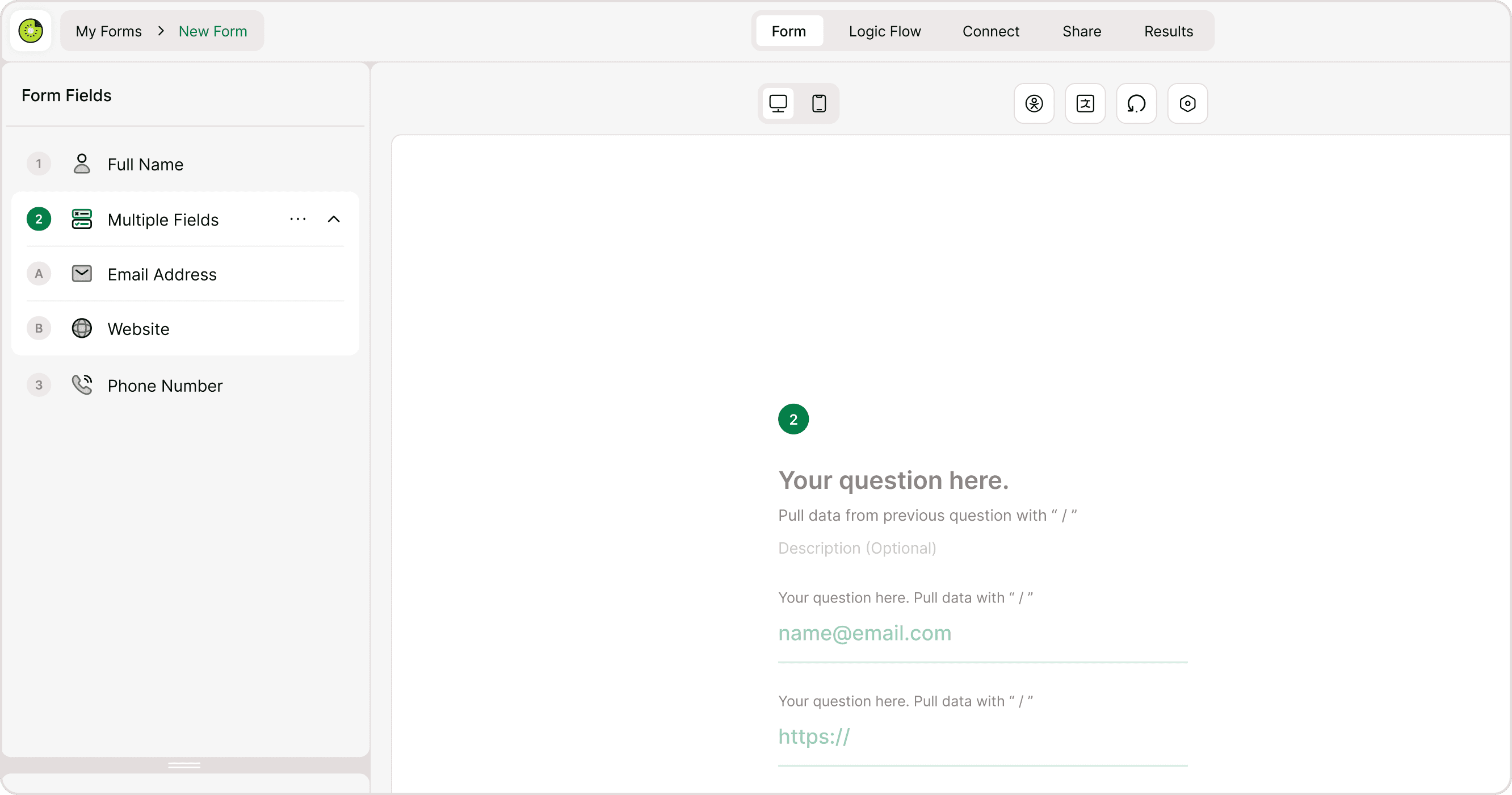
Option “Other”
Enable Option “Other” to allow respondents to enter a custom answer not listed in your choices.
Use this when:
You want open flexibility.
Your list may not cover all possibilities.
You are collecting research data.
When enabled, an “Other” option appears at the end of the list, allowing users to type their own response.
Randomize
Enable Randomize to shuffle answer options for each respondent.
This helps:
Reduce bias in surveys.
Prevent top-option preference bias.
Improve research reliability.
Ideal for:
Market research surveys
Feedback forms
Opinion polls
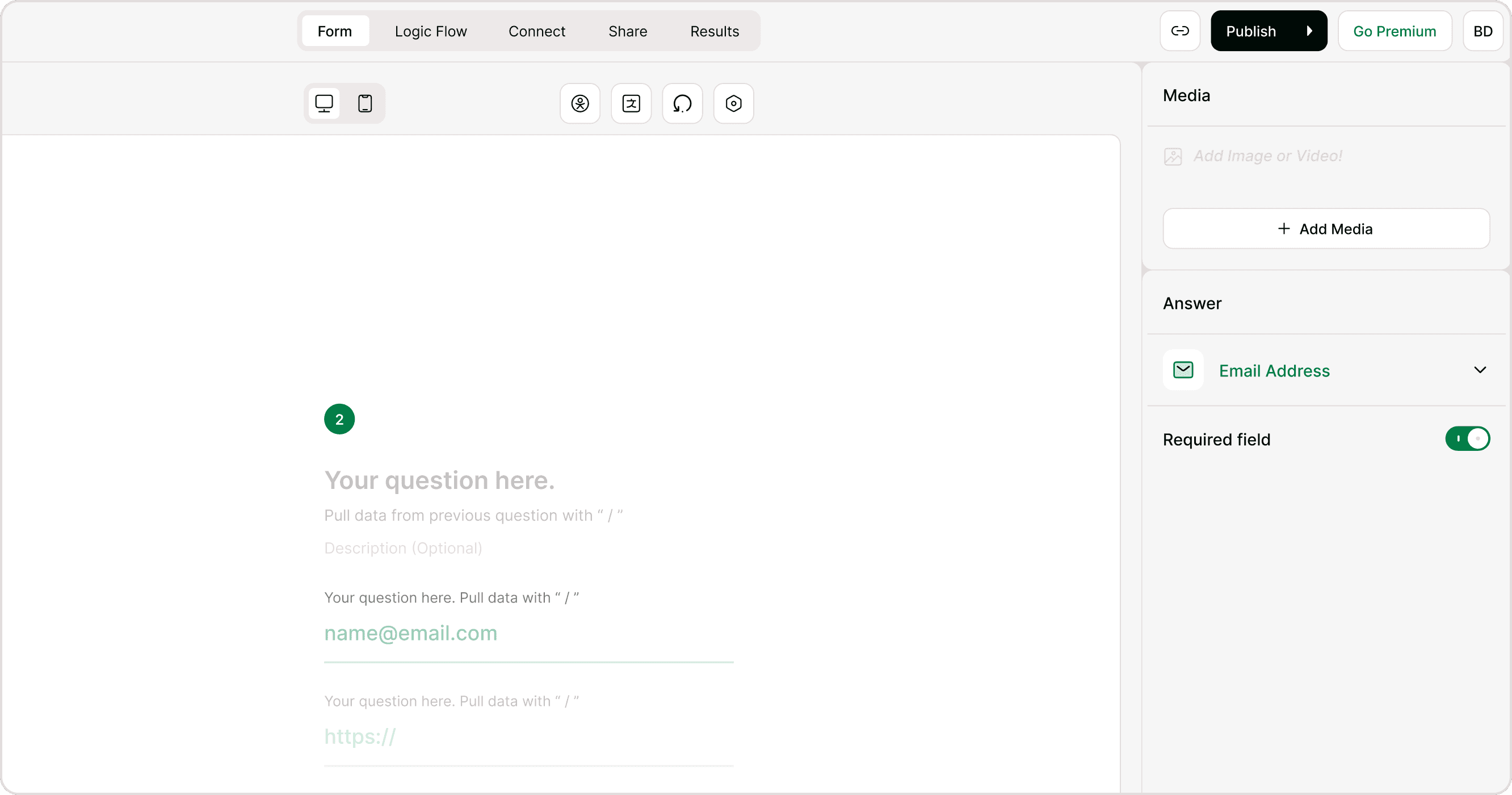
Vertical Selection
Enable Vertical Selection to display answer choices in a vertical stacked layout.
Benefits:
Better readability for long option text.
Mobile-friendly layout.
Cleaner design for many options.
Turn it off for a more compact layout when appropriate.
Data & Results
Each selected option is captured individually in results. This makes filtering, segmentation, and analytics easier.
You can:
Segment respondents by selections
Trigger automations
Use selections in logic flow
Export structured response data
When to use Single Choice instead
Use Single Selection (if available) when respondents must choose only one answer. Use Multiple Selection when more than one answer may apply.
Choosing the right field improves clarity and response accuracy.
How it appears to respondents
In the live form, respondents can select one or more options based on your settings. If limits are applied, the interface automatically enforces them. If a range is set, users must meet the minimum before proceeding.
This ensures clean data collection without confusion.
When to use Multiple Selection
This field works best when respondents may have more than one valid answer.
Common use cases:
“Which features do you use?”
“What services are you interested in?”
“Select your preferred time slots.”
“Which marketing channels bring you traffic?”
“What skills do you have?”
Event registrations with multiple activity options
It is especially powerful in product research, onboarding flows, lead qualification forms, job applications, and customer feedback surveys.
Best practices
Keep options clear and concise
Avoid long, complicated answer choices.Group similar items
Organize logically to reduce cognitive load.Avoid too many options
Too many choices can overwhelm respondents.Use selection limits wisely
Clear limits improve response quality and prevent misuse.Use “Other” strategically
Include it when necessary, but not by default in every form.Combine with Logic Flow
You can use Multiple Selection responses to trigger conditional logic in your form for personalized follow-ups.
Summary
The Address field in Kiwiform helps you collect structured location information without clutter. You can show or hide individual inputs, mark specific fields as required, and tailor the address format to your workflow. This keeps forms simple for respondents while ensuring you get accurate and usable data.