Overview of Notifications
The Notifications section in Kiwiform allows you to manage the types of emails and updates you receive from your account.
You can choose to receive:
Product update
Important account alert
Tips and best practices
Promotional offers
This gives you full control over your inbox while ensuring you don’t miss critical information related to your forms and account.
Where to Find Notification Settings
To manage your notifications:
Click your profile avatar (top right).
Go to Account & Settings.
Open the Notifications tab.
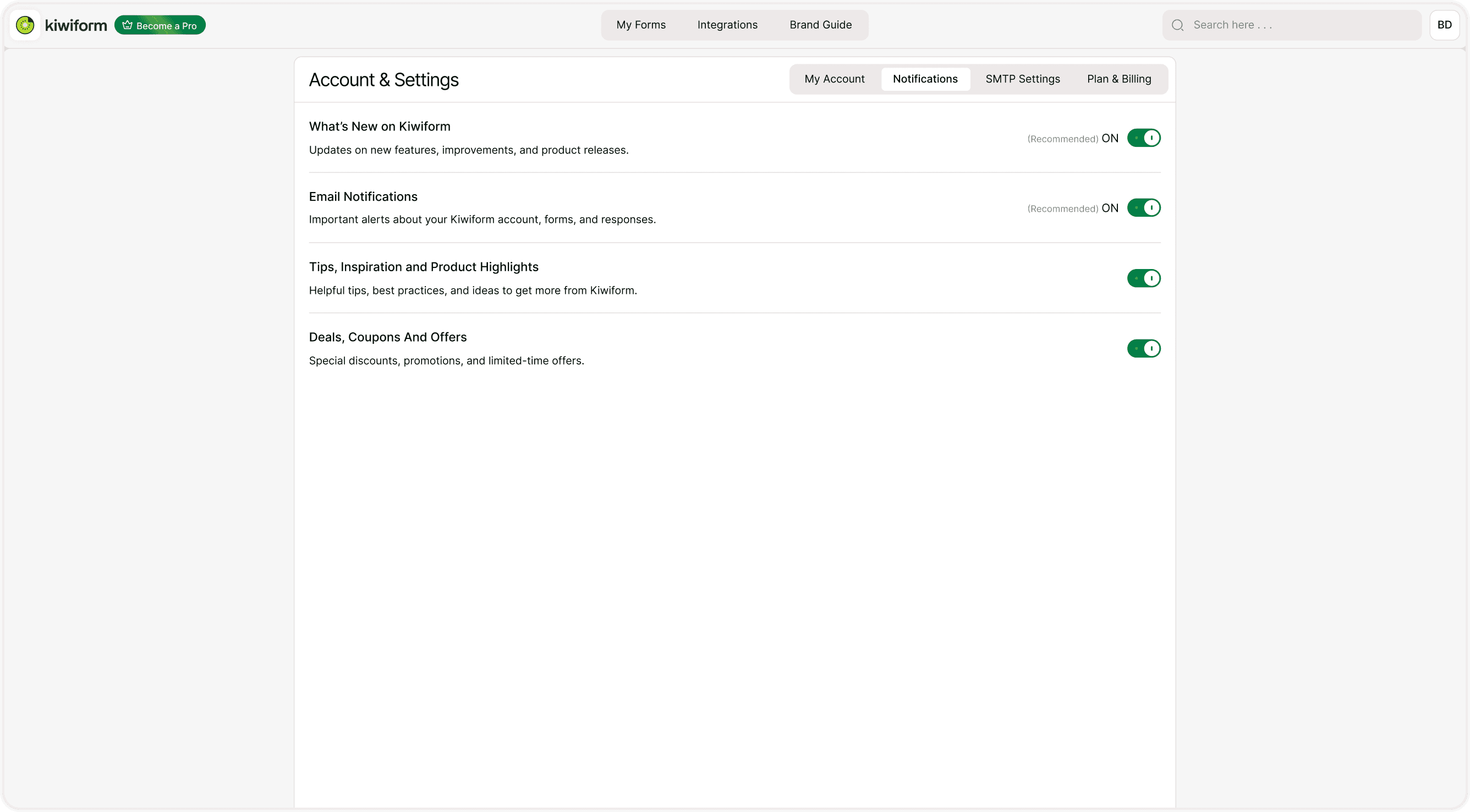
You’ll see a list of notification categories with toggle switches to turn each option ON or OFF.
Types of Notifications You Can Manage
What’s New on Kiwiform
Stay updated on:New features
Improvements
Product updates
Release announcements
This is useful if you want to stay informed about enhancements and new capabilities inside Kiwiform.
If you prefer not to receive update emails, you can turn this off at any time.Email Notifications (Important Alerts)
These include essential messages related to:Account activity
Security updates
Important system alerts
Form-related updates
This category is typically recommended to keep enabled, as it includes important account-related communication.
Tips, Inspiration & Product Highlights
Receive helpful content such as:Best practices for form building
Optimization tips
Use case ideas
Feature walkthroughs
These emails are designed to help you get more value from Kiwiform.
You can disable this if you prefer a minimal communication experience.Deals, Coupons and Offers
Get notified about:Special discounts
Limited-time offers
Promotions
This category is optional and can be turned off if you prefer not to receive promotional emails.
How to Enable or Disable Notifications
Each notification category has a toggle switch.
To change a setting:
Go to Account & Settings → Notifications.
Locate the category you want to manage.
Toggle the switch ON or OFF.
Changes are applied automatically.
You can update your preferences anytime.
Best Practices
Keep security and important alerts enabled.
Review notification settings periodically.
Disable promotional emails if you prefer fewer updates.
Enable product updates if you want to stay ahead of new features.
Kiwiform gives you full transparency and control over communication preferences.
Summary
This guide explains how to manage email and product notification preferences in Kiwiform so you can control what updates and alerts you receive.