How the Notion Integration Works
When connected:
Every new form submission creates a new row (page) in a selected Notion database
Each form field maps to a database property
Data is synced automatically in real time
This means you can manage form responses inside Notion as part of your existing workspace.
When to Use Notion Integration
Notion integration is useful when you want to:
Manage leads in a CRM-style database
Track project requests
Collect and organize applications
Manage internal workflows
Centralize survey responses
Assign tasks to team members
If your team already works in Notion, this integration keeps everything in one system.
How to Connect Notion to Your Form
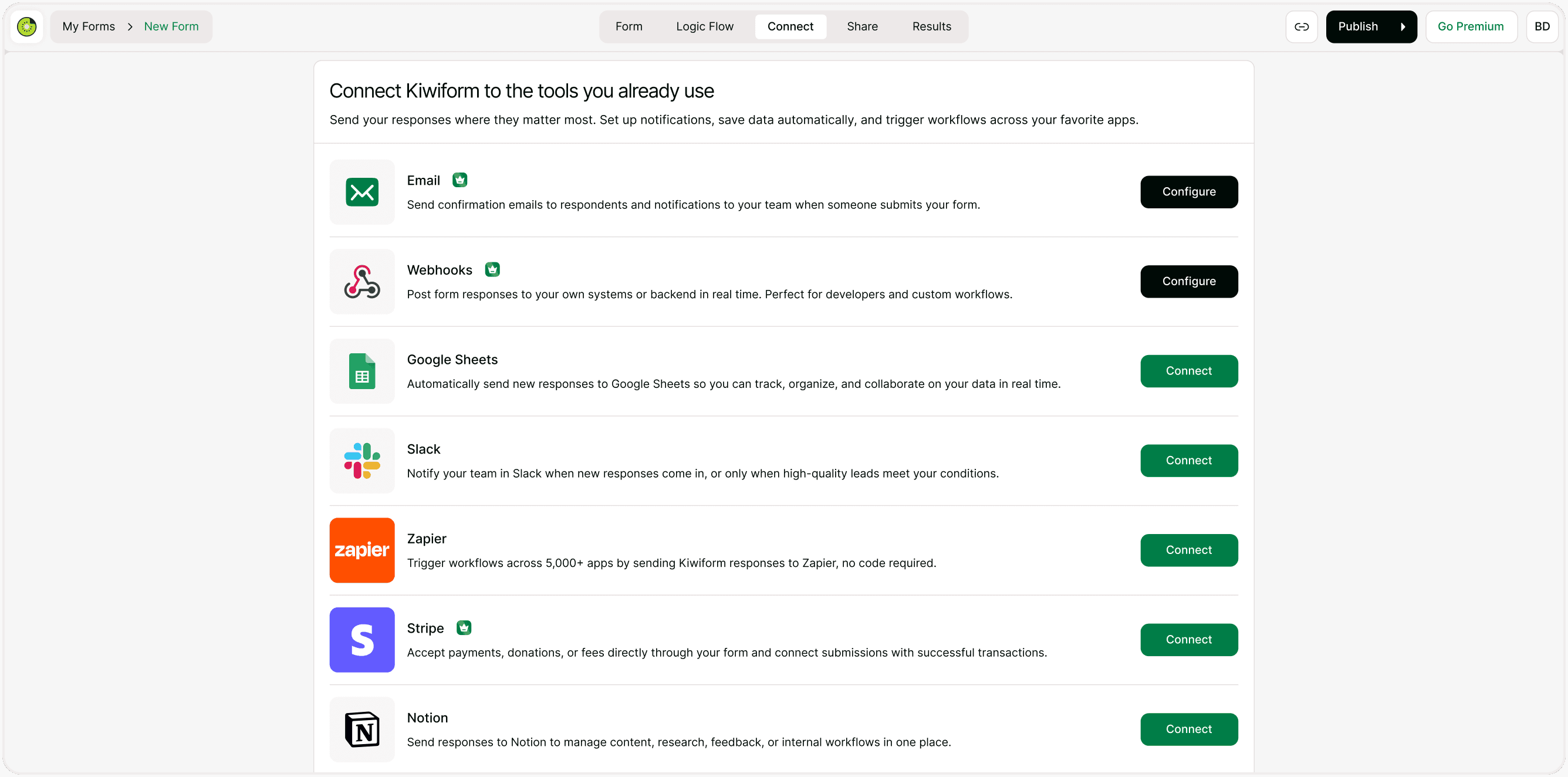
Open the Connect Tab
Open your form in Kiwiform.
Click Connect in the top navigation.
Select Notion from the integration list.
Click Connect.
Authorize Notion
You will be redirected to Notion:
Log in to your Notion account.
Grant Kiwiform access to specific pages or databases.
Make sure you select the database where responses should be stored.
Choose a Database
After authorization:
Select the target Notion database
Confirm property mapping
Save the integration
Each form submission will now appear as a new database entry.
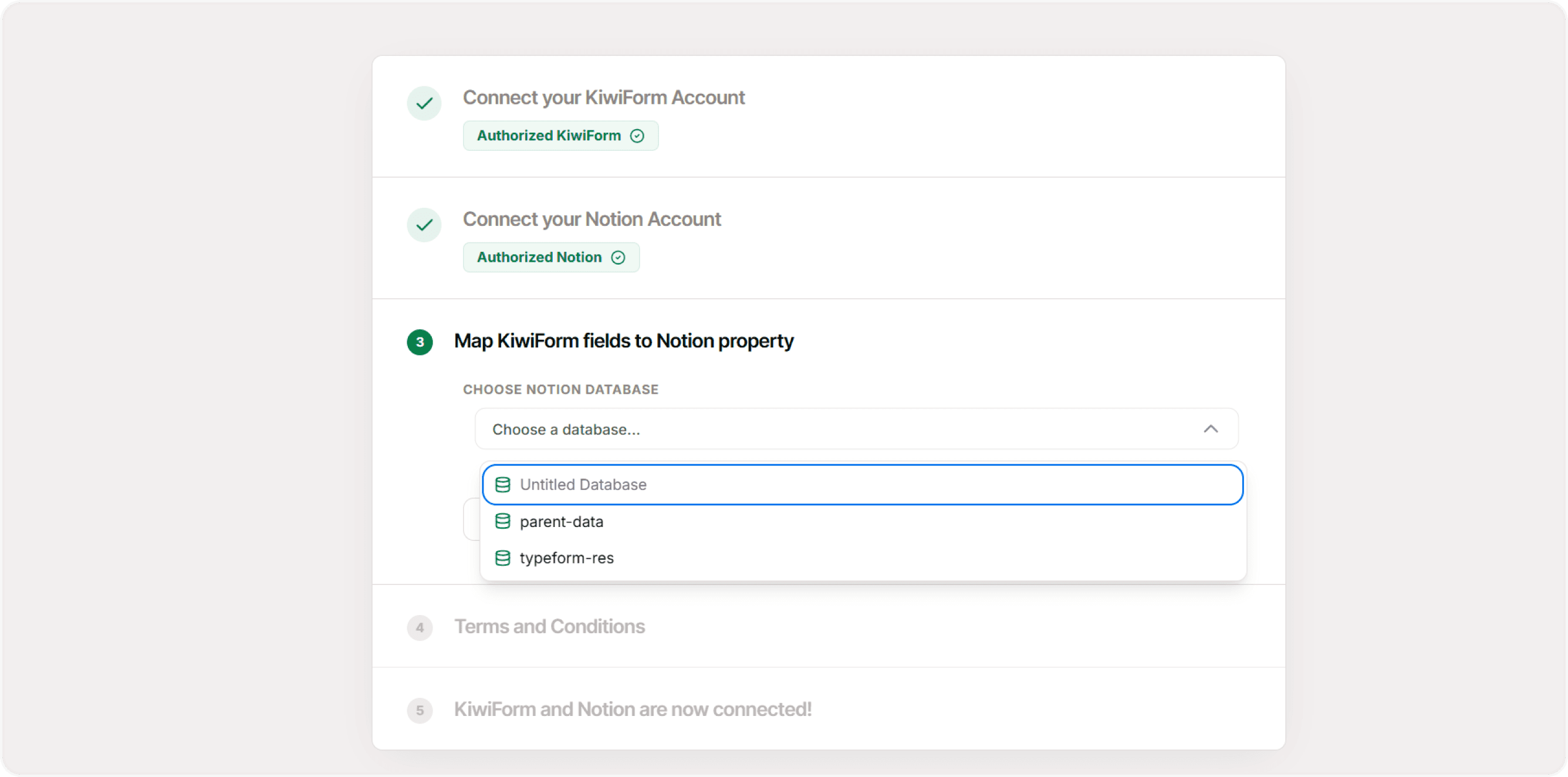
Field Mapping in Notion
Form fields are mapped to corresponding Notion properties.
For example:
Text fields → Text properties
Email fields → Email properties
Dropdown fields → Select properties
Number fields → Number properties
Date fields → Date properties
Ensure your Notion database has matching property types for accurate syncing.
Common Use Cases
Lead Management
Send leads directly into a Notion CRM database for tracking and follow-up.
Application Tracking
Collect job applications or program applications and review them inside Notion.
Internal Requests
Manage HR, IT, or operational requests with automated database entries.
Content Collection
Collect ideas, feedback, or research inputs and organize them inside structured databases.
Best Practices
For smooth syncing:
Create a structured Notion database before connecting
Match property types with form fields
Avoid frequently changing database structure
Test with sample submissions
Use database filters and views to manage responses
If multiple team members access the database, configure permissions properly in Notion.
Summary
The Notion integration allows you to automatically send each new Kiwiform submission to a selected database inside Notion. Once connected, every response is added as a new database entry with mapped properties, helping you manage leads, applications, internal requests, or structured data without manual exports. This integration keeps your form responses organized and accessible within your existing Notion workspace for collaboration and workflow management.