What the Number field does
The Number field is designed specifically for collecting numeric input. Unlike text fields, it only accepts numbers, ensuring your responses remain structured and usable for calculations, filtering, scoring, or logic conditions.
Use the Number field when you need respondents to enter:
Age
Quantity of items
Number of attendees
Order units
Years of experience
Employee count
Numeric IDs
Ratings expressed as numbers
By restricting the input type, you eliminate text-based errors and maintain consistent data formatting.
Supported input format
The Number field supports:
Positive whole numbers only
Up to fifteen digits
No decimal points
No negative numbers
This ensures clean numeric data that works seamlessly with logic, calculations, and integrations.
If you need decimal or currency values, consider using the appropriate field type such as Payment.
Add a Number field to your form
To add a Number field:
Open your form in the builder
Click Add Content
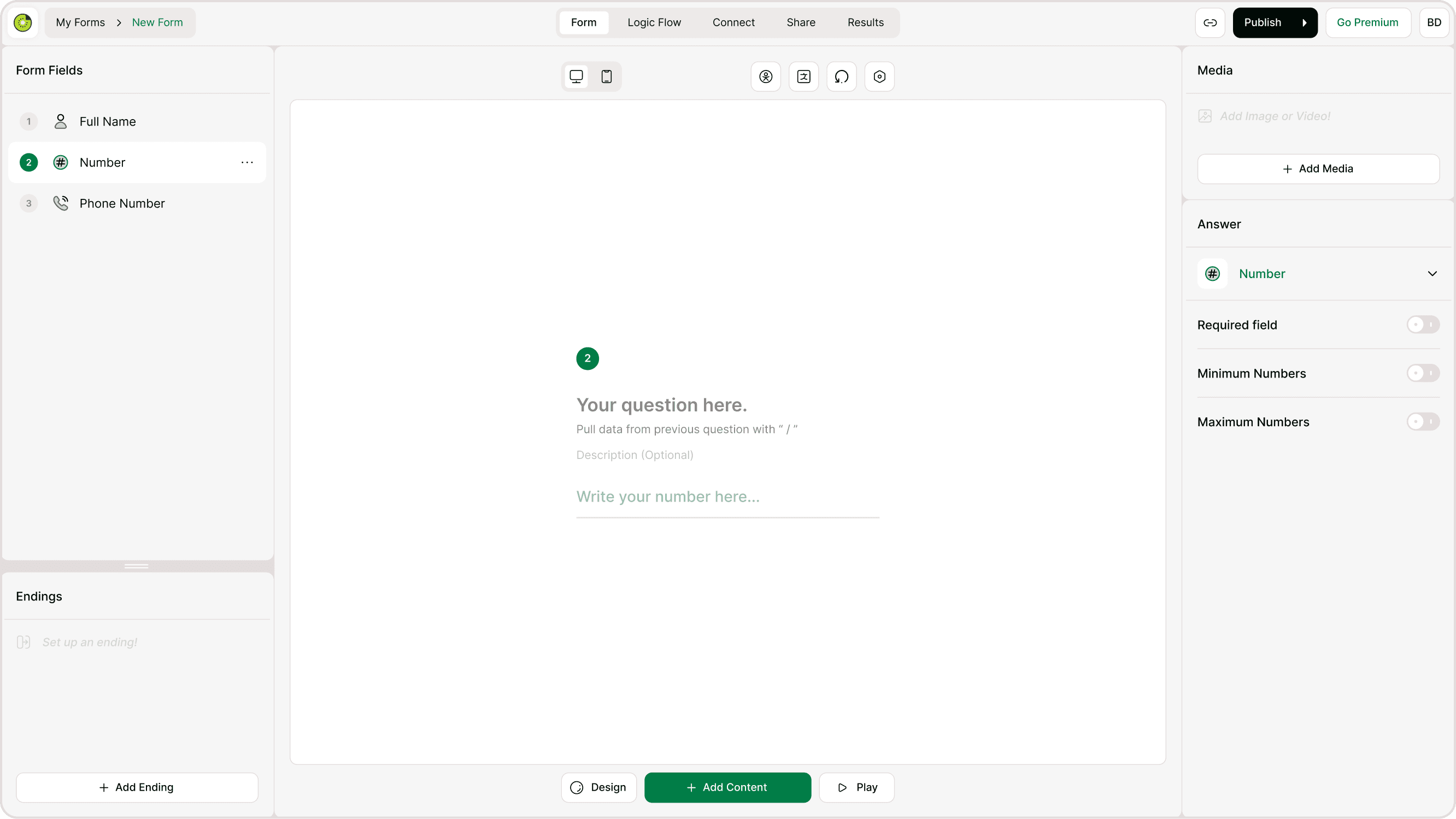
Select Number from the form fields list
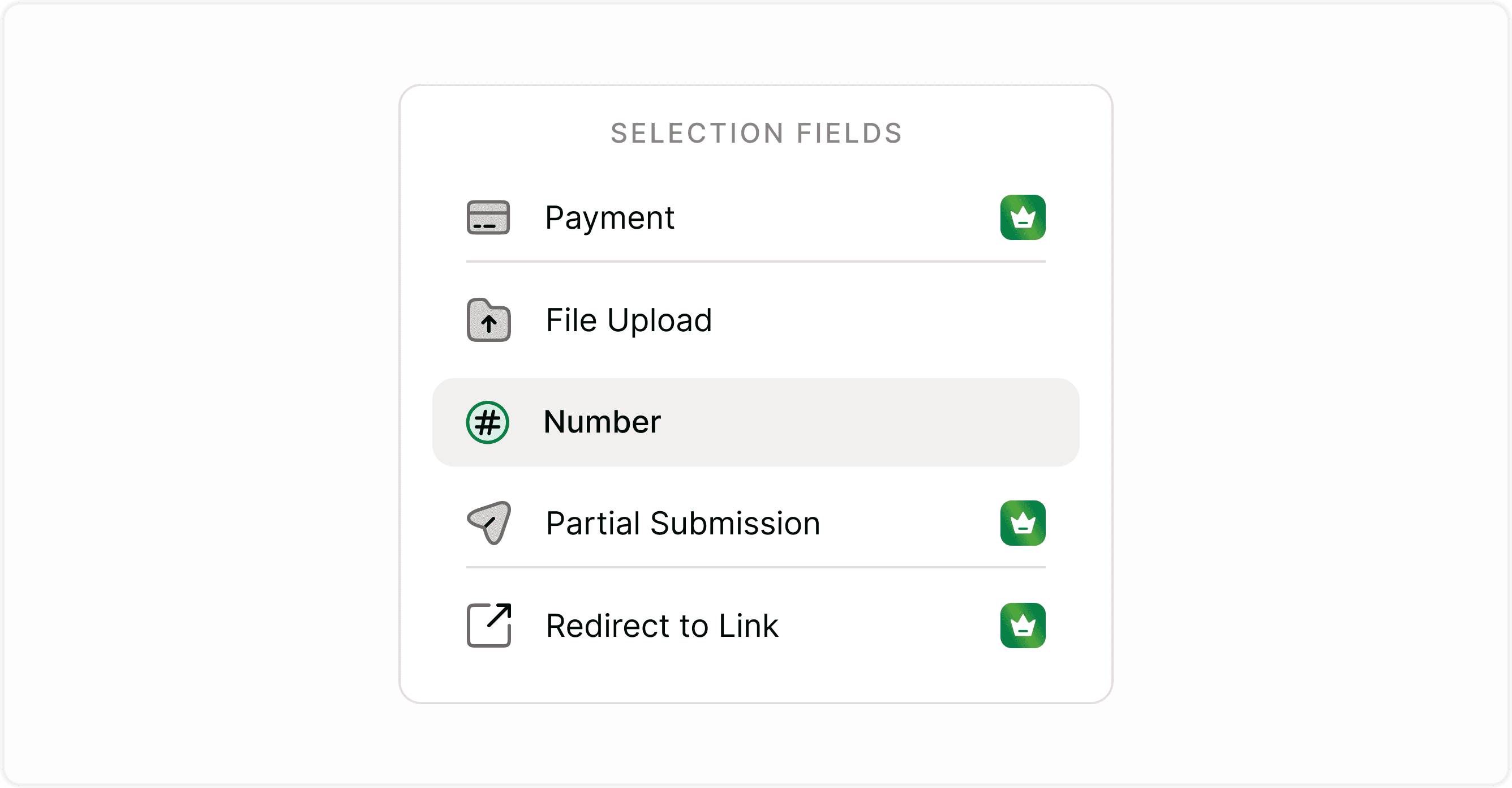
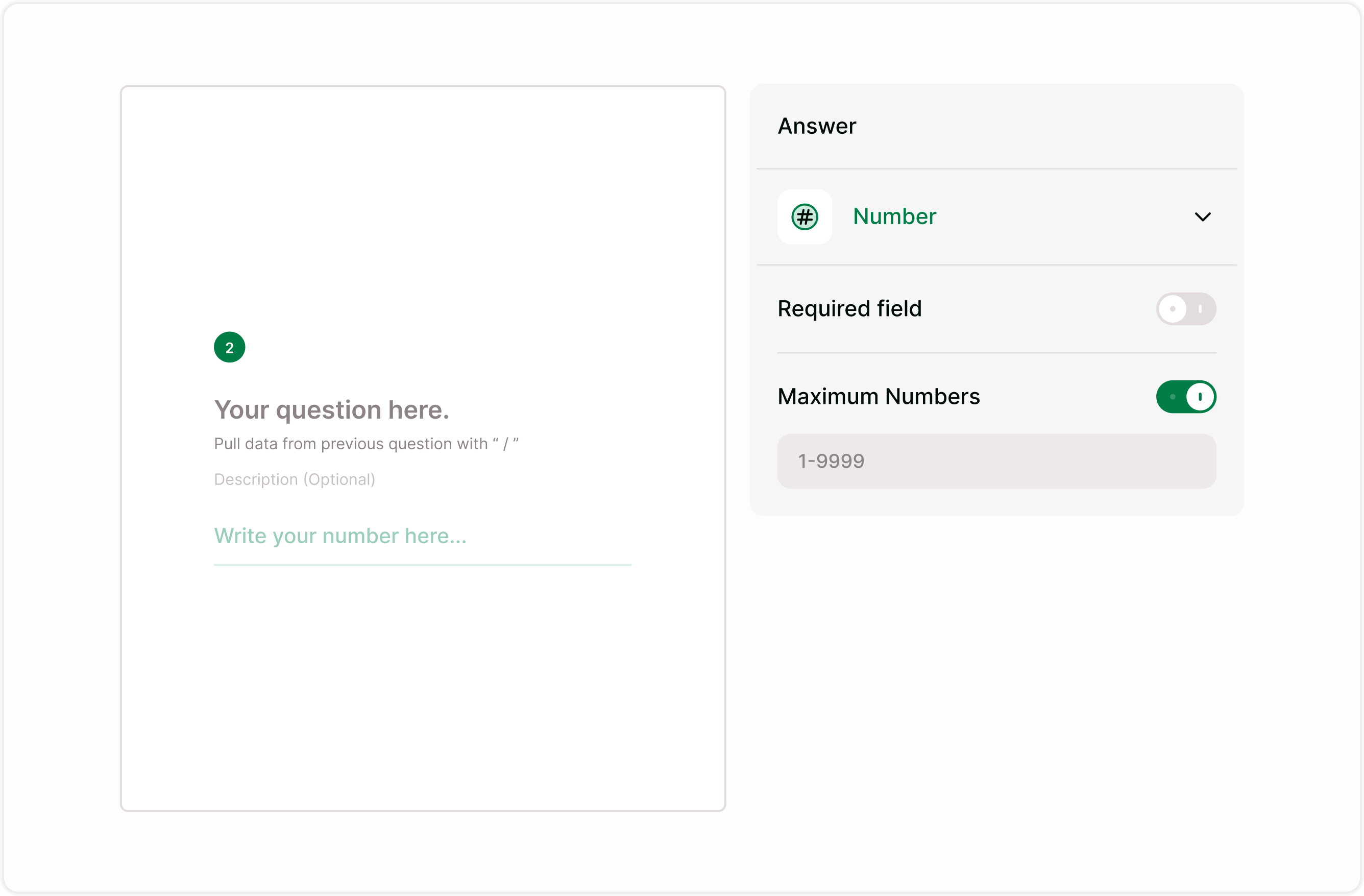
Click on the field to open its settings in the Answer panel
Respondents will see a simple numeric input box with a clear placeholder.
Configure Number field settings
Mark as Required
You can make the Number field mandatory.
When enabled:
Respondents must enter a number before proceeding
Prevents incomplete submissions
Useful for mandatory data like age, quantity, or count
Set Minimum Numbers
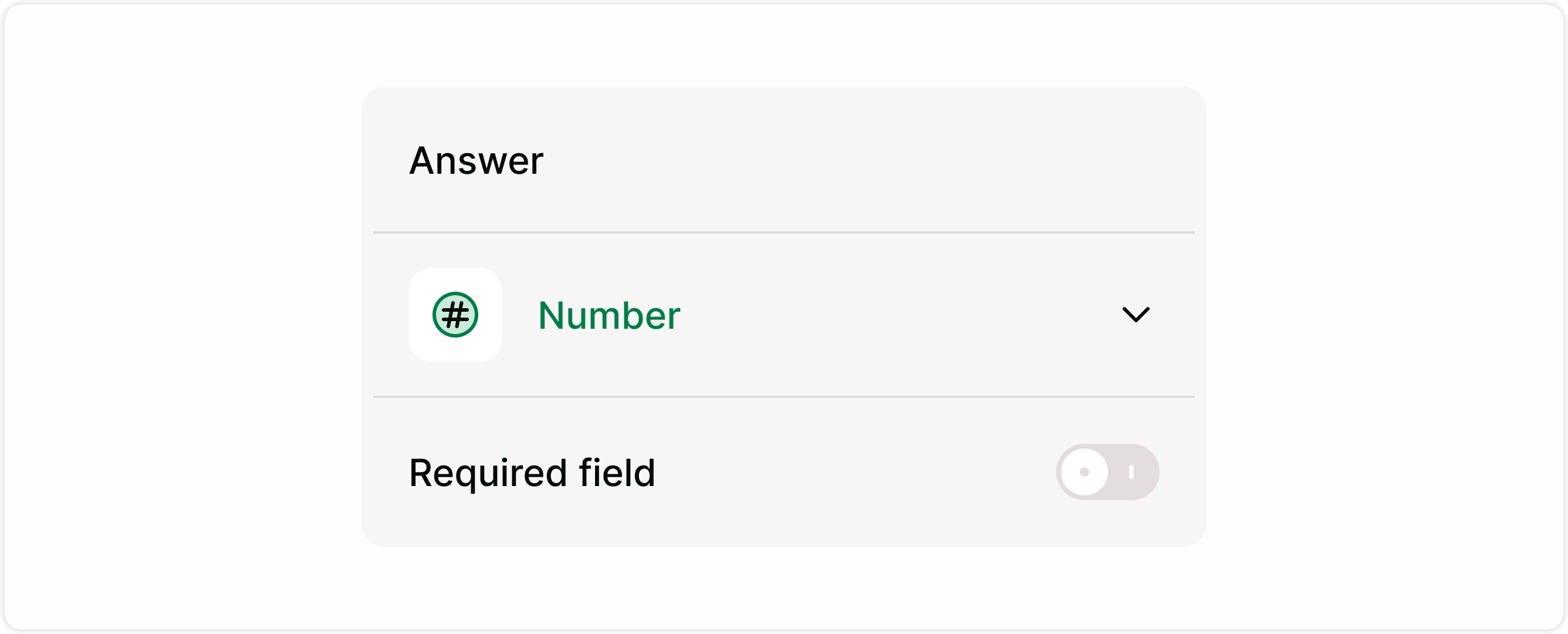
You can define the lowest allowed value.
For example:
Minimum age: 18
Minimum order quantity: 1
Minimum attendees: 2
When the minimum setting is enabled, respondents cannot enter a number lower than the defined limit.
Set Maximum Numbers
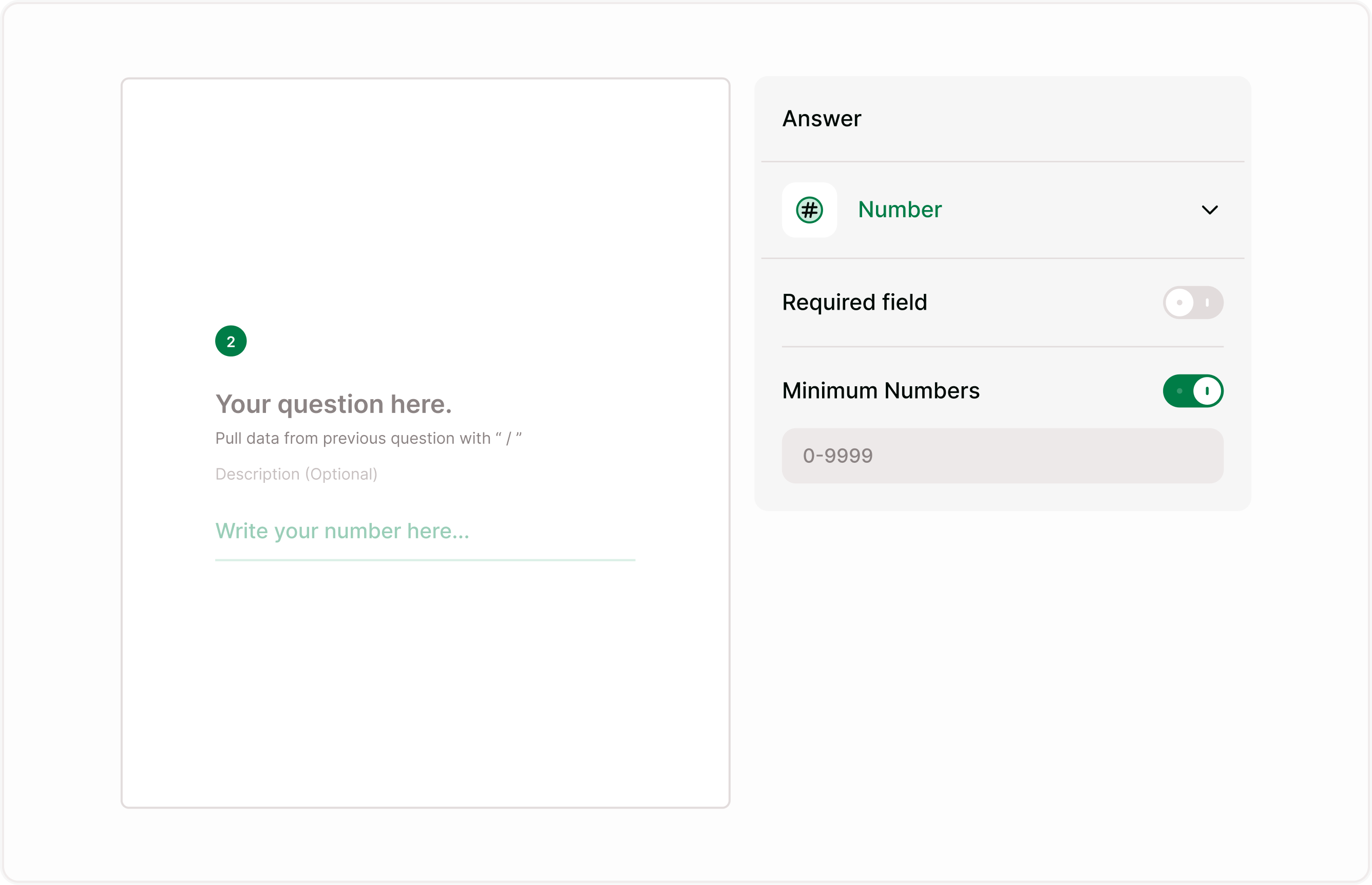
You can define the highest allowed value.
For example:
Maximum tickets per person: 5
Maximum participants: 100
Maximum years of experience: 50
When the maximum setting is enabled, respondents cannot exceed the defined upper limit.
How validation works
If a respondent:
Enters text instead of numbers
Enters a value below the minimum
Enters a value above the maximum
The form will prevent progression until a valid number is entered.
This ensures:
Cleaner data collection
Reduced manual corrections
Accurate reporting and analysis
Common use cases
Event registration
Surveys and research
Order forms
Applications
Resource allocation
Best practices
Be specific in your question
Set logical limits
Place numeric fields strategically
Combine with Logic
Summary
The Number field allows respondents to enter positive whole numbers only. You can mark the field as required and define minimum and maximum limits to control the allowed range. This guide covers setup, validation rules, supported formats, use cases, and best practices to help you collect accurate numeric data inside your forms.