How Partial Submission works
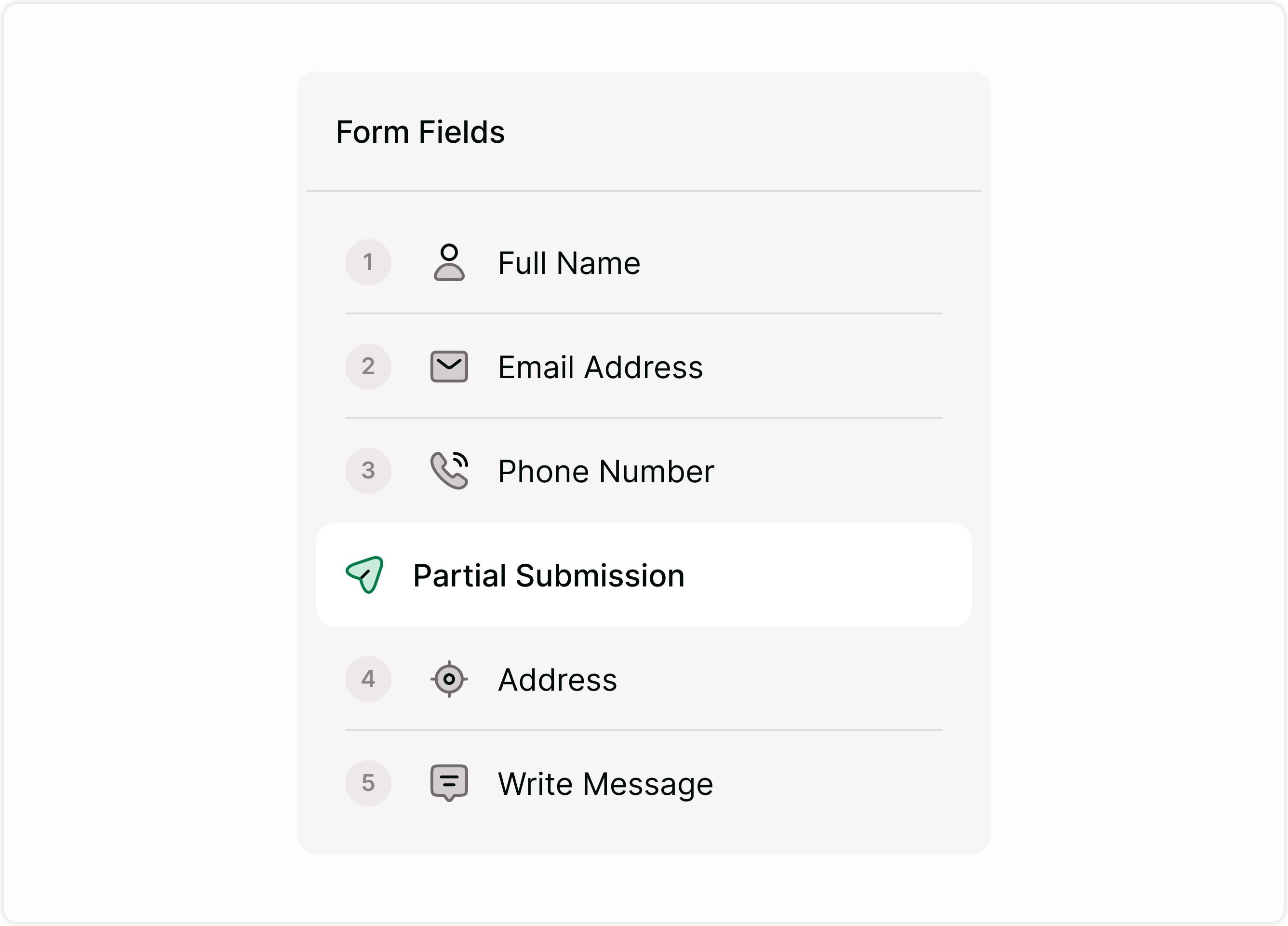
Unlike regular form fields, Partial Submission is not a question. It acts as a save checkpoint inside your form flow.
When a respondent:
Reaches the Partial Submission point
Then exits the form
Or closes the browser
Or drops off before final submission
All answers entered before that checkpoint are securely stored.
This makes it especially useful for long forms, multi-step applications, onboarding flows, or detailed surveys.
Why use Partial Submission?
Partial Submission is useful when:
Your form has many steps
You expect drop-offs
You want early-stage data
You need progressive data capture
You are running lead generation campaigns
You want to analyze abandonment points
Instead of losing incomplete responses, you gain actionable insights into user behavior.
Add a Partial Submission Field
To add a Partial Submission field:
Open your form in the builder
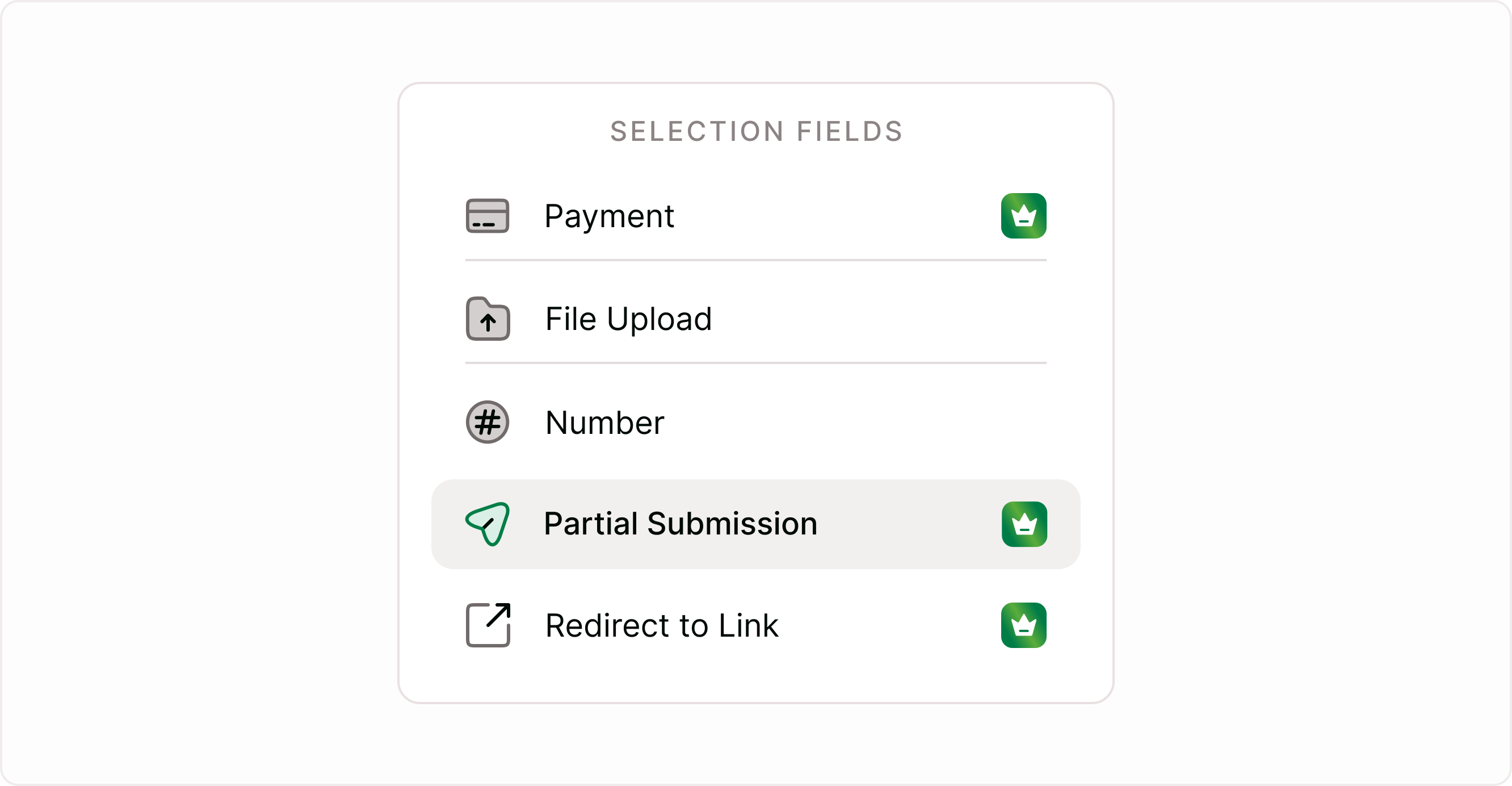
Go to the Form Fields panel
Select Partial Submission
Drag and place it after a form field
Important: Partial Submission must always be placed after a form field.
Placement rules and limitations
Partial Submission has specific placement rules to maintain logical form structure.
Before any form field
On the Welcome screen
On an Ending
After a Redirect to Link
Where no form fields exist
If a Partial Submission already exists at that position
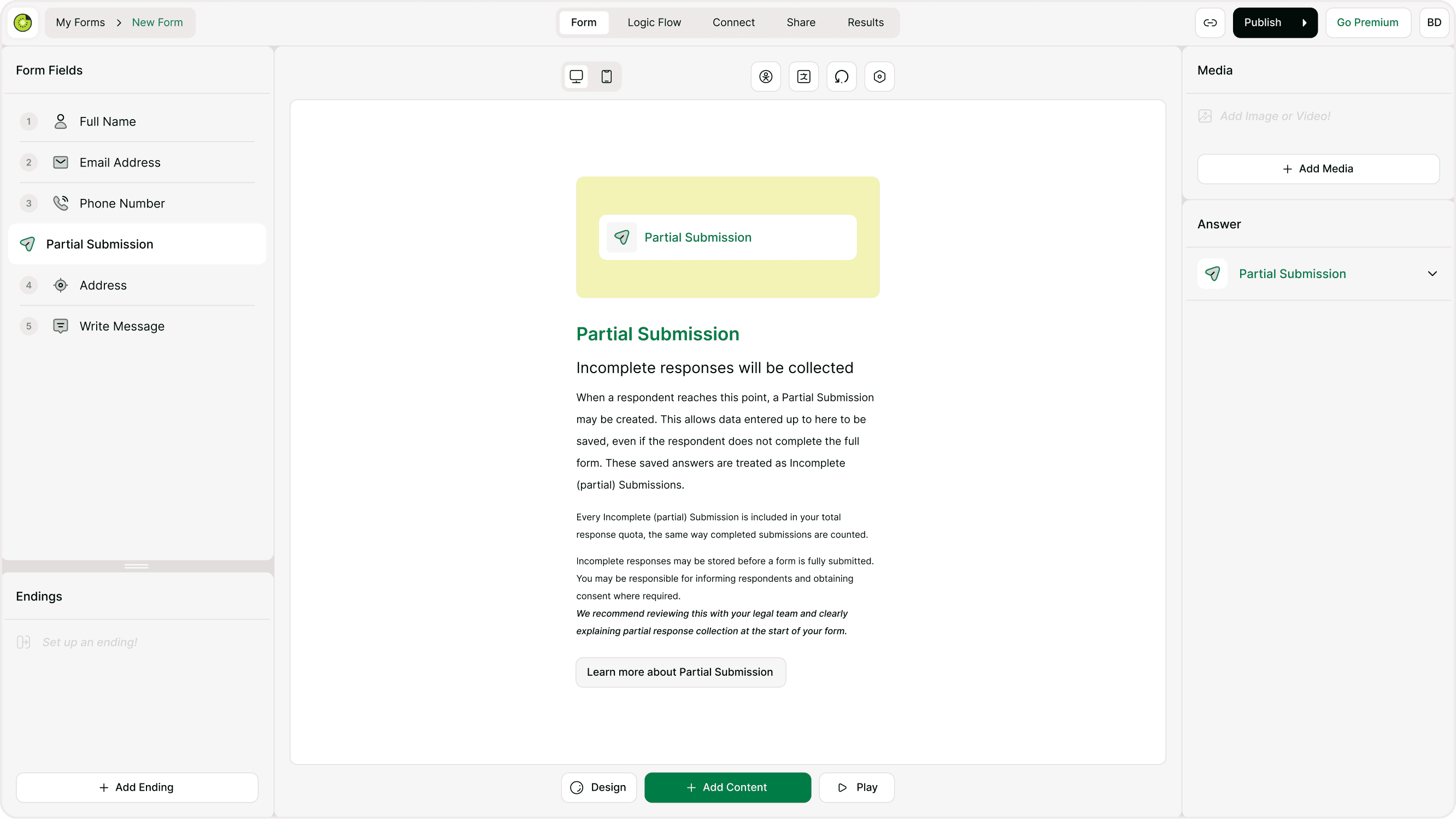
When placement is invalid, Kiwiform shows a clear alert explaining why it cannot be added.
Understanding alert messages
If you try to place Partial Submission in an unsupported location, you may see alerts such as:
Partial Submission can’t be added here.
Partial Submission can’t be added to the Welcome screen.
Partial Submission can’t be added to an Ending.
Partial Submission can’t be added after a Redirect to Link.
Partial Submission must be placed after a Form field.
Partial Submission can’t be added where no Form fields exist.
A Partial Submission already exists here.
These alerts guide you to place the checkpoint correctly in your form flow.
How Partial Submissions appear in Results
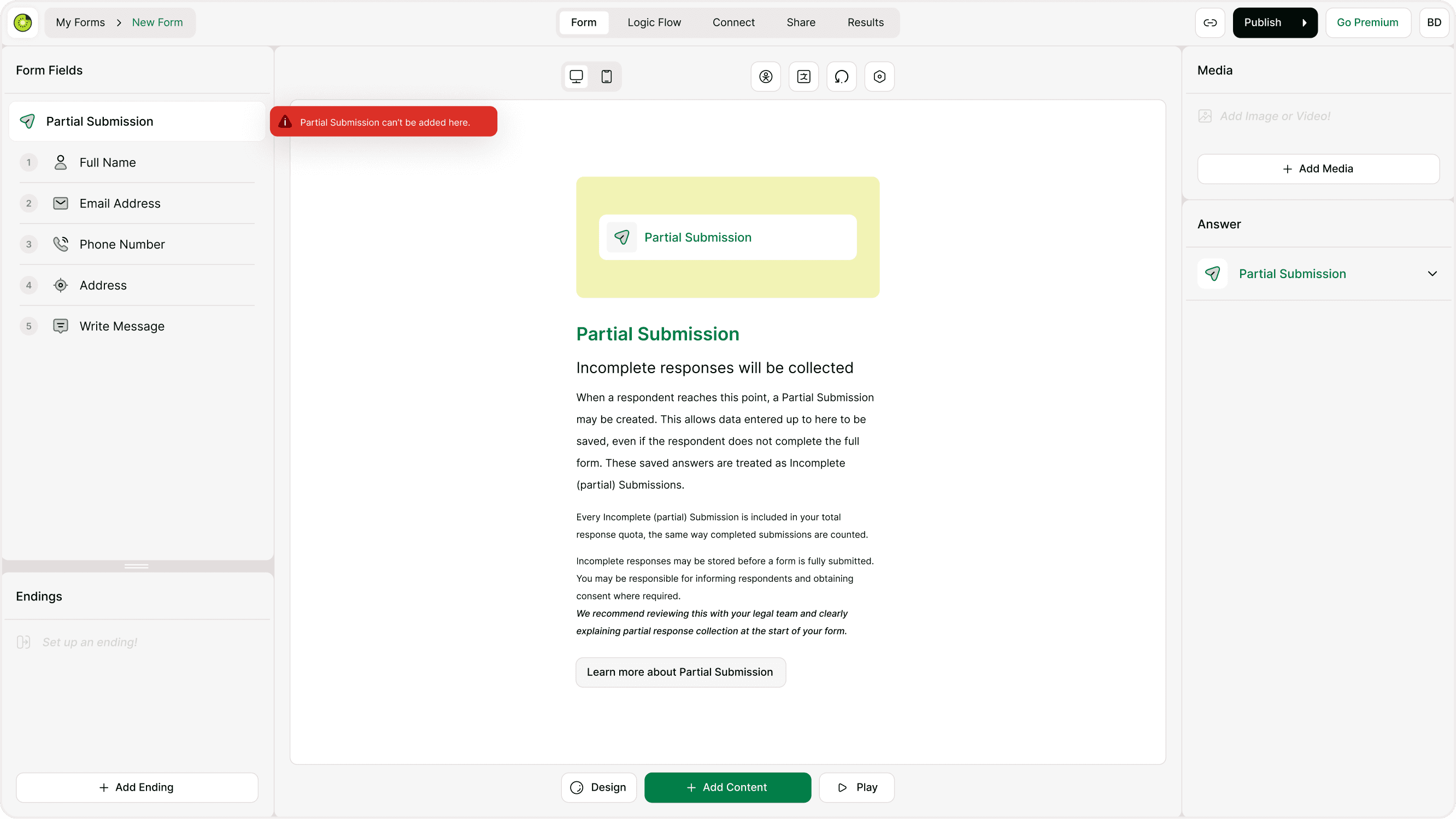
When a respondent exits after a Partial Submission point:
The response is marked as incomplete
Only fields before the checkpoint are saved
You can view these entries in Results
They count toward your response quota
This ensures transparency in reporting and analytics.
When should you use Partial Submission?
Lead generation forms
Capture early contact information before long qualification questions.
Multi-step applications
Save progress before detailed uploads or additional sections.
Research surveys
Preserve initial demographic data even if users drop off later.
Onboarding forms
Capture essential business or user information before optional sections.
Important considerations
Partial responses are stored before final submission
They count toward your response limits
You are responsible for informing respondents where legally required
Placement must follow builder rules
Review your form flow carefully to maximize response recovery without disrupting user experience.
Best practices
Place early for long forms
Place after important data
Use multiple checkpoints thoughtfully
Inform users when necessary
Summary
The Partial Submission field in Kiwiform lets you save responses before a form is fully completed. By placing a Partial Submission point after key questions, you can capture the answers entered up to that point even if a respondent exits early. These saved entries appear in your Results as incomplete responses and count toward your response total, helping you recover valuable data that would otherwise be lost.